An HP laptop that won’t turn on is usually caused by a drained or faulty battery, a bad charger, a loose power connection, or a stuck power state that a hard reset can clear. Start with the power light, try a different charger, and run a 60 second hard reset before you assume the motherboard has failed
Start Here: Quick Checks Before You Dig Deeper
Before you open the case or call support, rule out the boring stuff. Plug the charger into a different wall outlet. Try a different cable if you have one. Unplug every USB device, external monitor, and printer, since a faulty peripheral can sometimes stop a laptop from completing its power on sequence.
If the laptop was in the middle of a Windows or BIOS update when it lost power, leave it alone for five full minutes before you touch anything. Interrupting an update mid install is one of the more common reasons a laptop looks dead the next morning, and forcing a restart during that window can make the problem worse instead of better.
Check The Power Light and Charging LED First
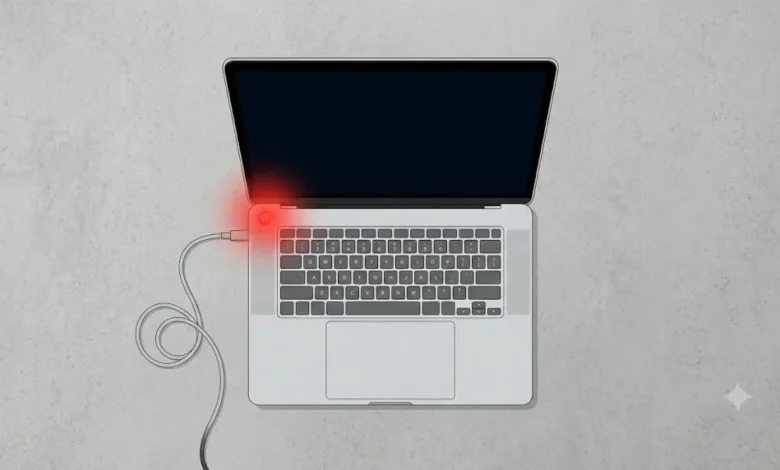
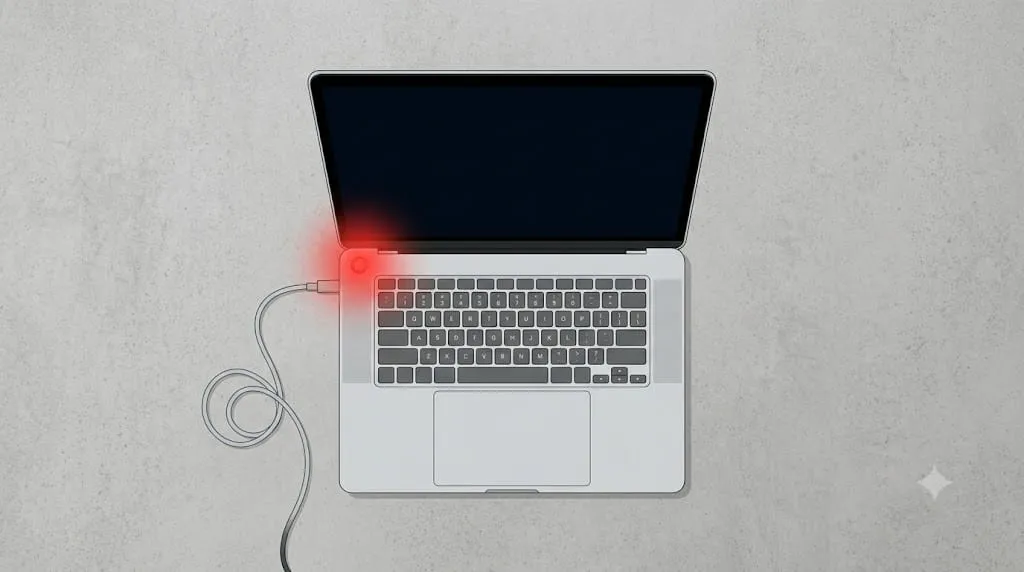
Look at two lights: the power button itself, and the small LED near the charging port. A solid white LED usually means the battery is charged and receiving power. Amber or orange usually means it’s charging but not yet full. No light at all, even with the charger plugged in and the wall outlet confirmed working, points to a charger, cable, or port problem rather than something deeper inside the laptop.
For example, one HP Pavilion owner described the power button lighting up for about ten seconds before the Caps Lock light blinked once and the screen stayed black. That specific pattern, a light that turns off again quickly paired with a blinking keyboard light, is a hardwareclue worth writing down before you contact support, since HP support staff will ask for it.
Rule Out a BaD Charger or Damaged Charging Port
Examine the charging port and the adapter cable closely. Look for bent pins, burn marks, or melted plastic around the port, and feel along the cable for hot spots or a bulge near the connector. If the LED flickers or drops out when you gently wiggle the cable where it meets the laptop, the port or the cable itself is likely the fault, not the battery or motherboard.
If you own a second charger, or can borrow one rated for the same wattage, swap it in and see if the behavior changes. A charger that shows a light on the laptop but still won’t power the system on often can’t supply enough current to start it, even though it looks like it’s working.
Test With The Battery Removed or Reseated
If your HP model has a removable battery, turn the laptop over, slide the release latches, and take the battery out. Inspect the metal contacts for corrosion or dirt, wipe them with a dry cloth, and reseat the battery firmly. Then try powering on with only the AC adapter connected and the battery still out, since this isolates whether the battery or the power circuit is at fault.
Most HP laptops sold in the last several years have a sealed, non removable battery, so this step won’t apply to every reader. In that case, skip straight to the hard reset below, which works whether or not you can physically access the battery. When the hardware checks don’t solve the issue and Windows still loads normally, you may eventually need to factory reset an HP laptop.
Try a Hard Reset to Clear Stuck Power
A hard reset discharges any residual electricity sitting in the laptop’s power circuit, which can clear a stuck state without affecting your files. Disconnect the charger, remove the battery if it’s removable, and hold the power button down for 30 to 60 seconds. Reconnect the charger, leave the battery out if you can, and try turning the laptop on again.
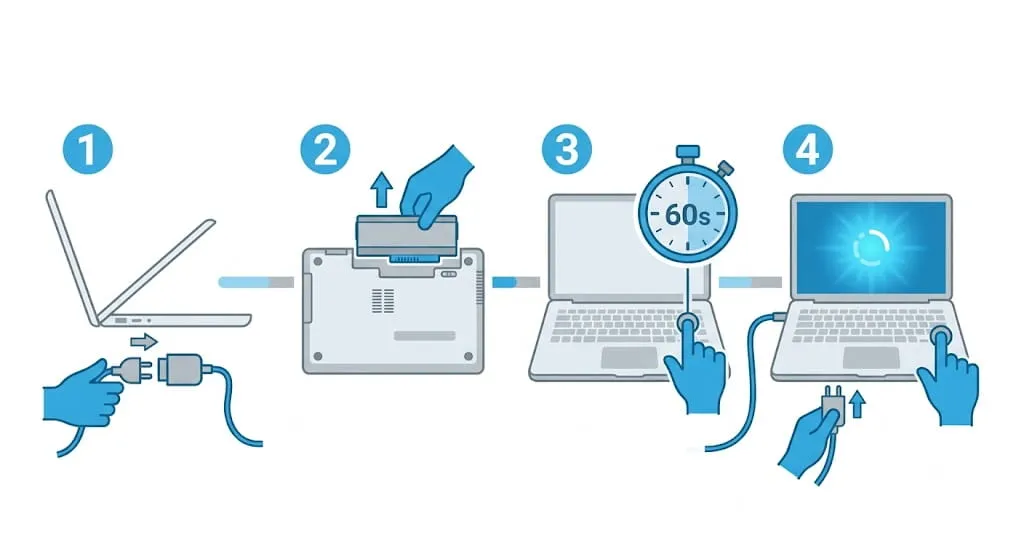
This single step resolves a large share of the “won’t turn on” reports in HP’s own support community, often after users had already tried and failed with a normal restart.
Listen for Signs the Laptop is powering on with a black screen
Some HP laptops power on but the screen stays completely black, which is a display problem rather than a power problem. Listen closely for a fan spinning up or a drive clicking or humming. Try the brightness keys, usually Fn plus F2 or F3, in case brightness was set to zero before the last shutdown.
Connect an external monitor to test The display
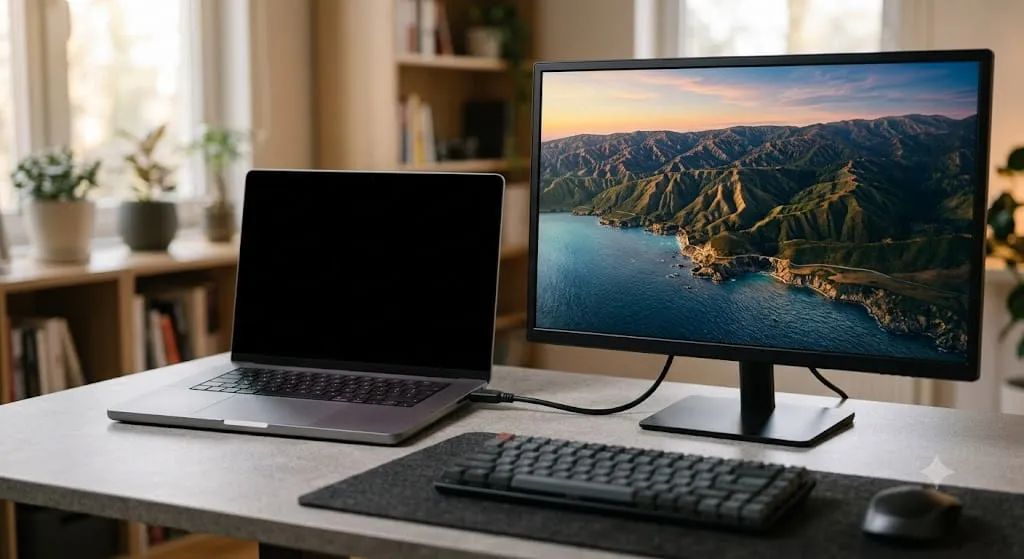
Plug an HDMI or VGA cable into an external monitor and switch the laptop’s display output, often with Fn plus F4. If the external screen shows an image, the built in panel or its cable has failed, and the fix is a screen replacement rather than a motherboard repair. If neither screen shows anything, the problem is more likely graphics related or deeper in the system.
Use HP PC Hardware Diagnostics To Isolate the Problem
If the laptop does power on, HP’s built in diagnostics tool can test the battery and adapter directly. Search Windows for HP PC Hardware Diagnostics, open it, select Device Check, then the Power menu, then Battery Check, and run the test. A pass means the battery itself is fine and the fault lies elsewhere; a fail gives you a specific error code to hand to HP support.
If the laptop won’t boot into Windows at all, turn it off completely, press the power button, and tap F2 repeatedly until the diagnostics menu loads outside of Windows.
Try a BIOS Recovery if The Laptop Still Won’t Respond
Some power problems trace back to a corrupted BIOS rather than the battery or charger. With the laptop off and the charger connected, hold Windows plus B, then press and release the power button while still holding those keys. The screen may stay black for up to 40 seconds while the recovery runs, and you may hear beeping before the HP BIOS update screen appears.
When Blinking Lights Point to a Hardware Failure
If the Caps Lock or Tab key blinks in a repeating pattern instead of staying solid, count the blinks and any pauses between them. HP uses these patterns to signal specific hardware faults, and the exact meaning varies by model and generation, so check your model’s own HP support page rather than assume one pattern means the same thing across every laptop.
When to Call HP Support or a Repair Shop
Contact HP directly if the diagnostics report a failed battery or adapter, if you see physical damage to the port or cable, or if none of the steps above changes anything after real attempts. Have your model number, serial number, and any error or blink codes ready, since that shortens the call significantly.
How to Avoid This Next Time
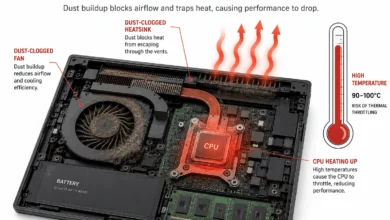
Avoid letting the battery drain to zero repeatedly, keep the vents clear of dust so the internal temperature stays reasonable, and use the charger that came with the laptop or one rated for the same wattage. Unplugging peripherals before a shutdown, rather than after, also reduces the odds of the laptop getting stuck mid boot the next time you press the power button.
FAQ’S
1:Why is my HP laptop not turning on but charging?
A white or amber charging light with no response from the power button usually means the charger is delivering power but the laptop itself is stuck. Try a hard reset first: disconnect the charger, hold the power button for 30 to 60 seconds, then plug back in and try again.
2:Why does my HP laptop light up but the screen stays black?
This points to a display issue rather than a power issue. Listen for a fan or drive spinning, try the brightness function keys, and connect an external monitor to see if the image appears there instead.
3:What does a blinking Caps Lock light mean on an HP laptop?
It’s a hardware blink code, and HP uses different patterns for different faults depending on the model. Count the blinks and check your specific model’s HP support page rather than assume a fixed meaning.
4:How long should I hold the power button for a hard reset?
Hold it for 30 to 60 seconds with the charger and battery both disconnected, then reconnect the charger and try turning the laptop on.
5:Can a bad charger really stop a laptop from turning on at all?
Yes. A charger can show a light on the laptop while still failing to supply enough current to start the system, which looks identical to a dead battery from the outside.