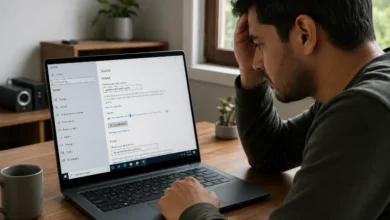
A slow laptop usually comes down to one of five things: too little RAM, a nearly full storage drive, too many background programs, overheating, or malware. Check Task Manager first to see what’s actually using your CPU, memory, and disk, then fix the specific bottleneck instead of guessing.
Check What’s Actually Slowing Your Laptop Down First
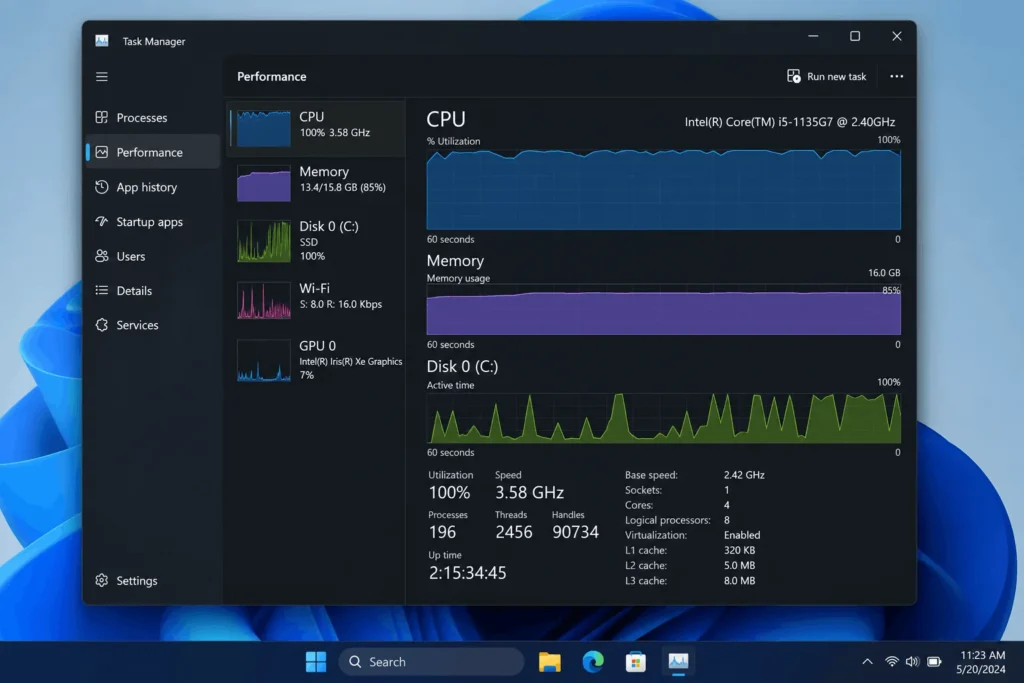
Before you try any fix, open Task Manager (Ctrl+Shift+Esc on Windows) and look at the Performance tab. If CPU usage sits near 100% with nothing open, something in the background is the problem. If memory usage is consistently above 80%, you likely need more RAM or fewer programs running at once. If the disk shows 100% activity even when idle, that’s often a dying hard drive or a scan running in the background.
This five-minute check tells you which of the following sections actually applies to your laptop, instead of working through every fix on the list.
Not Enough RAM for What You’re Running
Every open program, browser tab, and background app claims a share of your laptop’s RAM. Once that runs out, Windows starts swapping data to your hard drive as virtual memory, and that process is far slower than RAM itself. This is one of the most common reasons a laptop that felt fine a year ago now struggles with the same tasks.
An 8GB laptop can handle basic browsing and office work, but it strains once you add video calls, multiple browser tabs, and a background sync tool like OneDrive or Dropbox at the same time. If Task Manager shows memory usage pinned near capacity, either close unused programs or look at upgrading to 16GB, which is now the practical minimum for multitasking.
A Storage Drive That’s Full or Still Using a Hard Disk
Your hard drive needs a decent chunk of free space to manage temporary files and virtual memory. Most guidance settles around 10 to 20 percent free space as the point where performance starts to visibly drop. Below that, everything from opening apps to saving files takes longer.
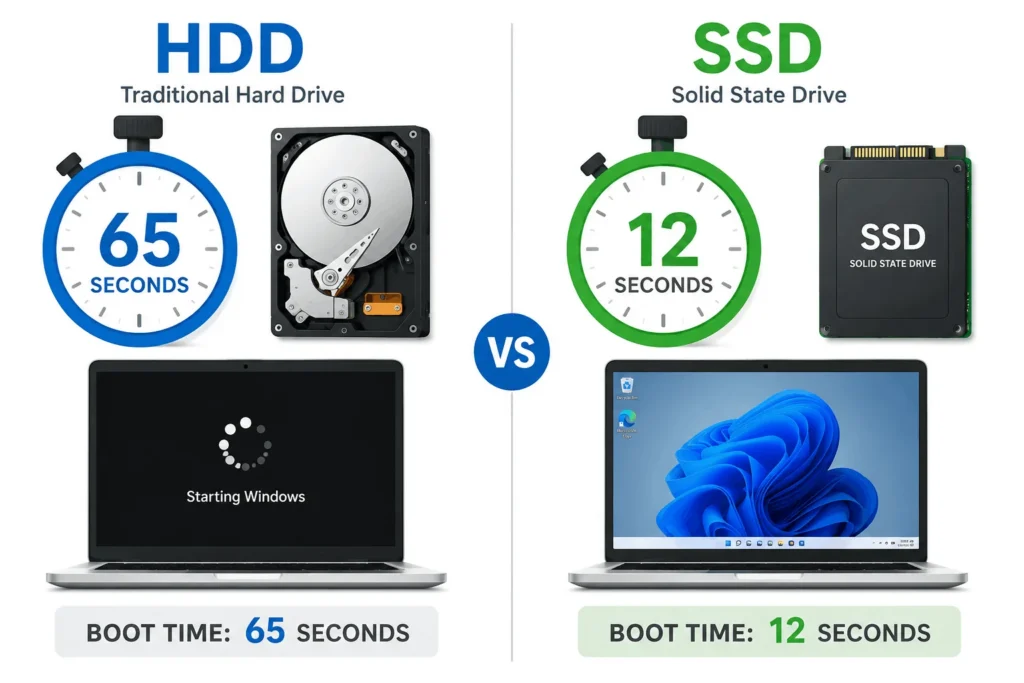
If your laptop still runs on a traditional HDD instead of an SSD, that’s a bigger factor than free space alone. HDDs read and write data mechanically, which makes them dramatically slower than solid-state drives at loading programs and booting up. Swapping an HDD for an SSD is one of the few upgrades that makes an older laptop feel genuinely new again, often cutting boot times from over a minute down to 10 to 15 seconds.
1. How to Check Your Storage in Windows
Go to Settings, then System, then Storage, to see how much space is used and by what. Windows also includes Storage Sense, which automatically clears temporary files and empties the recycle bin on a schedule you set.
Too Many Programs Starting Up with Windows
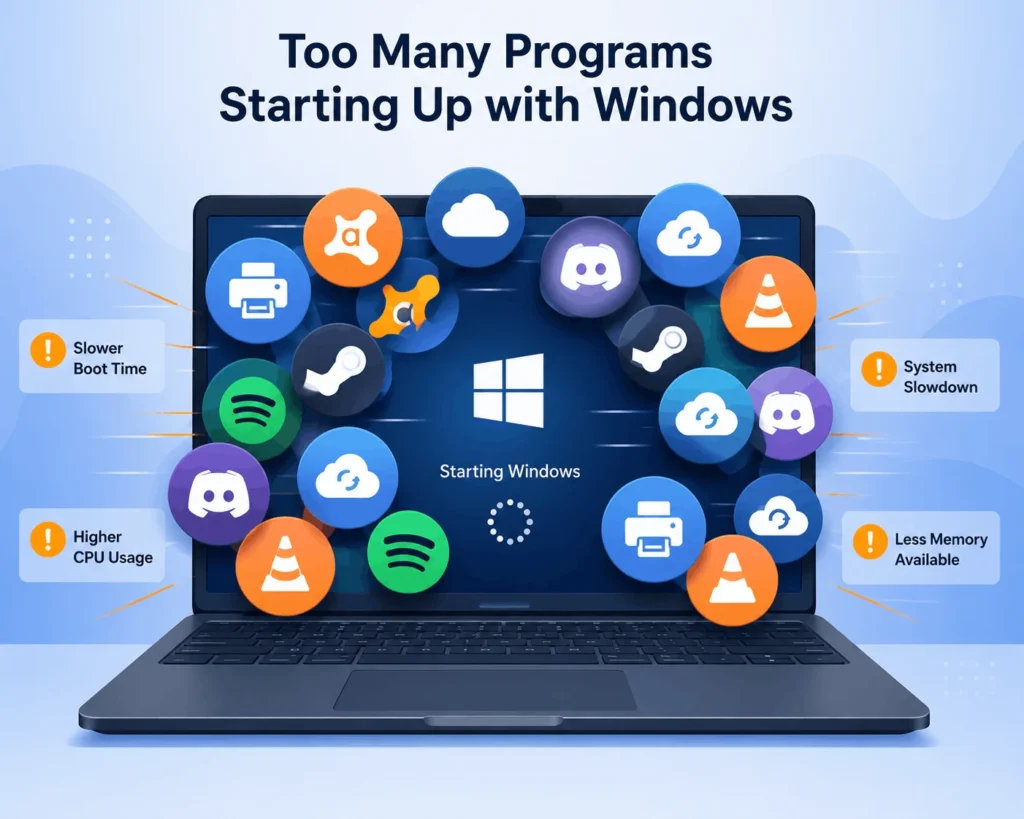
Every program you install adds itself to your startup list unless you tell it not to. Over months, this adds up to a dozen or more apps competing to load the moment you turn your laptop on, which explains why boot time creeps up even though you didn’t change anything major.
Open Task Manager and click the Startup apps tab. Windows rates each one by its impact on boot time. Disable anything you don’t need running constantly, like a printer utility or a game launcher, while leaving your antivirus and any driver-related tools alone.
Background Processes and Bloatware Eating Resources
Antivirus scans, cloud sync tools, and update checkers all run quietly in the background, and most people never notice until several of them overlap at once. Pre-installed bloatware from the manufacturer adds to this, since some of it runs services you’ll never use.
Check the Processes tab in Task Manager, sorted by CPU or memory, to see what’s actually running right now. Uninstall trial software and manufacturer add-ons you don’t use, and consider switching to Windows’ built-in Defender if you’re running a heavier third-party antivirus suite that scans constantly.
Overheating and Thermal Throttling
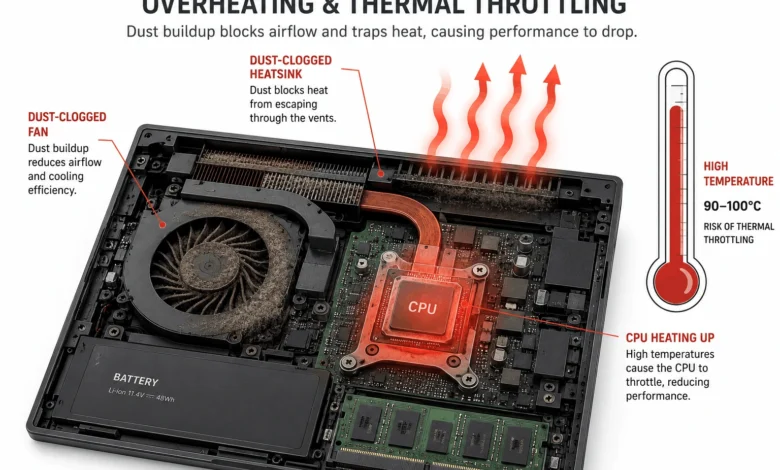
When a laptop’s internal temperature climbs too high, the CPU deliberately slows itself down to avoid damage. This is called thermal throttling, and it’s a common cause of a laptop that runs fine for ten minutes, then noticeably slows during longer tasks like video editing or gaming.
Dust buildup in the fan and heat sink is usually the culprit, especially in laptops that are a few years old and have never been cleaned. A can of compressed air through the vents, or a laptop cooling pad for anyone who games or edits video regularly, can bring temperatures back down. If your laptop is hot to the touch and the fan runs constantly even during light use, that’s a sign the cooling system needs attention rather than a software fix. A related cause worth checking is laptop overheating, especially when performance drops after several minutes of use
Malware or an Outdated Operating System
Malicious software runs in the background just like any other process, except it’s designed to hide from casual inspection while it consumes CPU cycles, memory, or your internet connection. A sudden, unexplained slowdown paired with pop-ups, redirected browser searches, or programs you don’t remember installing points toward malware rather than normal wear.
Running a full scan with Windows Defender or a reputable antivirus tool is the first step. Separately, an outdated operating system misses performance optimizations and security patches that newer updates include, so check Settings, then Windows Update, and install anything pending.
Your Laptop’s Hardware is Simply Aging Out
Software demands grow every year, and a laptop’s processor and RAM don’t. A four or five-year-old laptop that once ran modern software comfortably can genuinely struggle against today’s browser tabs, apps, and operating system updates, not because anything broke, but because the hardware ceiling hasn’t moved.
If you’ve worked through RAM, storage, background processes, overheating, and malware, and the slowdown persists across every task, an SSD upgrade or a RAM increase (if your model supports it) is usually cheaper than replacing the whole laptop, and worth trying first.
A Quick Order to Work Through These Fixes
Start with Task Manager to identify the actual bottleneck. Free up storage and consider an SSD if you’re still on an HDD. Trim your startup programs and background processes. Clean out dust and check for overheating. Run a malware scan and update your operating system. If all of that is done and the laptop is still slow, hardware age is likely the real limit. Heat can also become the hidden bottleneck behind poor performance, so laptop overheating is worth checking when the usual fixes don’t help.
FAQ’S
1. Why is my laptop suddenly so slow when it was fine before?
A sudden slowdown, rather than a gradual one, usually points to malware, a Windows update running in the background, or a nearly full storage drive rather than aging hardware. Check Task Manager for unusual CPU or disk activity first.
2. Does closing browser tabs actually speed up a laptop?
Yes. Each open tab holds its own chunk of memory, and browsers with several extensions running add to that load. Closing unused tabs and disabling extensions you don’t need frees up RAM immediately.
3. Will more RAM fix a slow laptop?
It helps significantly if Task Manager shows memory usage consistently near full, especially during multitasking. It won’t help if the bottleneck is actually storage speed, overheating, or malware, which is why checking Task Manager first matters.
4. Is it worth upgrading an old laptop instead of buying a new one?
An SSD swap or RAM upgrade often costs a fraction of a new laptop and can noticeably improve an aging machine, provided the model supports it and the rest of the hardware, like the processor, still meets your needs.
5. How much free storage space should a laptop keep for good performance?
Aim to keep at least 10 to 20 percent of your drive free. Below that threshold, the operating system has less room to manage temporary files and virtual memory efficiently, which slows everyday tasks.