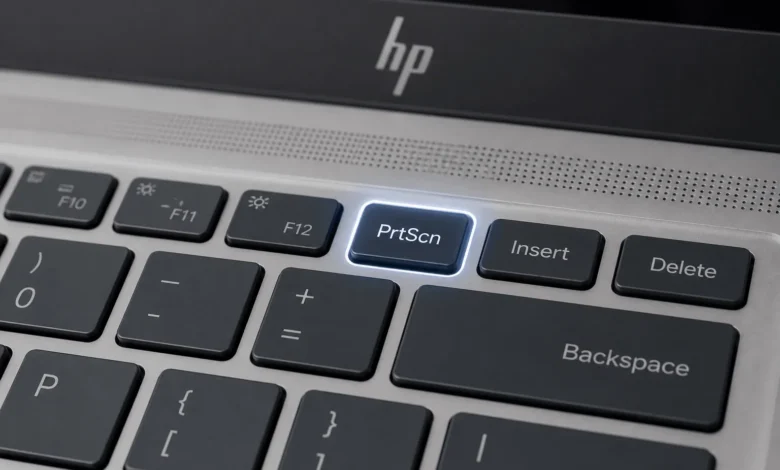
The fastest way to screenshot on an HP laptop is pressing Windows key + PrtScn, which saves a full-screen image straight to the Pictures > Screenshots folder. For a cropped or partial capture, Windows key + Shift + S opens Snip & Sketch, letting you drag over the exact area you want.
Capture the Full Screen With Print Screen
Every HP laptop keyboard has a Print Screen key, usually labeled PrtScn or PrtSc, in the top row near the right edge. Pressing it alone copies the whole screen to the clipboard without saving a file, so you then need to open Paint, Word, or another editor and press Ctrl + V to paste it in.
Add the Windows key to the mix and HP skips that extra step. Windows key + PrtScn dims the screen for a moment and drops a PNG file directly into Pictures, then Screenshots, no pasting required. This is the version worth memorizing if you take screenshots often.
1. When Print Screen Alone Does Nothing
On several HP laptop models, PrtScn shares a key with another function, and the laptop needs the Fn key held down at the same time. Try Fn + PrtScn, or Fn + Windows + PrtScn for the auto-save version, before assuming the key is broken.
Capture a Specific Area With Windows Key Shift S
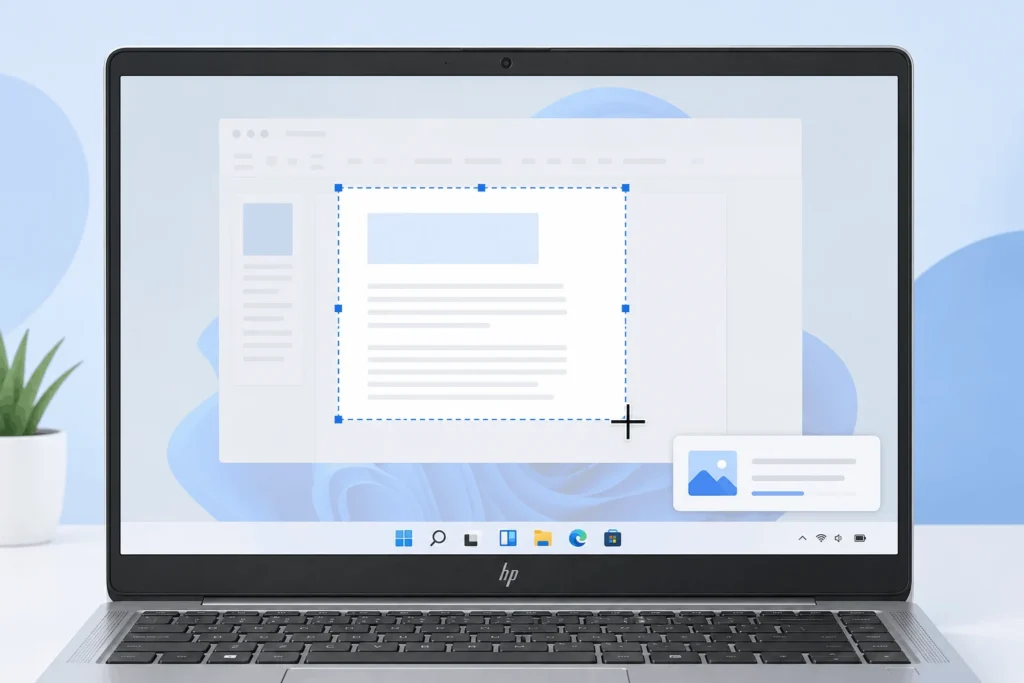
Windows key + Shift + S is the shortcut most people reach for once they’ve used it a few times. The screen fades to a soft white overlay, the cursor turns into a crosshair, and you drag a box around only the part of the screen you need, whether that’s one paragraph of a document or a corner of a spreadsheet.
The captured image goes to the clipboard, and a small notification pops up in the corner. Click that notification within a few seconds and it opens directly in the Snip & Sketch editor, where you can crop further, draw an arrow, or add a highlight before saving it as a PNG or JPG.
Capture Only the Active Window
Alt + PrtScn grabs just the window you’re currently working in, skipping the taskbar and anything else open behind it. This is useful when you want to share one app’s window in an email or a support ticket without cropping out the rest of the desktop afterward. Like the plain PrtScn shortcut, it copies to the clipboard only, so you paste it into an editor to save it as a file.
Use the Snipping Tool for More Control
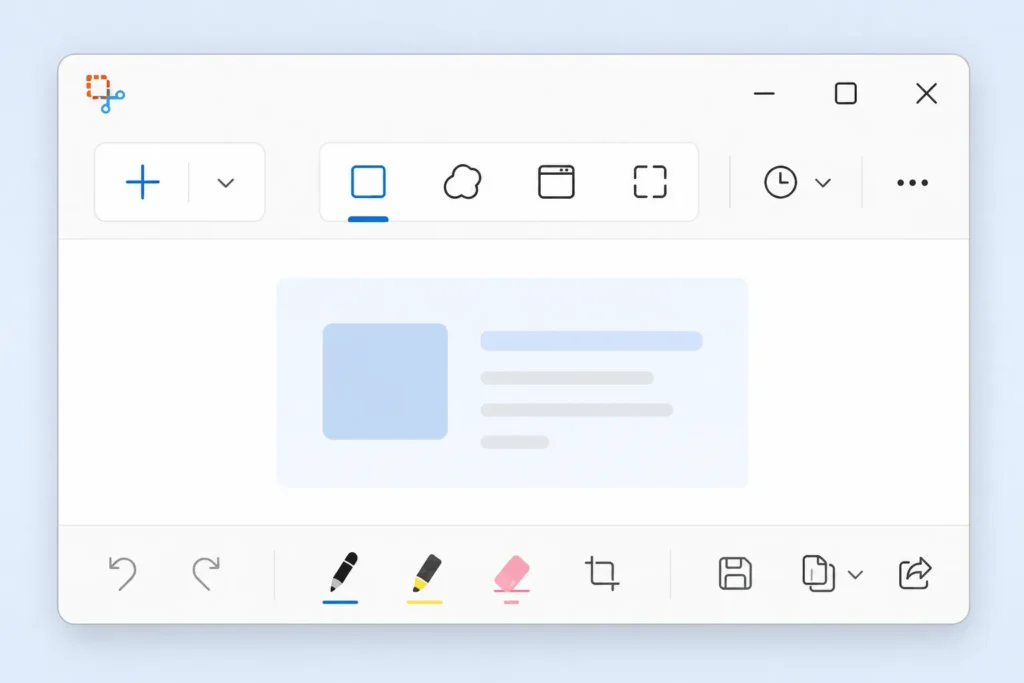
Search for Snipping Tool from the Start menu and it opens a small window with a New button and a mode selector. HP laptops on Windows 10 and Windows 11 both ship with this app pre-installed, so no download is needed. Choose between a rectangular snip, a free-form snip that follows your mouse in any shape, a full-screen snip, or a window snip, then click New and drag over the area.
Once captured, the Snipping Tool opens its own edit window with a pen, highlighter, and eraser built in, and a save icon that lets you pick the file location and format directly, which makes it a better fit than Print Screen for anyone documenting a step-by-step process across several screenshots in a row.
Record Gameplay and App Screenshots With Game Bar
Windows key + G opens the Xbox Game Bar, built into Windows 10 and 11 on every HP laptop. It’s aimed at games and full-screen apps, and clicking the camera icon in the Capture panel saves a screenshot straight to Videos, then Captures, a different folder from the one Print Screen uses. Game Bar also works for recording short video clips of the same window, which the other methods here can’t do.
Where HP Saves your Screenshots By Default
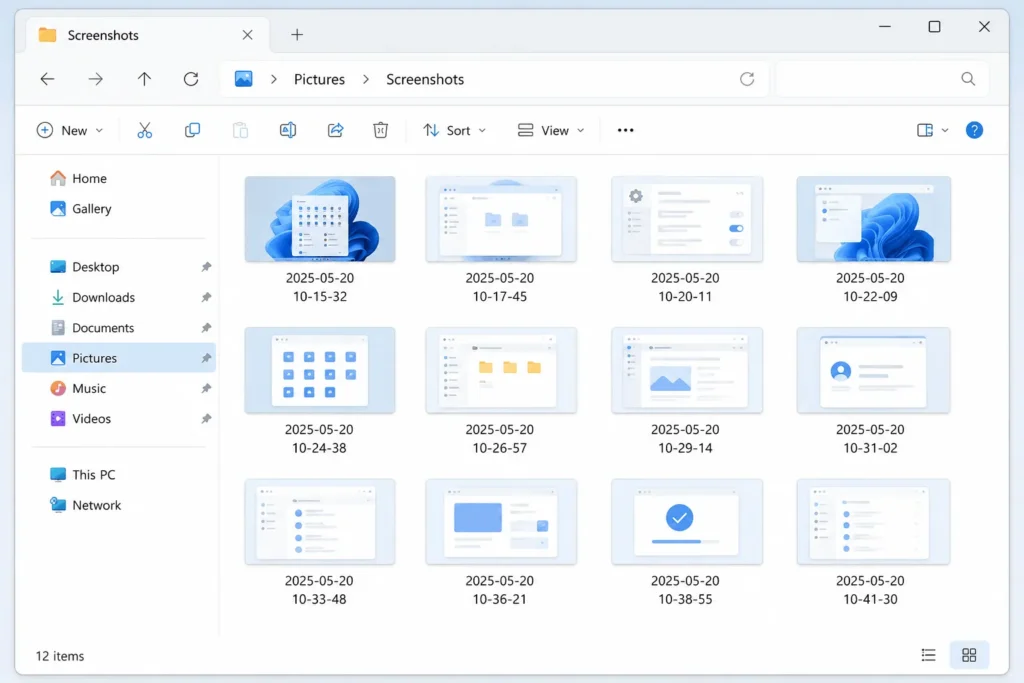
Windows key + PrtScn and Windows key + Shift + S both route full or partial captures into the Pictures folder under a Screenshots subfolder, sorted by the date and time of capture. Game Bar captures land in Videos, then Captures, instead. Anything grabbed with plain PrtScn or Alt + PrtScn only exists on the clipboard until you paste and save it yourself, so it won’t appear in either folder unless you do that step.
Fixing Common HP Screenshot Problems
1. Newer HP Keyboards Without a Separate Print Screen Key
Some newer HP Envy and Spectre keyboard layouts combine Print Screen with the right Shift key to save space, a change HP introduced on select models in recent years. On these keyboards, Fn + right Shift takes the place of a standalone PrtScn key, and the regular Windows + PrtScn combination may need Fn added in as a third key depending on the exact model.
2. The Print Screen Key Does not Respond at All
If none of the shortcuts above produce anything, check Windows Settings, then Accessibility, then Keyboard, and confirm the Print Screen shortcut toggle for Snip & Sketch is switched on. Updating the keyboard driver through HP Support Assistant or the HP Support website can also resolve a key that stopped registering after a Windows update.
Taking a Screenshot on an HP Laptop Running Chrome OS
HP also sells Chromebooks, and the screenshot method there is different from Windows. Press Ctrl + Show Windows, the key that looks like a rectangle with two lines next to it, to capture the full screen, or press Ctrl + Shift + Show Windows to select a partial area. Chrome OS saves both straight to the Downloads folder and shows a thumbnail in the corner for a quick edit.
Screenshotting a Webpage Inside Microsoft Edge
Since a lot of HP laptop screenshots are of a browser window, Edge has its own built-in tool. Click the three-dot menu, choose Web capture, then pick capture area or capture full page. Full page is worth knowing about specifically because it scrolls and stitches an entire webpage into one image, something none of the Windows-wide shortcuts can do on their own.
Getting comfortable with two or three of these methods, rather than memorizing all of them, covers almost every screenshot situation an HP laptop owner runs into day to day.
FAQ’S HP laptop screenshot questions people ask
1. Why doesn’t my HP laptop have a Print Screen key?
Some slimmer HP keyboards combine Print Screen with another key, most often the right Shift key, to save space. Pressing Fn along with that key usually restores the Print Screen function.
2. Where do HP laptop screenshots get saved automatically?
Windows + PrtScn and Windows + Shift + S save into the Pictures folder, inside a Screenshots subfolder. Game Bar captures save separately, into Videos, then Captures.
3. How do I screenshot only part of my HP laptop screen?
Press Windows key + Shift + S, then drag a box around the area you want. Click the notification that appears afterward to open and edit it in Snip & Sketch before saving.
4. Why does my HP laptop screenshot only copy to the clipboard instead of saving a file?
Plain PrtScn and Alt + PrtScn only copy to the clipboard by design. Paste the image into Paint, Word, or another editor with Ctrl + V, then save it as a file from there.
5. Does the screenshot method change between Windows 10 and Windows 11 on HP laptops?
The core shortcuts, Print Screen, Windows + Shift + S, and the Snipping Tool, work the same way on both versions. Windows 11 opens screenshots directly for markup slightly faster after the notification click, but the keys themselves haven’t changed.