
If you have ever caught someone in a moving car staring at a phone screen covered in small dancing dots, you were not imagining it. That pattern is a real iPhone feature called Vehicle Motion Cues, and it exists specifically to fight motion sickness. The setting sat buried in the Accessibility menu for months before people started noticing it on subways, buses, and long road trips, and asking what it actually does.
This guide explains what the motion sickness dots on iPhone are, the science behind why they work, exactly how to turn them on, and what to do if they do not solve your nausea on their own.
What Are the Moving Dots on Your iPhone Screen
The dots are part of a feature called Vehicle Motion Cues, which Apple built into iOS 18. When it is switched on, small gray dots appear along the outer edges of your screen. As your car, bus, or train accelerates, brakes, or turns, the dots shift and bounce in sync with that motion.
The effect looks strange at first, almost like a glitch. But it is deliberate. Your iPhone uses its built-in accelerometer, the same sensor that detects when you rotate the phone or shake it, to read the vehicle’s movement in real time. It then converts that movement into a visual pattern your eyes can track while you keep reading, scrolling, or watching something else on the rest of the screen.
How Vehicle Motion Cues Actually Reduce Nausea
Motion sickness dots iphone users rely on are not a gimmick borrowed from a wellness trend. The idea is grounded in how the body actually processes movement, and Apple built the feature around a long-standing explanation for why phones make people carsick in the first place.
The Sensory Conflict Theory Behind Motion Sickness
The most widely accepted explanation for motion sickness is called sensory conflict theory. Your inner ear, which controls balance, feels the car accelerating, braking, and turning. But if your eyes are locked onto a stationary phone screen, they report that nothing is moving at all. Your brain receives two contradicting signals at once, and that mismatch is what triggers the nausea, dizziness, and cold sweat that define motion sickness.
Passengers get sick far more often than drivers for this exact reason. A driver constantly looks up at the road ahead, watching the world move past the windshield, so their eyes and inner ear agree. A passenger buried in a phone gets no such visual confirmation.
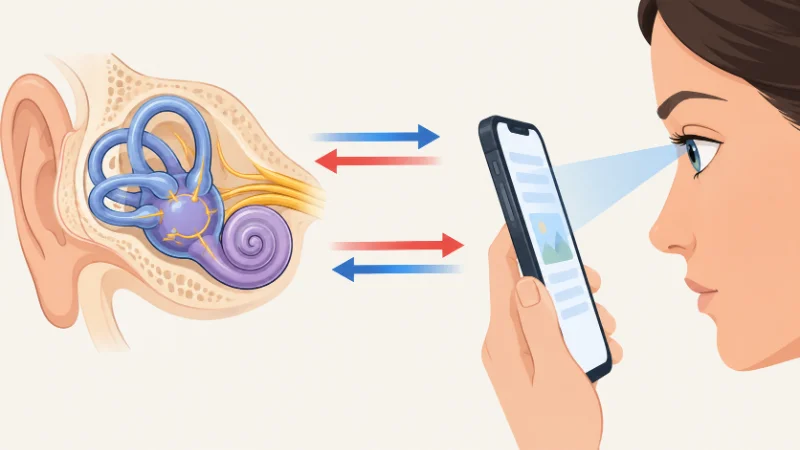
Vehicle Motion Cues works by giving your eyes a small dose of that missing information. The dots do not need to show the whole road. They only need to move in a way that roughly matches what your inner ear is already feeling, which helps close the gap between the two signals. Vestibular researchers who study balance and motion have noted that visual feedback tied to real movement can ease symptoms for some people, even when that feedback is abstract rather than a full view of the outside world.
How to Turn On Motion Sickness Dots on Your iPhone
Enabling the feature takes less than a minute, and you do not need any special apps or an internet connection. Here is the exact path.
- Open the Settings app on your iPhone.
- Scroll down and tap Accessibility.
- Tap Motion.
- Select Vehicle Motion Cues.
- Choose your preferred setting: Off, Automatic, or Always On.
Once enabled on Automatic, your iPhone detects when you are likely riding in a moving vehicle and displays the dots on its own, without you needing to open the setting every time you get in a car.
Choosing Automatic vs Always On
Automatic mode is the setting most people should start with. Your phone uses motion sensors to guess when you are in a car, bus, train, or plane, and it turns the dots on only during that movement. This keeps your screen clean the rest of the day.
Always On keeps the dots visible at all times, even when you are sitting still. A small number of users prefer this because it removes the slight delay before Automatic mode kicks in, and some say the dots feel calming even outside a vehicle. Most people find this unnecessary and slightly distracting during normal phone use, so it is worth trying Automatic first and switching only if you feel the delay is a problem.
Does the iPhone Motion Sickness Feature Actually Work
Reactions to the motion sickness dots iphone feature are genuinely mixed, and it helps to set expectations before you try it. Some longtime carsickness sufferers report they can finally read on long drives without feeling ill within minutes. Parents have described it letting their kids look at books or tablets on road trips without the usual complaints of a queasy stomach.

Other users say the dots do nothing for them, and a smaller group says the moving pattern actually makes them feel worse, since it adds another visual element to track. This split lines up with what motion sickness researchers already know: the condition varies enormously between individuals, and no single fix works for everyone. Susceptibility depends on your specific vestibular sensitivity, how much screen time you were doing before symptoms started, and even factors like anxiety and fatigue.
The realistic takeaway is that Vehicle Motion Cues is worth testing if you get carsick, since it costs nothing and takes seconds to turn on, but it is not a guaranteed cure.
Customizing the Dots to Suit You
If the default look bothers you, iOS gives you a bit of control. Inside the same Vehicle Motion Cues menu, you can adjust the color and size of the dots to make them less noticeable or easier to track, depending on what works for your eyes. Making the dots smaller can help if you find them distracting during normal use, while a larger, higher-contrast size may work better if you specifically want a stronger visual cue while feeling nauseous.
There is no single correct setting. Since the entire feature works by supplying a visual anchor, the right size and color are whatever your eyes pick up easily without pulling your attention away from what you are actually trying to read or watch.
When the Dots Might Not Help
The feature is not designed for every kind of motion sickness. It targets sensory conflict specifically caused by looking at a phone screen while a vehicle moves, so it will not do much for seasickness on a boat where you are not looking at a screen at all, or for motion sickness triggered by virtual reality headsets, which involve a completely different kind of visual mismatch.
It also will not help if your nausea is triggered by strong smells, hunger, low blood sugar, or anxiety about travel itself, since those causes have nothing to do with the eye and inner ear conflict the dots are built to address. If your symptoms are severe, frequent, or accompanied by vertigo outside of travel, it is worth talking to a doctor rather than relying on a phone setting alone.
Other Ways to Prevent Motion Sickness While Using Your Phone
Vehicle Motion Cues works best as one part of a broader approach rather than a standalone fix. A few habits pair well with it.
Sit where you can see the horizon or road ahead when possible, since a real view outside gives your eyes the same visual confirmation the dots are trying to simulate. Take short breaks from your screen every ten or fifteen minutes on a long drive. Keep the cabin ventilated, since stuffy air makes nausea worse for many people. Avoid reading small, dense text for extended periods, since larger fonts and podcasts or audiobooks put less strain on your eyes during motion.

If you know a trip will be rough, some people also find it easier to test the dots ahead of time on a short local drive rather than trying it for the first time on a long journey.
Which iPhones Support Vehicle Motion Cues
Vehicle Motion Cues arrived with iOS 18, so it works on any iPhone that can run that update, generally the iPhone XS and newer. The same feature is also available on compatible iPads. Make sure your device is updated to iOS 18 or later through Settings, General, Software Update, since older iOS versions will not show the option at all.