Your Android phone is busier than it looks. Apps you closed an hour ago are still checking servers, refreshing feeds, and syncing files while the screen stays dark. That constant activity is one of the main reasons a full charge doesn’t make it through the day.
Background activity isn’t only a battery problem. Some apps use it to track your location and log how often you open other apps. Others send usage data to advertisers you never agreed to. Getting this under control takes about ten minutes and doesn’t require rooting your phone or installing a third-party cleaner app.
This guide covers every reliable way to stop apps running in the background on Android. It starts with the safest options and moves toward the more aggressive ones. It also covers which apps to leave alone, since cutting off the wrong one can break notifications you rely on.
None of the steps below require special tools or a factory reset. Every setting can be reversed in seconds if an app stops behaving the way you expect.
Why Android Apps Run in the Background in the First Place
Android was built to let apps keep working after you leave them. Most of the time that’s a feature, not a bug. A weather app needs background access to refresh the forecast. A messaging app needs it to deliver texts the instant they arrive. Music and navigation apps obviously need to keep running while your screen is off.
Problems start when apps that don’t need constant access use it anyway. A shopping app doesn’t need to refresh every few minutes. A flashlight app has no reason to sync data at all. Poorly coded apps also restart background services more often than necessary, which multiplies the drain.
Manufacturers add their own layer on top of stock Android too. Samsung, OnePlus, Xiaomi, and Motorola each ship their own battery managers. These decide independently which apps get to run, on top of whatever you configure in standard settings. That’s why the same phone from two different brands can behave differently even with identical settings.
How to Check Which Apps Are Actually Running in the Background
Before you start restricting anything, it helps to know which apps are the actual problem. Guessing wastes time and risks breaking an app you need.
Open Settings, then tap Battery, then Battery usage. This screen ranks every app by how much power it has used since your last full charge. It separates screen-on use from background use. An app with high background use and low screen-on use is exactly the kind worth restricting.

For a more technical view, turn on Developer options by going to Settings, About phone, and tapping the build number seven times. Inside Developer options, open Running services to see every process currently active and how much memory it’s using. This list updates in real time. That makes it useful for spotting an app that restarts itself right after you force stop it.
Method 1: Restrict Background Data and Battery Usage Per App
This is the most targeted method, and it’s the one to try first. It stops a specific app from working in the background without disabling it entirely.
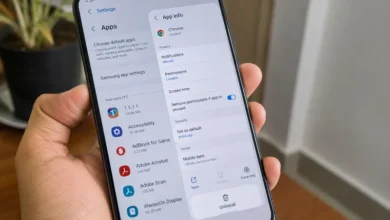
Go to Settings, then Apps, then select the app you want to restrict. Tap Battery, then choose Restricted or Background restriction, depending on your phone’s wording. This limits how often the app can wake itself up and run tasks while you’re not using it.
While you’re on that app’s settings page, tap Mobile data & Wi-Fi, or Data usage, and turn off Background data. This stops the app from pulling data over your connection while it’s closed. That helps your monthly data allowance as much as your battery.
Repeat this for any app that doesn’t need to stay active. Good candidates include games, shopping apps, and social media you check manually rather than through notifications.
Method 2: Force Stop an App That Won’t Behave
Force stop is the quickest way to kill an app that’s frozen or clearly misbehaving. Open Settings, tap Apps, select the app, and tap Force stop, then confirm.
This shuts the app down immediately, but it isn’t a permanent fix. The app can restart the next time you open it, or the next time it receives a push notification. Either way, it resumes running in the background exactly as before. Force stop also risks losing unsaved progress in games or draft messages. Treat it as a temporary reset rather than a real solution.
Method 3: Let Battery Optimization Handle It Automatically
Modern Android does a lot of this work on its own if you let it. Adaptive Battery, found under Settings, Battery, learns which apps you use often. It quietly limits background activity for the ones you rarely open. It’s on by default on most phones, but it’s worth confirming.
Android 12 and newer also automatically revokes permissions for apps you haven’t opened in months. It stops their background activity too, without you having to do anything. Check this under Settings, Apps, then look for Unused apps or Permission manager depending on your device.
This method is the safest choice for apps you’re unsure about. Android bases the restriction on your actual usage pattern instead of an all-or-nothing rule.

Method 4: Lower the Background Process Limit in Developer Options
This is the most aggressive built-in option, and it affects every app at once rather than one at a time. Use it only if the per-app methods above haven’t solved a serious battery or performance problem.
Inside Developer options, scroll to the Apps section and tap Background process limit. The default is Standard limit, which lets Android manage things dynamically. Lowering it to “At most 2 processes” makes Android close background apps more aggressively than usual. Setting it all the way to “No background processes” is the most extreme option.
Setting this too low has a real cost. Apps take longer to reopen since they reload from scratch instead of resuming. Legitimate background tasks like message delivery can also be delayed or dropped entirely. Start with a moderate limit and only go lower if problems continue.
Method 5: Turn Off Manufacturer Auto-Start and Battery Managers
If your phone isn’t a Pixel, this step matters as much as anything in stock Android settings. Most guides skip it entirely.
On Samsung phones, go to Settings, Battery and device care, then Background usage limits. Add the app to the Sleeping apps or Deep sleeping apps list. On Xiaomi devices running MIUI, there’s a separate Autostart toggle under Settings, Apps, Permissions. Disabling autostart there stops an app from launching itself after a reboot or in the background. OnePlus and Oppo devices have a similar Battery optimization menu under Settings, Battery, that runs independently of Android’s own Adaptive Battery.
These manufacturer layers can override your standard Android settings. That’s why an app you already restricted might still show up running in Developer options. Check both places if an app keeps coming back.

Apps You Shouldn’t Restrict
Cutting off the wrong app causes more problems than it solves. Leave background access alone for your default messaging and calling apps, since restricting them delays texts and can cause missed calls. Alarm and clock apps need it too. So does any app tracking a medical condition, fitness activity, or medication schedule in real time.
Ride-share, food delivery, and navigation apps need background access while a trip or order is active. It’s fine to restrict them the rest of the time. Banking apps sometimes use limited background activity for fraud alerts, so check with your bank before fully restricting one.