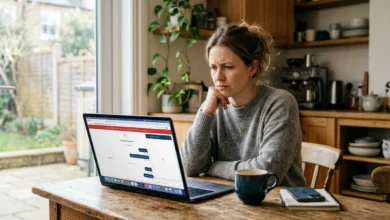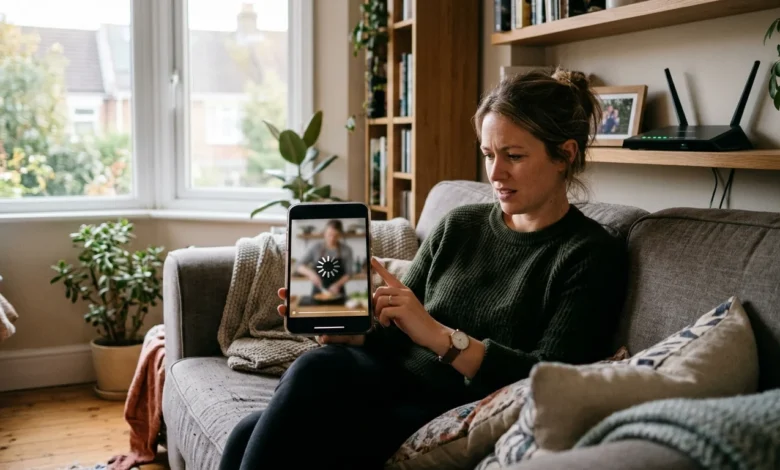
YouTube stops working for four main reasons: an outage on YouTube’s end, a weak internet connection, a corrupted app or browser cache, or software that is out of date. If you keep asking why is YouTube not working, the quickest way to get an answer is to check whether other people are reporting the same problem, then play the same video on a second device.
Those two steps tell you whether the fault sits with YouTube, your network, or the device in your hand. The fixes below follow that order, starting with the easiest. Most people in the US get video playing again within ten minutes.
Check Whether YouTube Is Down First
Start by finding out if the problem is on YouTube’s side. Open Downdetector and search for YouTube. A sharp spike in reports over the last hour points to an outage, and nothing you change on your device will help.
You can also check the @TeamYouTube account on X, where the official support team posts about widespread problems and confirms when a fix is rolling out. Searching “YouTube down” on X shows complaints from other users in real time.
If both sources look quiet, the problem is probably local. Do one more test before you change any settings: play the same video on a different device, or on mobile data instead of Wi-Fi. If it works there, the cause is your network or your original device. If it fails everywhere, the video itself may be removed, private, or restricted in your region.
Match Your Symptom to the Likely Cause
People searching why is YouTube not working often describe the same few symptoms. This table links each one to its most probable cause, so you can skip straight to the right fix.
| What You See | Most Likely Cause |
| Endless spinner or constant buffering | Slow or unstable connection |
| Black screen but audio plays | Browser graphics setting or outdated app |
| App closes right after opening | Corrupted cache or outdated app |
| Works on phone, fails on TV | TV app or TV software problem |
| “Something went wrong” message | Temporary server or sign-in issue |
| Video stuck at 144p or 240p | Low bandwidth or data saver setting |
Fixes That Work on Any Device
Run these four steps first, in this order. Each one takes less time than the one after it.
1. Restart the App or Browser Tab
Close the YouTube app completely, not just minimize it, and reopen it. In a browser, close the tab and open a fresh one. This clears short-lived glitches in the player.
If you are signed in, sign out and back in once. That resets the session the app uses to talk to YouTube’s servers.
2. Test Your Internet Connection
Run a speed test on Speedtest by Ookla or Fast.com. YouTube Help lists the recommended speed for each video quality, and 4K needs far more bandwidth than standard definition.
If the test shows low speeds, move closer to the router, pause large downloads, and disconnect devices that are gaming or streaming. Switching from Wi-Fi to mobile data, or the other way around, is a useful comparison. If YouTube works on one and not the other, you have found the culprit.
3. Restart Your Router and Device
Unplug the router and modem for 30 seconds, plug the modem in first, and wait for the lights to settle. Then restart your phone, computer, or TV. A full restart clears stuck network states that closing an app does not.
If you use a VPN, turn it off for a test. Some VPN servers are slow or get blocked by YouTube, which causes endless buffering or error screens.
4. Update the YouTube App and Your Operating System
An outdated app often breaks after YouTube changes how its player works. Open the App Store on iPhone or Google Play on Android, search for YouTube, and tap Update if it appears. On a computer, update your browser to the latest version.
Check for system updates as well. Old versions of iOS, Android, or a smart TV’s firmware can lose support for the current YouTube app, and the only fix is updating or replacing the device.
Fixes for the YouTube App on Phones and Tablets
Android
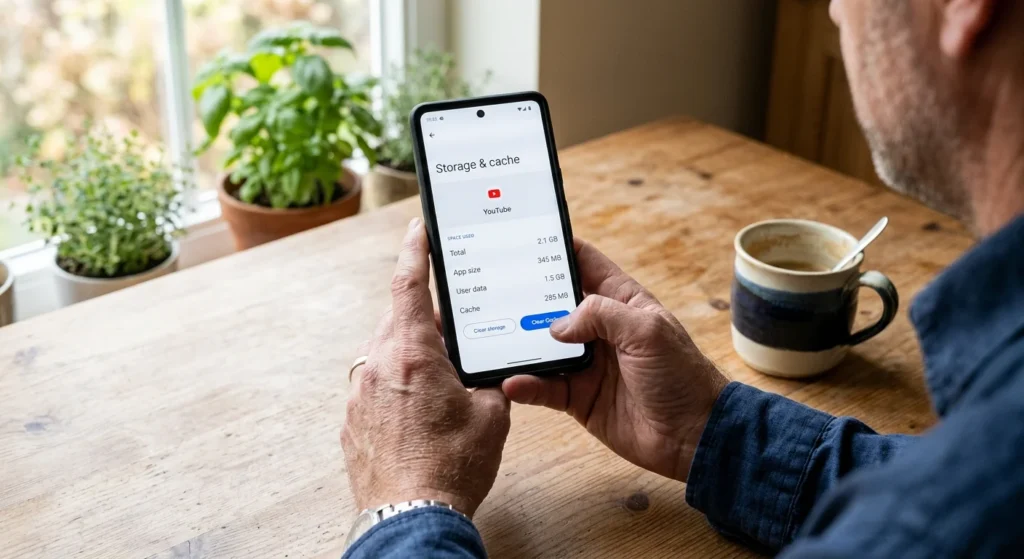
Go to Settings, then Apps, then YouTube, then Storage, and tap Clear Cache. If the app still fails, tap Clear Data, which signs you out and resets app settings. Menu names vary slightly by phone maker.
Also check that Data Saver is not restricting YouTube, and confirm Google Play Services is up to date, since the app relies on it for some features. If nothing works, uninstall updates or reinstall the app from Google Play.
iPhone and iPad
iOS has no Clear Cache button for YouTube, so the equivalent is deleting and reinstalling the app. Press and hold the icon, tap Remove App, delete it, then download it again from the App Store. Your subscriptions and watch history stay attached to your Google account.
Before that, open Settings, then Cellular, and make sure YouTube is allowed to use mobile data. Turn off Low Power Mode too, since it can limit background activity.
Fixes for YouTube in a Web Browser
1. Clear Cache and Cookies
In Chrome, press Ctrl+Shift+Delete on Windows or Command+Shift+Delete on a Mac. Choose cached images and files plus cookies, clear them, reload YouTube, and sign in again.
Safari and Firefox offer the same option under their history or privacy settings. Opening YouTube in a private or incognito window is a quick test. If it works there, the problem sits in your saved data or extensions.
2. Turn Off Extensions
Ad blockers, script blockers, and privacy extensions commonly cause blank players and endless loading. Disable them all, reload the page, and then switch them back on one at a time to find the one responsible. Some ad blockers clash with YouTube’s own ad-blocker detection, which can stop playback entirely.
3. Check Hardware Acceleration
A black screen with working sound often points to hardware acceleration. In Chrome, go to Settings, then System, turn off the graphics acceleration option, and restart the browser. If the issue returns, update your graphics driver on Windows.
Fixes for Smart TVs and Streaming Devices
TVs fail in their own ways. Fully power off the TV, unplug it for a minute, and plug it back in. Then open the YouTube app and sign out and back in, which on many TVs is found in the app’s own settings.
Update the TV’s system software and the YouTube app from the TV’s app store. If the app is missing or will not update, the TV may be too old, since YouTube has ended support for older models over the years. A Roku, Fire TV Stick, Apple TV, or Chromecast with Google TV costs far less than a new TV and runs the current app.
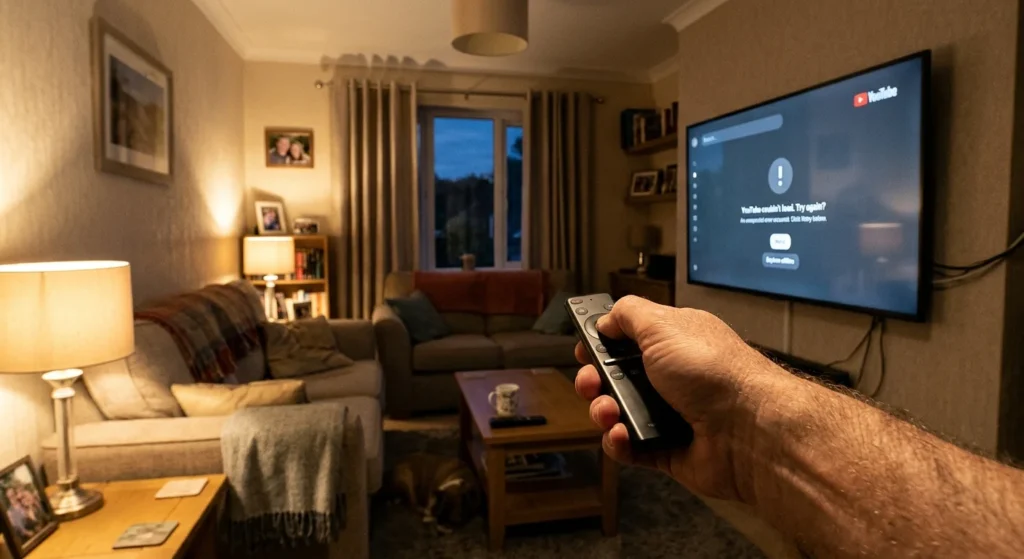
If the TV plays other apps but not YouTube, the cause is the app and not your Wi-Fi. Reinstall it if your TV allows, or reset the TV’s network settings before trying a factory reset.
Common Error Messages and What They Mean
Error texts are vague, but they still narrow down the cause.
- “Something went wrong” or “An error occurred” usually points to a temporary server or sign-in problem. Check outage sites, then sign out and back in.
- “Playback error” or “Video unavailable” often means the video was removed, set to private, or blocked in your region, not that your device is broken.
- “No connection” or “Check your network” means the device cannot reach the internet. Restart the router and test another app.
- Age-restriction and sign-in prompts relate to your account settings, not a technical fault.
Account, Region, and Network Restrictions
Sometimes YouTube loads but certain videos do not. Restricted Mode, which hides mature content, is a common cause on school and work accounts. Turn it off from the profile menu, unless an administrator has locked it.
Workplace and school networks often block YouTube or parts of it through filters. If it works on mobile data but not on that Wi-Fi, ask the IT team. Public Wi-Fi in airports and hotels can also throttle video until you complete a login page.
Check your device’s date and time settings too. A wrong clock can trigger security certificate and sign-in errors, which show up as loading failures.
When to Contact Support
If every fix above fails and YouTube is working for other people, use the YouTube Help Center or post in the YouTube Help Community, where product experts and other users respond. Include your device model, app version, and the exact error text so you do not get asked for it again. @TeamYouTube on X is best for widespread bugs.
If other streaming services are slow as well, call your internet provider. Comcast Xfinity, Spectrum, AT&T, and Verizon all run outage maps and support lines that can test your line.