Your phone says storage is almost full, so you delete a pile of old photos, videos, and downloads. You check again and the number barely moves. The files you deleted are probably still sitting in a hidden trash folder, using the same space they always did.
Learning how to empty trash on Android is one of the fastest ways to get that space back. The catch is that Android has no single trash can the way a computer does. Each app keeps its own. This guide walks through where those trash folders are, how to empty each one, and what to do when something won’t clear.
Why Android Doesn’t Have One Trash Can
On a Windows PC or a Mac, there’s one Recycle Bin or Trash that holds everything you delete. Android works differently. The operating system itself doesn’t hold deleted items in a central place. Instead, each app decides what happens when you delete something.
Some apps remove the item right away. Others move it to a temporary holding area for a set number of days, usually 30 or 60, in case you change your mind. After that window, the item is wiped automatically. If you want the space back sooner, you have to empty that holding area yourself.
Which apps have a trash folder depends on your phone brand, your Android version, and the apps you use. A Samsung Galaxy phone has a few extra built-in trash folders that a Google Pixel doesn’t. The steps below cover the most common ones.
Quick Reference: Where Trash Lives on Android
| App | Path to Trash / Recycle Bin |
|---|---|
| Google Photos | Library → Trash |
| Files by Google | Menu (three lines) → Trash |
| Samsung Gallery | Menu → Recycle bin |
| Samsung My Files | Menu (three dots) → Trash |
| Gmail | Menu (three lines) → Trash |
| Google Drive | Menu → Trash |
| Google Keep | Menu → Trash |
| Samsung Notes | Menu → Recycle bin |
If your app isn’t listed, open its menu and look for something labeled “Trash,” “Bin,” “Recycle bin,” or “Recently deleted.” That’s almost always where deleted items go.
How to Empty Trash in Google Photos
Google Photos is the gallery app on most Android phones, and it’s often the biggest source of leftover deleted files. Photos and videos you delete don’t vanish immediately. Items that were backed up stay in the trash for about 60 days, while items that weren’t backed up are usually removed after about 30 days.
To empty it now:
- Open the Google Photos app.
- Tap Library at the bottom of the screen.
- Tap Trash near the top.
- Tap the three-dot menu in the top-right corner.
- Select Empty trash, then confirm.
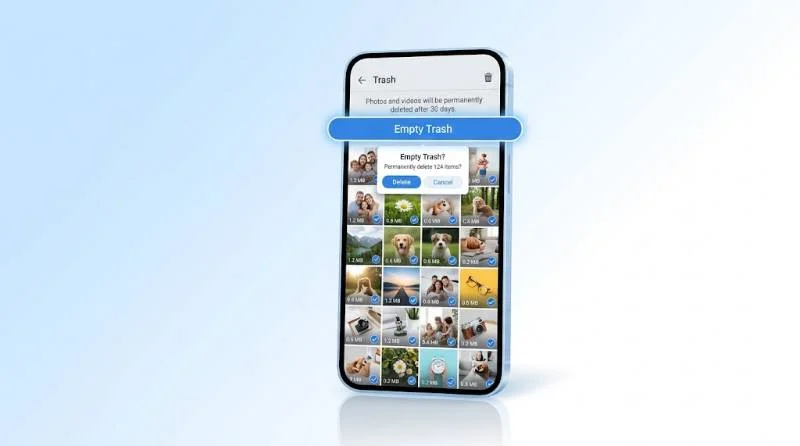
Everything in the trash is permanently deleted. If you only want to remove a few items, touch and hold one photo, tap the others you want to remove, and then tap Delete. Review the contents before you empty it. Once it’s gone, Google Photos can’t bring it back.
How to Empty Trash in Files by Google
Files by Google is the file manager included on many Android phones, and it’s a handy cleanup tool. When you delete something from it, the item goes to a trash folder first, and it’s removed automatically after 30 days.
Here’s how to clear it right away:
- Open Files by Google.
- Tap the menu icon (three horizontal lines) in the top-left corner.
- Select Trash.
- Tap the three dots in the top-right corner and choose Select all (or pick individual files).
- Tap Delete forever and confirm.
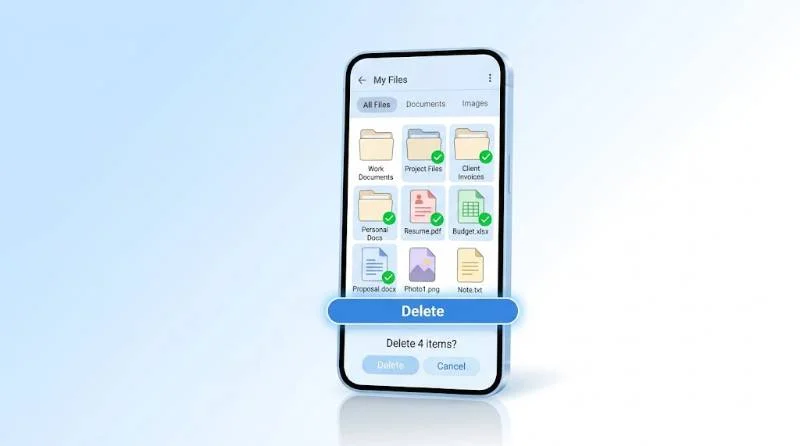
Files by Google also has a Clean tab that suggests junk files, duplicate files, and large items you haven’t opened in a while. It’s worth a look right after you empty the trash, since it can find even more space.
How to Empty the Recycle Bin on a Samsung Galaxy Phone
Samsung phones have their own system, and it’s a little different. Samsung Gallery has a Recycle bin, and the My Files app has a Trash folder. Both keep deleted items for 30 days.
To empty the Samsung Gallery Recycle bin:
- Open the Gallery app.
- Tap the menu icon (three lines) at the bottom right.
- Tap Recycle bin.
- Tap Edit, then choose Empty at the bottom of the screen. You can also select specific photos and tap Delete.
- Confirm when asked.
To empty Trash in My Files:
- Open My Files.
- Tap the three-dot menu in the top-right corner.
- Tap Trash.
- Tap Empty, or select specific files and tap Delete.
- Confirm.
If you’d rather not use the Recycle bin at all, you can turn it off in Gallery settings. Keep in mind that deleted photos will then be gone immediately, with no safety net.
How to Empty Trash in Gmail
Email takes up more space than most people think, especially messages with large attachments. In Gmail, deleted messages go to the Trash folder and are automatically removed after 30 days. Your Google account storage is shared across Gmail, Drive, and Photos, so clearing this folder can help with all three.
- Open the Gmail app.
- Tap the menu icon (three lines) in the top-left corner.
- Scroll down and tap Trash.
- Tap Empty Trash now at the top of the list.
- Confirm by tapping Empty.
Don’t forget the Spam folder, which has the same “Empty spam now” option. Both can hold more than you’d expect.
How to Empty Trash in Google Drive
If you use Google Drive, deleted files move to its Trash and stay there for 30 days. Importantly, files in Drive’s trash still count against your storage quota.
- Open the Google Drive app.
- Tap the menu icon (three lines).
- Tap Trash.
- Tap the three-dot menu in the top-right corner and select Empty trash.
- Confirm.
The same idea applies to other cloud storage apps like Dropbox, OneDrive, and Box. Each has its own trash or recycle bin, and a deleted file may keep using your cloud storage until you clear it.
Other Apps That Keep Their Own Trash
Plenty of other apps hold deleted items for a while. Here are a few that often get overlooked.
Google Keep: Deleted notes stay in the trash for about seven days. Open the menu, tap Trash, then use the three-dot menu to choose Empty trash.
Samsung Notes: Open the app, tap the menu, choose Recycle bin, and then empty it from there.
Samsung Messages: If you use it, check the three-dot menu for a Trash option and empty it.
Photo editing and gallery apps: Third-party apps like Piktures, Simple Gallery, and others often include a Recycle Bin. Look in each app’s menu or settings.
WhatsApp, Telegram, and similar apps: These generally don’t have a trash folder, so deleted messages and media are removed right away. Their stored media can still take up a lot of space, though, so use each app’s built-in storage manager to clear it.
How Much Space Can You Actually Free Up?
It depends on how long it’s been since you last cleaned up. If you regularly delete large videos, the trash can easily hold several gigabytes. Someone who edits and deletes a lot of photos might find even more. Checking before and after is a good habit.
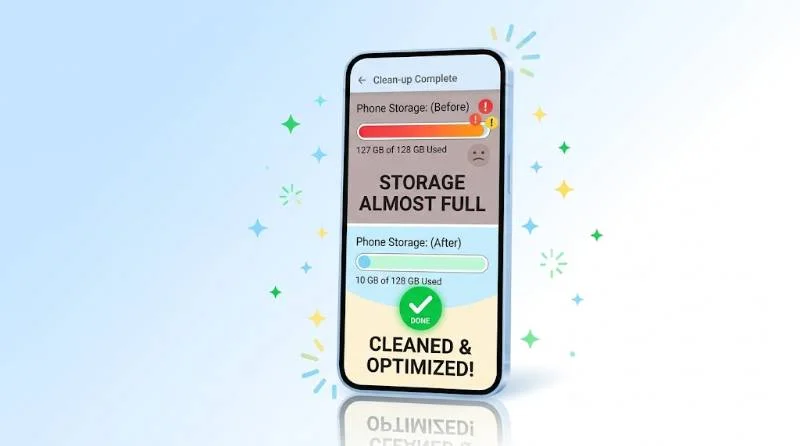
To see your storage on most phones, open Settings, tap Storage (on Samsung, it may be under Battery and device care), and look at the total used. Take note of the number, empty your trash folders, and look again.
What to Do If the Trash Won’t Empty
Occasionally, the trash refuses to clear or the storage number doesn’t change. Here are the most common fixes.
Restart your phone. It sounds simple, but a quick restart clears minor glitches and often lets the app finish the deletion.
Check your internet connection. Apps like Google Photos and Drive need to sync with your account. A weak connection can stall the process, so try Wi-Fi.
Update the app. Open the Google Play Store, search for the app, and tap Update if the option appears. Old versions can have bugs that block deletion.
Clear the app’s cache. Go to Settings, then Apps, pick the app, tap Storage, and select Clear cache. This removes temporary files without deleting your personal data. Don’t tap “Clear data” unless you’re sure, since that resets the app.
Give the app time. Large trash folders can take a few minutes to process. Let the app finish before leaving it.
Check your storage permissions. In Settings, open the app’s Permissions and make sure it has access to files and media.
Clear Your Cache for Extra Space
Emptying the trash isn’t the same as clearing cache, but the two work well together. The cache holds temporary data apps save to load faster, such as thumbnails and web page pieces. Over time, it can grow large.
To clear cache for a single app, go to Settings, Apps, choose the app, tap Storage, and select Clear cache. Start with browsers, social media apps, and streaming apps, since they tend to store the most.
Your files and logins stay intact. The app may just run a little slower the first time you reopen it while it rebuilds the cache.
More Ways to Free Up Space on Android
Once your trash folders are empty, there are a few other places to look for storage.
Uninstall unused apps. Go through your app list and remove anything you haven’t opened in months.
Delete large downloads. Open the Downloads folder in Files by Google and sort by size. Old PDFs, installers, and videos pile up quickly.
Back up photos, then remove local copies. If your photos are safely backed up, Google Photos offers a Free up space option that deletes local copies that already exist in the cloud. You’ll find it in your profile menu.
Move files to an SD card. If your phone has a microSD slot, you can move photos, videos, and music there.
Use cloud storage wisely. Keep important files in the cloud and delete large local copies you don’t need on hand.
Tips to Keep Your Trash Under Control
A little routine keeps this from becoming a problem again.
- Set a reminder. Once a month, check your main trash folders. It takes only a couple of minutes.
- Review before you empty. Look through the trash before you permanently delete anything. It’s your last chance to restore something by accident.
- Remember the time limits. Because most apps clear their trash on their own after 30 or 60 days, anything older than that may already be gone.
- Keep backups of important items. Back up important photos and files so a deletion isn’t permanent loss.