
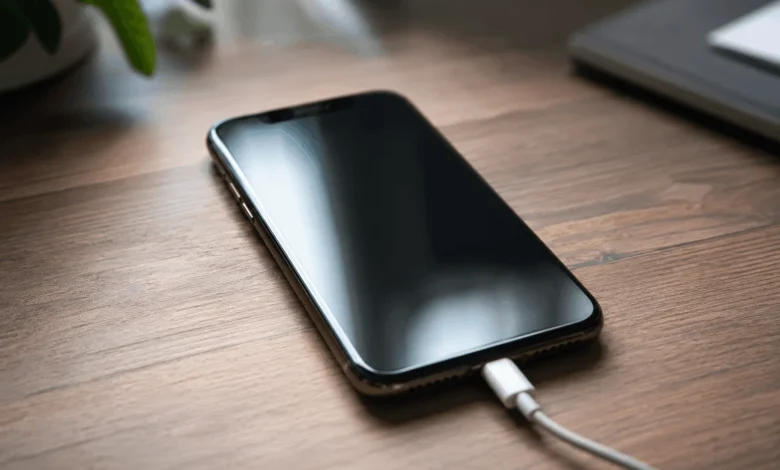
If your iPhone is not charging, the fastest fix is usually a different cable and a different outlet, since worn cables and weak power sources cause most cases. If that doesn’t work, check the port for debris, restart the phone, and confirm it isn’t a software or battery health issue.
Why Is My Iphone Not Charging
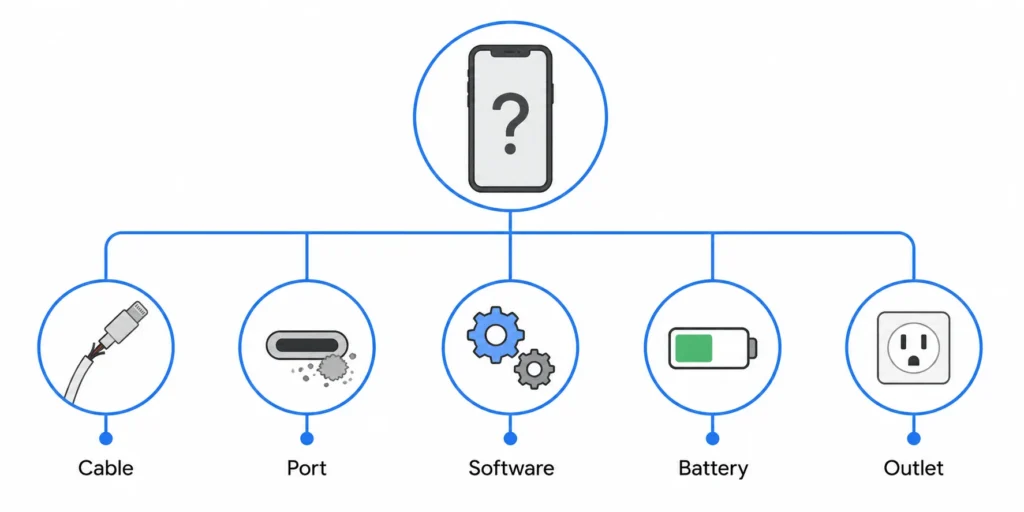
An iPhone that won’t charge almost always comes down to one of five things: a damaged cable or adapter, a blocked charging port, a software glitch, a battery that has worn down, or a power source that can’t supply enough current. None of these require special tools to check. You just need to work through them in order, starting with the cheapest and easiest fix first.
Check For These Signs First
Before you start swapping cables, look at what your iPhone is actually doing. The symptom tells you where to focus.
1. No Charging Icon At All
If nothing happens when you plug in, the phone isn’t detecting a connection. This points to the cable, the adapter, or the port itself, since a total lack of response rules out most software causes.
2. Battery Stuck At The Same Percentage
If the lightning bolt or charging ring appears but the percentage doesn’t move after 30 minutes, power is reaching the phone but something is capping it. This can be a weak power source, an overheating phone, or Optimized Battery Charging holding the level near 80 percent on purpose.
3. “Accessory Not Supported” Warning
This message means your iPhone doesn’t trust the cable or adapter. It usually shows up with damaged, uncertified, or knockoff accessories, and it will keep appearing until you switch to a genuine or MFi certified one.
Fix A Dirty Or Damaged Charging Port
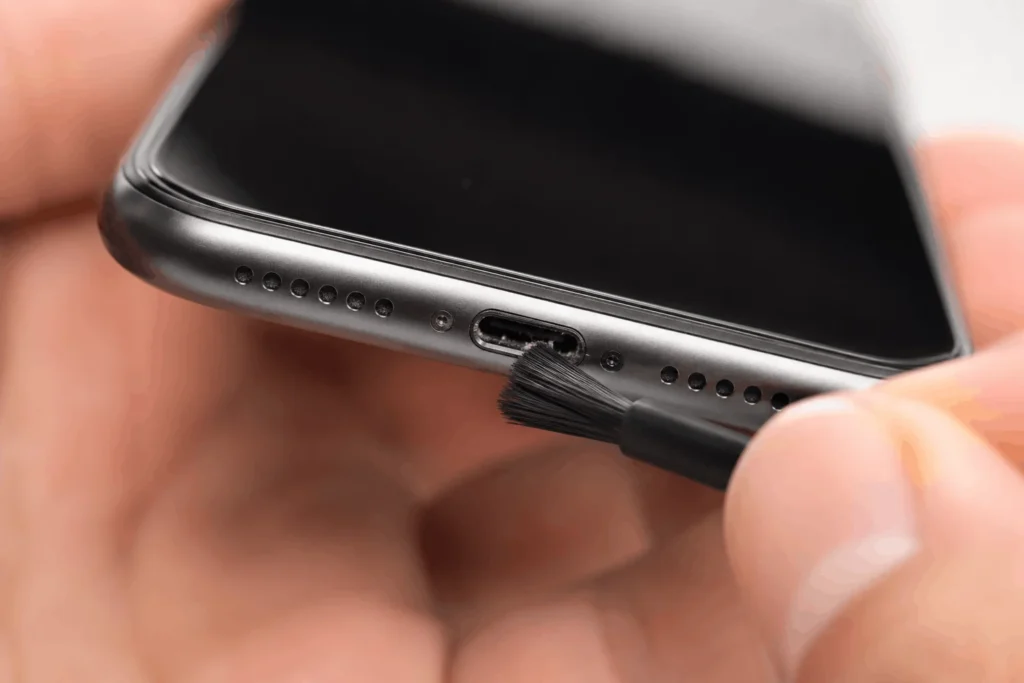
Pocket lint and dust build up inside the port over months of daily use, and even a small amount can stop the connector from seating properly. Turn off your iPhone, then shine a flashlight into the port. If you see fibers or dark debris, use a dry, soft-bristled brush or a wooden toothpick to loosen it gently. Never insert metal objects or use compressed air at close range, since both can bend the tiny connector pins inside.
Test Your Cable And Adapter
A worn cable is the single most common reason an iPhone won’t charge, since cables get bent, stepped on, and coiled tightly every day. Inspect yours for fraying near the connector, bent pins, or discoloration that suggests overheating. Then try a known-good cable and adapter, ideally borrowed from someone else, since a cable that looks fine can still have broken wires inside.
If your iPhone charges with a different cable but not your usual one, you’ve found the problem. If it still won’t charge, move on to the power source itself. Some laptop USB ports and older power strips only deliver 0.5 amps, well below what an iPhone needs, so plug directly into a wall outlet if you can.
Restart Or Force Restart Your Iphone
A stuck background process can occasionally block the phone from recognizing that it’s plugged in. A normal restart clears this in most cases. Press and hold the side button along with either volume button until the slide to power off screen appears, then turn the phone back on.
If the screen is frozen or black, force restart instead. On an iPhone 8 or later, press and quickly release volume up, press and quickly release volume down, then hold the side button until the Apple logo shows.
Update iOS And Check For Software Bugs
Outdated iOS occasionally causes charging bugs that Apple later patches. Go to Settings, then General, then Software Update, and install anything available. If your iPhone won’t charge enough to reach the update screen, connect it to a computer and update through Finder or iTunes instead, since that process needs less battery than an over-the-air update.
Check Optimized Battery Charging And Battery Health
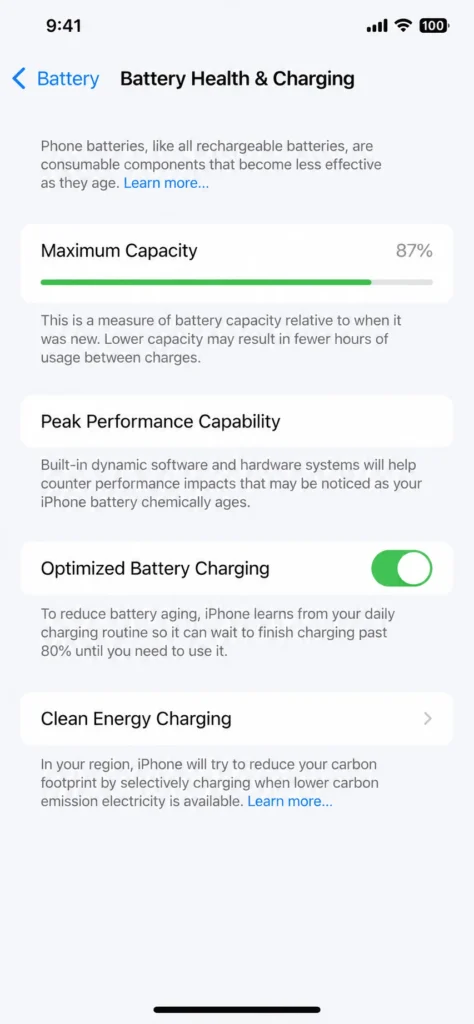
If your iPhone consistently stops around 80 percent overnight, that’s likely intentional. Optimized Battery Charging learns your routine and slows the final stretch of charging to reduce long-term battery wear. You can confirm this and turn it off temporarily under Settings, then Battery, then Battery Health & Charging.
Handle A Liquid Detected Warning
Modern iPhones pause charging automatically if they sense moisture in the port, and you’ll usually see a Liquid Detected alert. Unplug the cable right away. Tap the phone gently against your palm with the port facing down to help any liquid drain out, then leave it in a dry, ventilated spot for at least 30 minutes before trying again. Skip the hair dryer and skip sticking anything into the port, since both can push moisture further in or damage the pins.
Try Wireless Charging As A Workaround
Every iPhone since the iPhone 8 supports Qi wireless charging, which can keep you powered up while you sort out a cable or port problem. Remove any thick case, center the phone on the pad, and confirm the pad itself is plugged into a power source that supplies enough wattage. If wireless charging works but cable charging doesn’t, that narrows the fault down to your cable, adapter, or port rather than the battery.
When To See A Professional
Book a repair if you’ve swapped the cable, cleaned the port, restarted the phone, updated iOS, and it still won’t charge. That combination usually points to a damaged charging port, a failing charging chip, or a battery that needs replacing, none of which are something you can fix at home. If your iPhone is still under warranty or covered by AppleCare, start with Apple. Otherwise, an independent repair shop can run a proper diagnostic and give you a repair estimate before doing any work.
A phone that won’t charge is rarely a reason to buy a new one. Work through the cable, the port, a restart, and battery health in that order, and you’ll usually find the fix before you need to book an appointment.
Frequently Asked Questions
1. Why is my Iphone not charging when plugged in?
The most common reasons are a damaged cable or adapter, debris in the charging port, or a power source that isn’t delivering enough current. Start by testing a different cable and a wall outlet instead of a computer USB port.
2. Why does my Iphone show the charging icon but the battery doesn’t go up?
This usually means the phone is receiving some power but not enough to charge, often because of a weak adapter, overheating, or Optimized Battery Charging pausing near 80 percent on purpose.
3. Can dust in the charging port really stop an Iphone from charging?
Yes. Lint and dust block the connector pins from making full contact with the cable. Cleaning the port with a dry brush or toothpick resolves this in most cases.
4. Is it safe to use a wireless charger if my Iphone won’t charge with a cable?
Yes, as long as your Iphone is an iPhone 8 or later. Wireless charging uses a different connection method, so it works even if the cable, port, or connector pins are the problem.
5. How do I know if my Iphone battery needs replacing?
Check Settings, then Battery, then Battery Health & Charging. A Maximum Capacity below 80 percent, along with slow charging or unexpected shutdowns, is a sign the battery has worn down and needs service.
