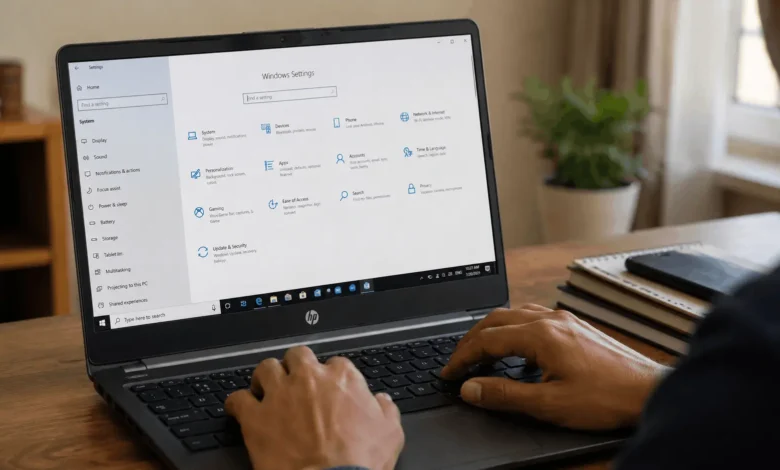
A factory reset wipes your HP laptop back to the state it was in when it left the box. It removes your files, apps, and settings, then reinstalls Windows fresh. Most people do this before selling a laptop, returning a rented one, handing it down to family, or clearing out a machine that has become slow or infected.
HP builds the reset tool directly into Windows, so you don’t need a disc or a technician for most cases. Below is the full process for both Windows 10 and Windows 11, how HP’s own Recovery Manager fits in, and what to do if the standard menu won’t load.
Before You Reset: Back Up Your Files
Once you choose “remove everything,” your documents, photos, and installed programs are gone for good. Copy anything you want to keep to an external drive or a cloud service such as OneDrive or Google Drive before you start.
A few things worth checking first:
- Save your Wi-Fi passwords or write them down, since a reset clears saved network credentials.
- Note any software license keys for programs you installed yourself, since HP’s reset only restores what shipped with the laptop.
- Sign out of accounts like your Microsoft account, browser profile, and any work VPN, so the next user doesn’t land in your session.
- Check whether your laptop has a fingerprint reader set up. Biometric data tied to your Windows Hello profile is cleared during a reset, so you’ll need to re-enroll it afterward on a new account.
- If the laptop is a rental, check your rental agreement for the exact “clean data” setting the provider expects before it’s returned.
If your laptop was upgraded from Windows 10 to Windows 11, keep in mind that a reset will not let you go back to Windows 10 afterward. That rollback window closes once you’re a certain number of days into the new version, and a reset locks it in for good.
Windows Reset vs HP Recovery Manager
Most guides only cover the Windows Settings method, but HP laptops actually have two separate reset tools, and they don’t always do the same thing.
The Windows “Reset this PC” tool, found in Settings, reinstalls Windows using files stored locally or downloaded from Microsoft’s servers. It’s fast, it’s built into every version of Windows 10 and 11, and it’s the option most people should use.
HP Recovery Manager, by contrast, restores the laptop to the exact factory image HP shipped with it, including any HP-specific drivers, utilities, and preinstalled software that a plain Windows reset would skip. It’s the better choice if you’re troubleshooting a hardware or driver conflict that started before you ever touched Windows Settings, or if the standard reset tool is failing to load. Recovery Manager is opened by searching “Recovery Manager” from the Start menu, or by pressing F11 at startup if Windows itself won’t boot.
If you’re simply cleaning a laptop for resale or a return, the standard Windows reset covers it. Save Recovery Manager for cases where you want HP’s original software set restored exactly as it came from the factory.
How to Factory Reset an HP Laptop in Windows 11
This is the standard route for any HP laptop running Windows 11, and it takes between 20 and 60 minutes depending on the option you pick.
1. Step-by-Step Reset Process
- Open the Start menu and go to Settings.
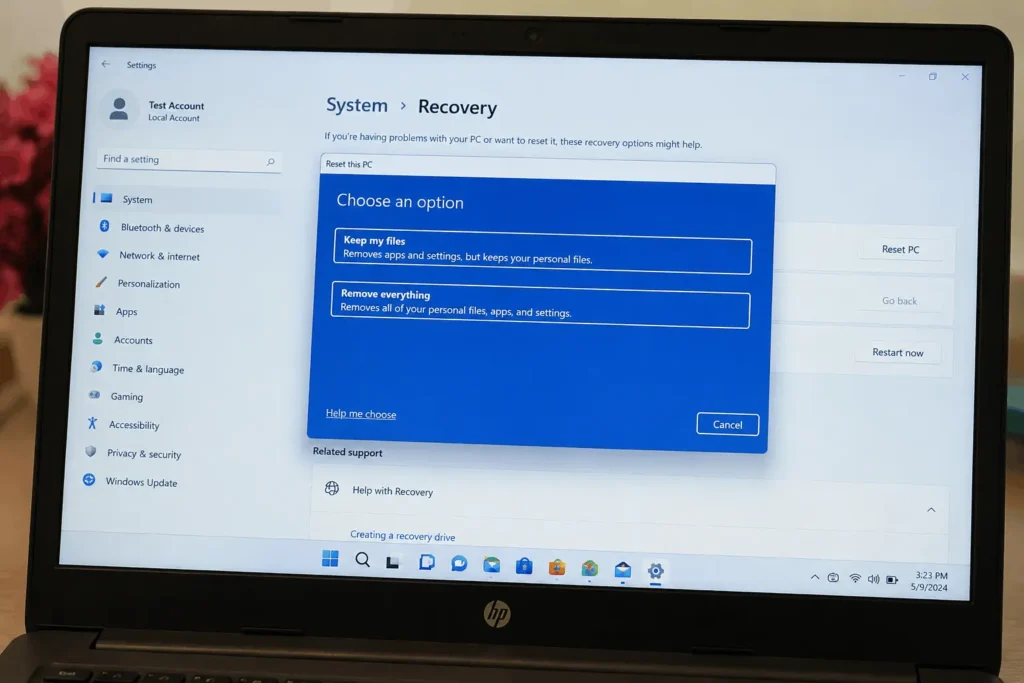
- Select System, then Recovery.
- Under Reset This PC, click Reset PC.
- Choose between “Keep my files,” which reinstalls Windows but leaves your personal documents in place, and “Remove everything,” which wipes the drive completely.
- Pick “Local reinstall” if you’re keeping the laptop and just want it running better, or “Cloud download” if your internet connection is fast and you want a completely fresh copy of Windows pulled from Microsoft’s servers.
- On the next screen, review the additional settings. Choose “Clean data” if you’re selling or handing off the laptop, since this wipes the drive more thoroughly and stops the next user from recovering your old files. This step also takes noticeably longer, sometimes over an hour on an older hard drive.
- Confirm your choices and click Reset. The laptop will restart several times during the process, so don’t turn it off or close the lid.
When it finishes, you’ll land on the Windows setup screen, the same one you saw the first time you turned the laptop on.
How to Factory Reset an HP Laptop in Windows 10
The process on Windows 10 follows almost the same path, with the menu sitting in a slightly different spot.
- Click Start, then Settings.
- Go to Update & Security, then Recovery.
- Under Reset This PC, select Get Started.
- Choose “Keep my files” or “Remove everything,” the same options available in Windows 11.
- Follow the on-screen prompts, choosing whether to reinstall from the cloud or from the local recovery files, and confirm.
The laptop will reboot several times and finish on the initial Windows setup screen, just as it does on Windows 11.
What to Do If Reset This PC Won’t Load
On some older HP models, or when Windows itself won’t boot at all, you can reach the recovery partition directly instead of going through Settings.
- Shut the laptop down completely.
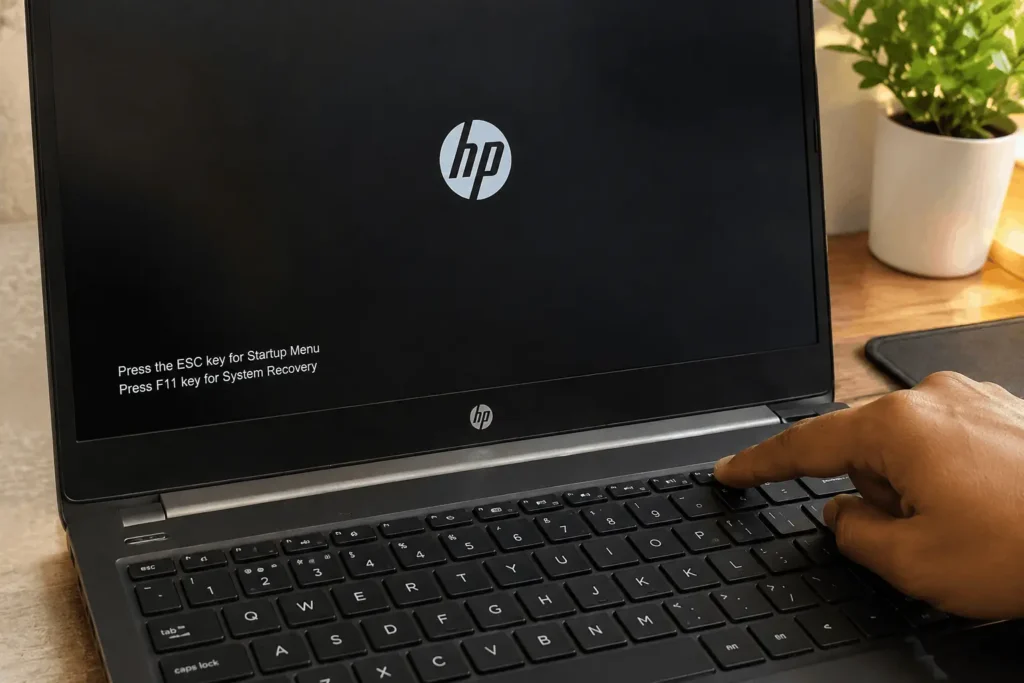
- Turn it on and immediately start tapping the F11 key, before the HP logo disappears.
- If it works, you’ll land in the Windows Recovery Environment, where you can choose Troubleshoot, then Reset This PC, and follow the same prompts described above. On some models this same screen also gives you direct access to HP Recovery Manager.
- If F11 doesn’t bring up recovery, or the recovery partition has been deleted, you’ll need HP recovery media. You can create this in advance using HP Recovery Manager on a working PC, or contact HP support for a recovery USB.
If the laptop still won’t reset after trying recovery mode, that usually points to a hardware issue, such as a failing drive, rather than something a reset can fix. In that case, a technician should look at it before you write it off.
What Happens After the Reset
Once the laptop restarts into the setup screen, you’ll go through the same steps as a brand-new device: choosing a language, connecting to Wi-Fi, and either creating a new Microsoft account or signing back into your own. If you chose “Clean data,” this is also the point where the laptop is ready to hand to someone else, since your account and files are no longer recoverable through normal use.
Give Windows a few minutes to finish installing drivers and updates in the background before you load it up with new software. Some HP-specific tools, such as HP Support Assistant or the fingerprint reader driver, may need to reinstall themselves from Windows Update the first time you connect to the internet, so don’t assume something is missing just because it’s not there in the first ten minutes.
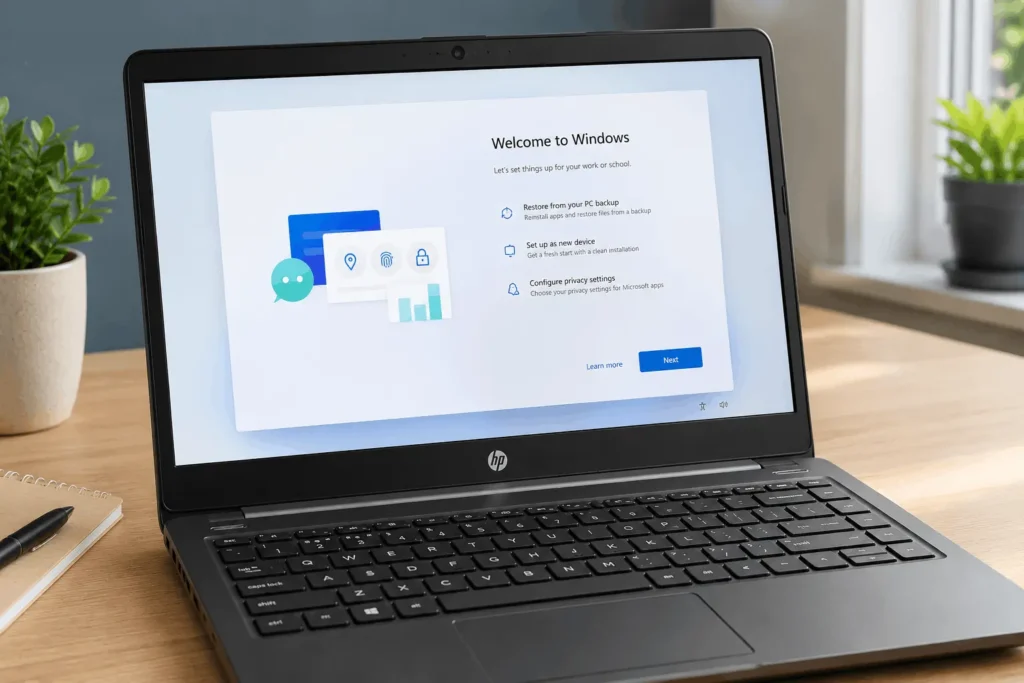
If you’re returning the laptop rather than keeping it, sign out of any accounts you re-entered during setup and leave it on the initial welcome screen, ready for the next person to sign in.