Your download speed is usually slow because of weak Wi-Fi, too many devices sharing the line, an aging router, or a plan that is smaller than you think. Less often, the cause is congestion at your internet provider or a slow server on the other end of the download.
If you keep asking why your download speed is so slow, the fastest route is to measure first and then work through the likely causes in order. This guide does that, from simple tests to router settings to the conversation with your provider.
Start by Confirming the Speed You Actually Get
Before changing anything, find out whether the connection is truly slow or only feels slow. A page that crawls can be a problem with one website, not your line. A proper test gives you a number to compare against your plan.
How to Run a Fair Speed Test
Use a trusted tool such as Speedtest by Ookla, Fast.com (run by Netflix), or Cloudflare’s speed test. Run it three times and note the download figure each time. A single result can swing because of a short spike in traffic.
Then remove as many variables as you can. Plug a laptop into the router with an Ethernet cable if possible, close other apps, and pause downloads or streams on other devices. Repeat the test on Wi-Fi from the room where you normally work.
The gap between those two numbers tells you a lot. If the wired result matches your plan and Wi-Fi is far lower, your wireless setup is the problem. If both are low, the cause sits further up the line, at the modem, the router, or your provider.
Mbps Versus MB/s
Plans are sold in megabits per second (Mbps), but browsers and game launchers often show downloads in megabytes per second (MB/s). One byte is eight bits, so a 200 Mbps plan tops out near 25 MB/s in a real download.
That is why a fast plan can still produce a download bar that looks slow. A 50 GB game on a 200 Mbps connection needs about 33 minutes at best, even when everything works perfectly.
The Most Common Reasons for Slow Downloads
Once you know your real numbers, match them to one of the causes below.
1. Weak Wi-Fi Signal and Interference
Wi-Fi speed drops with distance and obstacles. Concrete, brick, metal appliances, and even aquariums absorb signal, so a router tucked in a closet or the far corner of the house can cut speeds sharply in the next room.
The 2.4 GHz band reaches farther but is slower and crowded by neighbors’ networks, microwave ovens, and Bluetooth devices. The 5 GHz band is faster at short range but weaker through walls. Newer routers add a 6 GHz band (Wi-Fi 6E and Wi-Fi 7) that is fast and uncluttered, though its range is shorter still.
If your device connects to 2.4 GHz while sitting near the router, that alone can explain a poor result. Most routers show which band each device uses in their app or admin page.
2. Too Many Devices Sharing the Connection
Every phone, TV, camera, and console draws from the same line. Netflix’s help center lists about 15 Mbps for a 4K stream, so a few of those running together can use a large share of a 100 Mbps plan.
Cloud backups, smart cameras uploading video, and automatic app updates add load without you noticing. Open the connected-devices list in your router to see what is active right now.
3. An Old Router, Modem, or Cable
Routers more than five or six years old often lack current Wi-Fi standards and struggle with many devices at once. A router that only supports Wi-Fi 4 or early Wi-Fi 5 can hold back a fast plan even when the line itself is healthy. Older cable modems also have limits below the speeds of newer plans.
Cables get overlooked. A Cat5 Ethernet cable is limited to 100 Mbps, while Cat5e and Cat6 handle gigabit speeds. A loose or damaged coax cable can cause dropped data and low speeds too.
4. ISP Congestion and Throttling
Cable internet shares neighborhood capacity, so speeds can drop in the evening when many households stream at once. If your tests look fine at 10 a.m. and poor at 8 p.m., that pattern points to congestion.
Some providers also slow certain traffic or reduce speeds after a data cap is reached. Check your plan terms for a data threshold or a “network management” clause. Testing with a VPN on and off can hint at traffic-specific throttling, since a VPN hides the type of traffic you send.
5. Background Apps, Updates, and Malware
Windows Update, macOS updates, cloud sync tools like OneDrive and Dropbox, and game launchers all pull data in the background. On Windows, press Ctrl+Shift+Esc and sort the Network column in Task Manager. On a Mac, open Activity Monitor and check the Network tab.
Malware can also drain a connection. If one process uses heavy bandwidth and you do not recognize it, run a scan with Microsoft Defender or a reputable antivirus tool.
6. The Server or Service Is the Bottleneck
Sometimes your connection is fine, and the source is slow. A game store or software publisher may limit speeds on a big release day. Steam lets you choose a download region in its settings, and switching to a nearer one often helps.
If speed tests look normal but only one service is slow, try a different download source before touching your network.
7. VPN and DNS Settings
A VPN encrypts your traffic and routes it through another server, which can lower speeds. Turn it off for a test and compare the results.
Slow DNS can make pages hesitate before they start loading, though it does not reduce the rate once a transfer begins. Switching to Cloudflare (1.1.1.1) or Google (8.8.8.8) DNS is a harmless experiment if page loads feel delayed.

Why Real Downloads Can Be Slower Than Speed Tests
Speed tests measure the path between your device and a nearby test server. A real download depends on more than that, and any weak link caps the result.
Disk speed is an overlooked one. An older hard drive, or a nearly full SSD, can write data more slowly than your connection delivers it. Download to a different drive to check.
The source server matters too. Many sites cap the speed of each connection, so one large file may crawl while several parallel downloads together use the full line. Download managers split files into parts for this reason. On older computers, security software scanning files as they arrive can add delay as well.
Finally, the Wi-Fi chip inside a laptop or phone sets its own ceiling. A device with only a Wi-Fi 4 chip cannot reach the speeds a Wi-Fi 6 router offers, no matter how fast the plan is. If only one device is slow, look up its specifications.
Quick Fixes to Try in the Next 10 Minutes
Start here. Each step takes a few minutes and solves a large share of slow-connection complaints.
- Restart the modem and router. Unplug both for 30 seconds, plug in the modem first, wait until it fully connects, then power the router. This clears temporary glitches and refreshes the link with your provider.
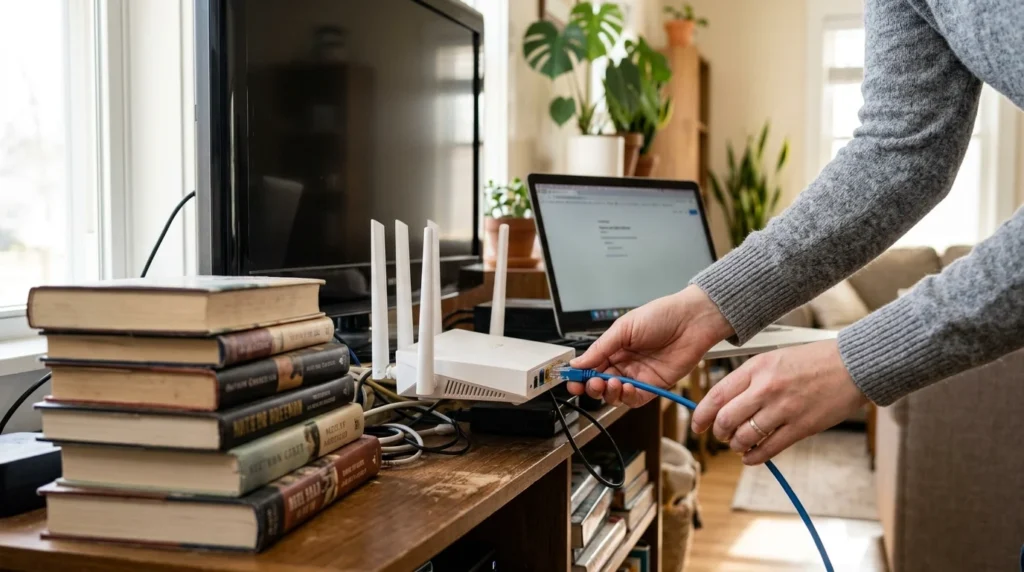
- Move the router or move closer to it. A central, open, elevated spot works best, away from microwaves, cordless phones, and thick walls.
- Switch to the 5 GHz network for devices in the same room or one wall away from the router.
- Pause large uploads, cloud backups, and streams on other devices, then test again.
- Use Ethernet for anything that matters. Consoles, desktop PCs, and work laptops get steadier speeds on a cable than on Wi-Fi.
- Close unused browser tabs and background apps, then restart the device.
- Update network drivers on your computer and the firmware on your router. An outdated Wi-Fi adapter driver on a Windows laptop is a common hidden cause.
If speeds jump after a restart and fall again within a few days, the router may be overheating or failing. That points toward replacing it.
Router Settings Worth Changing
A few settings in the router’s admin page or app can make a visible difference.
1. Change the Wi-Fi Channel
On 2.4 GHz, channels 1, 6, and 11 do not overlap, so pick whichever one your neighbors use least. A Wi-Fi analyzer app on your phone shows nearby networks and which channels they sit on. Most modern routers choose automatically, but manual selection helps in apartment buildings.
2. Use Quality of Service Carefully
Quality of Service (QoS) lets the router prioritize certain traffic, such as video calls or gaming, over bulk downloads. It can improve the experience on a busy network, but on some routers it lowers top speed. Test before and after you turn it on.
3. Add a Mesh System for Larger Homes
If your home is large or has several floors, one router rarely covers it well. A mesh system places nodes around the house for a more even signal. Nodes linked by Ethernet perform best, while wireless-only links can reduce speed at the far nodes.
When Your Plan or Provider Is the Problem
If wired tests come in well below what you pay for, contact your provider. Bring screenshots of your tests with dates and times. Ask them to check the line’s signal levels, run a remote diagnostic, and send a technician if needed.
Your plan might also be too small. In March 2024, the FCC raised its fixed broadband benchmark to 100 Mbps download and 20 Mbps upload, up from 25 Mbps and 3 Mbps. A household with several people working, streaming, and gaming at once can feel slow on anything below that.
Match your plan to how you actually use the internet. Netflix lists 5 Mbps for HD and 15 Mbps for 4K per stream. Add up what typically runs at the same time, then leave extra room as a rule of thumb, since real-world speeds rarely hit the advertised number.
The connection type matters as well. Fiber delivers steady speeds and usually matches upload to download, while DSL and satellite have lower ceilings and more delay. If fiber is offered at your address, switching often fixes the evening slowdown. The FCC National Broadband Map shows which providers serve a given address.

If your provider repeatedly fails to deliver the speeds it advertises, you can file a complaint with the FCC’s consumer complaint center.
A Simple Order for Troubleshooting
Work from the device outward so you do not chase the wrong cause.
- Test on one device with all other apps closed.
- Test on Ethernet next to the router.
- Test on Wi-Fi in the room where the problem shows up.
- Restart the modem and router, then repeat the tests.
- Test at different times of day, including the evening.
- Try a second device and a different download source.
- Contact your provider with your recorded results.
Each result narrows the cause. Slow only on Wi-Fi points to your wireless setup. Slow everywhere at night points to congestion or an undersized plan. Slow on one device only points to that device’s settings, drivers, or software.