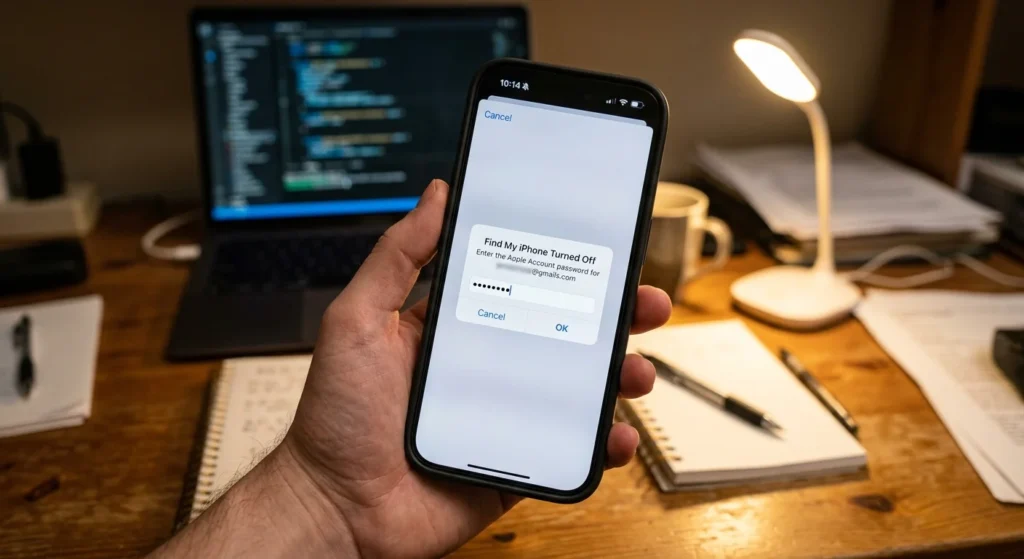
To turn off Find My iPhone, open Settings, tap your name, tap Find My, tap Find My iPhone, switch it off, and enter your Apple ID password. If the phone is not in your hands, you can do the same job from iCloud.com or from another Apple device.
Switching it off also releases Activation Lock, Apple’s anti-theft lock tied to your account. That matters when you sell the phone, trade it in, hand it to a relative, or send it for repair, because a phone still linked to you is unusable for the next person. This guide covers every route, plus fixes for a toggle that will not budge.
Before You Turn It Off: What Changes and What You Need
Find My iPhone does three jobs. It shows the phone on a map, lets you play a sound, lock, or erase it from afar, and it switches on Activation Lock. Activation Lock turns on automatically when Find My is enabled, and your Apple Account credentials are stored on Apple’s activation servers and linked to the device, which is why they are required to turn Find My off or erase the phone.
Once Find My is off, the phone stops appearing on your map, and Activation Lock goes with it. Anyone who gets hold of the phone could erase and reuse it. Turn it off when you are ready for that, not as a casual privacy tweak.
You need your Apple Account password and an internet connection. If you cannot remember the password, reset it at iforgot.apple.com first, because nothing below works without it.
Which Method Fits Your Situation
Pick the route based on where the phone is and why you are doing this.
If you are holding the phone and it is unlocked, use the Settings method. It takes under a minute.
If you already sold or gave the phone away and forgot this step, use iCloud.com or another Apple device. You will erase the phone remotely and remove it from your account.
If you only want family or friends to stop seeing your location, you do not need to turn off Find My iPhone at all. The partial options section below covers that.
How to Turn Off Find My iPhone in Settings
This is the fastest route when the iPhone is in your hand and unlocked.
- Open Settings and tap your name at the top of the screen.
- Tap Find My.
- Tap Find My iPhone.
- Switch off Find My iPhone.
- Enter your Apple Account password and tap Turn Off.
On some iOS versions, the Find My entry also sits inside the iCloud menu. Cult of Mac describes the same path: Settings, your name, Find My, then the toggle at the top of that page. Apple moves these labels around between releases, so treat the wording as a guide and check it against your own screen.
If Stolen Device Protection Slows You Down
Stolen Device Protection, which Apple added in iOS 17.3, treats turning off Find My as a sensitive change. It asks for Face ID or Touch ID with no passcode fallback. Away from a familiar place such as home or work, it adds a one-hour wait and then a second biometric check.
T-Mobile’s support page advises doing these steps from a familiar place, like home, for this reason. If you hit the delay, start the change, wait out the hour, and finish it when the phone prompts you.
How to Turn Off Find My iPhone When the Phone Is Not With You
This route is for a phone you already sold, gave away, or cannot reach. It works through your account, and it erases the phone, so make sure that is what you want.
From iCloud.com in Any Browser
- Go to icloud.com/find and sign in with your Apple Account.
- Choose All Devices and select the iPhone.
- Choose Erase and confirm.
- When the erase finishes, choose Remove from Account.
T-Mobile’s instructions follow the same order, with Remove from Account coming only after the device has been erased.
The phone has to be online for the erase to start. If it is off or offline, the request waits and runs the next time it connects, and the Remove from Account option appears only after that. Anything not backed up is gone for good after an erase, so if you still have the phone, back it up first.
From Another iPhone or iPad
Open the Find My app on a second Apple device signed in to your account, tap Devices, pick the iPhone, and scroll to the erase option. After the erase, remove the device from the list.
Gadget Hacks notes that if you gave the phone to someone who will use it on their own cellular service, erasing it from the device information window clears Find My and Activation Lock in the process.
Turn Off Only Part of Find My Instead
Many people searching for this just want less tracking, not an unprotected phone. Find My has separate switches, and you can flip several of them without touching Activation Lock.
To stop sharing your location with family or friends, go to Settings, tap your name, tap Find My, and turn off Share My Location. The phone stays on your own map and stays locked to your account.
Inside Find My iPhone, two sub-settings are worth knowing. Find My network lets the phone be located even when it is offline, and Send Last Location sends its position to Apple when the battery is nearly dead. Turning those off leaves Activation Lock in place but makes a lost phone harder to find, so most people are better off leaving them on.
Apple has renamed and rearranged these options over several iOS versions. Confirm the labels on your own phone before assuming a switch does what you expect.
What to Do Before Selling, Trading In, or Repairing
The order of operations matters here, and skipping a step is how people end up with a phone that will not activate for the buyer.
- Back up the phone to iCloud or a computer.
- If you have an Apple Watch paired with it, unpair the watch first.
- Turn off Find My iPhone using the Settings steps above.
- Go to Settings, General, Transfer or Reset iPhone, and choose Erase All Content and Settings.
- Check your device list at account.apple.com and remove the phone if it still appears.
T-Mobile tells customers to turn off Find My and erase a device before selling or giving it away, so the new owner can activate it normally. Apple asks for the same before most repairs, and many carriers ask before accepting a trade-in.

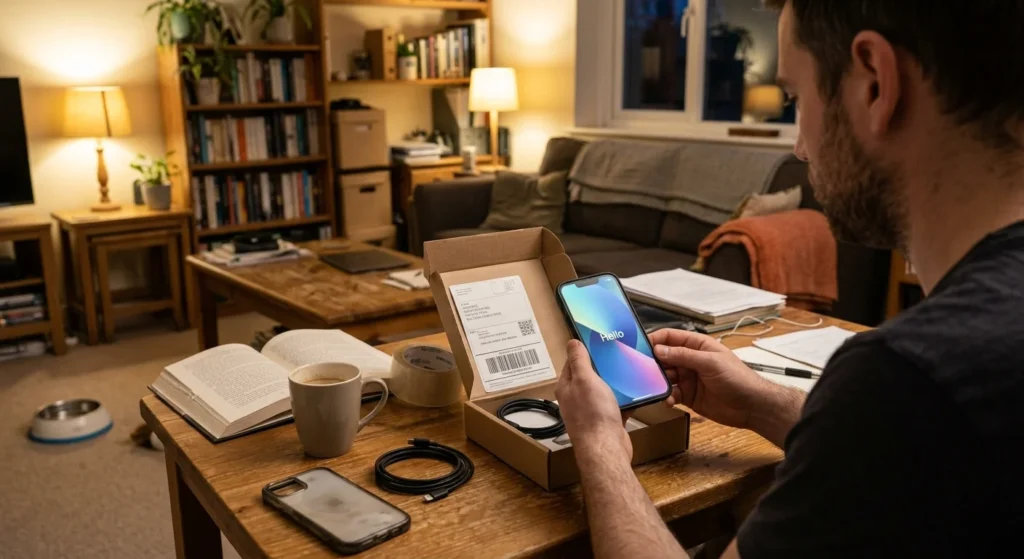
After the erase, turn the phone on and look at the first screen. If it asks for an Apple ID and password, the phone is erased but still linked to that account. If it shows the language or Hello screen, it is clean.
Why the Toggle Is Greyed Out or Will Not Turn Off
Screen Time is a common culprit. If Account Changes under Content and Privacy Restrictions is set to Don’t Allow, account-related settings can be locked, so allow changes and try again.
A work or school phone is the next suspect. Managed devices often block this switch, and business-owned devices need to go through the company’s IT department.
A wrong or forgotten password stops the process at the last step. Reset it at iforgot.apple.com and repeat the steps.
Stolen Device Protection can also hold the change for an hour when you are away from home, as covered earlier. And if the phone is in Lost Mode, Apple’s Activation Lock removal request will not go through until you clear it.
Removing Activation Lock From a Phone You Bought Used
If the setup asks for someone else’s Apple Account, the phone is erased but still linked to the previous owner. Apple’s guidance is to have that person sign in to iCloud.com, open Find My, and remove the device from their account, then restart the phone to begin setup. Messaging the seller with those exact steps usually settles it.
If the seller has vanished, Apple has a self-service Activation Lock support request. The request must come from the device owner, and the device cannot be in Lost Mode or managed by a business or school. Apple requires proof of ownership documentation and recommends keeping your receipt after you buy a device. Apple follows up by email to say whether the request was approved.
If the phone is yours and you simply lost track of the account, you can call AppleCare or visit an Apple Store with proof of ownership, and Apple will remove the lock if satisfied. Do not pay a website or seller who promises a bypass. Apple’s own process does not involve third parties.
Turning Off Find My on iPad, Mac, and Apple Watch
An iPad follows the same path as the iPhone, with the toggle labeled Find My iPad. On a Mac, open System Settings, click your name, choose iCloud, and turn off Find My Mac. You will need to enter your Apple ID password.
An Apple Watch is handled through the iPhone it is paired with. Open the Watch app, tap My Watch, choose All Watches, and unpair the watch from there.
How to Turn Find My iPhone Back On
Return to Settings, tap your name, tap Find My, tap Find My iPhone, and switch it on. Then check that Find My network and Send Last Location are on as well. If you erased the phone, the setup will offer to enable Find My again during the process.