How to factory reset PS5 in one line: open Settings, select System, choose System Software, go to Reset Options, and pick Reset Your Console. That erases everything on the console and returns it to its out-of-the-box state. If the console will not reach the home screen, you can do the same job from Safe Mode.
This guide covers both routes, what to back up first, and which of the three reset options you actually need. Many problems clear up with a lighter reset that leaves your games alone, so choose carefully before you erase anything.
Which PS5 Reset Do You Actually Need?
The PS5 puts three reset options in one menu, and the names are not very clear. Digital Trends points out that the console never explains the differences, so people can pick the most drastic option by accident.
Reset Your Console is the real factory reset. It removes installed games, saved data, user accounts, and settings. Restore Default Settings puts system settings back to their defaults without erasing your games or saves. Clear Learned Dictionary only removes words the console has stored from your typing.
A simple rule works here. If the console is slow, glitchy, or stuck on a bad display setting, try Restore Default Settings first. Wipe the whole console only when you are selling it, giving it away, or when lighter fixes have failed.
A plain restart is different again. Turning the console fully off from the power menu and starting it again clears temporary glitches and touches no data, so it should always come first.
What a Factory Reset Will Not Fix
A wipe cannot repair a bad HDMI cable, a weak Wi-Fi signal caused by your router, or a failing internal drive. If one specific game crashes before and after the reset, the game or its latest patch is the more likely cause.
Check those outside factors first. It saves you a full re-download of your library for nothing.
What to Back Up Before You Reset Your PS5
A full reset cannot be undone. Everything on the internal drive is gone once it finishes, so work through this checklist first.
1. Upload Saves to PlayStation Plus Cloud Storage
If you subscribe to PlayStation Plus, your saves can live in cloud storage. Go to Settings, then Saved Data and Game/App Settings, then Saved Data (PS5), and choose Console Storage. From there, you can upload the games you care about to cloud storage.
Do not assume auto-upload caught everything. Open the cloud list afterward and confirm each important game shows a recent upload time. Digital Trends recommends backing up even if you are a Plus subscriber, and that advice holds up.
2. Copy Saves to a USB Drive If You Do Not Subscribe
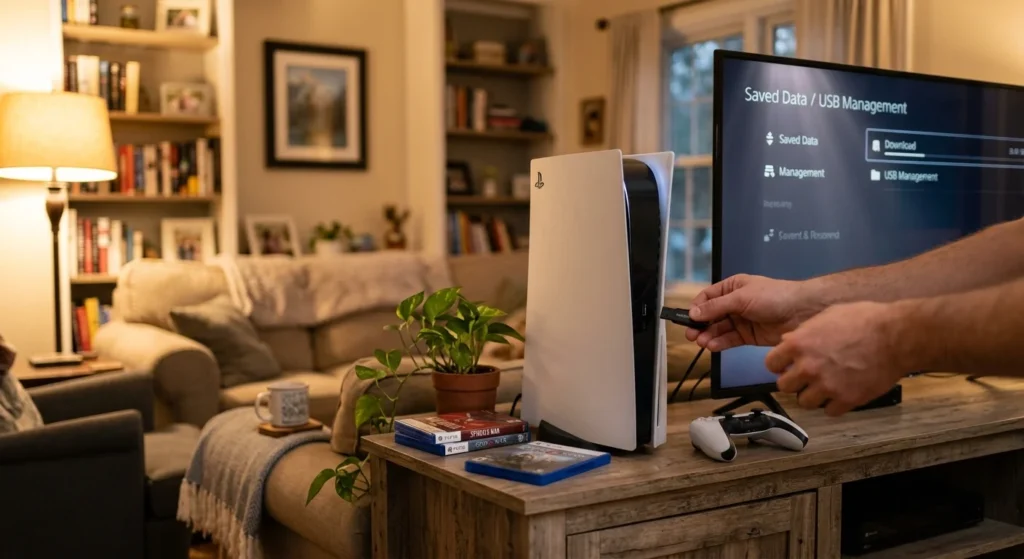
Without a Plus subscription, your saves exist only on the console. Digital Trends notes that this makes backups especially important for non-subscribers. Plug a USB drive into the console, open Saved Data (PS5) under the same menu, and copy what you want to keep.
PS4 game saves sit in their own section, Saved Data (PS4), so check both lists if you play older titles.
3. Turn Off Console Sharing and Offline Play
If this PS5 is your primary console, deactivate it before you wipe it. Go to Settings, Users and Accounts, Other, then Console Sharing and Offline Play, and select Disable. Skipping this can leave your account tied to a console you no longer have, which causes headaches for resale and for setting up a replacement.
4. Know What Will Come Back on Its Own
Trophies and purchases belong to your PlayStation Network account, not the console, so they return when you sign in again. Digital games can be re-downloaded from your library, though big titles take a while. Discs still need to be reinserted and installed.
How to Factory Reset PS5 From the Settings Menu
This is the standard method, and it works whenever the console boots normally. Keep the power cable connected and do not switch the console off while it runs.
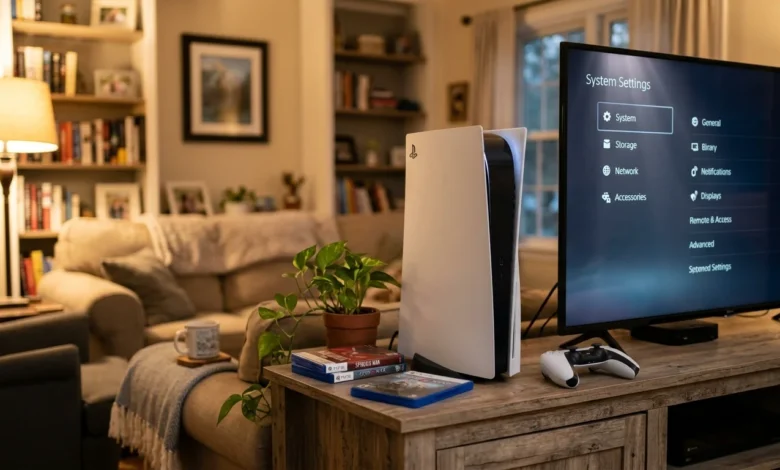
- From the home screen, select the Settings gear icon in the top right.
- Choose System.
- Select System Software, then Reset Options.
- Choose Reset Your Console.
- Confirm by selecting Reset.
According to Digital Trends, the console resets itself after a few minutes and boots into the standard setup screen.
To use the lighter option, follow steps one through three, then pick Restore Default Settings instead. Your games and saved data stay where they are.
Menu names shift slightly between firmware updates, so if a label looks different on your screen, look for the closest match under System Software.
How to Reset a PS5 in Safe Mode
1. When Safe Mode Is the Right Route
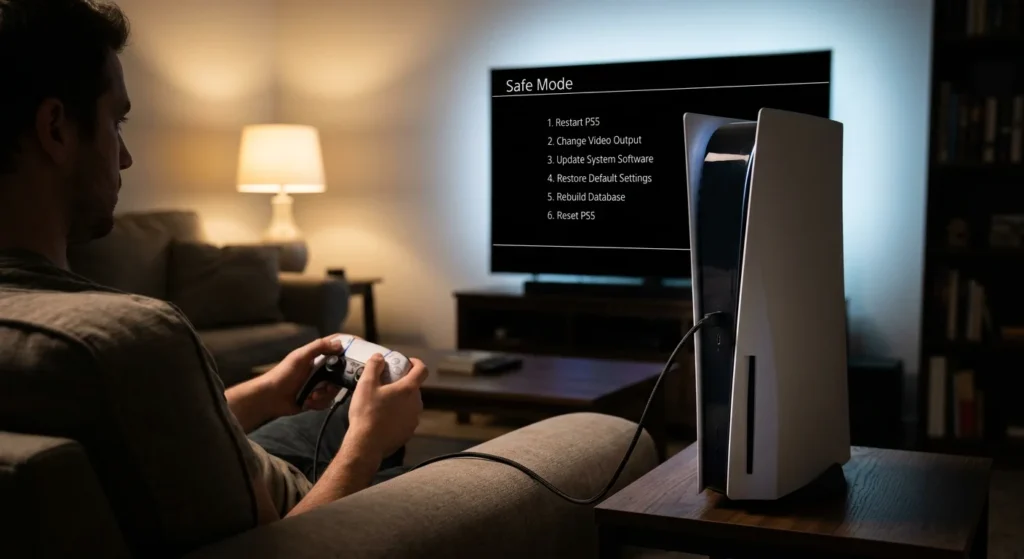
Use Safe Mode when the console freezes before the home screen, loops on startup, or the normal menu will not open. PlayStation’s support page describes Safe Mode as a way to factory reset a console, warns that it deletes all user data, and says it should be the last troubleshooting step.
2. Steps for the Safe Mode Reset
Turn the console off completely. Then press and hold the power button and release it after the second beep, which starts the PS5 in Safe Mode. Connect a controller with a USB cable, since wireless pairing does not work there.
From the Safe Mode menu, choose Reset PS5 (Reinstall System Software). Depending on your firmware version, Safe Mode may also list a plain Reset PS5 option, so read each description before you confirm.
3. Reinstalling System Software From a USB Drive
If the software itself is damaged, PlayStation’s guide has you prepare a USB drive first. On a PC or Mac, you create a folder named PS5 on a drive formatted as FAT32 or exFAT, download the reinstall file from the PS5 system software update page, and plug the drive into the console. Then start Safe Mode and pick the reinstall option.
If the console does not recognize the file, check the folder and file names. If the process fails, PlayStation says the console may need to be sent in for repair.
What to Do After the Reset Finishes
If You Are Keeping the Console
Walk through the setup screens, connect to Wi-Fi, and let the console install any system update it asks for. Sign in with your PlayStation Network account, then set it as your primary console again under Console Sharing and Offline Play if you want your digital library to work without an internet check.
Restore saves next. Download cloud saves from Plus storage, or copy them back from your USB drive, before launching any game. Starting a game first can create a fresh save that you then have to overwrite.
If You Are Selling or Giving It Away
Stop at the first setup screen and turn the console off without signing in. That way the next owner sees the standard welcome setup with none of your account data on the machine.
Take out any disc, unplug USB drives, and confirm you disabled Console Sharing earlier. If a buyer asks for proof, a quick photo of the setup screen settles it.
Plan for the Re-Download Afterward
The slowest part of a reset is usually the wipe itself. It is getting your library back that eats the evening. Large modern games take a long time to download on a typical home connection, so decide in advance which three or four titles you want playable first.
In your game library, select those games and download them in priority order. Anything on a disc can install from the disc rather than the internet, though patches still download afterward. On a slow connection, start the downloads overnight.
Digital Edition and Disc Edition Differences
The reset steps are the same on every PS5, including the Digital Edition, and Safe Mode works the same way. The practical difference is what happens afterward. A Digital Edition owner downloads everything again, while a Disc Edition owner can reinstall from physical games.
For resale, a Digital Edition has no disc drive for a buyer to inspect, so the account state is their main concern. Confirm you disabled console sharing and reached the clean setup screen.
Fixes Worth Trying Before You Wipe Everything
A full wipe solves a lot, but it costs you time and downloads. These steps clear many common problems with less effort.
Restart and Update
Turn the console fully off and on again, then check for a system software update under Settings, System, System Software. Make sure your games and apps have their own updates installed too.
Rebuild the Database From Safe Mode
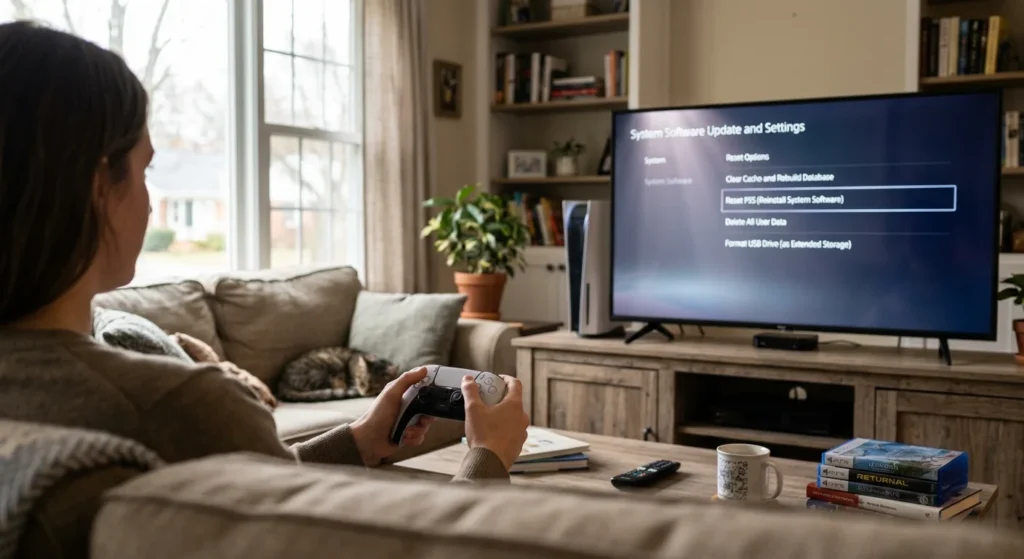
Safe Mode includes a Clear Cache and Rebuild Database option. It helps with slow menus, games missing from the library, or odd behavior after a failed download. It reorganizes the console’s content database rather than wiping your games, so it makes sense before a full reset.
Try Restore Default Settings
Odd video output, audio problems, and a misbehaving setting often disappear after Restore Default Settings, which leaves your data alone. Safe Mode has a similar option, handy if the picture is unusable.
Troubleshooting Common Reset Problems
1. The Reset Seems Stuck
Give it time. Do not unplug the console mid-process, because interrupting a system software operation can leave it unable to start normally. If the screen has been frozen for a long stretch, hold the power button until the console powers off, then use the Safe Mode route above.
2. The Controller Will Not Connect
In Safe Mode, connect the DualSense by USB cable and press the PS button. After a regular reset, a wired connection also gets you through the first setup screens if wireless pairing acts up.
3. Your Saves Are Missing Afterward
Saves return only if they were uploaded or copied before the wipe. Check cloud storage under Saved Data (PS5) while signed in with the same account that uploaded them. If the files are not there, they were erased with the internal drive and cannot be recovered through the reset menu.
4. When to Contact PlayStation Support
If a Safe Mode reset and a USB reinstall both fail, the problem may be hardware, such as the internal drive. PlayStation’s guidance points to repair at that stage.