
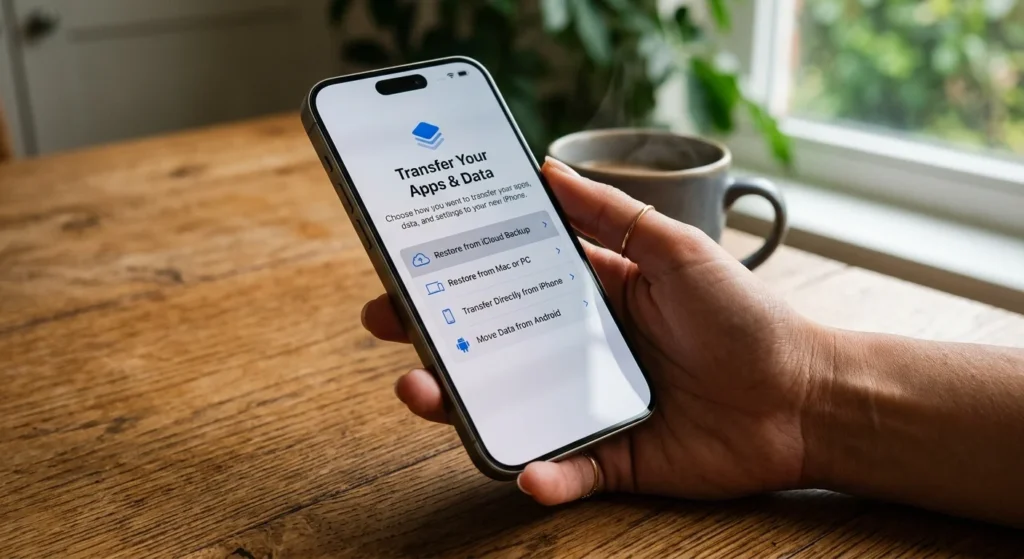
To restore an iPhone from a backup, erase the phone or start setting up a new one, then choose From iCloud Backup on the Transfer Your Apps & Data screen. If your backup lives on a computer, connect the iPhone with a cable and click Restore Backup in Finder or the Apple Devices app. Both methods are free and bring back your apps, settings, and most of your data.
Which route is faster depends on where your newest backup sits and how strong your Wi-Fi is. This guide walks through each method, the checks that prevent a failed restore, and fixes for the errors people run into most.
Before You Start: Check Your Backup and Your Software
A restore replaces everything on the phone, so spend a few minutes confirming the backup is the one you want. A backup you never checked is a gamble you cannot undo.
To check iCloud, open Settings, tap your name, tap iCloud, then tap iCloud Backup. The screen shows the date and time of your last successful backup. If that date is weeks old, a restore will bring back weeks-old data.
To check a computer backup, connect the iPhone and open Finder on a Mac or the Apple Devices app on Windows. Select the phone and look at the General tab, where the latest backup date is listed. Apple says to use iTunes instead on Windows PCs without the Apple Devices app and on macOS Mojave or earlier.
Confirm three more things before you begin:
- The iPhone runs the same iOS version as the backup or a newer one. A backup made on newer software will not restore to a phone running older software, so update first if needed.
- The phone is plugged in, since a restore can run for a long time.
- You know your Apple Account password, your iPhone passcode, and the backup password if you set one.
Restore From Backup vs. Restore iPhone vs. Erase: What Each Option Does
Apple’s menus use similar words for very different actions. Mixing them up is how people wipe a phone and lose a backup they meant to use.
Restoring from a backup replaces the phone’s contents with a saved copy of your data and settings. The Restore iPhone button in Finder and the Apple Devices app does something else: it reinstalls iOS and returns the phone to factory settings with none of your data. Erase All Content and Settings, found in the iPhone’s own menus, performs a similar wipe from the phone itself and leaves you at the Hello screen, ready to choose a backup.
A restore always replaces whatever is on the phone now, and Apple’s tools do not let you pick a single app or one chat thread. If you only need one photo or file, check the Recently Deleted album in Photos or the Files app before you wipe anything.
How to Restore iPhone From an iCloud Backup
The iCloud route needs no cable and no computer, only Wi-Fi and your Apple Account. Apple lists it first in its own instructions, and it is the easier option for most people.
1. Erase the iPhone First if It Is Already Set Up
Apple says a phone that has already been set up must be erased before it can restore from a backup. Do this only after you have verified that the backup exists.
- Open Settings, then General, then Transfer or Reset iPhone.
- Tap Erase All Content and Settings, then tap Continue.
- Enter your passcode and Apple Account password if asked.
- Wait for the phone to restart to the Hello screen.
2. Choose the iCloud Backup During Setup
- Follow the setup prompts for language, country, and Wi-Fi until you reach the Transfer Your Apps & Data screen.
- Tap From iCloud Backup and sign in with your Apple Account.
- Choose a backup from the list. Each one shows a date and size, so pick the newest unless you have a reason not to.
- Stay on Wi-Fi and keep the phone plugged in while the transfer runs.
- When asked, sign in again to restore apps and purchases. Apple notes that the apps will not open until you do.
3. Restoring to a New iPhone
On a new phone, the setup screens work the same way, and no erase step is needed. Quick Start is the shortcut: hold your old iPhone near the new one and follow the prompts to move your data directly. If the old phone is lost or broken, choose the manual setup option instead, then pick From iCloud Backup.
Restoring From a Backup on a Mac or Windows PC
Restoring from a computer is often quicker than iCloud because the data travels over a cable instead of your home internet. It also works when your Wi-Fi is weak.
1. On a Mac With Finder
- Connect the iPhone to the Mac with a USB cable.
- Open Finder and select the iPhone in the sidebar.
- If prompted, unlock the phone and tap Trust This Computer.
- Click Restore Backup, then choose the most recent backup.
- Enter the backup password if it is encrypted, then click Restore.
- Keep the phone connected after it restarts and wait for it to sync.
Watch the buttons here. Restore iPhone wipes the phone to factory settings with no data returned, while Restore Backup puts your data back.
2. On Windows With the Apple Devices App
The steps match Finder, except you work inside the Apple Devices app, a free download from the Microsoft Store. Select the iPhone in the sidebar, click Restore Backup, and follow the prompts. On older setups without that app, iTunes does the same job.
3. Why an Encrypted Backup Matters
According to Apple Support, encrypted backups save more than standard ones, including saved passwords, Wi-Fi settings, and Health data. If you are moving to a new phone, an encrypted backup spares you from re-entering much of that by hand. Apple cannot recover a forgotten backup password, so store it in a password manager the day you set it.
iCloud or Computer: Which Backup Should You Restore?
If your newest backup is in iCloud and your Wi-Fi is fast, use iCloud. If your newest backup is on a computer, or your connection is slow or unreliable, use the computer. When both exist, compare the dates and pick the newer one.
iCloud backups come with a storage limit. The free plan includes 5 GB, and paid iCloud+ plans start at 50 GB for $0.99 a month in the US, so a phone with a large photo library may not have a complete iCloud backup at all. A computer backup is limited only by the free space on the computer’s drive.
One more detail: an iCloud backup does not include content that already syncs through iCloud, such as photos with iCloud Photos turned on. That content returns separately once you sign in, which is why a restored phone can look sparse at first and fill in over the next few hours.
Do Not Set Up as New If You Want Your Old Backup
Apple Support warns about a mistake that costs people their data. If you set up an iPhone as a new device and later decide to restore, the fresh iCloud backups the phone creates can overwrite your older saved ones.
If that has already happened, erase the phone and restore from the older backup as soon as possible. When you are unsure, restore first and decide about starting fresh afterward.
What to Expect After the Restore Finishes
Your home screen returns first, with apps downloading in the background. Faded icons are normal, and each one fills in as it finishes. Leave the phone on Wi-Fi and charging until they all load.
A restore does not carry over everything. Face ID or Touch ID needs to be set up again, and cards in Apple Wallet generally need to be re-verified or re-added for security.
Check your authenticator apps before you wipe the old phone, because some store their codes only on the device. If you rely on one, confirm it has its own backup or transfer option, then test a login on the restored phone.
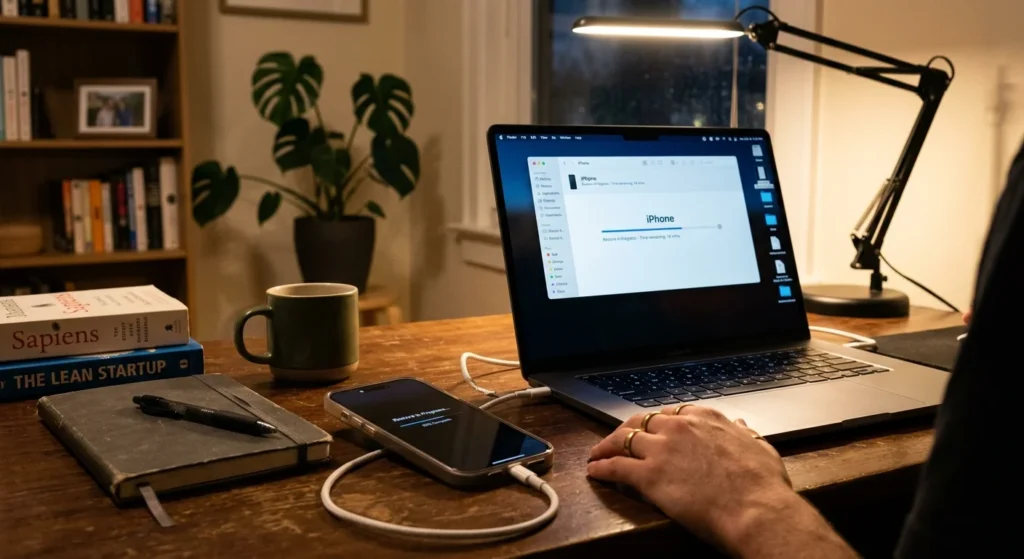
Total time depends on the backup size and your connection. It can range from under an hour to several hours, and large photo libraries and many apps push it toward the longer end. Once it finishes, spend five minutes opening Photos, Messages, Contacts, and two or three apps you use daily to confirm everything came back.
Fixes for Common iPhone Restore Problems
1. Not Enough Storage Space
A restore needs room for the backup’s contents. If the destination phone has less storage than the old one used, the transfer can fail. Free up space on the old phone and make a fresh backup, or restore to a phone with larger capacity.
2. Software Update Required
If the phone says it needs a newer version, update iOS in Settings, General, Software Update, then try again. Update the Mac or PC as well, since an outdated Finder, macOS, or Apple Devices app can cause trouble with newer backups.
3. Sign-In or Verification Problems
A restore asks for your Apple Account, and two-factor authentication sends a code to a trusted device. If your old phone is gone, request the code by text to your trusted phone number instead. Make sure the number is current before you erase anything.
4. Restore Stuck or Very Slow
Check that the Wi-Fi connection is stable and move closer to the router. Restart the phone and try again. If the screen is frozen, force restart an iPhone 8 or later by pressing volume up, then volume down, then holding the side button until the Apple logo appears.

5. Computer Won’t Recognize the iPhone
Unlock the phone and tap Trust when asked. Try a different cable and USB port, restart both devices, and update the computer’s software. If it still fails, put the phone in recovery mode: on an iPhone 8 or later, press volume up, press volume down, then hold the side button until the recovery screen appears.
From there, choose Restore in Finder or the Apple Devices app. This reinstalls iOS and erases the phone, so you will restore your backup during setup afterward.