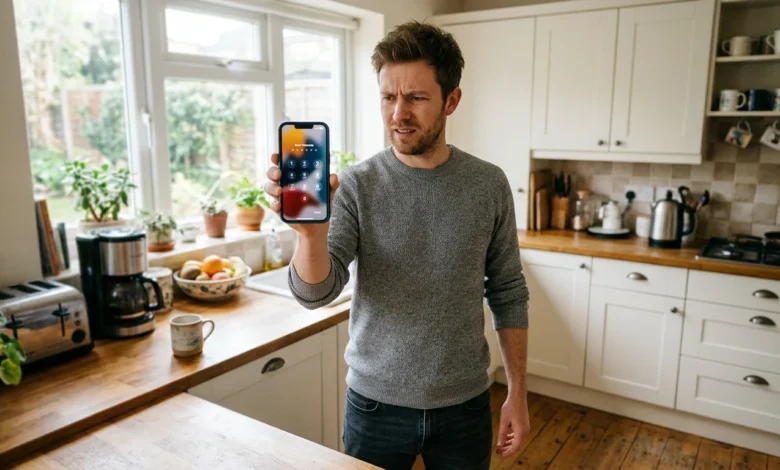
Face ID usually stops working because something is blocking the TrueDepth camera, your face is outside the sensor’s range, or a software glitch has interrupted the feature. Most cases clear up in a few minutes with a cleaning, a restart, or a fresh Face ID setup.
If you have been typing your passcode all week, work through the fixes below from fastest to slowest. Hardware faults are far less common, and the last sections show how to spot one.
Start With the Simple Physical Blockers
1. Clean the TrueDepth Camera
Face ID depends on the TrueDepth camera system at the top of your screen. According to Apple’s Platform Security Guide, it projects more than 30,000 invisible dots onto your face and reads them with an infrared camera.
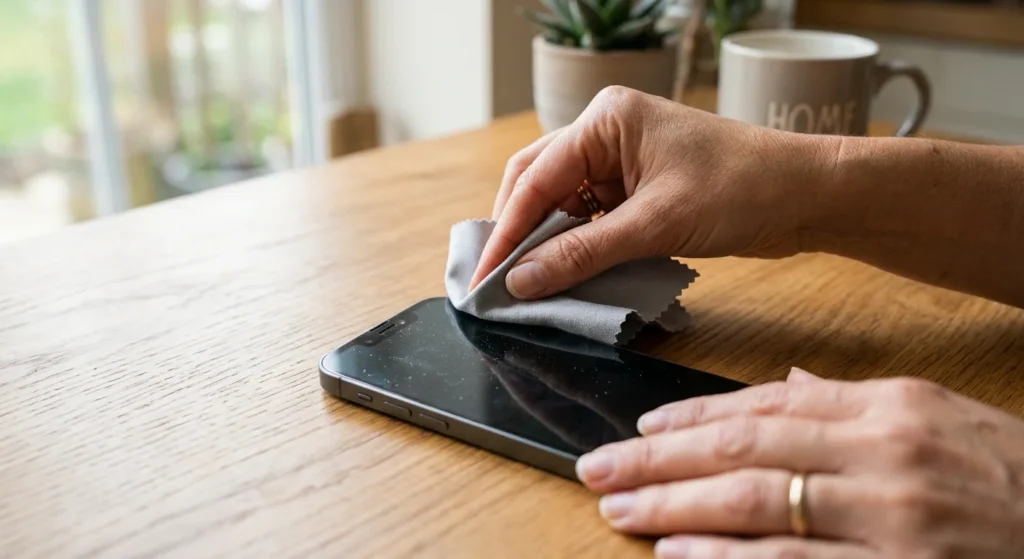
A fingerprint smear, pocket lint, or a layer of foundation on that area can scramble the scan. Wipe the top of the screen with a soft, lint-free cloth, and skip abrasive cleaners that can scratch the glass.
2. Check Your Case and Screen Protector
A case with a raised lip, or a cheap screen protector with a sloppy cutout, can partly cover the sensor array. Privacy-filter protectors cause trouble often because they are built to darken the view from the sides.
Take both off for one test. If Face ID works on the bare phone, buy a protector made for your exact model.
3. Hold the Phone at the Right Distance and Angle
Apple Support says Face ID works best when the screen is about 10 to 20 inches from your face, and your whole face has to be in view. Holding the phone too close, too far, or at a steep tilt on the nightstand is a very common reason for failed scans.
Older iPhones only scan in portrait orientation. Newer models running iOS 16 or later also work in landscape, which helps when the phone sits in a car mount.
4. Sunglasses, Masks, and Appearance Changes
Some sunglasses block the infrared light Face ID uses, so slide them off and try again. A mask is a separate issue. On iPhone 12 and later running iOS 15.4 or newer, you can turn on Face ID With a Mask in the Face ID settings, and it works by scanning the area around your eyes.
A large change, like shaving a full beard or wearing heavy costume makeup, can also trip the scan. Face ID adapts to gradual changes, and it typically recovers after you enter your passcode once.
Run Through the Quick Software Fixes
1. Restart Your iPhone
A restart clears temporary glitches that can freeze the camera system. Hold the side button and either volume button, then drag the power slider.
If the screen is frozen, force restart instead. Press volume up, press volume down, then hold the side button until the Apple logo appears.
2. Update iOS or iPadOS
Go to Settings, tap General, then Software Update. Apple ships bug fixes in point releases, and a Face ID problem that started right after an update often gets patched in the next one. Keep the phone plugged in and on Wi-Fi during the install.
3. Confirm Face ID Is Turned On
Open Settings, then Face ID & Passcode, and enter your passcode. Make sure iPhone Unlock is switched on, along with any other uses you want.
Also check Require Attention for Face ID. When it is on, your eyes must be open and looking at the screen, which can fail if you glance away or wear certain lenses. Turning it off makes unlocking easier but lowers security, so weigh that trade-off before changing it.
4. Reset Face ID and Set It Up Again
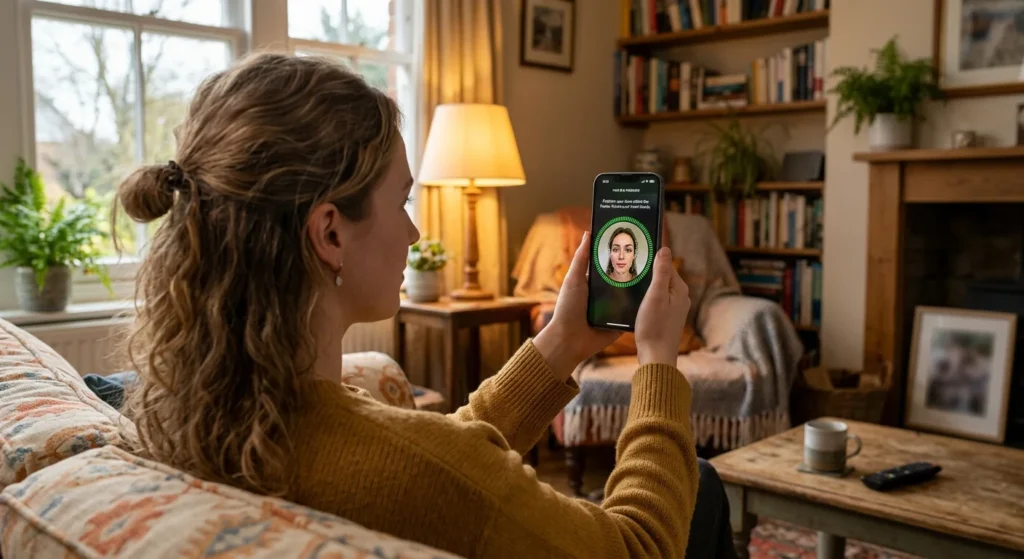
In the same menu, tap Reset Face ID, then Set Up Face ID and follow the prompts. Move your head in a full circle twice, in a well-lit room, without a hat or glasses you do not normally wear.
Setting up an Alternate Appearance helps if you often switch between glasses and no glasses, or look quite different at work.
5. Reset All Settings as a Last Software Step
If nothing else works, go to Settings, General, Transfer or Reset iPhone, Reset, then Reset All Settings. This keeps your photos and apps but clears Wi-Fi passwords, wallpaper, and privacy choices. Set up Face ID again afterward.
Why Face ID Works to Unlock but Fails in Apps
If your phone unlocks fine but a banking app or Apple Pay keeps asking for a password, the problem is probably a per-app setting. Open Settings, Face ID & Passcode, and look at the toggles for Apple Pay, Password AutoFill, and the list of Other Apps. Switch off and on any that look stuck.
Some apps also keep their own biometric toggle inside the app. Update the app, sign in with your password, and enable Face ID again from its security menu. If only one app misbehaves, contact that app’s developer rather than resetting your phone.
What “Face ID Is Not Available” Means
The full message reads “Face ID is not available. Try setting up Face ID later.” It tends to show up after a drop, water exposure, or a screen or camera repair, though a plain software hiccup can cause it too.
Restart, install any pending updates, and reset Face ID, in that order. If the message returns right away, the TrueDepth hardware is the likely culprit, and software resets will not fix it.
Why Your iPhone Asks for the Passcode Instead
Sometimes Face ID is working exactly as designed. Apple Support lists the situations where it requires your passcode:
- The iPhone was just turned on or restarted
- It has not been unlocked in the last 48 hours
- The passcode has not been used in 6.5 days, and Face ID has not unlocked the phone in the last 4 hours
- The phone received a remote lock command
- Face ID failed to match five times in a row
- Emergency SOS was started with the side and volume buttons
None of these means your phone is broken. Enter your passcode, and Face ID resumes on the next unlock.
Why Face ID Can Seem Picky
Apple’s Platform Security Guide puts the chance of a random person unlocking your phone at about 1 in 1,000,000, compared with roughly 1 in 50,000 for Touch ID. That strictness is the trade-off for accuracy, so a slightly blocked sensor or an odd angle gets rejected instead of guessed at.
Face ID works in the dark because it supplies its own infrared light. Bright sunlight hitting the sensors straight on can still cause misses, so shade the screen with your hand and try again.
Signs of a Hardware Problem
1. Damage, Water, and Third-Party Repairs
Face ID is tied to the TrueDepth module, so a cracked front glass, a hard drop, or a repair using non-Apple parts can break it. The module is paired with the phone, which is why a replacement from an unauthorized shop can leave Face ID disabled.
Water is another culprit. Even a phone that dried out may develop sensor trouble days later.
2. Extreme Temperatures
Apple lists the iPhone’s operating range as 32° to 95°F (0° to 35°C). A phone left on a car dashboard in July or in a coat pocket during a January snowstorm may refuse to scan until it returns to room temperature.
3. Other Signs the TrueDepth Camera Has Failed
Try the selfie camera and a Memoji. If the front camera looks blurry, Portrait mode on selfies fails, or Memoji cannot track your face, the TrueDepth system is probably faulty. Together with the “not available” message, that pattern points to a repair rather than a settings issue.
4. What to Do Before Booking a Repair
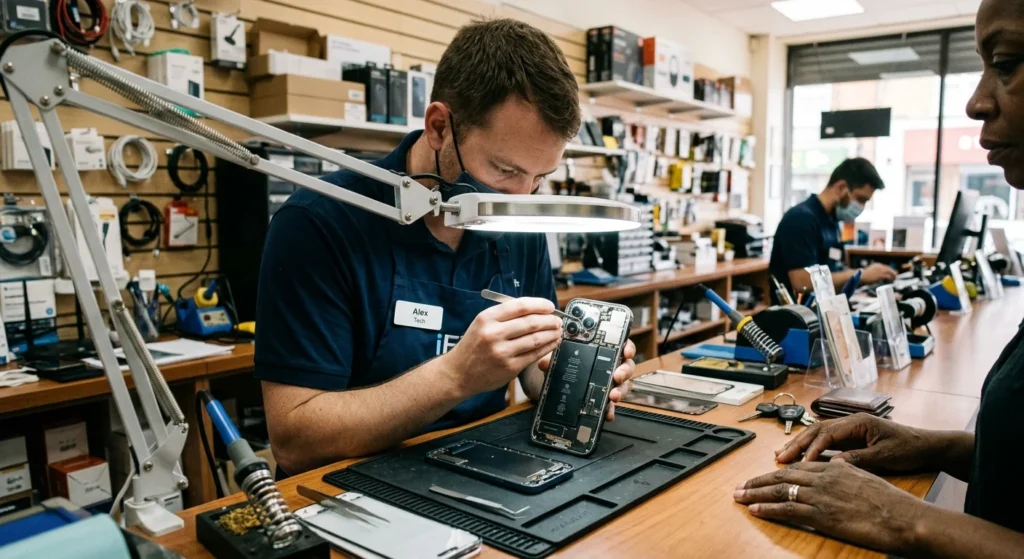
Back up your iPhone to iCloud or a computer first, since service sometimes involves a replacement or reset. Then book a Genius Bar appointment at an Apple Store or visit an Apple Authorized Service Provider. Check Apple’s website for current repair pricing and whether AppleCare+ covers your issue, because fees change.
Habits That Keep Face ID Reliable
Small habits prevent most repeat failures. Wipe the camera area weekly, buy cases and protectors made for your exact model, and install iOS updates when they arrive. If your look changes often, set up an Alternate Appearance before you need it.
Avoid cheap repair shops for screen or camera work, because a replaced module can disable Face ID for good. If you are still stuck on why Face ID is not working after these steps, a technician can test the TrueDepth camera in a single visit.