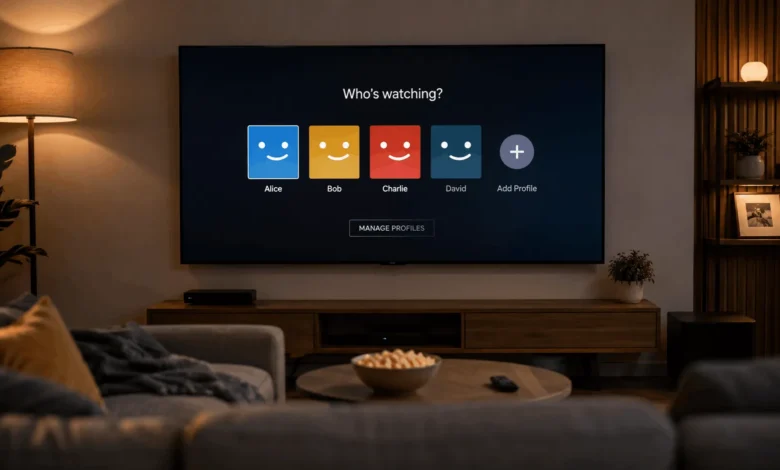
Signing out of Netflix on a TV is not the same as closing the app, and that distinction trips up more people than you would expect. If you have ever handed off a TV to a new owner, checked out of a hotel room, or just wanted to stop a Netflix session from staying logged in on a shared device, you need the actual sign out option, not the home button. The good news is that once you know where Netflix hides this setting, the process takes under a minute on almost any smart TV, streaming stick, or game console. This guide walks through the exact steps for every major TV brand, a hidden remote shortcut most people never find, and how to sign out remotely if you no longer have the TV in front of you. Once your account is secured, offline viewing is another useful option, and here’s how to download Netflix movies on a laptop.
The Quick Way to Sign Out of Netflix on Most Smart TVs
Netflix uses roughly the same layout across brands now, so this method works on the majority of modern smart TVs. Open the Netflix app and let it load to the home screen. Move up with your remote until the top navigation bar is highlighted, then move left until your profile icon is selected in the top corner. Press select to open the menu, then scroll down to Get Help. Inside Get Help, scroll to the bottom and choose Sign Out. A confirmation prompt appears; select Yes and the app returns to the login screen. If your TV runs an older Netflix app that has not been updated, the same options usually sit under a Settings or gear icon instead of a profile icon, but the destination is the same: find Sign Out and confirm it.
Step-by-Step Sign Out Instructions by TV Brand
Menu wording and remote layout shift slightly depending on the manufacturer, even though the underlying steps stay close to identical.
1: Samsung Smart TVs
Open Netflix, press the down arrow to reveal the row of navigation icons, then move left to your profile picture. Select it, choose Get Help from the dropdown, and scroll to Sign Out at the bottom. Confirm when prompted. On older Tizen models, the profile icon sits in the top left corner from the start rather than appearing after a down press.
2: LG Smart TVs (webOS)
LG’s Netflix app places the profile icon in the same top corner layout. Highlight it with the arrow keys, open the menu, and select Get Help, then Sign Out. If the app freezes partway through, press the LG Home button to exit fully, relaunch Netflix, and try again before assuming the option is missing.
3: Vizio SmartCast TVs
Vizio’s app follows the standard Netflix layout, so profile icon, Get Help, then Sign Out applies here too. Because Vizio remotes vary by model, some use a dedicated menu button to reach the app’s side navigation faster instead of arrowing all the way to the top bar.
4: TCL, Hisense, and Other Google TV or Android TV Models
TVs running Google TV or Android TV, including many TCL and Hisense sets, use the identical Netflix interface since the app itself is the same across that platform. Profile icon, Get Help, Sign Out, confirm. On these TVs you can also uninstall and reinstall the app from the Google Play Store as an alternative way to force a full sign out if the in-app option will not respond.
How to Sign Out on a Streaming Device Connected to Your TV
Plenty of TVs run Netflix through an external streaming device rather than a built-in app, and the sign out steps live inside that device instead of the TV’s own settings.
1: Roku
Open the Netflix channel on your Roku, then follow the same profile icon, Get Help, Sign Out path inside the app itself. Roku does not have a separate device-level Netflix logout; it all happens within the Netflix app.
2: Amazon Fire TV
Fire TV Netflix works the same way through the in-app menu. If you would rather remove Netflix access at the device level, go to Settings, then Applications, then Manage Installed Applications, select Netflix, and clear its data. This forces a fresh login the next time anyone opens the app.
3: Apple TV
Open Netflix and use the same profile and Get Help path to sign out from within the app. You can also go to Settings on the Apple TV itself, choose Accounts, select Netflix, and clear the login data if the in-app method is not cooperating.
4: Chromecast with Google TV
Since this runs the Google TV platform, the process matches the TCL and Hisense steps above: profile icon, Get Help, Sign Out.
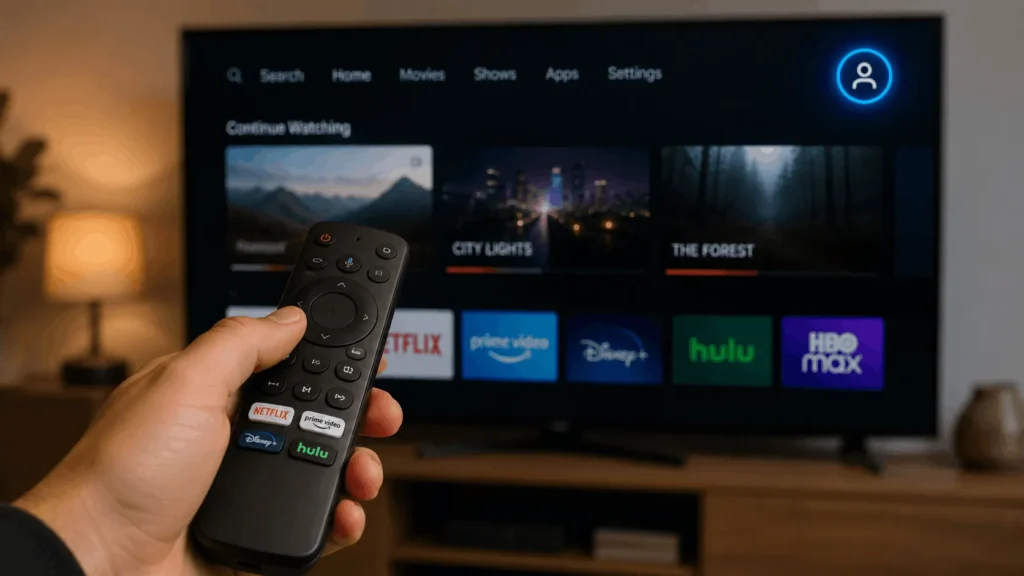
The Hidden Remote Shortcut That Opens the Sign Out Menu
Most people do not know Netflix built a secret key sequence into the app that jumps straight to the Get Help screen from anywhere, without navigating through the profile menu first. Point your remote at the TV and enter this sequence on the directional pad: Up, Up, Down, Down, Left, Right, Left, Right, Up, Up, Up, Up. This works across TV brands because it is coded into the Netflix app itself rather than the TV’s software. It is especially useful if the app is behaving oddly and the normal profile icon path is not responding the way it should.
How to Sign Out Remotely When You Don’t Have Access to the TV
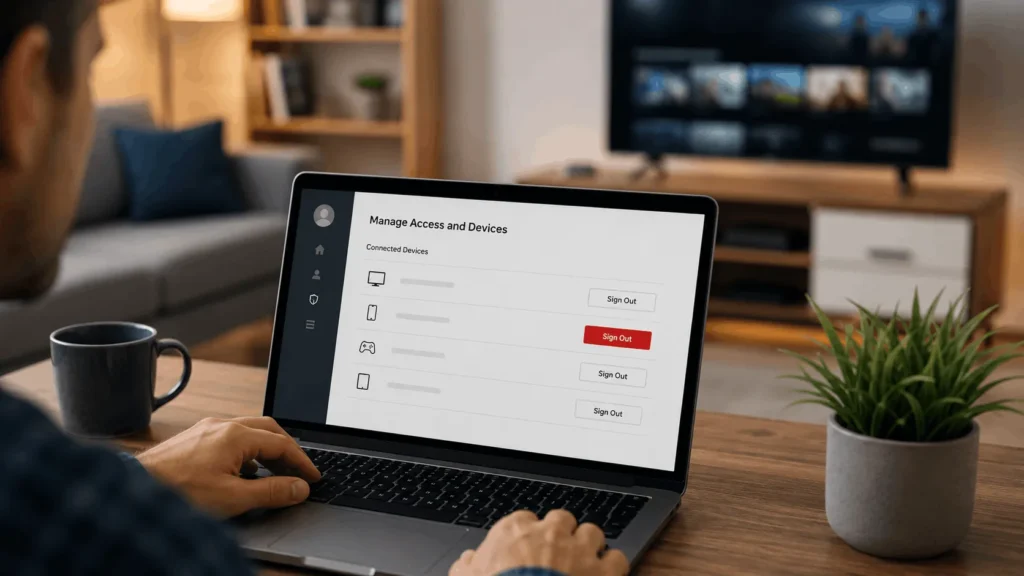
Sometimes the TV is not in front of you. Maybe you sold it, left it in a hotel room, or moved out of a shared apartment. In that case, sign out through the Netflix website instead of the TV itself. Go to netflix.com on a phone, tablet, or computer and log in to your account. Open the account page and look for Manage Access and Devices, sometimes labeled simply as your account activity or device list. Find the TV or streaming device in the list and select Sign Out next to it. This removes that specific device’s access without touching any other device signed into your account. If you want to be thorough, or you are not sure which entry on the list is the TV in question, Netflix also gives you the option to sign out of all devices at once from the same page, then just log back in on the devices you actually still use.
What Happens When You Sign Out of Netflix on a TV
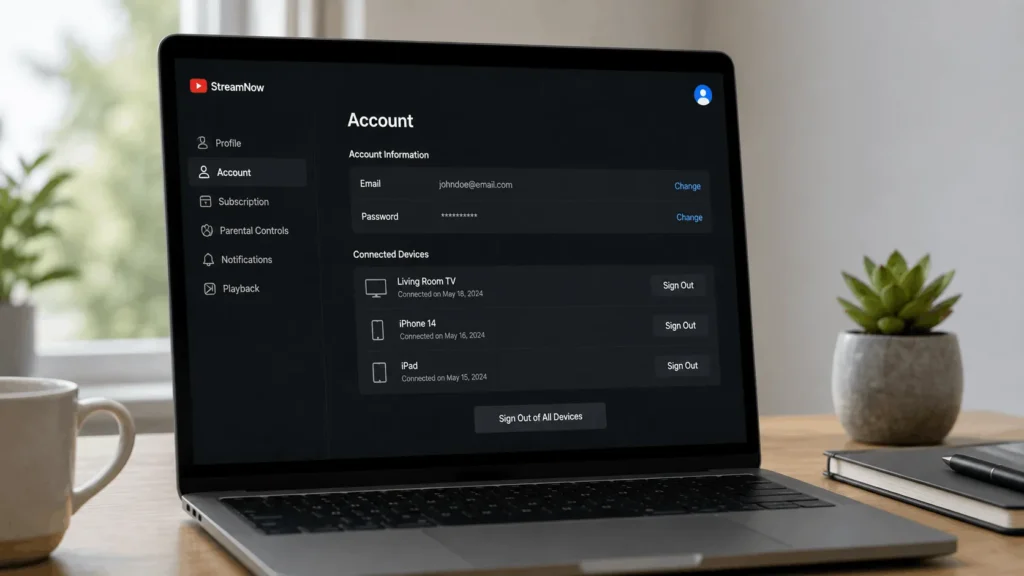
Signing out only removes that one TV’s access to your account. Your profiles, watch history, my list, and recommendations all stay exactly as they were, stored safely on Netflix’s servers rather than on the television. Other devices already logged into your account, like a phone or laptop, are not affected and stay signed in. The only real limit to keep in mind is that Netflix caps how many devices can stream simultaneously, If you also download shows to watch offline on a laptop, that counts as a separate device slot too. So freeing up a device by signing out can matter if you are running into that cap elsewhere.
Troubleshooting: Can’t Find the Sign Out Option
If the menu freezes, looks different than expected, or the Sign Out button simply is not there, a few things usually fix it. First, fully close the Netflix app rather than just backing out of it, then reopen it and try the profile icon path again. If the problem continues, check whether the app needs an update through your TV’s app store, since Netflix periodically redesigns the interface and an outdated version can hide or move menu items. As a last resort, clear the app’s cache through your TV’s general Settings menu under Apps, then Netflix, then Clear Cache, and relaunch it. This usually resolves a stuck or unresponsive menu without requiring a full app reinstall.