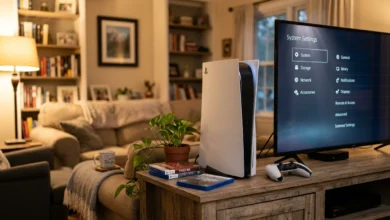
A computer that won’t turn on is usually a power problem, not a dead machine. Before you assume the worst, work through the checks below in order. Most people fix this themselves in under twenty minutes.
Check the Power Source First
Plug a lamp or phone charger into the same outlet the computer uses. If nothing happens, the outlet is dead, and the computer was never the problem. Try a different wall outlet entirely rather than just a different slot on the same power strip.
Surge protectors and power strips fail quietly. Some have a small reset switch on the side that trips during a power spike and cuts output without any warning light. Bypass the strip and plug the computer straight into the wall to rule this out.
Confirm the Power Cable and Outlet Work
Desktop power cables look identical across brands, which makes them easy to borrow from another device to test. If you own a second computer, monitor, or printer with the same style cable, swap it in for a minute. A frayed cable or a bent prong is a common and cheap fix.
On laptops, check the charging brick itself. Feel along the cable for warm spots or a burnt smell, and look at the connector tip for bent pins or corrosion. Try a different outlet and, if you have access to one, a different charger with the same wattage rating.
Look and Listen for Signs of Life
This step tells you whether the problem is power delivery or something further inside the machine. Press the power button and pay attention to three things: fan noise, LED lights on the case or keyboard, and any beeping from the motherboard speaker.
If fans spin and lights turn on but the screen stays black, the computer is receiving power, and the issue is likely the display connection or graphics card, not a dead unit. If there is total silence with no lights and no fan movement, the fault sits earlier in the chain, most often the outlet, cable, or power supply.
Try a Hard Reset
A hard reset clears residual electrical charge that can sometimes lock a computer in a non-responsive state after a bad shutdown or a power surge. For a desktop, unplug the power cable from the back of the tower, hold the power button down for thirty seconds, then plug the cable back in and try again.
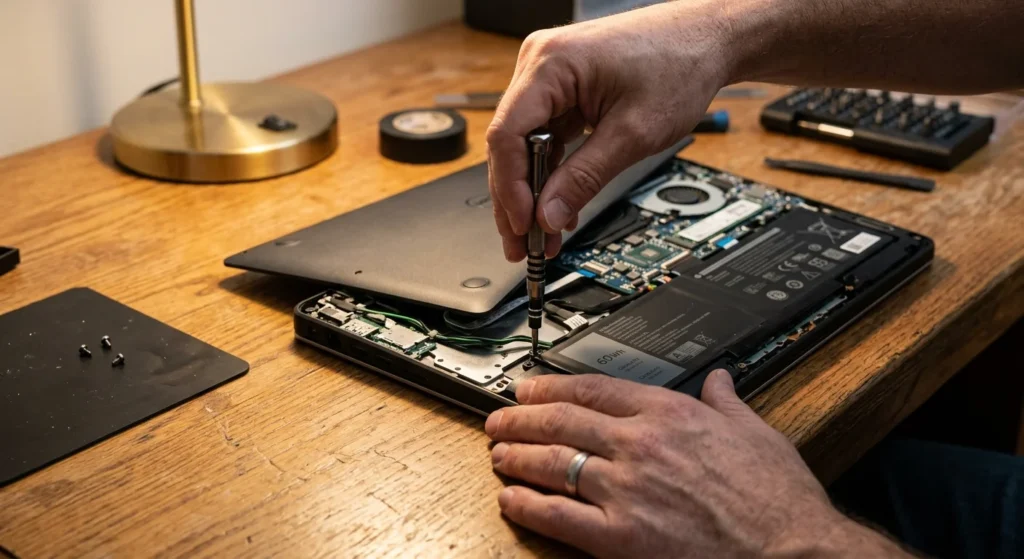
For a laptop, unplug the charger, remove the battery if it is removable, and hold the power button for thirty seconds. Reinsert the battery, plug the charger back in, and press the power button once. If the battery is built in and not removable, holding the power button alone for thirty seconds while unplugged still works on most modern laptop models
Remove and Reseat the RAM
Loose or misaligned RAM sticks are a frequent cause of a desktop that powers on (fans spin, lights glow) but never displays anything and sometimes beeps repeatedly. Unplug the machine, open the side panel, and locate the RAM sticks on the motherboard.
Push down the small clips on each end of the RAM slot, lift the stick straight out, and press it back in firmly until both clips snap closed. If you have more than one stick, try starting the computer with only one installed at a time to identify a faulty module. This same logic applies to a loose graphics card if your desktop uses one, since a card that has shifted slightly out of its slot can also prevent the display from working while the fans still spin normally.
Check the Monitor Connection First
Plenty of “computer won’t turn on” cases turn out to be a monitor problem in disguise. Confirm the monitor itself is plugged in and powered on, since its power light will usually change color or blink when it isn’t receiving a signal from the computer.
Check the video cable connecting the monitor to the computer at both ends, and if you have a spare HDMI or DisplayPort cable, swap it in. Try a different port on the graphics card or motherboard as well, since a single damaged port can make an otherwise healthy computer look completely dead from the outside.
Battery and Charging Issues on Laptops
A laptop with a swollen, old, or fully depleted battery can refuse to power on even while plugged in, especially if the battery has degraded past the point where it can hold a charge. Leave the laptop connected to its charger for at least thirty minutes without pressing anything, then try the power button again.
Watch for a charging indicator light near the power port. A solid or blinking light usually confirms the charger is delivering power even if the screen stays dark, while no light at all points back to the cable, the brick, or the wall outlet rather than the battery.
If the laptop is more than three or four years old and has never had the battery replaced, a worn-out battery is a realistic explanation, particularly if the laptop previously showed rapid battery drain or unexpected shutdowns before this happened.
When the Motherboard or CPU Is the Problem
If you have gone through outlet, cable, RAM, and monitor checks with no change, the remaining possibilities sit deeper in the hardware: a failed power supply unit, a short on the motherboard, or in rarer cases, a dead CPU. These are harder to diagnose without a multimeter or a spare, known-working power supply to swap in for testing.
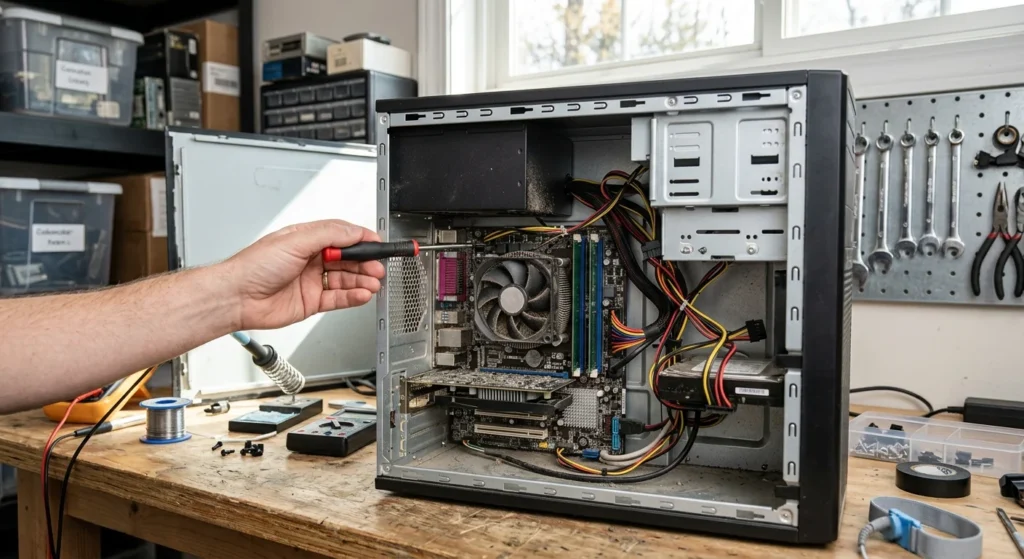
A telltale sign of a power supply failure is a burning smell near the back vent of the desktop case, a loud single click when you press the power button with nothing else happening, or a power supply fan that spins briefly and then stops. Desktop power supplies are one of the more affordable parts to replace, and swapping one takes most people under an hour with a screwdriver and a basic guide.
When to Call a Repair Technician
Bring the machine to a repair shop once you smell burning, see visible scorch marks on the motherboard, or notice liquid damage from a recent spill. These situations involve a real risk of injury or further damage if you keep testing components yourself.
It also makes sense to hand things off once you have already ruled out cables, outlets, RAM, and the monitor, and the computer still shows no signs of power at all. At that point, the likely culprits (a failed motherboard, a dead CPU, or an internal short) need diagnostic tools most people do not have at home, and a technician can usually confirm the exact part within an hour using proper testing equipment.
Before you hand it over, write down every step you already tried. This saves the technician time, often lowers the diagnostic fee, and gives you a clear answer on whether a repair is worth the cost compared to replacing the machine.