
Why is ChatGPT not working for you right now? Usually it comes down to one of four things: an OpenAI outage, a usage limit on your account, a shaky network or VPN connection, or a stale browser session. Check OpenAI’s status page first, because if the fault is on its end, nothing you change on your device will help.
If the status page looks clean, work through the fixes below in order. They run from the quickest checks to the more involved ones, and most problems show up within the first five.
Check Whether ChatGPT Is Down for Everyone
Open status.openai.com in a separate tab. It shows whether ChatGPT and OpenAI’s other services are running normally, and it keeps a log of recent incidents, so you can see if a fix is already underway. If the page won’t load, try a third-party tracker such as Downdetector.
Down for Everyone or Just Me is another option, and its history shows most outages are short. It logged a 39-minute ChatGPT outage on October 6, 2026, a 45-minute one on October 1, and a 58-minute one on September 30. Two earlier ones ran 54 minutes on September 29 and about an hour around September 25 and 26.
Those figures come from user-reported detection, not from OpenAI, so treat them as a guide. Still, the pattern is useful: when ChatGPT goes down, it is usually back within about an hour.
The same tracker says 59 percent of reports are tagged as errors, which is a broad bucket. It covers everything from server hiccups to dropped connections, so an error message alone doesn’t tell you whose fault it is.

Also check the scope of any incident. A status page can list trouble with one feature, such as file uploads or voice, while the main chat works normally. If only one feature fails, the rest of your setup is probably fine, and you can keep using plain text chat while that feature is repaired.
Match the Symptom to the Likely Cause
Different failures point to different culprits. Use this table to decide where to start.
| What You See | Likely Cause | First Move |
| ChatGPT won’t load at all | Outage, network problem, or corrupt cache | Check the status page, then try another network |
| An error message, or a reply that never starts | Server hiccup or expired session | Refresh, start a new chat, log out and back in |
| A “too many requests” warning | Rate limit on your account | Wait before sending more prompts |
| Replies stop mid-sentence | Unstable connection or heavy load | Switch between Wi-Fi and mobile data, then retry |
| Error code 1020 or access denied | Firewall flagging your IP address or VPN | Disconnect the VPN or change networks |
| Blank chat history | Outage or a browser extension | Check status, then try incognito mode |
Ten Fixes for When ChatGPT Is Not Working
1. Wait Out a Short Outage
If the status page or a tracker confirms a problem, stop troubleshooting. Clearing your cache won’t speed up a repair on OpenAI’s servers. Give it 30 to 60 minutes, then check again.
Use the time to copy any long prompt you were writing into a notes app. Tabs refresh, sessions expire, and retyping a detailed prompt is the most annoying part of any outage.
2. Refresh the Page and Start a New Chat
A failed response often clears with a hard refresh. In Chrome or Firefox, press Ctrl+F5 on Windows or Cmd+Shift+R on a Mac. Then send your prompt in a fresh chat instead of the one that errored.
Very long conversations are also heavier for a browser tab to handle. If one old thread stalls while new chats work fine, that thread is the problem, and you can carry on in a new one by pasting a summary of where you left off.
3. Check Whether You Hit a Usage Limit
If ChatGPT loads but won’t take new prompts, you may have reached a cap. Android Authority notes that sending too many prompts in a short window can trigger a rate limit, and waiting is the fix.
Paid plans may get priority access, but that is no guarantee during busy periods. The exact caps change with the plan, the model you pick, and overall demand, so check OpenAI’s help center for current numbers rather than relying on an old blog post.
4. Test Your Internet Connection
Load two or three other websites. If they are slow or fail too, the problem is your connection, and restarting the router is the first thing to try. If they load fine, switch networks by moving from Wi-Fi to mobile data or the reverse.
Replies that stop halfway through are a classic sign of a connection that drops for a second or two. Setapp points to small intermittent disruptions as a common cause, even when the Wi-Fi looks healthy. Moving closer to the router or plugging in with a cable can settle it.
5. Turn Off Your VPN
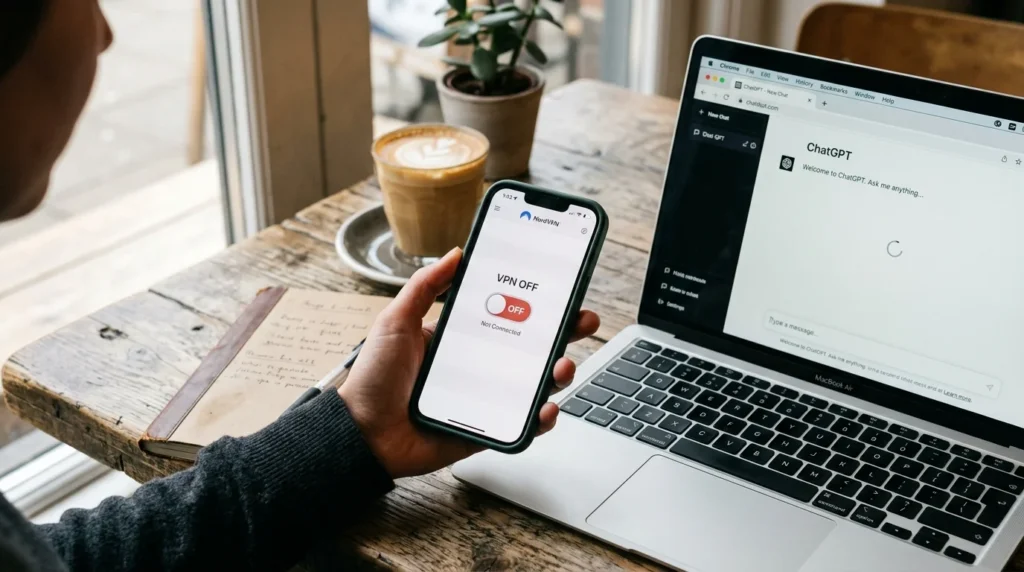
ChatGPT may block IP addresses that VPN services commonly use, according to Android Authority, as a way to limit abuse. Setapp adds that error code 1020 means the Cloudflare firewall in front of the site has flagged your IP address.
Disconnect the VPN and reload the page. If you need it on, pick a different server location, since a crowded shared IP is more likely to have been flagged.
Work, school, and public Wi-Fi can also block AI sites outright. Test on mobile data before you assume something is wrong with your account.
6. Log Out and Log Back In
Login sessions expire after a while, and an old session can leave ChatGPT loading but silent. Android Authority points out that you need a valid session for the chatbot to respond at all.
Use the log out button in the lower left corner of the screen, then sign in again with your credentials. If you get stuck in a loop where the site keeps sending you back to the login page, clear the site’s cookies using fix 8 first.
7. Try Incognito Mode or Another Browser
Open a private window and load ChatGPT there. If it works, something in your main browser is interfering, most often an ad blocker, a privacy extension, or a script blocker.
Turn extensions off one at a time in your regular browser to find the one responsible. If incognito fails too, test a second browser such as Chrome, Edge, Firefox, or Safari before moving on.
On a work computer, a managed browser may enforce policies you can’t change. In that case, test on a personal device and pass the result to your IT team.
8. Clear the Cache and Cookies
A corrupted cache is an unlikely cause, but it takes a minute to rule out. In Chrome or Edge on a computer, press Ctrl+Shift+Delete (Cmd+Shift+Delete on a Mac), choose cached files and cookies, and clear them.
Clearing everything signs you out of other websites, so limit it to ChatGPT where your browser lets you. In Safari, Setapp’s steps are to open Safari’s settings, go to Privacy, choose Manage Website Data, search for chatgpt.com, click Remove All, and click Done.
Reload the page and sign in again once the cache is cleared.

9. Switch to the App or Another Device
OpenAI offers official ChatGPT apps for Android and iOS, which gives you a second route when the website acts up. Try the app on mobile data to separate a browser problem from a network problem.
A second device on the same Wi-Fi is just as useful. If your phone works and your laptop doesn’t, the network is fine and the fault sits in the laptop’s browser or settings.
10. Update Everything and Restart
Out-of-date browsers and apps cause strange bugs that no setting fixes. Update your browser or the ChatGPT app, fully quit it, and reopen it.
If that changes nothing, restart the device. It is the oldest advice in tech support, and it still works because it clears stuck processes that you can’t see.
What Common ChatGPT Error Messages Usually Mean
An internal server error points to OpenAI’s side. Android Authority adds that even the error message can fail to appear during periods of high demand, so a page that just sits there can mean the same thing.
A network error usually points to your connection, so fixes 4 and 5 come first. A “There was an error generating a response” message is typically a one-prompt failure, and a refresh or a new chat clears it most of the time. If it repeats on every prompt in every chat, treat it like an outage and check the status page.
Error 1020 and access denied messages are the odd ones, because they say nothing about speed or outages. They are about who you appear to be: your IP address, your VPN, or your account. That is why the fix is to change the network or contact support, not to refresh.
What to Do When Your Account Is Blocked or Flagged
Sometimes the problem is the account and not the service. Messages about denied access or unusual activity can mean OpenAI’s systems flagged your sign-in, which a VPN or a shared network can trigger without you doing anything wrong.
Setapp’s advice is to sign out of all devices from your account’s security settings, then contact OpenAI support through the live chat at help.openai.com. Say what error you see, when it started, and which email the account uses. Ask directly whether anything on the account needs attention.
If you suspect someone else got into your account, change your password and run a security scan on your computer before you sign back in. Doing it in the other order can hand the new password to whatever is already on your machine.
Keep Working While ChatGPT Is Down
Outages stall real work, so keep a backup tool ready. Android Authority names Microsoft Copilot as an alternative that can search the web for fresher information. Google Gemini and Anthropic’s Claude are two other general-purpose assistants with free tiers.
Keep your best prompts in a notes app or document instead of only inside chat history. If history won’t load, which Setapp lists as its own failure type, you still have the prompts and can paste them into any other tool in seconds.
How to Troubleshoot Faster Next Time
The fastest troubleshooting splits the problem into three zones: OpenAI’s servers, your connection, and your device or account. Each fix above tests one zone, so run them in an order that rules zones out quickly.
Check the status page to clear the first zone. Try another network, such as mobile data, to clear the second. Try incognito mode or a different device to clear the third.
Change one thing at a time. If you turn off the VPN, clear the cache, and switch browsers all at once, ChatGPT might start working, and you will have no idea why, which means you’ll repeat the whole routine next time.
When to Contact OpenAI Support
Report the problem if the status page is green and ChatGPT still fails in a second browser, on a second network, and after a fresh login. Support can check account-level issues that you can’t see from your side.
Include the exact error text, the time and time zone it happened, your device and browser, whether a VPN was on, and a screenshot. Add the steps you already tried so the reply doesn’t start with the basics.
If you are still asking why is ChatGPT not working after all ten fixes, that list of details is what lets support find the cause quickly.