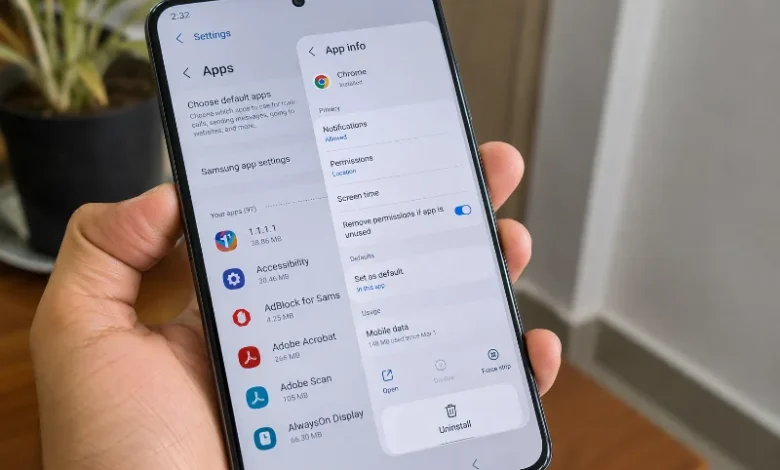
The fastest way to uninstall an app on Android is to open Settings, tap Apps, select the app you want to remove, then tap Uninstall and confirm. You can also reach the same result through Settings, then Apps, then See all apps, finding the app and tapping Uninstall. If that button is grayed out or missing, the app is likely a pre-installed system app, and this guide covers what to do about those too.
Uninstall Apps From the Settings Menu
This method works on almost every Android phone, regardless of brand. Open the Settings app on your device, scroll down and tap on the Apps option, and you will see a list of all the apps installed on your device. Tap the one you want gone, then look for the Uninstall button on its details page.
A confirmation prompt appears before anything is deleted, so there is no risk of tapping the wrong thing by accident. Once you confirm, the app and most of its data are removed right away. Any files it saved to shared storage, like downloaded photos or documents, usually stay put unless you clear them separately.
Uninstall Apps From the Home Screen
If you would rather skip Settings entirely, you can delete an app directly from where it lives. Find the app icon on your home screen or in the app drawer, long-press the icon until a menu appears, then tap Uninstall and confirm by tapping OK.
On some phones, this menu shows “Remove” first, which only takes the icon off your home screen without deleting the app itself. Look for the option labeled specifically Uninstall if your goal is to free up storage, not just tidy your layout.
Uninstall Apps Through the Google Play Store
The Play Store keeps a running list of everything you have installed, which makes it a good place to manage apps you downloaded a while ago and forgot about. Open the Google Play Store app, tap the Profile icon at the top right, tap Manage apps & devices, tap Manage, select the app you want to delete, then tap Uninstall.
This route is handy on tablets or Chromebooks where long-pressing an icon does not always bring up the same menu you would see on a phone. It also shows you the app’s size before you commit, so you know exactly how much space you are about to get back.
Remove Several Apps at Once
Deleting apps one by one gets old fast if you are doing a big cleanup. Open the Google Play app, tap your account picture at the top, choose Manage apps & device, go to the Manage tab to view installed apps, select the apps you want to remove by checking them, then tap the trash icon to delete them all at once.
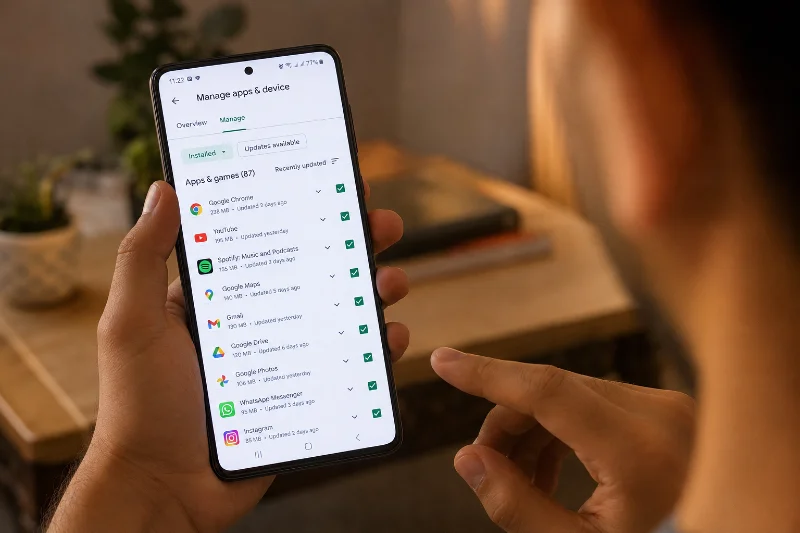
This is worth doing every few months, especially before a phone is close to running out of storage. Sorting the list by size first, rather than by name, makes it easy to spot the handful of large apps that are actually worth removing.
What to Do With Apps You Cannot Uninstall
Plenty of phones ship with apps from the manufacturer or carrier that do not have a normal Uninstall option. Many Android phones come with pre-installed apps from the manufacturer or carrier that cannot be uninstalled, and the workaround is to disable them instead by going to Settings, then Apps, finding the pre-installed app, and tapping Disable, which appears in place of Uninstall for system apps.
Disabling an app stops it from running, removes it from your app drawer, and prevents it from receiving updates. It is not the same as full removal, since some of its files stay on the device, but it accomplishes the same practical goal for most people: the app stops showing up and stops using resources.
If the app you are trying to remove has admin-level permissions, such as older security or work-profile apps, you may need one extra step first. Go to Settings, then Security, then Device administrators, find the app, and turn off its admin access before the Uninstall option becomes available again.
Archive Apps Instead of Deleting Them
If you are not ready to fully commit to deleting an app but need the space, Android has a middle option. You can archive apps you have not used for a while, and when you archive an app, its data is removed, but the app icon and your personal data stay on your device.
This works well for seasonal apps, like a tax filing app or a travel booking app you only touch a few times a year. Reinstalling an archived app later restores it without the setup process you would go through with a fresh download.
Samsung and Other Manufacturer Differences
Samsung’s One UI handles this a little differently from stock Android, though the steps are still simple. Long-press an app icon on the home screen or the Apps screen, tap on Uninstall, and choose OK, and the app will be deleted from your phone. You can also reach the same result through Settings and Apps on a Galaxy device, following the same path as stock Android.
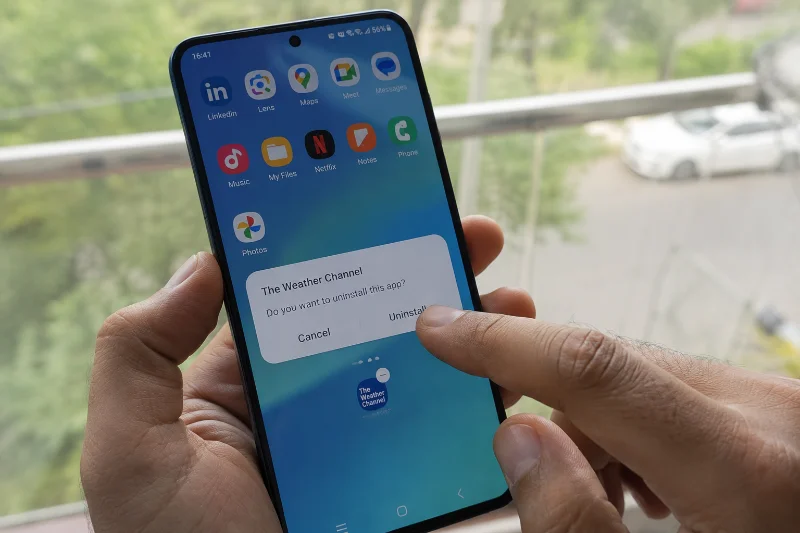
Other brands like OnePlus, Motorola, and Xiaomi follow this same general pattern: long-press to uninstall, or Settings to Apps to Uninstall. The button labels rarely move far from what is described above, even when the menu design looks different.
Removing Stubborn Bloatware With ADB
For apps that will not uninstall or disable through any of the above, there is one more option that does not require rooting your phone. On your phone, go to Settings, then About phone, and tap Build number seven times to unlock Developer options, then head to Settings, System, Developer options and turn on USB debugging, download the SDK Platform Tools on your computer, and connect your phone with a USB cable.
From there, you run a short command through your computer’s terminal that removes the app for your user profile specifically. This is a more technical route, best suited to people who are comfortable using a command line, and it is reversible on most devices since the system files are only hidden from your account rather than erased outright.
Clearing Cache and Data Instead of Uninstalling
Sometimes an app is not the problem; its accumulated cache is. Photo editors, browsers, and social apps can quietly build up gigabytes of temporary files over months of regular use. Before removing an app you actually want to keep, try Settings, then Apps, then the app in question, then Storage, and clear the cache first.
Clearing cache does not touch your logins, settings, or saved data, so it is a low-risk step. If the app still feels bloated after that, clearing data resets it back to a fresh install, which is closer to a full removal without actually losing the app itself. This is worth trying on apps like maps or streaming services that download large offline files you forgot were there.
Checking How Much Space You Actually Freed Up
After a cleanup session, it helps to confirm the results rather than guess. Go to Settings, then Storage, and Android will show a breakdown of what is using space on your device, split into categories like Apps, Photos, and System.
Compare this number to what you saw before you started uninstalling. If the difference looks smaller than expected, check whether any of the apps you removed had large amounts of data stored separately in Files or Downloads, since that content is not always deleted along with the app itself. Running this check every few months keeps storage issues from creeping up on you again.
A Quick Checklist Before You Uninstall
A few habits make this process smoother and safer. Back up anything important tied to an app, like game saves or documents, before removing it, since deleted app data usually cannot be recovered afterward. Double-check that the app is not something your phone depends on to run, since removing a core system component (rather than a bloatware app) can cause instability.
You can always reinstall a free app later from the Play Store at no cost, and paid apps you have already bought will not charge you again on reinstall. If storage space is your main concern, checking app sizes first in either Settings or the Play Store will tell you which removals actually matter.