If you have ever tried to type an em dash on Windows and ended up with a plain hyphen instead, you already know the problem. The em dash is not printed on any standard keyboard, so Windows makes you reach it through a shortcut, a menu, or a small workaround. The good news is that several methods work reliably, whether you write in Word, drop a quick message into Slack, or fill out a form in your browser.
This guide covers the Alt code, the built-in Windows symbol panel, Word’s automatic formatting, Google Docs, Character Map, and a permanent fix using AutoHotkey. Skip ahead to whichever section matches how you actually write.
Em Dash vs. En Dash vs. Hyphen: Grab the Right One
Windows treats these as three separate characters, and mixing them up is the most common mistake.
The hyphen (-) sits on your keyboard’s top row. It joins compound words such as “well-known” or “up-to-date,” and you never need a special code for it.
The en dash is wider than a hyphen but shorter than an em dash, roughly the width of the letter N. It marks a range or connection, as in “pages 10 to 15” or “the 2020 to 2024 term.”
The em dash is the longest of the three. It sets off a phrase or marks a break in a sentence, often standing in for a comma, colon, or parenthesis with more visual weight. A working example: “A backup plan always helps—especially when the WiFi cuts out mid-presentation.” Once you know which mark you need, the methods below get it onto the page.
Should There Be a Space Before and After It
American style, followed by most books, magazines, and news outlets published in the United States, sets the em dash directly against the surrounding words with no space on either side, as in the example above. Some newspapers and a handful of style guides prefer a space on each side instead.
Neither approach is technically wrong, but consistency matters more than which one you pick. Word’s autocorrect and Google Docs both produce the unspaced version by default when they convert double or triple hyphens, so if your workplace or publication prefers spaced dashes, you will need to add those spaces manually after the automatic conversion runs.
The Alt Code Method (Works in Almost Any Program)
The Alt code inserts the em dash directly at the operating system level, so it works in Notepad, browsers, and chat apps, not just Word. Here is the process:
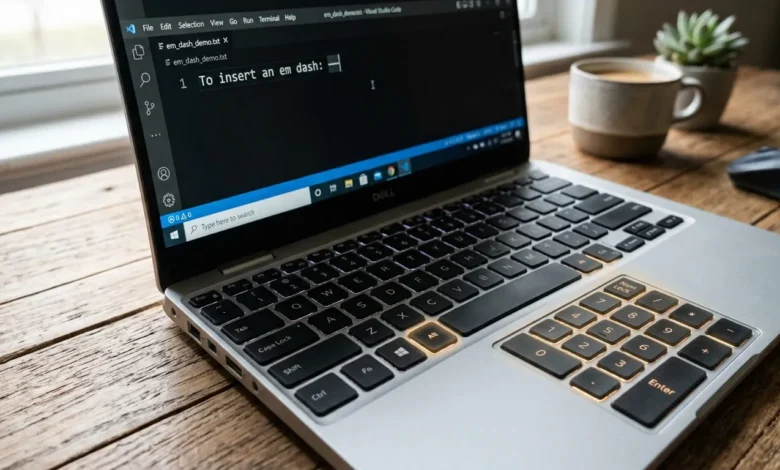
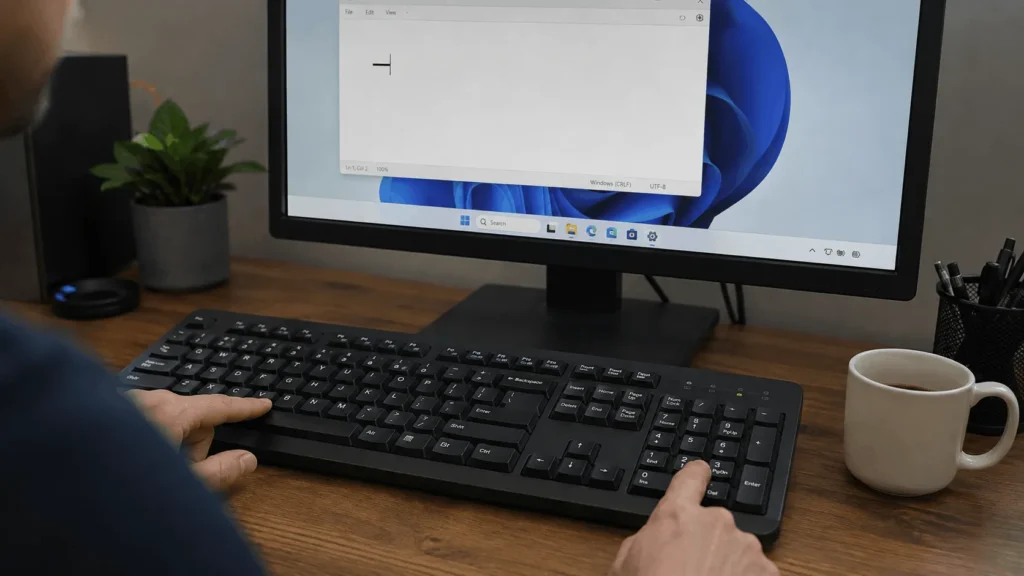
Place your cursor where you want the dash. Confirm Num Lock is on. Hold the left Alt key, then type 0151 using the numeric keypad, not the number row across the top. Release Alt, and the em dash appears.
This only works with the numeric keypad specifically. Typing 0151 across the top of the keyboard while holding Alt will not produce anything.
Why Alt+0151 Fails on Laptops (and How to Fix It)
Most laptops do not have a physical number pad, which is why this shortcut frustrates so many people. Some laptops hide a numpad inside the regular keys, usually printed in a second color on letters like U, I, O, J, K, L, and M. Press Fn plus NumLk to switch that overlay on, then hold Alt and type 0151 using those same keys.
If your laptop has no embedded numpad at all, use the On-Screen Keyboard instead. Search “On-Screen Keyboard” in the Start menu, open it, and switch to the numeric pad view if your Windows version offers one. Click the digits with your mouse while holding Alt on your physical keyboard.
One more snag shows up in Word and Outlook: if you tap Alt and let go before finishing the digits, the Ribbon’s Key Tips shortcuts pop up instead of your em dash. Keep Alt held down continuously through all four digits to avoid this.
Use the Windows Emoji and Symbol Panel (No Number Pad Needed)
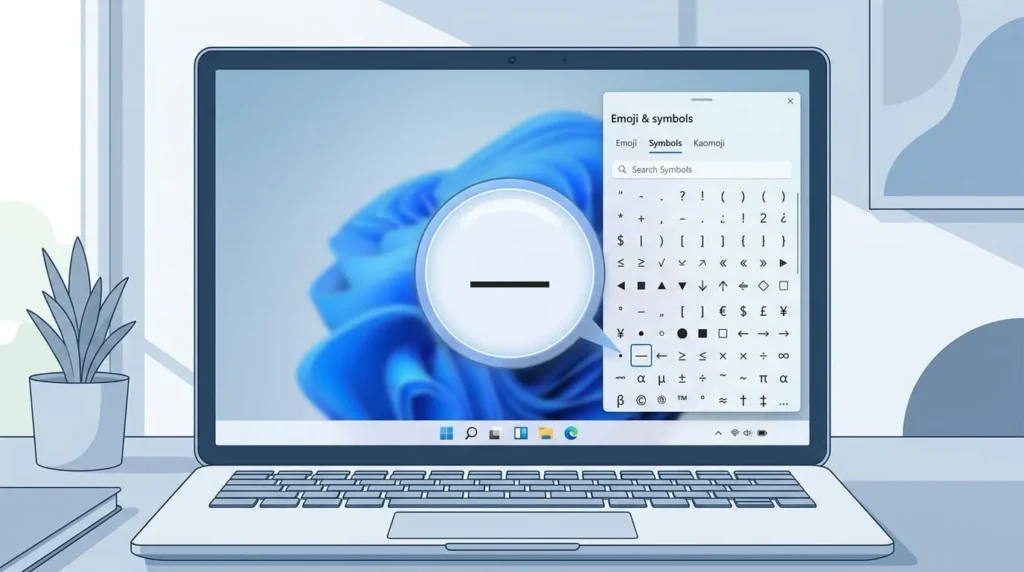
Press Windows key + period, or Windows key + semicolon, to open the built-in emoji panel. Click the Omega symbol tab near the top, then scroll or search for the em dash and click it to insert.
This works in nearly any app, including browser text fields, Slack, Discord, and Notepad, and it needs no numeric keypad at all. It is the simplest fix for anyone on a compact laptop keyboard.
Type an Em Dash Automatically in Word and Outlook
Microsoft Word and Outlook include built-in formatting that catches an em dash as you type. Type a word, two hyphens with no spaces, then another word and a space, like this: word–word. Word converts the double hyphen into a proper em dash automatically once you keep typing.
Word also has a dedicated shortcut: Ctrl+Alt+Minus, using the minus key on the numeric keypad rather than the hyphen on the top row.
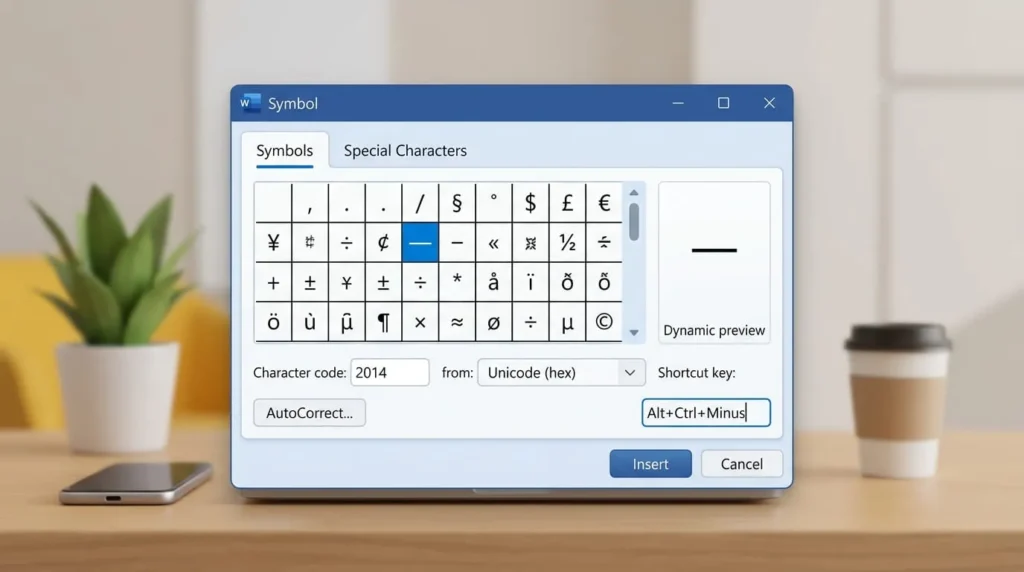
For a shortcut you will actually remember, go to Insert, then Symbol, then More Symbols, then the Special Characters tab. Select Em Dash, click Shortcut Key, and assign a combination like Ctrl+Shift+M. From then on, that combination inserts an em dash in that program without hunting through menus.
Keep in mind this autocorrect behavior is specific to Office apps. It will not carry over to Notepad, Chrome, or most other programs.
Type an Em Dash in Google Docs and Chrome
Google Docs has its own autocorrect for dashes. Type three hyphens in a row directly after a word, then keep typing, and Docs swaps them for an em dash on its own. If you would rather insert it manually, use Insert, then Special Characters, and search “em dash.”
That autocorrect only applies inside Docs itself. In a Gmail compose window, a web form, or any other Chrome text field, Google’s formatting does not kick in, so fall back to the Alt code or the Windows emoji panel instead.
Copy an Em Dash from Character Map
Character Map is a built-in Windows utility for grabbing characters that are not on your keyboard. Search “Character Map” in the Start menu and open it. Check the Advanced view box, then search for “em dash” or enter its Unicode value, 2014, directly.
Select the character, click Select, then Copy, and paste it wherever you need with Ctrl+V. It is a reasonable option for a one-off dash, though it is slower than a keyboard shortcut if you need this often.
Set a Permanent Shortcut with AutoHotkey
If you write with em dashes regularly, a one-time AutoHotkey setup beats retyping a code every time. AutoHotkey is a free, open-source scripting tool for Windows.
Install it, then create a new text file, name it something like EmDash.ahk, and add a single line:
Save the file and double-click it to run the script. From then on, typing two hyphens in any program instantly becomes an em dash, system-wide, with no menus and no numeric keypad required. Drop a shortcut to the script in your Startup folder so it loads automatically every time you sign in. If you write code and use double hyphens for other purposes, adjust or disable this specific hotstring so it does not interfere.
Which Method Should You Actually Use
If you live in Word or Outlook, the built-in autocorrect or a custom shortcut key is the least friction. If you are on a laptop with no numpad, the emoji panel handles occasional dashes, while AutoHotkey removes the friction entirely if you type them daily. For rare, one-off use across random apps, Character Map or the emoji panel both do the job without any setup.
Common Problems When Typing an Em Dash on Windows
Alt+0151 produces nothing, or opens a Ribbon shortcut menu instead. Hold Alt down continuously through all four digits rather than tapping keys one at a time.
You get an en dash instead of an em dash. The codes are one digit apart: 0150 makes an en dash, while 0151 makes an em dash.
The character shows up as a box or a question mark. The font you are using does not include that glyph, or the app does not support Unicode input properly. Try a different font or a different program.
The numeric keypad types nothing at all. Num Lock is likely switched off, which makes those keys act as arrow and navigation keys instead of digits.