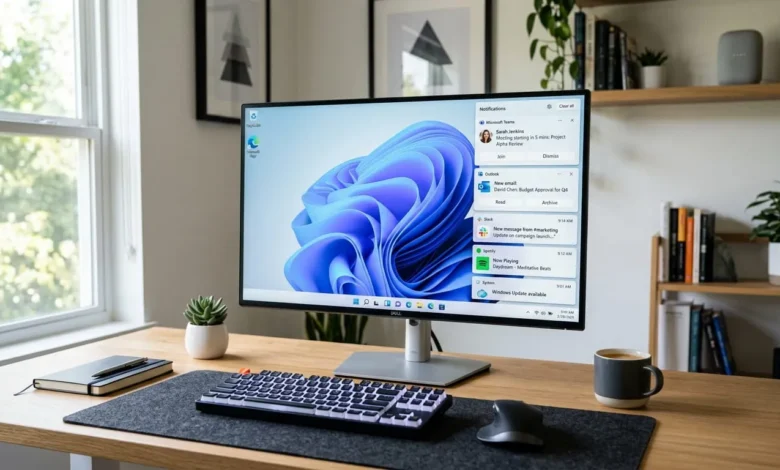
If your screen fills up with app alerts, news pop-ups, and reminder banners every few minutes, you don’t have to live with it. Windows gives you several layers of control, from shutting off everything at once to muting a single chatty app while keeping the rest active. This guide walks through every method, starting with the fastest fix and moving into the finer controls most people never find.
Why Windows Notifications Pile Up in the First Place
Every app you install asks for permission to send notifications, and Windows grants that permission by default in most cases. Email clients, chat apps, browsers, and even built-in tools like OneDrive and the Windows Store all compete for your attention. Over time, this adds up to dozens of daily interruptions you never explicitly approved.
The good news is that Windows separates these settings into layers. You can turn off notifications entirely, silence them during specific hours, or block them app by app. The right approach depends on whether you want quiet all the time or just fewer distractions from the worst offenders.
Turn Off All Notifications in Windows 11
Using the Settings App
This is the most direct way to stop every notification at once.
- Select System from the left sidebar.
- Open Settings by pressing the Windows key and I together.
- Click Notifications.
- Toggle the switch at the top labeled Notifications to off.
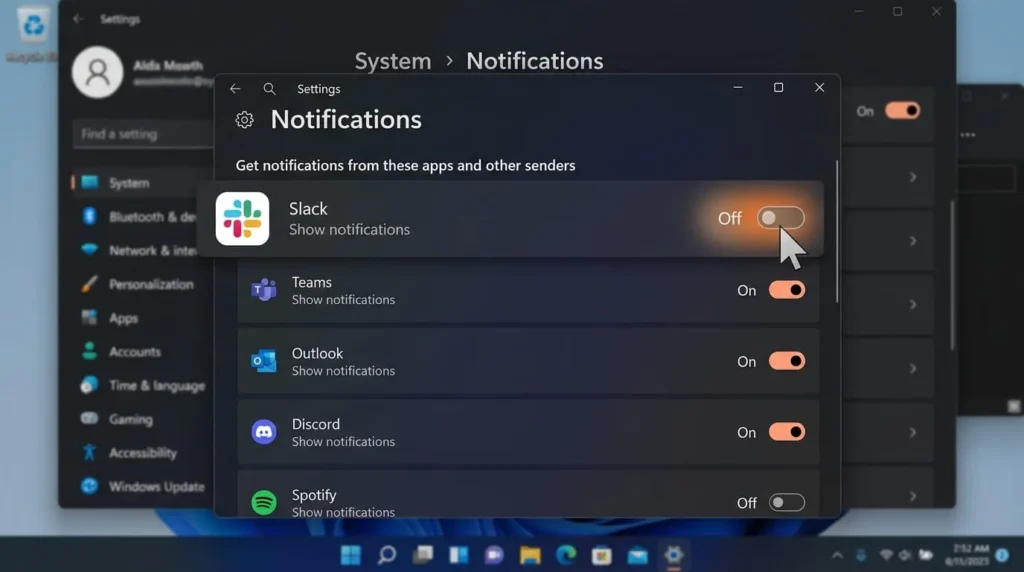
This single toggle disables notification banners, sounds, and entries in the Notification Center for every app on your system. It’s the fastest fix if you want total silence, but it also means you’ll miss things like calendar reminders and low battery warnings.
Using Quick Settings
For a faster route, click the date and time in the taskbar to open the Notification Center, then select Clear all to dismiss what’s already there. This doesn’t stop future notifications, but it’s useful for a quick reset before diving into the full settings.
Turn Off All Notifications in Windows 10
The process is nearly identical, though the menu layout differs slightly.
- Open Settings with Windows key plus I.
- Go to System, then select Notifications & actions.
- Turn off the toggle under Notifications labeled Get notifications from apps and other senders.
Flipping this one switch mutes every app notification across the system. If you only want to trim the list rather than silence everything, skip ahead to the per-app section below instead.
Turn Off Notifications From One Specific App
Blocking everything is rarely the ideal solution. Most people just want to quiet one or two repeat offenders, like a game launcher or a shopping app, while keeping alerts from email or messaging tools active.
- Open Settings, then go to System followed by Notifications.
- Scroll down to the list of apps under the heading Notifications from apps and other senders.
- Find the app you want to silence and click its name to expand the options.
- Turn off the toggle next to that app, or adjust individual settings like sound, banners, and priority within the Notification Center.
This approach lets you keep system alerts and important app notifications while cutting the noise from apps you rarely need to hear from immediately.
Use Focus Assist Instead of Disabling Everything
If your goal is fewer interruptions during work hours rather than permanent silence, Focus Assist is a better fit than turning notifications off completely. It suppresses banners and sounds temporarily while still logging everything in the Notification Center for later.
- Open Settings, go to System, then select Focus assist.
- Choose Priority only to allow just the senders you’ve marked as important, or Alarms only for complete silence except alarms.
- Set an automatic schedule under Automatic rules, such as during specific hours, when duplicating your display for a presentation, or when playing a game in full screen.
This gives you scheduled quiet time without permanently losing notifications you might actually want to see later.
Keep Notification Sounds but Turn Off the Banners
Some people don’t mind a quiet chime but find the pop-up banners distracting, especially during video calls or screen recordings.
- Go to Settings, System, then Notifications.
- Click on an individual app in the list.
- Turn off Show notification banners while leaving Play a sound when a notification arrives turned on.
This keeps you informed through sound alone without a banner sliding into view over whatever you’re working on.
Turn Off Notifications on the Lock Screen
Notifications that appear on your lock screen are visible to anyone glancing at your monitor, which can be a privacy concern for messages or emails.
- Open Settings and go to System, then Notifications.
- Scroll down and turn off Show notifications in the notification center on top of the lock screen (Windows 11), or in Windows 10, uncheck Show notifications on the lock screen under Notifications & actions.
This stops message previews and alerts from showing up before you even log in, while still delivering them once you unlock your device.
Turn Off Browser Notifications
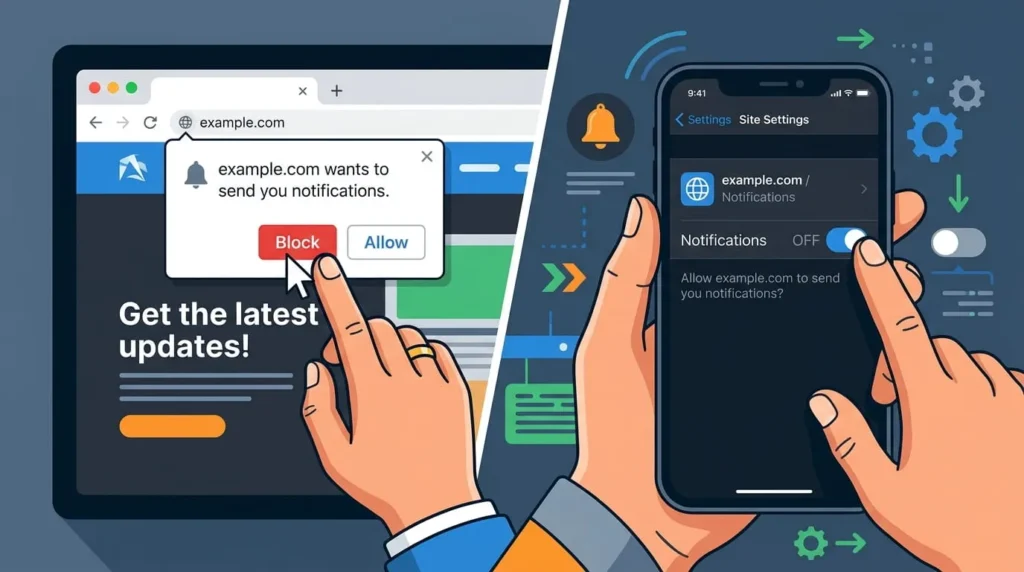
Many of the most persistent pop-ups actually come from websites through your browser, not from Windows itself. If you’ve clicked “Allow” on a news site or shopping page at some point, it can keep sending alerts indefinitely.
Chrome
Open Settings, go to Privacy and security, then Site settings, then Notifications. Remove or block individual sites, or turn off Sites can ask to send notifications entirely.
Microsoft Edge
Open Settings, go to Cookies and site permissions, then Notifications. Toggle off Ask before sending, or remove specific sites from the allowed list.
Firefox
Open Settings, go to Privacy & Security, scroll to Permissions, and click Settings next to Notifications. Block sites individually or check Block new requests asking to allow notifications.
Notifications Won’t Turn Off? Try These Fixes
Occasionally a toggle switch doesn’t stick, or notifications keep appearing despite being disabled. A few things commonly cause this.
Restart the Windows Explorer process through Task Manager, since the Notification Center sometimes needs a refresh to apply new settings. Check whether Battery Saver mode is active, since it can override some notification preferences on laptops. Confirm that the app itself doesn’t have its own internal notification setting running separately from Windows, which is common with email clients and messaging apps. Finally, run Windows Update, since outdated builds occasionally have bugs affecting the Notification Center.
If your device is managed by a workplace or school account, some notification settings may be locked by an administrator through Group Policy, in which case the toggle will appear greyed out.
Which Method Should You Use
If you want complete silence with no exceptions, the system-wide toggle is the simplest option. If you only find one or two apps genuinely annoying, per-app blocking keeps everything else intact. For anyone who just wants quieter workdays without losing notifications permanently, Focus Assist with a scheduled rule is usually the better long-term fix, since it adapts to when you actually need quiet rather than shutting things off for good.