Weak wifi usually comes down to one of three problems: your router is in the wrong spot, something is interfering with the signal, or your equipment is outdated for how many devices you actually use. Most homeowners try to fix slow wifi by buying a new router first. That is often the wrong first move. Before spending money, it helps to understand exactly where your signal is breaking down and why.
This guide walks through the fixes that actually move the needle, starting with the free ones.
Why Your Wifi Signal Is Weak in the First Place
Wifi signals are radio waves, and radio waves lose strength as they travel through air and especially through solid objects. A router sitting in a basement corner or inside a closet is fighting an uphill battle before a single device even connects. Three factors control signal strength in almost every home:
Distance from the router. Signal strength drops off sharply after about 30 feet indoors, faster if walls are in the way.
Physical obstructions. Concrete, brick, metal ductwork, and even large mirrors reflect or absorb wifi signals far more than drywall does.
Interference from other devices. Microwaves, cordless phones, baby monitors, and neighboring routers on the same channel all compete for the same limited radio spectrum.
Once you know which of these three is causing your problem, the fix usually becomes obvious.
Move Your Router to a Better Spot
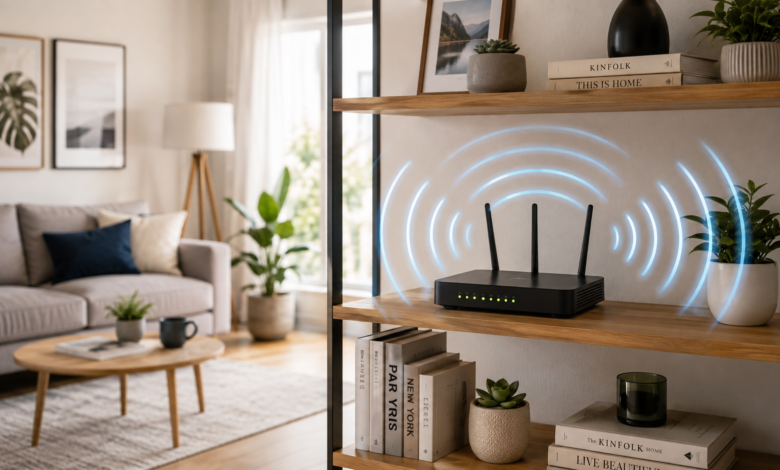
This is the single highest-impact change most people can make, and it costs nothing. A router works best when placed centrally in the home, elevated off the floor, and away from thick walls or metal objects.
1. Central Location Beats Corner Placement
Routers are often plugged in wherever the cable line enters the house, which is frequently a corner or edge of the home. That location forces the router to push signal in one direction when it should be broadcasting in all directions equally. Moving the router closer to the center of your living space, even by 15 or 20 feet, can noticeably even out coverage.
2. Height and Clearance Matter
Place the router on a shelf or table, roughly five to seven feet off the ground. Avoid tucking it inside a cabinet, behind a TV, or on the floor. Keep at least a foot of open space around the unit so the antennas are not blocked.
3. Keep It Away From These Specific Items
Microwaves operate on the same 2.4GHz frequency as many wifi bands and can cause real interference when in use. Baby monitors and older cordless phones share that same frequency. Large fish tanks, mirrors, and metal filing cabinets reflect the signal rather than letting it pass through. Keeping your router at least six feet from any of these makes a measurable difference.
Choose the Right Wifi Band for Each Device
Most routers sold since 2015 broadcast on two or three separate bands, and picking the right one for each device matters more than people realize.
1. 2.4GHz vs 5GHz vs 6GHz
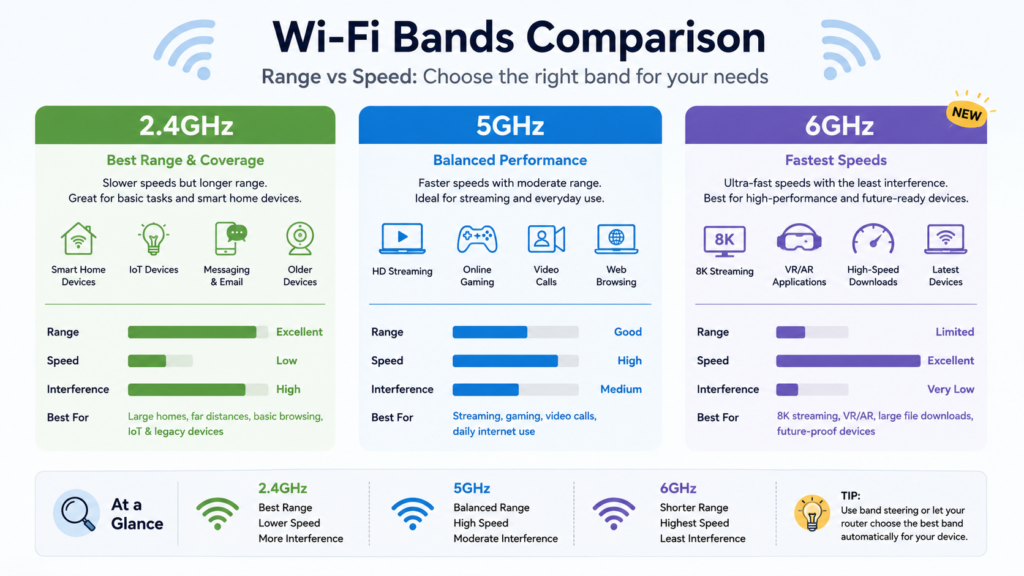
The 2.4GHz band travels farther and penetrates walls better, but it is slower and more crowded since so many household gadgets use it. The 5GHz band is faster and less congested but has a shorter range. Newer routers with Wifi 6E or Wifi 7 add a 6GHz band, which is even faster and far less crowded, though it has the shortest range of the three and requires a compatible device to use it.
A practical rule: put stationary, bandwidth-heavy devices like smart TVs and gaming consoles on 5GHz or 6GHz, and put smart plugs, doorbell cameras, and other simple IoT gadgets on 2.4GHz. This keeps your fast band free for the devices that actually need speed.
2. Should You Split or Combine Your Bands?
Some routers let you name each band separately, so your phone can manually pick between “HomeWifi_2.4” and “HomeWifi_5.” Others combine them under one name and use band steering to automatically push each device to the best available band. Band steering is usually the better choice for most households since it removes the guesswork, but if you notice certain devices consistently connecting to the slower band, switching to separate network names gives you manual control.
Fix Channel Congestion, Especially in Apartments and Dense Neighborhoods
If you live in an apartment building or a densely packed neighborhood, your neighbors’ routers are likely broadcasting on overlapping channels, which creates the wifi equivalent of everyone talking at once.
1. How to Check Which Channels Are Crowded
Free apps like WiFi Analyzer for Android or NetSpot for Mac and Windows show every visible network nearby along with the channel each one uses. On the 2.4GHz band, channels 1, 6, and 11 are the only three that do not overlap with each other, so those are usually your best options. On 5GHz, there are more non-overlapping channels available, which is one more reason to favor that band when possible.
2. Manually Setting a Channel
Most routers default to “Auto” channel selection, which sounds convenient but does not always pick the least congested option. Log into your router’s admin panel, usually accessed by typing its IP address into a browser, and manually set the channel to whichever one your analyzer app shows as least crowded. Recheck every few months, since neighboring networks change over time.
Upgrade Your Equipment When Placement and Channels Aren’t Enough
If you have optimized placement and channel selection and coverage is still poor, especially in a larger home, the router itself may be the bottleneck.
1. Mesh Systems vs. Wi-Fi Extenders
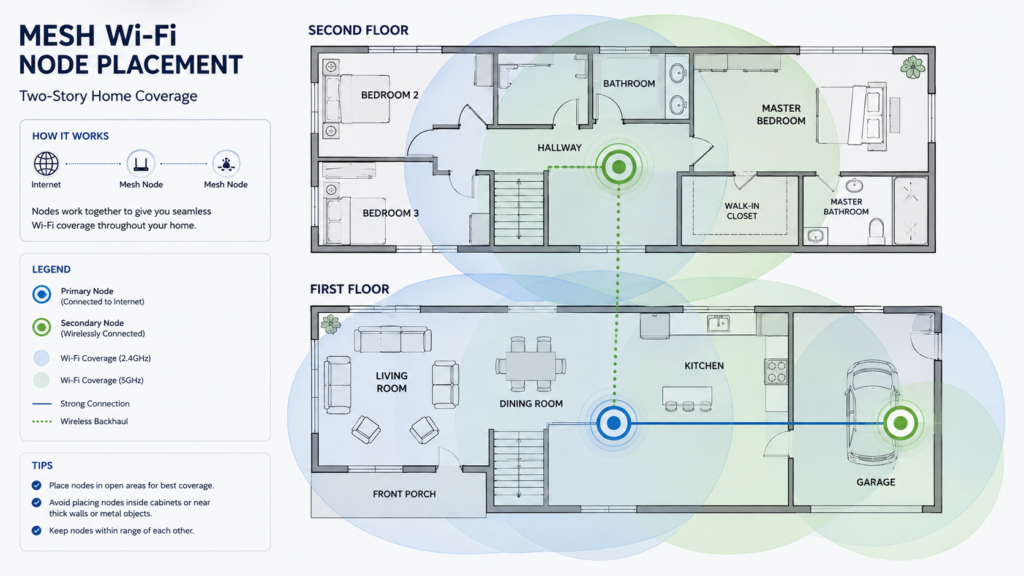
A wifi extender rebroadcasts your existing signal, but it typically cuts throughput roughly in half and creates a separate network name that devices have to switch between manually. A mesh system, made up of two or three matching nodes placed throughout the home, works as one unified network and hands devices between nodes automatically as you move around. For homes larger than 1,500 square feet, or homes with multiple floors, mesh systems consistently outperform extenders and are worth the higher upfront cost.
2. When a Router Upgrade Actually Helps
If your router is more than five years old, it is likely missing modern features like beamforming, which focuses signal directly toward connected devices instead of broadcasting it evenly in every direction, wasting strength on space. Routers with Wifi 6 or Wifi 6E handle many simultaneous connections far better than older Wifi 5 models, which matters if your household runs a dozen or more smart devices, phones, and laptops at once.
3. Powerline Adapters as a Wired Alternative
In homes where mesh nodes still struggle due to thick plaster walls or unusual layouts, powerline adapters send a network signal through your existing electrical wiring. Plug one adapter near your router and another near the dead zone, then connect a wifi access point to the second adapter. This bypasses the wireless interference problem entirely for that specific area.
Software Fixes That Cost Nothing
Not every fix requires new hardware. A few settings changes inside your existing router can improve speed and reliability immediately.
1. Update Router Firmware
Manufacturers regularly release firmware updates that patch security holes and improve performance. Many routers can auto-update, but check manually in the admin panel if you have not done so recently. An outdated firmware version is a common, overlooked cause of random disconnects.
2. Restart on a Schedule
Routers can develop memory leaks over weeks of continuous use, gradually degrading performance. Setting a weekly automatic restart, a feature available on most modern routers, clears this out without you needing to remember to do it manually.
3. Limit Bandwidth Hogs With QoS
Quality of Service settings let you prioritize traffic for specific devices or applications. If video calls keep dropping while someone else in the house is streaming or downloading large files, enabling QoS and prioritizing the call traffic keeps it stable without needing faster internet overall.
4. Secure Your Network
An unsecured or weakly secured network invites freeloading neighbors who quietly eat into your available bandwidth. Confirm your router uses WPA3 encryption, or WPA2 at minimum, and set a strong password rather than the default one printed on the device.
When the Problem Is Your Internet Plan, Not Your Wifi
Sometimes the wifi signal itself is fine, but the internet plan behind it cannot support how many devices are connected. If speeds are slow even standing right next to the router, run a wired speed test by connecting a laptop directly to the modem with an Ethernet cable. If that wired speed matches what you are paying for, the issue is wifi related, and the fixes above will help. If the wired speed itself is far below what your plan promises, the problem sits with your internet service provider, and improving your wifi setup will not fix it. In that case, contacting your provider or checking for equipment issues with the modem itself is the next step.
Quick Reference for Common Dead Zones
A garage or basement far from the main router usually needs a dedicated mesh node or a powerline adapter rather than relying on the main signal to stretch that far. A backyard or patio benefits from an outdoor-rated mesh node or extender positioned near a window facing that direction. An upstairs bedroom directly above the router often struggles because the signal has to pass through floor material, so moving the router to a more central point on the ground floor, or adding a node upstairs, solves it faster than any software tweak.
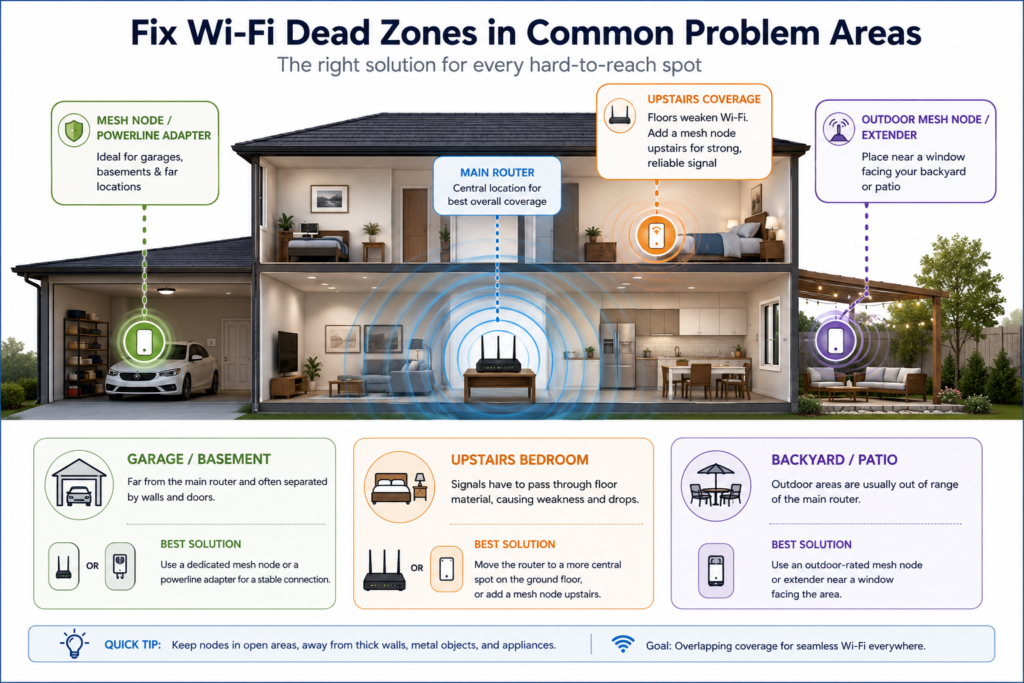
Getting strong wifi throughout a home rarely comes down to one single fix. It is usually a combination of better placement, the right band for each device, a clear channel, and equipment that matches the size of your space. Work through these in order, starting with placement since it costs nothing, and most homes see a real improvement before any new hardware is needed.