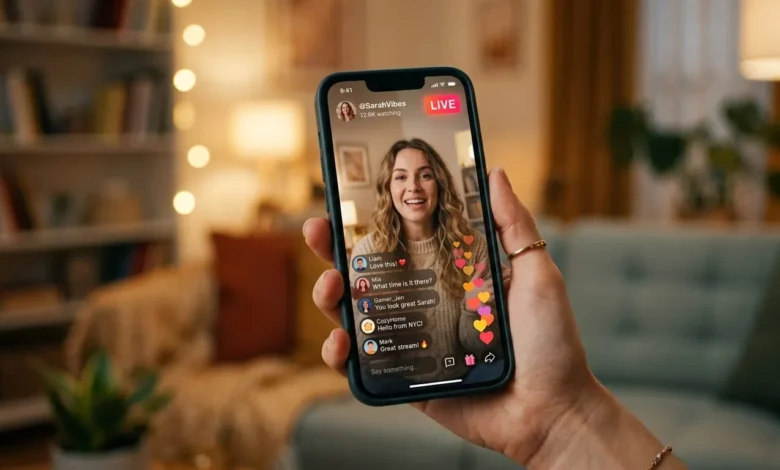
Going live on TikTok is one of the fastest ways to turn passive followers into an active audience. The moment you tap “Go Live,” TikTok pushes a notification to your followers. It can also surface your stream to viewers who have never seen your content before. That built-in discovery boost is the reason so many creators treat LIVE as a growth tool, not just a way to chat.
This guide covers exactly how to go live on TikTok on your phone and from a computer. It also walks through what you need before the LIVE button will even appear. You’ll learn how to fix it if the button is missing. Finally, it covers what to do once your stream ends, since that part gets skipped in most guides.
What You Need Before TikTok Will Let You Go Live
TikTok gates the LIVE feature behind three checks. Miss any one of them and the option simply will not show up in your app, with no error message explaining why.
1: Age Requirement
You must be at least 18 years old to host a livestream on TikTok. TikTok raised this threshold from 16 in late 2023, and 18 has remained the standard since. You also need to be 18 to send or receive virtual gifts during a broadcast. In South Korea, the minimum age is 19.
2: Follower Threshold
The standard requirement is 1,000 followers. TikTok has started giving some accounts earlier access through creator programs that weigh watch time and content consistency. Even so, 1,000 followers is still the number to plan around if you want a reliable path to LIVE.
3: Account Standing
Your account needs to be free of recent community guideline strikes. If you have had content removed or received a warning recently, TikTok may hold back LIVE access, even after you clear the age and follower bars. Check your inbox for policy notices before assuming the app is broken.
How to Go Live on TikTok on Mobile
The process is identical on iOS and Android. Once your account meets the requirements above, going live takes under a minute.
Open the TikTok app and make sure you are logged into the account you want to stream from.
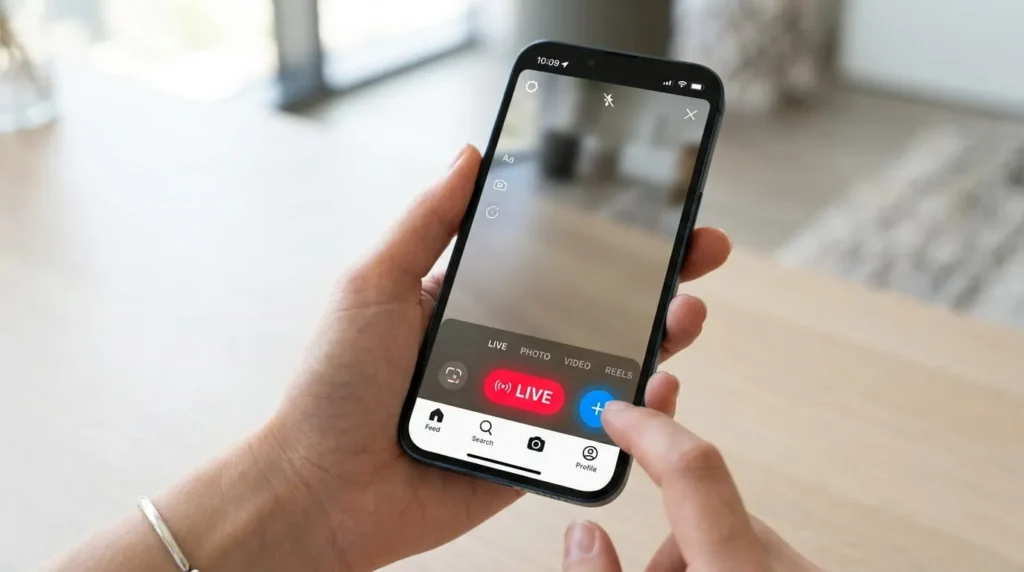
Tap the plus icon at the bottom center of the screen. It is the same button you use to record a regular video.
Swipe along the bottom menu until you reach LIVE, then tap it. If LIVE does not appear in this list, your account has not yet cleared one of the three requirements above.
Add a title. You get up to 32 characters, and specific titles outperform vague ones. “Answering skincare questions live” tells a scroller exactly what they are getting, while “Going live!!” does not.
Choose a cover image. Use an existing photo or capture a new one that clearly represents your topic. A clear, well-lit cover pulls more taps from the LIVE feed than a blurry or dark one.
Set a topic category, such as Gaming, Music, Q&A, or Daily Life. This helps TikTok route your stream toward viewers already interested in that content.
Tap Go Live. A short countdown runs, then you are broadcasting. Comments, hearts, and gift notifications appear on screen in real time.
If you want a dry run first, open Settings before starting and switch on Practice Mode. It simulates the live interface privately, so you can check your framing, lighting, and audio without anyone watching.
How to Go Live on TikTok From a Computer
TikTok LIVE Studio is TikTok’s own desktop application for Windows and macOS. It gives you far more control than the mobile app, including multiple scenes, screen sharing, external cameras, and custom overlays.
Download TikTok LIVE Studio from TikTok’s official site and run the installer.
Open the app and log in. You can scan the QR code with your phone or enter your TikTok credentials directly.
Grant camera and microphone permissions when prompted, or your stream will have no video or audio.
Build a scene. A scene is the layout viewers see. A source is any element inside it, such as a webcam feed, a screen capture, or a text overlay. One scene with one camera source is enough for a first stream.
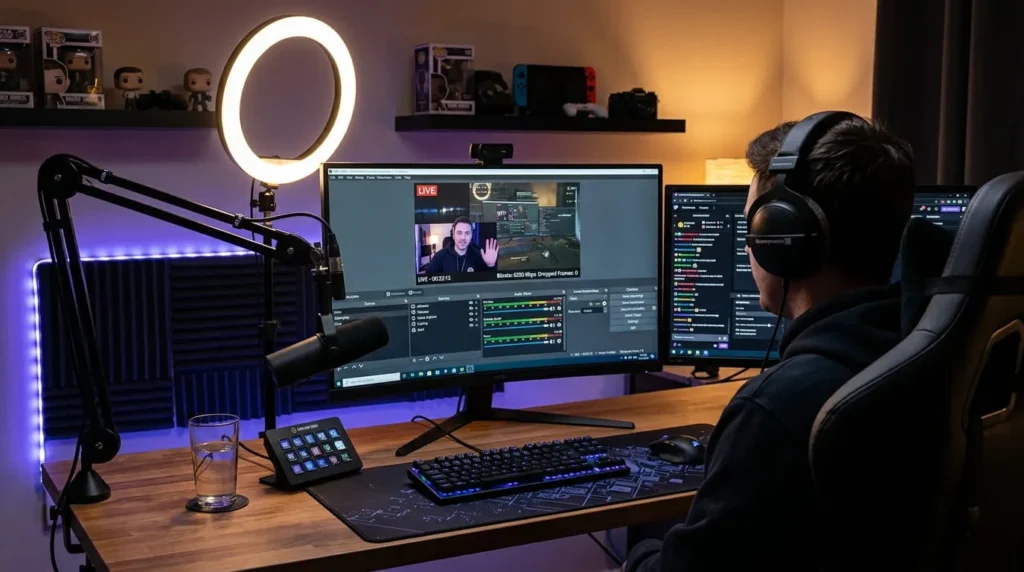
Open Settings, then Audio, and select your microphone from the dropdown menu. Speak a few words and confirm the input meter responds before going further.
If you are streaming at 1080p, keep your video bitrate between 2,000 and 4,000 Kbps. Going above what your upload speed can support causes stuttering. Going too low softens your picture quality instead.
Click Go Live in the top right corner. This opens a pre-live configuration panel, so you are not broadcasting yet. Add your title and cover, then confirm to start.
Why the LIVE Button Might Not Show Up
This is the single most common frustration new creators run into. It almost always traces back to one specific cause.
Double check your follower count and age against the requirements above. Even after crossing 1,000 followers, the LIVE tab can take 24 to 48 hours to appear.
Update the app. TikTok occasionally ties LIVE access to the latest app version. An outdated build will hide the option entirely.
Restart your device. A simple force-close and reopen resolves the issue more often than creators expect.
Review your account status. Go to Profile, then Settings and Privacy, then Account, and look for any active restriction notices.
How to Go Live on TikTok Without 1,000 Followers
You cannot host your own solo LIVE below the threshold, but you can still get on someone else’s stream. Find a creator in your niche who is currently live. Tap the guest request icon in the bottom toolbar of their broadcast and wait for them to accept. Once accepted, your camera and mic go live inside their stream immediately.
This route will not unlock your own LIVE access. It does put your face and account in front of an established audience, though. That exposure is often a faster way to build followers than posting alone.
Tips for a Stream That Actually Holds Viewers
Meeting the technical requirements gets you on air. Keeping people watching depends on a few separate things.
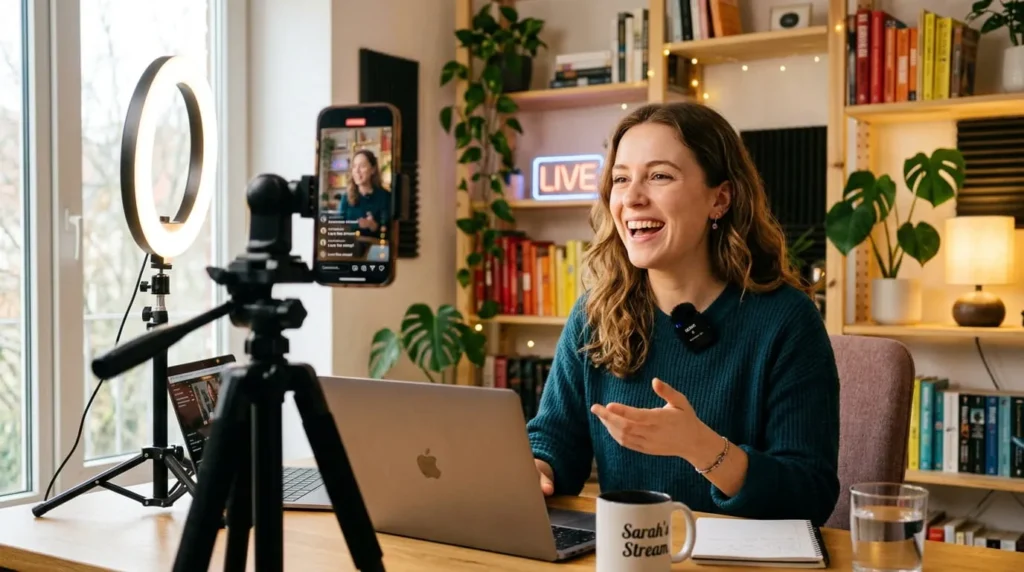
Audio quality matters more than video quality on LIVE. A clip-on wireless microphone eliminates the echo and distance problems that built-in phone mics struggle with, especially if you are moving around.
Close background apps before you start. Extra apps competing for memory is one of the most common causes of a stream lagging or crashing mid-broadcast.
Pin a comment near the start of your stream. This gives new viewers who join without context something that explains what is happening.
Schedule a session in advance for anything you want a real audience for. TikTok posts a countdown card to your profile that followers can tap for a reminder. That builds a crowd before you even go live.
Stream at a consistent time. TikTok’s live discovery tends to favor accounts with a predictable schedule, since it gives the algorithm a pattern to recommend against.
When to Go Live for the Best Turnout
Timing affects turnout more than most new creators expect. Early evenings on weekdays, roughly 6 to 9 p.m. in your audience’s time zone, tend to draw more viewers than midday slots. That window overlaps with when people are done with work or school and scrolling casually. Weekend afternoons work well too, especially for lifestyle, gaming, or hobby content where viewers want to unwind rather than get quick information.
None of this replaces testing your own audience. Check your analytics after a handful of streams and look at when viewer counts peaked, not just when you started. If your peak consistently lands 15 minutes in, start slightly earlier next time. That way the peak lines up with your best content instead of your intro.
What Happens After You End Your Stream
Tap the X or the power icon at the top of the screen to end your session. TikTok then gives you the option to save the replay to your device.
Once saved, you can trim highlights and repost them as standard TikTok videos. This extends the life of content that would otherwise disappear the moment you go offline. Your LIVE Center also logs viewer counts, peak concurrent viewers, and gift totals for that session. You can use those numbers to see which topics or times of day performed best before your next broadcast.