If sound stops working on Windows, start by checking the output device and volume mixer, then run the built-in audio troubleshooter, and update the audio driver in Device Manager. Most cases trace back to a wrong playback device, a driver that broke after an update, or a muted app. The steps below are ordered from quickest to most involved, so work through them one at a time and test your audio after each one.
Common Reasons Sound Stops Working on Windows
A handful of causes account for most cases of sound not working on Windows. Knowing which one fits your situation saves time, since it points you straight to the right fix instead of working through every step in order.
The most frequent culprits are a wrong or disconnected default output device, a driver that broke after a Windows update, a muted app or system volume, audio enhancements conflicting with the driver, a stopped Windows Audio service, security software interfering with the driver, and, less often, failed speaker or headphone hardware. The sections below cover each of these in the order most people should try them.
Check the Basics First
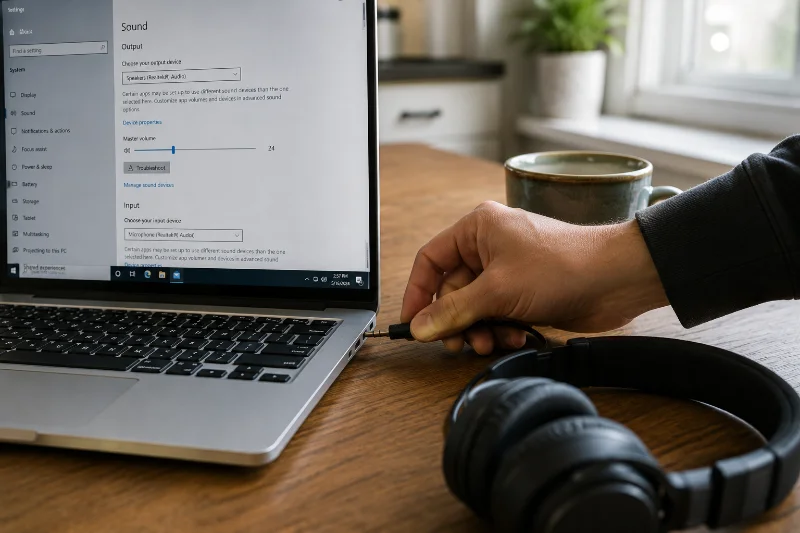
Before touching any driver or setting, rule out the obvious. Right-click the speaker icon in the taskbar and confirm the volume slider is up and nothing is muted. Then check that the correct playback device is selected, since Windows sometimes defaults to a monitor, dock, or Bluetooth device instead of your speakers or headphones.
If you use wired speakers or headphones, unplug and reseat the cable, and try a different audio jack if your PC has one. For Bluetooth audio, unpair and re-pair the device, since a stale pairing is a common reason wireless audio drops out even though it shows as connected.
Run the Windows Audio Troubleshooter
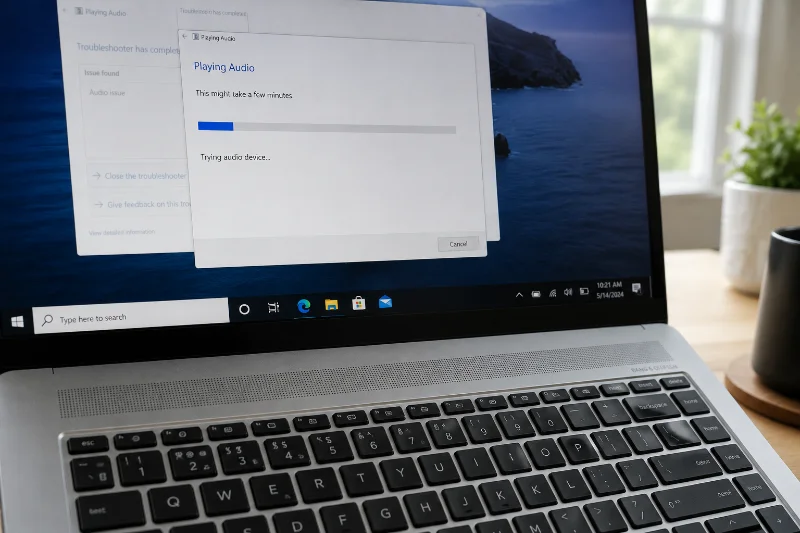
Windows has a built-in tool that checks for muted devices, wrong default outputs, and driver problems automatically. Go to Settings, then System, then Sound, and scroll down to Troubleshoot common sound problems. Select your output device and let the tool run its diagnostics, then apply any fix it suggests.
Microsoft Support recommends working through these steps in the order given instead of jumping straight to a driver reinstall, since the simpler fixes resolve most cases on their own. If the automated tool does not fix things, move on to the driver checks below.
Update or Reinstall Your Audio Driver
An outdated, corrupted, or partially installed audio driver is one of the most frequent causes of sound loss, especially right after a Windows update. Open Device Manager, expand Sound, video and game controllers, right-click your audio device, and choose Update driver. Restart your PC once the update finishes and test your sound again.
If updating does not help and the problem started right after an update, try rolling back the driver instead. Microsoft Support notes that if your audio was working before a Windows Update and stopped afterward, rolling back the audio driver from the Driver tab in Device Manager can restore it. When neither option works, uninstall the device entirely (checking the box to delete the driver software), restart, and let Windows reinstall a fresh copy automatically.

Restart the Windows Audio Services
Sometimes the driver is fine but the background service that manages sound never started correctly. Press the Windows key, type services.msc, and press Enter. Find Windows Audio in the list, right-click it, and select Restart. Do the same for Windows Audio Endpoint Builder, since these two services depend on each other.
This fix is especially common when system sounds play but a specific app has no audio at all. Microsoft Support points out that restarting audio services can resolve temporary app audio issues, and the correct output device should also be confirmed for the affected app in the volume mixer.
Turn Off Audio Enhancements
Built-in audio enhancements such as bass boost, loudness equalization, or virtual surround can occasionally conflict with certain drivers and cause silence, distortion, or crackling. Go to Settings, System, Sound, select your playback device, open its properties, and look for the Enhancements or Advanced tab. Turn off all enhancements and test your audio again.
Check for Conflicts From Security Software
Third-party antivirus and security tools occasionally interfere with audio drivers or the services that control them, particularly after a program update. Users in the Avast Community have reported intermittent audio stutter and dropouts that started right after upgrading Avast, with the timing pointing to the security software rather than the driver itself. If your sound problems began right after installing or updating an antivirus program, try temporarily disabling it to see if audio returns to confirm whether it is the cause.
It is also worth running a malware scan if the issue appeared suddenly and without a recent Windows or driver update, since some users on antivirus community forums have described speaker cutouts and muffled sound following a suspicious download or pop-up. A scan will not fix a genuinely broken driver, but it rules out malware as the cause before you spend time reinstalling drivers.
Fix Sound Issues Specific to Laptops
Laptop audio, including HP models, adds a few extra variables beyond a desktop’s sound card. Manufacturer-specific diagnostic tools can catch problems the generic Windows troubleshooter misses.
1. Run the Manufacturer’s Diagnostic Tool
On HP laptops, HP Support recommends running the Audio Check tool inside HP Support Assistant, which tests both playback and microphone hardware directly. If no sound comes from the speakers or headphones, an application controlling the device might be preventing other applications from using it, so restarting the computer and then testing audio again is a reasonable first step, followed by running Audio Check in HP Support Assistant. Similar assistant tools exist for Dell, Lenovo, and other major laptop brands, so check your manufacturer’s support site if the generic Windows fixes do not help.
2. Reinstall the Manufacturer Driver, Not Just the Generic One
Laptop speakers often run through a specific chipset, such as Realtek or an Intel Smart Sound Driver, instead of a generic audio device. If Device Manager shows a warning icon under Sound, video and game controllers or under System devices, download the exact driver package listed for your model on the manufacturer’s support page. Windows Update alone does not always carry the newest manufacturer build, so check both sources before giving up on the driver.
When the Problem Is Hardware
If you have tried the software fixes above and still hear nothing, test with a different set of speakers or headphones. If the replacement device works fine, the original speakers or headphone jack are likely faulty rather than the system. For internal laptop speakers that stay silent even after a clean driver reinstall and a passed diagnostic test, the speaker module itself may have failed, and a repair technician will need to open the case to confirm.
Before assuming the worst, check one more overlooked spot: the physical volume or mute switch on some laptops and external speaker sets, and any BIOS-level audio setting that can occasionally get disabled after a firmware update. If you are still under warranty, contact the manufacturer’s support team before opening the case yourself, since a self-repair attempt can void coverage that would otherwise pay for a straightforward speaker replacement.
Fix Low, Crackling, or Distorted Sound
Some sound problems are not total silence but low volume, crackling, or a distorted output that makes speech hard to understand. This usually points to a different fix than a complete audio failure.
Start with the audio format. Go to Settings, System, Sound, select your output device, open Advanced, and change the default format under sample rate and bit depth. Microsoft Support notes that an unsupported or incorrect audio format can reduce sound quality or cause distortion, and testing a different format is a direct way to rule this out. If changing the format does not help, work through the same driver update, enhancement, and service restart steps covered above, since a corrupted or outdated driver causes both silence and distortion.
Keeping Sound Working Going Forward
Once your audio is back, a few habits reduce the chance of it breaking again. Install Windows updates promptly instead of letting several pile up at once, since a large batch of driver and system changes at the same time makes it harder to identify what broke the audio if something goes wrong. Check Device Manager occasionally for a yellow warning icon next to your sound device, and download driver updates directly from your PC or laptop manufacturer’s support page. Third-party “driver updater” tools and unfamiliar download sites are a common way malware reaches a system.