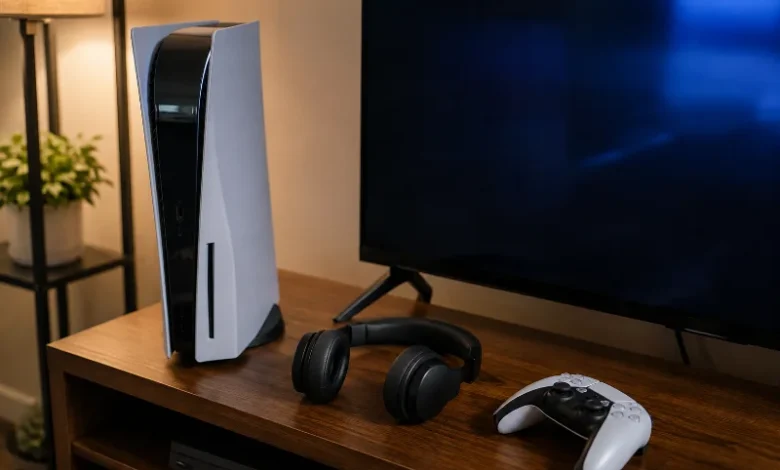
Your PS5 can’t pair directly with standard Bluetooth headphones out of the box. Sony’s console doesn’t offer native Bluetooth headphone support, so if you’ve opened the settings menu looking for your headphones and found nothing, that’s expected, not a glitch on your end. The good news is you have a few reliable ways around it, and none of them require returning the headphones you already own. PrismXR
Why Your Headphones Won’t Pair Directly
The PS5 includes Bluetooth hardware, but it does not allow standard Bluetooth audio profiles such as A2DP, which is the protocol most headphones rely on to stream music and game audio. The chip inside your console is there mainly for controllers and a short list of approved accessories, not general audio streaming. Turtle Beach
Sony has said the PS5 does not support Bluetooth audio because of issues related to latency, performance, and bandwidth. Bluetooth audio introduces a small delay between what happens on screen and what you hear, and in fast-paced games that gap is noticeable enough to throw off your timing. Restricting Bluetooth to controllers keeps that connection stable and frees up bandwidth for the wired or proprietary wireless audio methods Sony does support. PrismXR
None of this means you’re stuck with wired audio. It just means you need one extra piece of hardware, or a slightly different connection path, depending on what you already own.
Method 1: Use a Bluetooth USB Adapter
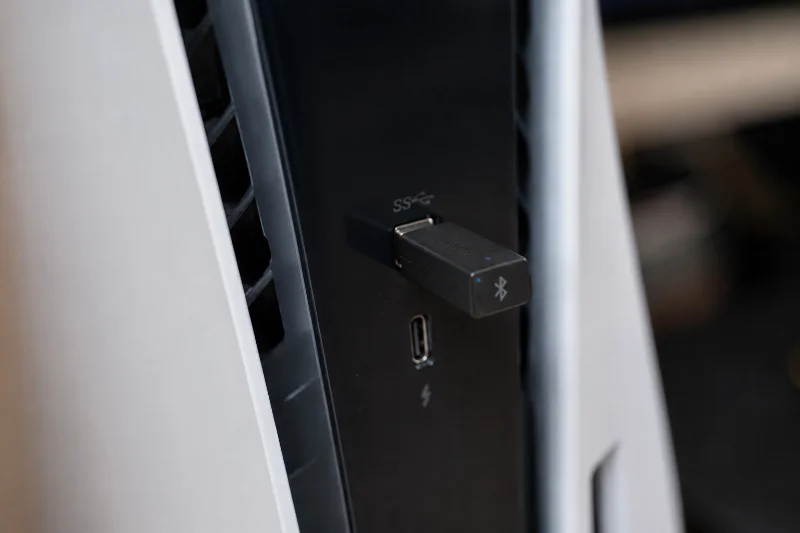
This is the most direct fix and works with almost any Bluetooth headphone, including AirPods and Sony’s WH-1000X line. If your headphones don’t use an official PlayStation USB dongle or another supported wireless adapter, you’ll need a USB-A or USB-C Bluetooth audio transmitter to connect them directly to the console. PrismXR
1. How to Set It Up
Plug the Bluetooth transmitter into one of the PS5’s USB ports; either front or back works. Put your Bluetooth headphones into pairing mode, then hold the pairing button on the transmitter until its LED starts flashing. Give it a few seconds; the transmitter should detect your headphones and establish the connection automatically. Once connected, go to Settings > Sound > Audio Output and select the USB adapter as your output device so the PS5 routes audio through it instead of the TV speakers. PrismXRPrismXR
Look for an adapter with aptX Low Latency or a similar low-lag mode. Standard Bluetooth can add a noticeable delay, while low-latency codecs cut that down to something close to what you’d get from a wired headset.
2. Route Audio Through Your TV’s Bluetooth
If your TV supports Bluetooth audio output, you can skip the adapter entirely. Connect the PS5 to the TV over HDMI as usual, then pair your headphones with the TV instead of the console. The PS5 sends video and audio to the TV, and the TV forwards that audio to your headphones over its own Bluetooth connection.
This works well for casual play, but it comes with two trade-offs worth knowing before you rely on it. TV Bluetooth typically adds more delay than a dedicated PS5 adapter, since the audio has to pass through an extra device. It also won’t carry party chat or voice comms from your headset’s microphone back into the PS5, since that audio path only goes one direction, out from the TV.
Method 3: Use a PlayStation-Compatible Wireless Headset
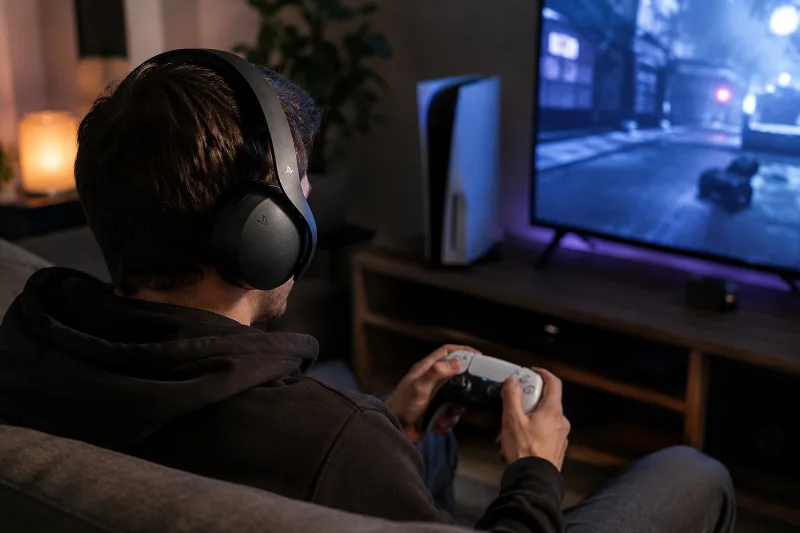
If you’d rather not deal with adapters at all, the simplest long-term option is a headset built for PS5, connecting through its own USB dongle rather than Bluetooth. If you want the cleanest wireless setup, a PlayStation-compatible wireless headset that connects through its own USB adapter, such as Sony’s Pulse headsets, is the way to go. PrismXR
These headsets pair the moment you plug in the included dongle, no pairing button or settings menu required. They also support full two-way audio, so your microphone works for party chat without the quality drop that can happen when Bluetooth handles both incoming and outgoing audio at once.
Fixing Common Connection Problems
A few issues come up often enough to cover directly.
No sound after pairing: Double-check Settings > Sound > Audio Output is set to the adapter or headset, not the TV speakers. The PS5 won’t switch automatically.
Headphones connect, but the mic doesn’t work: Most Bluetooth adapters transmit audio output only, and a headphone’s built-in microphone typically won’t work for voice chat through them. If you need chat audio, a PlayStation-compatible headset with its own dongle is the more reliable route. Turtle Beach
Audio cuts out or lags: When both audio and mic are active over Bluetooth at the same time, audio quality often drops because of how Bluetooth handles two-way audio. Try disabling the mic on the adapter if it has that option, or move the transmitter to a USB port further from the console’s Wi-Fi antenna. Turtle Beach
Adapter isn’t detected: Unplug it, wait ten seconds, and plug it into a different USB port. Some older adapters work better in the rear USB-A ports than the front USB-C one.
Mic Support and Audio Quality: What to Expect
It’s worth setting expectations before you buy anything. A basic Bluetooth adapter gets you music, game audio, and movie sound wirelessly, but chat mic support is hit or miss and depends entirely on the adapter model. If in-game voice chat matters to you as much as audio output, a headset designed for PS5 will save you the trial and error.
Spatial audio is another factor. Tempest 3D AudioTech on PS5 can provide a strong sense of direction and space in games, but that feature is tuned for headsets and adapters Sony has tested, not generic Bluetooth headphones run through a third-party dongle. You’ll still get stereo sound through any method above, just not the full spatial effect unless your setup specifically supports it. HeadPhoneHorizon
Choosing the Right Bluetooth Adapter for PS5
Not every USB Bluetooth transmitter behaves the same way once you plug it in. A few things are worth checking before you buy one.
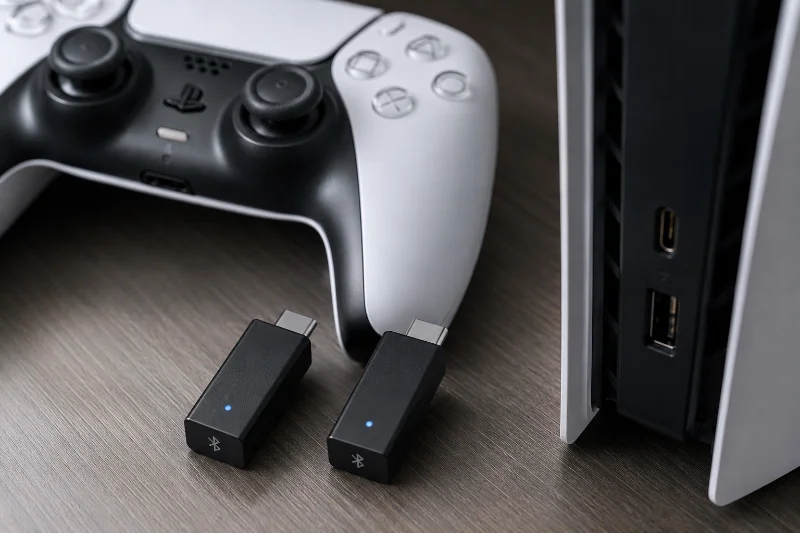
Look for aptX Low Latency or aptX LL support if your headphones also support it, since matching codecs on both ends noticeably reduces lag. Confirm the adapter lists PS5 or PlayStation compatibility specifically; some are built for PC and Nintendo Switch only and won’t output sound on a PS5 at all. Battery-free, plug-and-play adapters are generally more reliable for a console setup than ones needing their own charge cycle, since you won’t have to remember to charge a second device on top of your headphones.