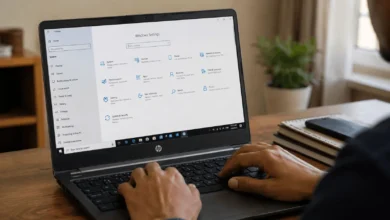
A laptop that sounds like a tiny jet engine is usually asking for help. Dust builds up inside the vents and around the fan blades. Over time, it traps heat, slows performance, and wears out parts. The good news is that most people can learn how to clean laptop fan components at home in under an hour, with tools that cost less than a restaurant lunch.
This guide walks you through two safe methods: a quick external cleaning and a deeper clean with the case open. You will also learn which mistakes can damage your laptop, how often to repeat the job, and when a repair shop is the better choice.
Why Laptop Fans Get Dirty (and Why It Matters)
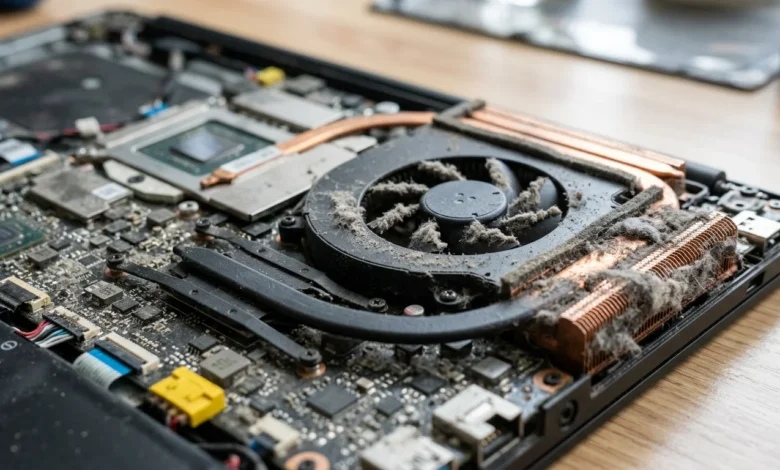
Your laptop fan pulls cool air in through the vents and pushes hot air out through the heat sink. Along with that air come dust, pet hair, lint, and skin flakes. Most of it passes through, but some sticks to the fan blades and packs into the thin metal fins of the heat sink.
Once those fins clog, air cannot flow freely. The processor and graphics chip run hotter, and the fan spins faster to compensate. That extra effort creates noise, drains the battery, and triggers thermal throttling, which is when your laptop deliberately slows itself down to avoid overheating.
Heat is the quiet enemy of electronics. Running hot for months can shorten the life of the battery, the motherboard, and the fan motor. Regular cleaning is one of the cheapest ways to protect a laptop that costs hundreds or even thousands of dollars.
Signs Your Laptop Fan Needs Cleaning
You do not need to guess. Watch for these common warning signs:
- Loud fan noise: whirring, buzzing, or a constant roar, even during light tasks like browsing.
- Hot surfaces: the keyboard, bottom panel, or palm rest feels uncomfortably warm.
- Weak airflow: you hold a hand near the exhaust vent and feel very little air.
- Slowdowns and freezes: apps lag, games stutter, or the laptop restarts without warning.
- Overheating shutdowns: the laptop powers off suddenly to protect itself.
- Short battery life: the fan runs nonstop and uses extra power.
If you notice two or more of these, a cleaning is likely overdue. Gamers and people who run video editing or design software tend to see these signs sooner because heavy workloads push the fan harder.
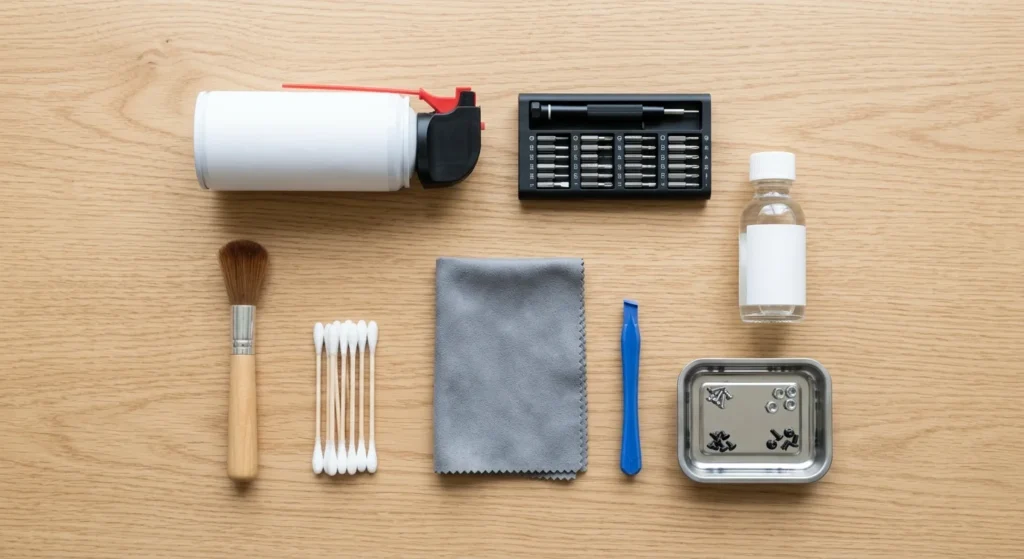
Tools and Supplies You Need
Gather everything before you begin so you are not hunting for items mid-project.
- Canned compressed air: the safest way to blow dust out of tight spaces.
- Small screwdriver set: most laptops use tiny Phillips screws, and some use Torx. Check your model.
- Soft anti-static brush: a clean, dry paintbrush or makeup brush works well.
- Cotton swabs and a microfiber cloth: for wiping blades and vents.
- Isopropyl alcohol, 90 percent or higher: for stubborn grime, used sparingly on a swab.
- Plastic pry tool or old gift card: to open the case without scratching it.
- Anti-static wrist strap: optional, but it protects internal components.
- Small bowl or magnetic tray: to keep screws organized.
- Flashlight: dust hides in dark corners.
Skip the household vacuum. Vacuums create static electricity that can damage sensitive circuits, and strong suction can spin the fan faster than it was designed to go.
Before You Start: Safety Precautions
A few minutes of preparation prevents most cleaning accidents.
- Shut down the laptop completely. Sleep mode and hibernation are not enough.
- Unplug the charger and every accessory, including USB drives and external monitors.
- Remove the battery if it is removable. For sealed batteries, check your manufacturer’s guide for a safe disconnect step.
- Work on a hard, clean, well-lit surface. Carpet builds static.
- Touch bare metal, like a table leg or the laptop’s metal frame, to discharge static before handling parts.
- Check your warranty. Opening the case can void coverage on some models, so read the manufacturer’s policy first.
Also look up your exact model number and search for its service manual or a teardown video. Brands like Dell, HP, Lenovo, ASUS, and Apple design their cases differently, and a few minutes of research saves a lot of frustration.
How to Clean a Laptop Fan Without Opening It
If your laptop is under warranty or you feel unsure about unscrewing the case, start here. This method will not reach every corner, but it clears dust near the vents and often brings a noticeable improvement.
Step 1: Locate the Vents
Find the intake vents, usually on the bottom or sides, and the exhaust vent, usually on the back or side edge. Shine a flashlight inside to spot visible dust mats.
Step 2: Hold the Fan Still
If you can reach a blade through the vent, gently press a cotton swab against it so the fan cannot spin. Air from a can can spin a fan far beyond its normal speed, which may damage the bearing and cause a buzzing noise later.
Step 3: Blow Out the Dust
Hold the can upright and spray short bursts of one to two seconds from about four to six inches away. Aim at the exhaust vent first to push dust out the way it came in, then spray the intake vents. Tilting the can may release cold liquid propellant, which can harm components.
Step 4: Wipe the Exterior
Use a dry microfiber cloth to wipe dust from the vent grills and case. Never spray cleaner directly onto the laptop.
Power the laptop back on and listen. If the fan is quieter and the laptop runs cooler, you are done. If noise and heat remain, move on to the deep clean.
How to Clean a Laptop Fan by Opening the Case
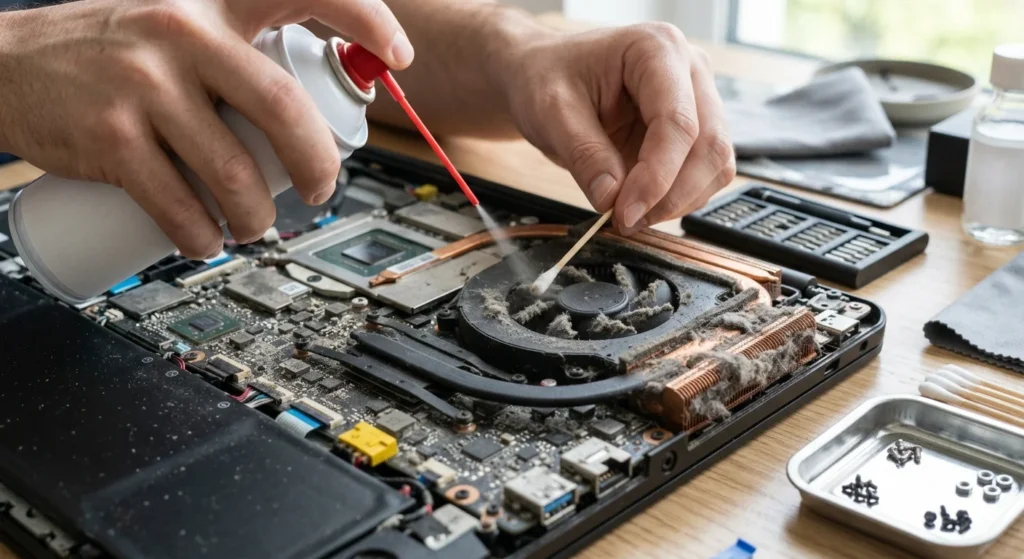
A full cleaning reaches the fan blades and heat sink fins directly. Take photos as you go so reassembly is easy.
Step 1: Remove the Back Panel
Unscrew the bottom panel and note which screw goes where, since lengths often vary. Slide a plastic pry tool along the seam and release the clips gently. Do not force anything that resists.
Step 2: Disconnect the Battery
Find the battery connector on the motherboard and lift it straight up with a plastic tool. This prevents accidental power while you work.
Step 3: Find the Fan and Heat Sink
The fan is a small round or oval blower near the edge of the laptop, connected to a copper heat pipe and a stack of thin metal fins. Some laptops have two fans, so check for both.
Step 4: Remove Dust From the Fan
Hold the blades still with a swab and use short bursts of compressed air. Then use a soft brush to lift dust off each blade. For stubborn grime, wipe with a swab lightly dampened with isopropyl alcohol and let everything dry for several minutes.
Step 5: Clear the Heat Sink Fins
Dust often forms a dense gray felt between the fins. Blow air through the fins from the fan side toward the exhaust vent so the dust exits the laptop. Use tweezers to pull out clumps, and take care not to bend the fins.
Step 6: Reassemble the Laptop
Reconnect the battery, replace the panel, and put each screw back in its original spot. Do not overtighten, since stripped screws are hard to remove later.
Step 7: Test the Results
Power on the laptop and listen to the fan. Run a demanding app for ten minutes and check that temperatures stay reasonable. Free tools like HWMonitor or Core Temp show CPU temperatures, which vary by model but should be clearly lower than before cleaning.
Mistakes to Avoid When Cleaning a Laptop Fan
Most damage during DIY cleaning comes from a handful of avoidable errors:
- Using a vacuum cleaner: it can create static and over-spin the fan.
- Letting the fan spin freely: this can wear out the motor and bearing.
- Spraying liquids: water and household cleaners can short-circuit the motherboard.
- Holding the air can upside down or spraying long blasts: this can release freezing propellant and moisture.
- Cleaning while powered on or plugged in: always shut down and disconnect power first.
- Forcing plastic clips and ribbon cables: if something resists, stop and check the service manual.
- Touching thermal paste or removing the heat sink without a plan: this is a more advanced repair and can lead to poor cooling if done wrong.
- Skipping the model research: some laptops hide screws under rubber feet or stickers.
How Often Should You Clean a Laptop Fan
For most people, a quick external cleaning every three to six months and a deeper clean once a year works well. Adjust that schedule to your environment:
- Every three months: homes with pets, carpet, or smokers, dusty workspaces, or heavy gaming and editing use.
- Every six months: average home or student use.
- Once a year: light use in a clean office.
Laptops used on beds, couches, or pillows block their vents and collect dust faster. If your laptop is several years old and still runs hot after a thorough cleaning, the thermal paste may be dried out. Replacing it can help, but it is an advanced job best left to experienced users or a technician.
Keeping Your Laptop Cooler Between Cleanings
Good habits reduce how much dust gets in and how hard the fan has to work.
- Use a hard, flat surface: desks and tables allow air to reach the intake vents.
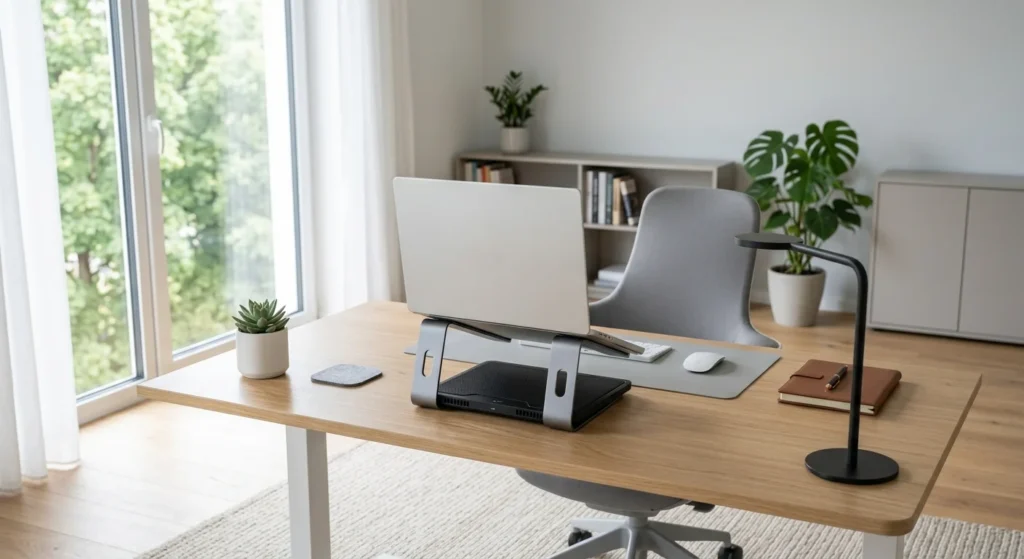
- Try a laptop stand or cooling pad: raising the back edge improves airflow.
- Keep the workspace clean: dust your desk and room regularly, and avoid eating over the keyboard.
- Update software: BIOS, driver, and operating system updates often improve fan control and power use.
- Close unused apps and browser tabs: fewer background tasks mean less heat.
- Adjust your power plan: a balanced mode can reduce fan noise on everyday tasks.
- Avoid heat sources: keep the laptop out of direct sun and never leave it in a hot car.
When to Call a Professional
DIY cleaning is a great first step, but some situations call for an expert. Consider a repair shop or your manufacturer’s support if:
- Your laptop is still under warranty and opening it could void coverage.
- The fan makes grinding or clicking sounds after cleaning, which may mean a failing motor.
- The laptop still overheats or shuts down after a thorough cleaning.
- The case is glued, sealed, or very hard to open, as with many ultra-thin models.
- You notice a swollen battery, burning smell, or damaged cables. Stop using the laptop and get help right away.
A professional cleaning in the U.S. is often much cheaper than replacing a laptop, and a technician can also check the thermal paste, the fan, and the battery at the same time.
Final Thoughts
Knowing how to clean laptop fan parts safely is one of the most useful maintenance skills a laptop owner can have. A little dust removal can quiet the noise, lower temperatures, restore speed, and extend the life of your device. Start with the simple external method, move to a deep clean if you need it, and always power down and protect against static first.
Build cleaning into your routine every few months, keep your vents clear, and your laptop will stay cooler, quieter, and faster for years to come.