A laptop dock is a single external hub that connects your laptop to monitors, keyboards, storage, and a network with one cable. Plug in once and you get a desktop-style setup. The right choice depends on your laptop’s port, how many displays you run, and how much power you need for charging.
What a Laptop Dock Actually Does
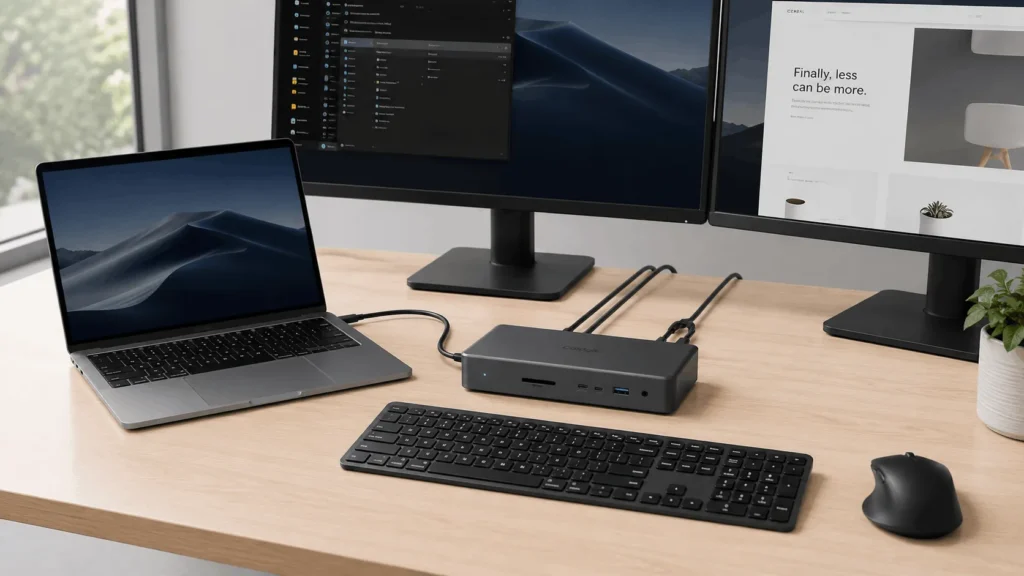
A laptop dock sits on your desk and takes over as the connection point for everything else. Instead of plugging a monitor cable, a mouse, an ethernet line, and a charger into your laptop one by one, you plug in a single cable to the dock, and it handles the rest.
Most modern docks use one USB-C or Thunderbolt cable to carry video, data, and power at the same time. That’s a change from older docking stations, which physically cradled the laptop and needed a proprietary connector matched to the brand. A dock is useful for more than monitors; it can also simplify the connections needed to connect a laptop to a projector.
Laptop Dock VS USB-C hub, What’s the Difference
People use these terms interchangeably, but they’re not quite the same thing. A USB-C hub is usually smaller, cheaper, and built for portability, often just a handful of ports crammed into a dongle you carry in a bag.
A laptop dock tends to be larger, sits permanently on a desk, and includes a dedicated power supply so it can charge your laptop and power connected peripherals at the same time. If you need to drive two or more 4K monitors, run a wired network connection, and charge your laptop simultaneously, a dock is built for that load in a way a compact hub usually isn’t.
Thunderbolt, USB4, and USB-C Docks Compared
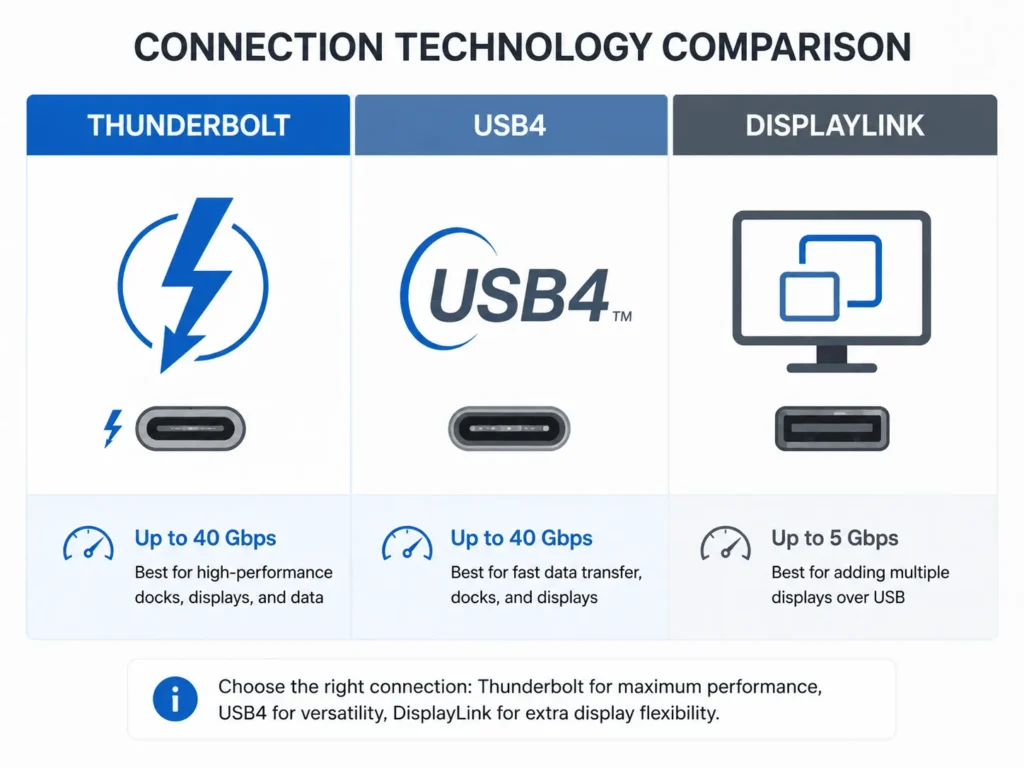
The connection standard your dock uses determines how much it can actually do at once.
1. Thunderbolt Docks
Thunderbolt 4 docks move data at up to 40Gbps, which is enough bandwidth to run multiple high-resolution displays along with fast external storage without a noticeable slowdown. HP’s buying guide notes that Thunderbolt docking stations connect a laptop to multiple peripherals through a single Thunderbolt cable and, compared to USB-C docks, offer up to 40 Gbps of bandwidth for fast data transfers, high-resolution video, and charging at the same time. Your laptop’s USB-C port needs a small lightning bolt icon next to it to confirm Thunderbolt support before you buy.
2. USB4 Docks
USB4 is close to Thunderbolt in spec but not identical. Laptop Mag’s testing notes that USB4 docks can achieve speeds similar to Thunderbolt 4 but are sometimes capped at 20Gbps, so it’s worth checking the exact specification before buying. Ryzen-based laptops commonly ship with USB4 rather than Thunderbolt, and the two aren’t fully interchangeable despite the marketing overlap. Cyber Acoustics.
3. DisplayLink Docks
DisplayLink is a different approach entirely. It’s software-driven rather than relying on native video bandwidth, which makes it a workable option for older laptops that lack Thunderbolt. PCWorld’s testing found that DisplayLink USB-C docks don’t have enough bandwidth for high-refresh-rate monitors or gaming, but they hold up well for everyday office tasks like documents, browsers, and video calls.
How Many ports Does a Laptop Dock Need
Before comparing specific models, list what you actually plug in on a normal day. AOL’s buying guide on docking stations puts it simply: figure out which ports you need and which you use most, then work backward from there.
A dock built for a dual-monitor setup with a mouse, keyboard, external drive, and a headset needs a different port mix than one meant just to add an ethernet line and charge a laptop. Common ports across most docks include USB-A, USB-C, HDMI or DisplayPort, ethernet, a 3.5mm audio jack, and an SD card slot. Some higher-end models pack in as many as 17 ports total, though a long port count isn’t a substitute for checking your laptop actually supports the display and data speeds those ports promise.
How Many Monitors Can a Laptop Dock Support
This depends on both the dock and your laptop’s graphics hardware, not the dock alone. Laptop Mag’s FAQ on docking stations states that most docking stations currently support up to four external displays, though your laptop’s GPU still has to be capable of driving that many screens at once.
A laptop with integrated graphics might handle two external 1080p monitors through a dock without issue but struggle with a third 4K display, even if the dock’s ports technically support it. Check your laptop’s graphics specs before assuming a four-monitor dock will actually push four screens at full resolution.
Power Delivery and Charging Through a Laptop Dock
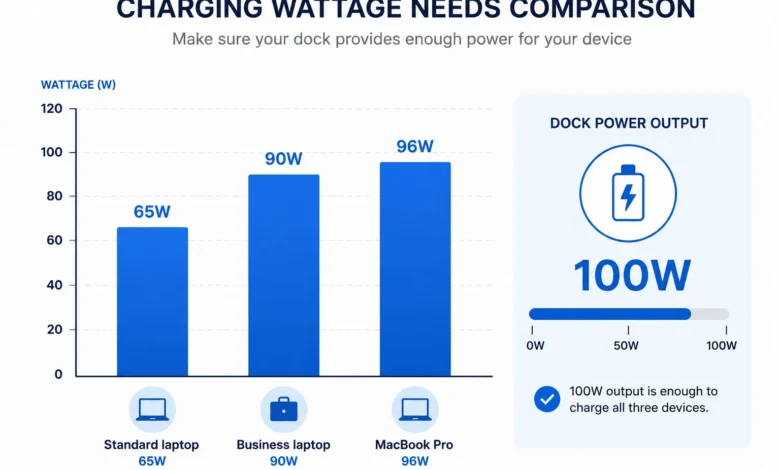
Many docks charge your laptop through the same cable that carries data and video, which removes the need for a separate power brick on your desk. The number that matters here is wattage. If your laptop needs 90W to charge at full speed and your dock only outputs 65W, it will still charge, just more slowly, and possibly not at all under a heavy workload.
MacBook Pro models with 96W charging needs, for example, require a dock rated at or above that output to avoid a charging shortfall. Check your laptop’s charger label for its wattage and compare it against the dock’s power delivery spec before buying, rather than assuming any USB-C dock will match your original charger.
Laptop Dock Compatibility Across Brands
Not every dock works with every laptop, even when the ports look identical. Some manufacturers build docks specifically for their own laptop lines, and these proprietary models are usually more expensive but come with guaranteed compatibility and full feature support.
Universal docks work across brands and operating systems but sometimes lose specific features along the way. A Thunderbolt dock built for both Windows and macOS might support RGB lighting customization on Windows but not on a Mac, for instance. Even docks from the same manufacturer as your laptop aren’t automatically compatible with every model in that lineup, so it’s worth checking the specific compatibility list before ordering.
When a Laptop Dock is Worth Buying
A dock earns its price back fastest in setups where a laptop moves between a bag and a desk daily. Instead of reconnecting five or six individual cables each morning, one cable handles the reconnect, and everything from the previous session is exactly where it was left.
It also protects the laptop itself. Frequent plugging and unplugging wears down laptop ports over time, and routing that wear through a dock’s more replaceable connectors instead extends the life of the laptop’s built-in ports. For a home office with two monitors, a wired keyboard and mouse, and a network cable, a dock turns a laptop into something close to a full desktop setup within seconds of sitting down.
For someone who only ever uses a laptop on the move and rarely connects to external displays, a compact USB-C hub is usually enough, and a full-size dock would go mostly unused.
Laptop Dock: The Short Version
Match the dock’s connection type, Thunderbolt, USB4, or DisplayLink, to what your laptop actually supports, then count the ports and check the power delivery against your laptop’s charging needs. Getting those three things right covers nearly every laptop dock buying decision.
FAQ’S laptop dock questions people ask
1. What’s the difference between a laptop dock and a USB-C hub?
A dock is typically larger, includes its own power supply, and stays on a desk permanently, while a USB-C hub is smaller and built for portability. Docks generally support heavier workloads like multiple monitors and simultaneous charging better than compact hubs.
2. Do I need Thunderbolt for a laptop dock to work?
No. Thunderbolt gives you the highest bandwidth, but USB-C and DisplayLink docks work fine for everyday tasks like browsing, documents, and single-monitor setups. Thunderbolt matters most for multiple high-resolution displays or fast external storage.
3. Can a laptop dock charge my laptop?
Most modern docks can, as long as the dock’s power delivery output meets or exceeds your laptop’s charging wattage. Check your laptop’s original charger for its wattage rating before buying a dock.
4. How many monitors can I connect through a laptop dock?
Most docks support up to four external displays, though your laptop’s graphics hardware ultimately decides how many it can actually drive at full resolution.
5. Is a laptop dock worth it for a home office?
Yes, especially if you switch between working at a desk and working elsewhere. A dock turns a single cable connection into a full desktop setup with monitors, peripherals, and charging already in place.