To use Siri Shortcuts, open the Shortcuts app on your iPhone, tap the plus button, add a few actions, and save the result. Then run it by tapping it or by saying its name to Siri. A shortcut is a saved chain of steps, so one tap or one spoken phrase does the work of ten.
Apple built the app from Workflow, which it bought in 2017, and it has been preinstalled on iPhones since iOS 13. This guide covers everything from running your first ready-made shortcut to building your own and setting up automations that run without you touching anything.
What Siri Shortcuts Are and How They Work
Shortcuts is the app where you build and store the steps. Siri is one of several ways to trigger them. People often mix the two up, but you can use Shortcuts for years without ever talking to Siri.
Each step is called an action. An action can open an app, send a message, change your brightness, resize a photo, or pull the weather. String enough of them together and you get a shortcut that texts your ETA to a family member or starts your morning routine.
Shortcuts also work on iPad, Mac, and Apple Watch, and they sync through iCloud when you sign in with the same Apple Account. Apple’s Shortcuts User Guide on its support site lists every action in detail if you want the full reference.
What You Need Before You Start
You need an iPhone or iPad running a recent version of iOS or iPadOS, an Apple Account, and the Shortcuts app. If the app is missing, download it for free from the App Store.
Check two settings first. Go to Settings, then Siri, and confirm that voice activation is on if you plan to use your voice. Then open your Apple Account settings, tap iCloud, and make sure Shortcuts is turned on so your shortcuts show up on every device.

Some shortcuts need permission to reach your contacts, photos, or location. Your iPhone asks the first time a shortcut tries, and you can approve or deny each request.
A Quick Tour of the Shortcuts App
The app has three tabs along the bottom: Shortcuts, Automation, and Gallery.
1. The Shortcuts Tab
This is your library. Every shortcut you make or add appears here as a colored tile, and tapping a tile runs it. Tap the three dots on a tile to open the editor.
2. The Automation Tab
Automations run when something happens, such as arriving at a place or plugging in a charger. You do not have to tap anything. This tab holds the list of available triggers.
3. The Gallery Tab
The Gallery holds ready-made shortcuts from Apple, sorted by category. It is the fastest place to learn what is possible.
How to Add a Shortcut From the Gallery
The easiest first step is adding a shortcut someone else already built. Open the Gallery tab and browse the categories until something looks useful.
- Tap a shortcut card to read what it does.
- Tap Add Shortcut.
- Go to the Shortcuts tab and tap the new tile to run it.
- Approve any permission prompts that appear.
Pick one that only uses apps you already have, since a shortcut that needs an app you do not own will fail. Open it in the editor afterward to see how it is built. Reading a working shortcut teaches you more than most tutorials, because every step is visible and you can change any of them.
How to Build Your First Custom Shortcut
Here is a simple shortcut called Wind Down. It turns on a Focus, dims the screen, lowers the volume, and starts a playlist. It uses four common actions and shows how the editor works.
- Open Shortcuts, go to the Shortcuts tab, and tap the plus button.
- Tap Add Action, search for Set Focus, and select it. Choose Sleep or Do Not Disturb and set it to turn on.
- Search again, add Set Brightness, and drag the slider down to about 20 percent.
- Add Set Volume and choose a low level.
- Add Play Music and pick a playlist from your library.
- Tap the name at the top, choose Rename, and type Wind Down.
- Tap Done to save.
Run it once from the Shortcuts tab to test it. If a step fails, the editor shows an error on that action, which makes the problem easy to find.
The order matters. Actions run from top to bottom, and you can drag them to reorder or swipe to delete.
Every Way to Run a Shortcut
Once a shortcut exists, you can start it in more ways than most people realize.
Saying It to Siri
Say Hey Siri followed by the shortcut’s name, such as Hey Siri, Wind Down. Short, distinct names work best, because Siri can confuse a name that sounds like an app or a contact.
Home Screen and Widgets
Open a shortcut, tap the share icon, and choose Add to Home Screen to give it its own icon. You can also add the Shortcuts widget to your Home Screen or Lock Screen for one-tap access.
Back Tap and the Action Button
Under Settings, Accessibility, Touch, Back Tap, you can assign a shortcut to a double or triple tap on the back of the phone. The iPhone 15 Pro and newer models also let you assign a shortcut to the Action Button in Settings.
Share Sheet, Apple Watch, and Mac
A shortcut can appear in the share sheet, so you can send a photo or webpage straight into it. On Apple Watch, shortcuts show in the Shortcuts app and as complications. On a Mac running macOS Monterey or later, they live in the menu bar and in Spotlight.
How to Set Up Automations
An automation is a shortcut that runs itself when a trigger fires. Open the Automation tab, tap the plus button, and pick a trigger.
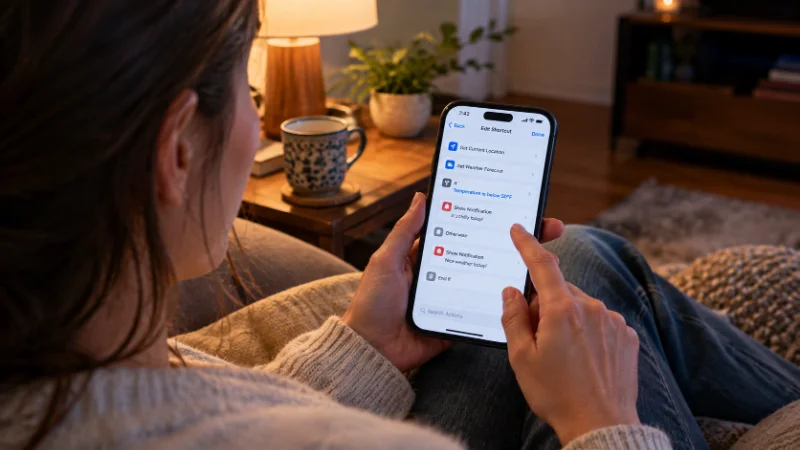
Common triggers include Time of Day, Arrive, Leave, Alarm, Wi-Fi, Bluetooth, CarPlay, Charger, and NFC tag. Newer versions of iOS also offer triggers tied to Focus modes and apps.
Example: Work Focus at the Office
Choose Arrive, set your workplace as the location, and pick Set Focus as the action. Then set the Focus to Work. Your phone now silences personal notifications as soon as you pull into the parking lot.
Example: A Charging Routine
Pick Charger, then Is Connected, and add actions such as turning on Low Power Mode or opening a clock app. For many automations, you will see a toggle called Ask Before Running. Turn it off if you want the shortcut to start silently.
A notification may still appear when it runs, and there is a separate toggle to turn that off too.
Everyday Shortcuts Worth Building
Shortcuts pay off when they cover a task you repeat every week. These ideas fit ordinary routines for most US households.
- Text your ETA: combine Get Current Location with Send Message, so one tap sends a family member a Maps link when you leave work.
- Tip calculator: use Ask for Input to enter the bill, then Calculate and Show Result to display 18 and 20 percent tips.
- Expense log: use Ask for Input and Add to Note with the current date, which suits freelancers tracking gas mileage or receipts.
- Photo cleanup: run Resize Image before you email large photos, and save the smaller copy to an album.
- One-tap calls: use the Call action with a saved contact, then name the shortcut Call Mom so Siri can run it by voice.
Using Variables, Input, and Conditions
Three ideas cover most advanced shortcuts.
Variables
Each action produces something, such as text or a photo, and the next action can use it. Tap a magic variable to pass that output forward. You can also name your own with Set Variable.
Ask for Input
The Ask for Input action pauses the shortcut and prompts you for text, a number, a date, or a URL. That is how the tip calculator gets its bill amount.
If and Repeat
The If action lets a shortcut choose a path. For instance, if the battery is below 20 percent, turn on Low Power Mode. Repeat runs a group of actions several times.
On iPhones that support Apple Intelligence, newer versions of Shortcuts add actions that use Apple’s own models to summarize or rewrite text. Availability depends on your device and software version, so search the action list to see what your phone offers.
Habits That Make Shortcuts Easier to Manage
Start with a shortcut that has three or four actions, and test it before adding more. Long chains built in one sitting are hard to debug.
Duplicate a shortcut before you edit it, so a mistake does not ruin one that works. Use the Comment action to leave notes inside complex shortcuts, which helps when you reopen one months later.
Give each shortcut a plain name you can say out loud. Folders in the Shortcuts tab help once your library passes about a dozen tiles.
Sharing and Importing Shortcuts Safely
You can share any shortcut by tapping the share icon and creating an iCloud link. Friends open the link and tap Add Shortcut.
Before running a shortcut from a stranger, open it and read every action. Watch for steps that send data to a website or ask for broad access to your files. If a step does something you do not understand, delete it or skip the shortcut.

iOS also shows a warning when a shortcut wants to share a large amount of data, so read that prompt before tapping through it.
Fixing Common Problems
1. Siri Cannot Find the Shortcut
Rename it to a short phrase Siri hears clearly, and avoid names that match apps or contacts. Confirm Siri is enabled in Settings and that the shortcut has finished syncing.
2. The Automation Did Not Run
Open the automation and check that Ask Before Running is off, then confirm location and notification permissions. Triggers such as Arrive need Location Services turned on for Shortcuts.
3. An Action Shows an Error
Tap the failed action to read the message. Usually an app was deleted, a contact was removed, or a permission was denied. Reopen the action and choose the item again.
4. Shortcuts Are Not Syncing
Confirm iCloud for Shortcuts is on and that you are signed in to the same Apple Account on every device. Give it a minute, then pull down on the Shortcuts tab to refresh.