
To reset Apple Watch, open Settings on the watch, tap General, tap Reset, and choose Erase All Content and Settings. Enter your passcode, confirm, and the watch wipes itself and restarts to the setup screen. The whole process usually takes a few minutes.
That is the short version. The right method depends on whether your watch is frozen, whether you still know the passcode, and whether you plan to keep it or hand it off. This guide covers each case for Apple Watch Series, SE, and Ultra models sold in the US.
Which Reset Do You Actually Need?
People use “reset” to mean four different things, and picking the wrong one wastes time. Here is how they differ.
A restart turns the watch off and on again and changes nothing. A force restart does the same thing when the screen is frozen. A sync data reset refreshes the contacts, calendars, and other data that move between your iPhone and watch. An erase, which Apple calls Erase All Content and Settings, returns the watch to factory condition.
Unpairing is a separate step done from your iPhone. It erases the watch and also removes its link to your Apple Account, so it is the right choice before you sell, trade in, or give the watch away.
If your watch is only slow or glitchy, start with a restart. Press and hold the side button until the power slider appears, then drag it. Wait a few seconds and press the side button again until the Apple logo appears.
Which Apple Watch Models Does This Cover?
The steps match current Apple Watch Series, SE, and Ultra models running recent watchOS releases. Apple changes menu names now and then, so if a label differs on your screen, look for the closest wording under Settings, General, Reset.
Your iPhone also needs a compatible iOS version for pairing. Apple lists the current requirements on its support site.
Before You Reset Apple Watch: What to Check First
A few minutes of prep protects your data and saves you a headache later.
Back up through your iPhone. Apple says your iPhone creates a backup of the watch automatically when you unpair it, and that backup lets you restore your settings and app layout later. If you only erase from the watch itself, no fresh backup is made, so unpair if you want one.
Charge the watch. Put it on its charger and keep your iPhone close with Bluetooth and Wi-Fi turned on. A watch that shuts off partway through is a problem you don’t want.
Know your Apple Account password. Unpairing turns off Activation Lock, the feature that stops someone else from using your watch, and Apple requires your password to do it.
Check your cellular plan if you have one. More on that below.
Think about Apple Pay. Resetting removes the cards stored on the watch. You can add them back during setup, and your bank may ask you to verify each one again.
How to Reset Apple Watch Directly on the Watch
This is the fastest route when the watch is working, and you know the passcode.
- Press the Digital Crown to open the app grid, then tap Settings.
- Tap General and scroll to the bottom.
- Tap Reset.
- Tap Erase All Content and Settings.
- Enter your passcode if asked.
- On a cellular model, choose Erase All or Keep Plan when prompted.
- Tap Erase All again to confirm.
The screen goes dark, the Apple logo appears, and the watch restarts to the pairing screen. If you get an error, force restart the watch and try again.

Apple lists the same path on its support page for erasing an Apple Watch, and it holds across recent watchOS versions. Menu wording can shift slightly between releases, so follow the on-screen labels if yours differ.
How to Reset Apple Watch From Your iPhone
If the watch is nearby and paired, your iPhone can erase it without touching the watch.
- Open the Watch app on your iPhone.
- Tap My Watch, then General.
- Scroll down and tap Reset.
- Tap Erase Apple Watch Content and Settings.
- Confirm and enter your Apple ID password if requested.
This keeps the watch paired to your iPhone. When it restarts, you will set it up again and can restore from your backup.
Unpairing Instead
Unpairing is better when you are done with the watch. Open the Watch app, tap All Watches, tap the info button next to your watch, and tap Unpair Apple Watch. Confirm and enter your Apple ID password to turn off Activation Lock.
Keep both devices close together during this step. The iPhone backs up the watch first, then erases it.
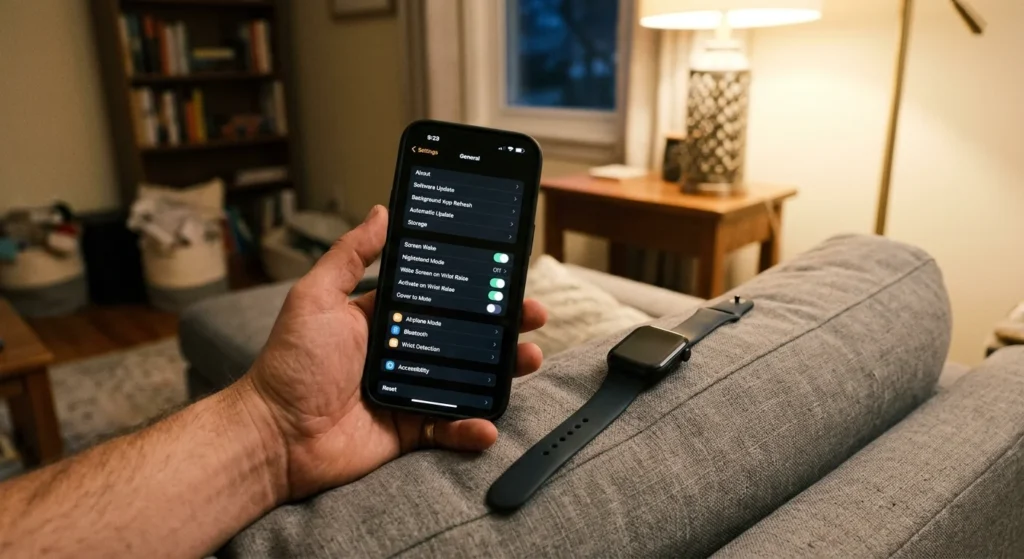
How to Reset Apple Watch Without the Passcode
Forgetting the passcode is the most common reason people search for this, and the fix is built in.
Place the watch on its charger. Hold the side button until the power slider appears. Then press and hold the Digital Crown until the Reset screen appears. Tap Reset, then tap Reset again to confirm.
The Watch app route works too, because unpairing from the iPhone does not ask for the watch passcode.
Expect to lose anything not backed up. If the watch was backed up to your iPhone earlier, you can restore it during setup. If not, you start fresh, though your Health and Activity history still lives on your iPhone and in iCloud if you use it.
How to Force Restart a Frozen Apple Watch
When the screen won’t respond, a regular restart is not possible. Press and hold the Digital Crown and the side button together for at least ten seconds, until the Apple logo appears, then release.
This does not erase anything. It is the first thing to try for a frozen display, an app that won’t close, or a watch stuck on the logo.

If the watch freezes again within a day or two, a full reset is the next step. Try a sync data reset first if the problem involves missing contacts or calendars.
Reset Sync Data for Contacts and Calendar Problems
Sometimes the watch works fine but shows old contacts, wrong calendar events, or missing reminders. A sync reset replaces the watch’s copy with fresh data from your iPhone.
Open the Watch app, tap My Watch, tap General, tap Reset, and choose Reset Sync Data. Nothing on your iPhone is deleted. The watch simply pulls down a new copy.
I would try this before a full erase on any watch that behaves normally except for one data type. It takes seconds and avoids setting everything up again.
Cellular Models: Keep or Remove the Plan
GPS + Cellular watches in the US connect through a plan from your carrier, such as AT&T, T-Mobile, or Verizon. When you erase or unpair one, Apple Watch asks whether to keep or remove the plan.
Choose Keep Plan if you are resetting to fix a problem and will keep using the watch. Choose Remove Plan if you are selling the watch or switching carriers. Removing the plan does not cancel service, so contact your carrier to cancel or move the line.
Some carriers also charge a monthly fee for the wearable line until you cancel it. Check your bill after you remove the plan.
What Gets Erased and What Stays
A reset wipes everything stored on the watch. That includes apps, watch faces, settings, Apple Pay cards, alarms, and messages saved locally.
Data that lives on your iPhone stays put. Your Health history, Activity history, and photos on the iPhone are not touched. Anything synced to iCloud also stays with your Apple Account.
A reset also does not remove Activation Lock unless you unpair it with your password. If you erase from the watch alone and later sell it, the buyer will hit an Activation Lock screen. Unpair from the iPhone first so the lock comes off cleanly.
Setting Up Your Watch Again
After the reset, hold your iPhone near the watch. A pairing screen appears on the phone, and you tap Continue. Hold the iPhone over the animation on the watch to pair them.
You then pick Restore from Backup or Set Up as New. Restore brings back your app layout, watch faces, and most settings from the last backup. Set Up as New starts clean, which is the better choice if the original problem came from a corrupted setting or app.
Restore from backup first. If the same issue returns, repeat the reset and set up as new.
Plan for roughly 15 minutes in total, and leave the watch on its charger and connected to Wi-Fi until the sync finishes. A large backup with many apps takes longer.
Apple Pay cards need to be added either way again. Open the Wallet & Apple Pay section in the Watch app and tap Add Card.
Selling, Trading In, or Giving Away Your Watch
Always unpair from the iPhone rather than only erasing from the watch. Unpairing removes Activation Lock, backs up the watch, and erases it in one pass.
After that, open the Find My app and confirm the watch no longer appears in your device list. If you trade in through Apple or a carrier, they will usually ask you to unpair first, so doing it ahead of time saves a step.
If you bought a used watch that is stuck on an Activation Lock screen, only the previous owner can remove it. Ask them to unpair it or remove it from their Apple Account at iCloud.com. Apple Support can also help if you have the original proof of purchase.
Common Problems During a Reset
The reset hangs on the Apple logo. Give it several minutes, since erasing can take a while on older models. If it stays frozen for a long stretch, force restart the watch and try again.
The watch won’t connect to the iPhone. Turn on Bluetooth and Wi-Fi, turn off Airplane Mode on both devices, and restart the iPhone.
The watch asks for an Apple Account password you don’t remember. Reset the password at iforgot.apple.com, then try again.
The watch won’t charge or turn on. Try a different cable and a wall adapter, and clean the back of the watch and the charger with a dry, lint-free cloth.
When a Reset Doesn’t Fix the Problem
If the same problem returns after a clean setup as new, the cause may be hardware or a software bug.
Update to the latest watchOS first. On the watch, go to Settings, General, Software Update. On the iPhone, the Watch app has the same option under General.
Then contact Apple Support. In the US, you can call 1-800-275-2273, book a Genius Bar appointment at an Apple Store, or use the Apple Support app. Bring the watch, your iPhone, and your Apple Account details.
Check your warranty status too. Apple’s limited warranty covers one year, and AppleCare+ extends coverage for eligible models.