
Knowing how to delete all mails in Gmail can save you hours of clicking. A packed mailbox slows down search and eats into your 15 GB of free storage. It also buries the messages you actually need. Gmail can wipe everything in a few clicks, but the default method misses a lot. Most people clear the inbox and leave thousands of emails sitting in other tabs, labels, and folders. This guide covers the full process on computer and phone, plus safer options if you do not want to lose everything.
Before you Delete Anything
Deleting and archiving are different actions. Archive removes a message from your inbox but keeps it stored in All Mail. Delete moves it to Trash. Gmail keeps trashed messages for 30 days and then erases them for good.
That 30-day window is your safety net. It disappears the moment you empty the Trash manually.
Take two minutes to check what you might regret losing. Tax documents, receipts, travel confirmations, and account recovery emails are the usual candidates. Old messages from banks and employers also tend to matter later.
If you want a full copy first, use Google Takeout. Choose only Mail, pick your export format, and download the archive. It works well for large mailboxes and takes a few minutes to a few hours, depending on size.
How to Delete All Mails in Gmail on a Computer
The desktop version of Gmail is the fastest and most reliable place to do a bulk delete. The mobile app cannot select an entire mailbox in one step.
Delete Everything in your Inbox
This method clears the Primary tab. It does not touch Promotions, Social, Updates, or Sent mail.
- Open Gmail in a browser and go to your inbox.
- Click the empty checkbox above your message list, on the left. This selects the 50 emails visible on the page.
- A line of text appears above the list. Click “Select all conversations in Primary.”
- Click the trash can icon.
- Confirm by clicking OK.
Gmail then moves every matching conversation to Trash. Large mailboxes can take a minute or two to finish. Do not close the tab until the count drops.
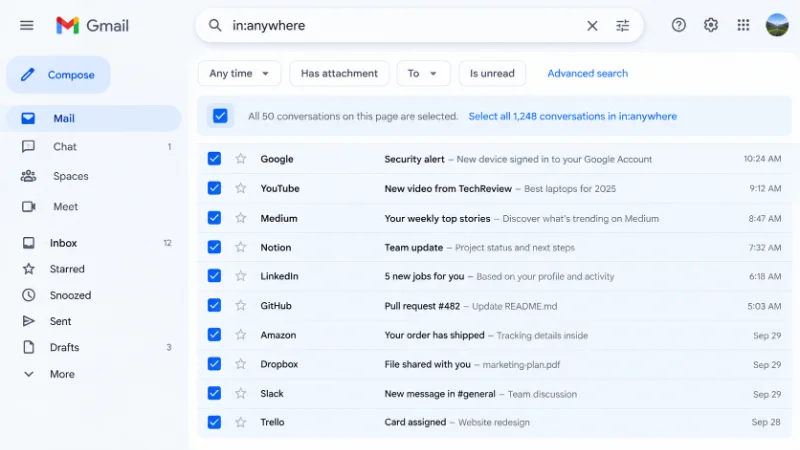
Delete Every Email in your Account
The inbox method leaves most of your storage untouched. Promotions, Social, Updates, Forums, and Sent mail all sit outside the Primary tab. Labels and archived mail hide in the same way.
Use a Search Instead:
- Click the search bar at the top of Gmail.
- Type in:anywhere and press Enter.
- Click the checkbox above the results.
- Click “Select all conversations that match this search.”
- Click the trash can icon and confirm.
The in:anywhere operator searches every folder, including Spam and Trash. That makes it the closest thing Gmail has to a true “delete everything” command.
One detail catches people out. Gmail deletes whole conversations, not single messages. If a thread contains a reply you sent, the entire thread goes with it.
Empty the Trash and Spam Folders
Nothing is truly gone yet. Deleted mail counts against your storage until the Trash is emptied.
Open Trash from the left sidebar. If you cannot see it, click “More” to expand the list. Then click “Empty Trash now” at the top of the message list and confirm. This step cannot be undone.
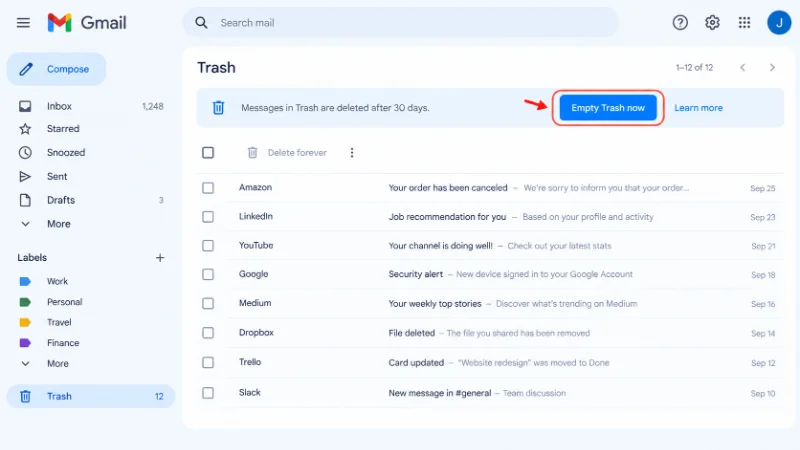
Do the same for Spam. Open the Spam folder and click “Delete all spam messages now.” Gmail erases spam after 30 days on its own, but clearing it manually frees space right away.
How to Delete All Emails in Gmail on IPhone and Android
The Gmail app is built for reading and quick triage. It has no dependable way to select every email in a mailbox at once. Long-pressing a message lets you tick several, but you would be tapping for a very long time.
The workable solution is your phone’s browser.
- Open Chrome or Safari and go to mail.google.com.
- Tap the menu in your browser and choose “Desktop site.”
- Sign in if asked. Do not tap the prompt to open the app.
- Follow the same steps used on a computer.
The page will be small, so zoom in as needed. Tapping precisely on the select-all banner is the fiddly part. If it fights you, wait until you have a laptop.
Clearing Trash on a phone works the same way. In the app, open the menu, tap Trash, then tap “Empty Trash now.”
How to Delete Only Some Emails Instead of All
A total wipe is rarely what people need. Usually a few categories cause the clutter. Gmail search operators let you target them, and every method above works on the results.
1: Delete by Sender
Type from: followed by an address or company name, such as from:newsletter@example.com. Select all results and delete. This is the best cure for a store or app that sends daily promotions.
2: Delete by Age
Old mail is the safest to remove. Type older_than:2y to find everything more than two years old. You can use d for days, m for months, and y for years. Add a category to narrow it down, for example category:promotions older_than:1y.
3: Delete By Size
Attachments use far more storage than text. Type larger:10M to see every message over 10 MB. Clearing these gives the biggest storage gain for the least effort. Check them first, since photos and contracts often hide there.
4: Delete Unread or Promotional Mail
Type is:unread to find mail you never opened. That usually means it was never useful. To clear the Promotions tab, open it, select all, and delete. Or search category:promotions to reach the same result from anywhere.
5: Keep Starred and Important Mail
Combine operators with a minus sign to exclude items. Searching in:anywhere -is:starred -is:important shows everything except messages you flagged. Delete that group and your keepers stay untouched.
Why Gmail Will Not Delete Everything
Bulk deletes sometimes fail or look incomplete. These are the common causes.
The count does not drop right away. Gmail processes large jobs in the background. A mailbox with 100,000 messages may need several rounds. Repeat the search and delete again until the results are empty.
Storage did not go down. Trash still counts toward your quota. Empty it, then wait a few minutes. Remember that Gmail shares its 15 GB with Google Drive and Google Photos. A full Drive can keep your total high even after Gmail is empty.
Emails seem to come back. They may be in another label or a different tab. Use the in:anywhere search to catch them. A connected email app on your phone or laptop can also re-sync old mail, so check its settings.
The delete button is missing. Work and school accounts can have retention rules set by an administrator. In that case, deletion may be blocked or messages may be kept in a hidden archive. Only your admin can change that.
Only 50 emails were selected. You clicked the checkbox but skipped the banner. Click “Select all conversations that match this search” after the first checkbox.
How to Recover Emails Deleted By Mistake
Act fast. Open Trash, find the message, select it, and click “Move to.” Then pick Inbox or another label. You can also open the message and use the move icon from there.
To restore many messages at once, open Trash, click the top checkbox, use the select-all banner, and move them all back.
After 30 days, or after you empty the Trash, recovery through Gmail is not possible. Google Workspace admins have a limited recovery window for accounts they manage. Personal accounts do not have this option, which is why a Takeout backup is worth doing first.
How to Keep Your Inbox From Filling Up Again
Cleaning once helps for a few months. Habits and filters keep it clean.
Unsubscribe from senders you no longer read. Gmail shows an Unsubscribe link next to the sender name on many bulk messages. It is safer than marking mail as spam, and it stops the flow at the source.

Create a filter for constant offenders. Open a message, click the three dots, and choose “Filter messages like this.” You can then send matching mail straight to Trash or skip the inbox and label it automatically.
Set a repeating search for old promotions. Once a quarter, search category:promotions older_than:90d and delete the results. It takes about thirty seconds.
Use labels sparingly. Ten well-chosen labels beat sixty overlapping ones. Old, unused labels only make cleanup harder.
Common Questions About Deleting Gmail Emails
1: Does deleting all emails delete my Gmail account?
No. Your account, contacts, and settings stay exactly as they are. Only the messages are removed. You can still send and receive mail straight away. Deleting the account itself is a separate process in your Google Account settings.
2: Will deleting emails free up Google storage?
Yes, but only after the Trash is emptied. Gmail messages count toward the 15 GB shared across Google services. Messages with large attachments give you the biggest gain.
3: Can I delete all emails at once in the Gmail app?
Not reliably. The app has no full-mailbox select option. Use a browser on your phone with the desktop site, or use a computer.
4: Is there a limit to how many emails I can delete at once?
Gmail has no set cap, but very large jobs run in stages. If some messages remain, run the same search and delete again. Most mailboxes finish within a few rounds.
5: How long does it take to delete all emails in Gmail?
Small mailboxes finish in seconds. A mailbox with tens of thousands of messages may take a few minutes. Keep the tab open and refresh once the progress notice disappears.
6: Should I delete or archive?
Archive if you might need the message someday and you have storage to spare. Delete if you are sure it has no value or you need the space back. Archiving keeps the inbox clean but does nothing for your storage.
7: The simplest path to an empty Gmail
The whole process comes down to four moves. Search in:anywhere, select all conversations that match, delete them, then empty Trash and Spam. Everything else in this guide is a way to do a smaller or safer version of that. Back up anything important first, and give yourself the 30-day window if you are unsure.