
Google asks if you’re a robot when its systems detect traffic from your device or network that looks automated. The usual triggers are a VPN, a shared IP address, very fast searching, or software running searches in the background. Once Google is satisfied that a person is behind the screen, the prompt goes away, and most people clear it in a few minutes.
If you are wondering why is Google asking if I’m a robot when you only wanted to look something up, the cause is rarely your own behavior. It is almost always something about your connection or browser. This guide covers the reasons, the fixes in order of effort, and how to tell a real Google check from a fake one.
What the “I’m Not a Robot” Check Actually Is
The check is a CAPTCHA, a test designed to separate people from automated programs. Google’s version is called reCAPTCHA, and it comes in a few forms. The most familiar one is the checkbox that says “I’m not a robot,” sometimes followed by a grid of images where you click every traffic light or crosswalk.
There is also a quieter version. According to Google’s reCAPTCHA developer documentation, reCAPTCHA v3 gives each visitor a score from 0.0 to 1.0 without showing a puzzle, where a score near 1.0 means the visitor is very likely a person. Low scores can lead a site to show a challenge or block the request.
When this happens on Google Search itself, you usually see a page that reads “Our systems have detected unusual traffic from your computer network.” Google’s Search Help pages describe this as a protection against automated requests. Sending automated queries to Google Search is also against its Terms of Service, which is why the system is strict about it.
The important point is that the check is about your connection, not about you personally. If many people or programs send searches through the same internet address, Google treats that address as suspicious and tests everyone using it.
The Most Common Reasons Google Thinks You Are a Bot
Most cases trace back to one of six causes. Knowing which one applies to you saves a lot of trial and error later.
1. You Are Using a VPN or Proxy
A VPN routes your traffic through a server that thousands of other people may be using at the same moment. If even a small share of them run automated searches, Google flags the whole address. You then get the CAPTCHA even though you did nothing unusual.
Free VPNs are the biggest offenders because their servers are crowded and their addresses are often reused. Paid services tend to cause fewer problems, but they are not immune.
2. You Are on Shared or Public Wi-Fi
Offices, college dorms, airports, hotels, and coffee shops put many devices behind a single public IP address. To Google, a hundred students searching at once can look like one very busy machine. The same thing happens on some mobile carrier networks in the USA, where many phones share an address.
If the CAPTCHA only shows up on one network and disappears at home, this is the likely reason.
3. You Are Searching Too Fast or Too Often
Human searching has a rhythm. Running dozens of queries in a minute, refreshing results repeatedly, or using advanced operators like inurl: and intitle: in rapid sequence can look like a script.
SEO professionals and researchers hit this limit often. Checking rankings by hand for a long list of keywords is enough to trigger it.
4. Browser Extensions and SEO Tools Are Running Searches
Some extensions send background requests to Google, especially rank trackers, SEO toolbars, price comparison tools, and some ad blockers or coupon finders. You may not notice them, but Google sees every request they send from your browser.
Rank-checking software is a classic cause. If a tool is querying Google on a schedule, your own searches get caught in the same filter.
5. Malware or Unwanted Software Is Using Your Connection
Sometimes the traffic really is automated, and you did not start it. Malware and some adware can use an infected computer to send queries to search engines without the owner knowing. Google’s “unusual traffic” help page lists this among the possible causes.
A computer that has been running slowly, showing unexpected pop-ups, or opening strange browser tabs deserves a security scan.
6. Cookies, Old Browsers, and Privacy Settings
Google uses cookies to recognize a returning, trusted browser. If you block cookies, clear them constantly, or browse in a private window every time, Google has less history to trust and may ask you to verify more often.
An outdated browser can cause similar trouble, since older versions sometimes fail the background checks that reCAPTCHA runs. Strict privacy extensions that block scripts can also stop the check from completing, which creates a loop.

How to Tell a Real Google Check From a Fake One
Most guides skip this part, and it matters. Fake “verify you are human” pages are a known way to spread malware, and they look a lot like the real thing.
A real Google block page appears when you are actually on Google. Check the address bar. Google’s own challenge pages sit on a google.com address, often with “/sorry/” in the path, and they appear after you tried to run a search.
Be suspicious if a page that is not Google asks you to verify, or if the page asks you to do anything other than tick a box or click images. Microsoft Threat Intelligence has reported campaigns, often called ClickFix, where a fake CAPTCHA tells you to press the Windows key plus R, or to paste a command into a terminal or the Run box. A genuine CAPTCHA never asks for that. Doing it can install malware on your computer.
If you already followed instructions like that, disconnect from the internet, run a full antivirus scan, and change your important passwords from a different, clean device.
Step-by-Step Fixes That Work
Work through these in order. They go from the quickest to the most involved, so you will often be done after the first or second one.
1. Solve the Check and Wait a Few Minutes
If it is a single, occasional prompt, just complete it. Tick the box or select the images as asked, then carry on with your search. One-off checks often come from a brief spike of activity and clear on their own.
If you get the image grid, take your time. Rushing and picking wrong tiles can trigger another round.
2. Turn Off Your VPN or Switch Servers
Disconnect the VPN and search again. If the prompt vanishes, the VPN was the cause. You can then reconnect to a different server, or choose a server in the USA that is less crowded.
If you need the VPN for privacy, a paid provider with dedicated or less-shared addresses usually causes fewer checks than a free one.
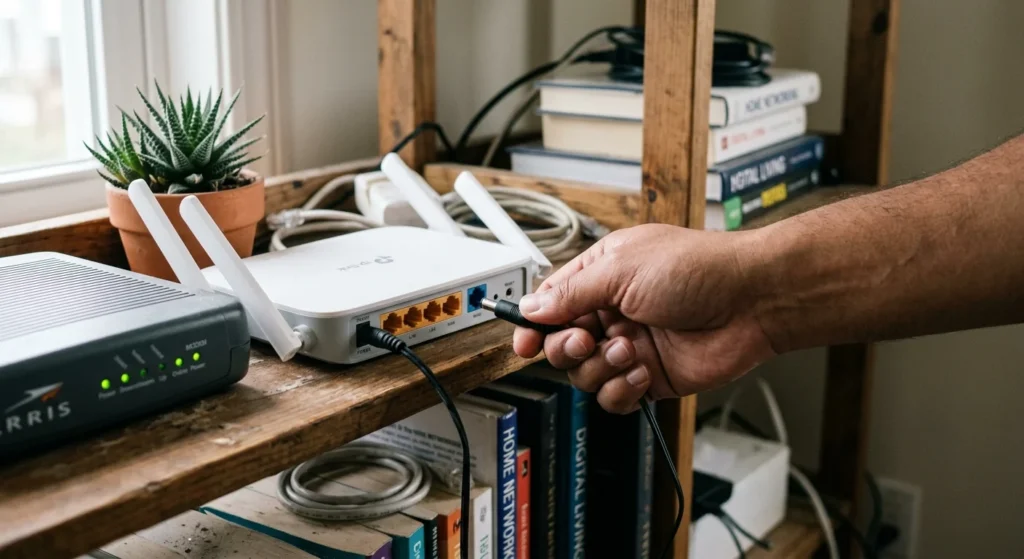
3. Restart Your Router to Get a New IP Address
Many home internet providers assign addresses that change when the modem restarts. Unplug your router and modem for about a minute, plug them back in, and wait for the connection to return.
This does not work on every plan, since some providers give out static addresses. It is still a quick test, and it costs nothing.
4. Try a Different Network
Switch to your phone’s mobile data and search again. If the check disappears, the problem is your Wi-Fi network or the address your provider gave you, not your device.
This test is useful because it tells you whether to keep troubleshooting your computer or to focus on your network.
5. Sign In to Your Google Account
Being signed in gives Google more context about you, and that can lower the number of challenges. Use your normal account on a device you trust.
This works best when your account has a normal history. A brand new account on a flagged network may still be challenged.
6. Clear Cookies and Update Your Browser
Clear your Google cookies and cached files, then restart the browser. Make sure you are running the latest version of Chrome, Firefox, Safari, or Edge, because older versions can fail the background checks.
In Chrome on a desktop, you can find this under Settings, then Privacy and Security, then Delete Browsing Data. After clearing, avoid wiping cookies every session if you want fewer prompts.
7. Disable Extensions One at a Time
Open your browser in a clean state by turning off all extensions, then searching again. If the check stops, turn extensions back on one by one until it returns. The last one you enabled is the culprit.
Pay attention to SEO toolbars, rank trackers, scraping add-ons, and anything that says it “monitors” or “fetches” search data.
8. Scan for Malware
Run a full scan with a trusted security tool. Windows Security (built into Windows) is a reasonable starting point, and Malwarebytes is a widely used second opinion.
Also review the programs installed on your computer. Remove anything you do not recognize, especially software that arrived bundled with a free download.
When the CAPTCHA Keeps Coming Back
If you have tried everything above and the prompt returns every few searches, look at the pattern. A check that appears only at work points to the company network. A check that appears only with certain browsers points to extensions or settings in that browser.
It can also help to wait. Google’s Search Help says these blocks are temporary, and they usually lift once the unusual activity stops. If your network is shared, the cause may be someone else on it, and the block will end when they stop.
If the problem lasts for days on your home connection, contact your internet provider and ask if your address is shared or has a poor reputation. Some providers will issue a different address on request.
For people who rely on a school, library, or office network, the fix is often outside your control. Ask the network administrator whether the network sends heavy automated traffic to Google. They can sometimes route searches differently.
How Site Owners and SEO Professionals Can Avoid It
If you check rankings, competitor results, or search features for a living, you will see this prompt more than most people. Doing the work by hand at high volume looks like automation to Google, because in practice it is close to it.
The cleaner route is to use sources built for the job. Google’s Programmable Search Engine and its Custom Search JSON API are the official way to query search results programmatically, with set quotas. Google Search Console shows your own site’s queries, impressions, and positions without any scraping at all.
Rank-tracking services run their own infrastructure and handle the blocking problem on their side, so your own IP address is not involved. Using one keeps your personal searches free of the checks.
Also separate your work browsing from your personal browsing. A dedicated browser profile, with its own cookies and extensions, stops a rank-checking tool from flagging the searches you make for ordinary reasons.
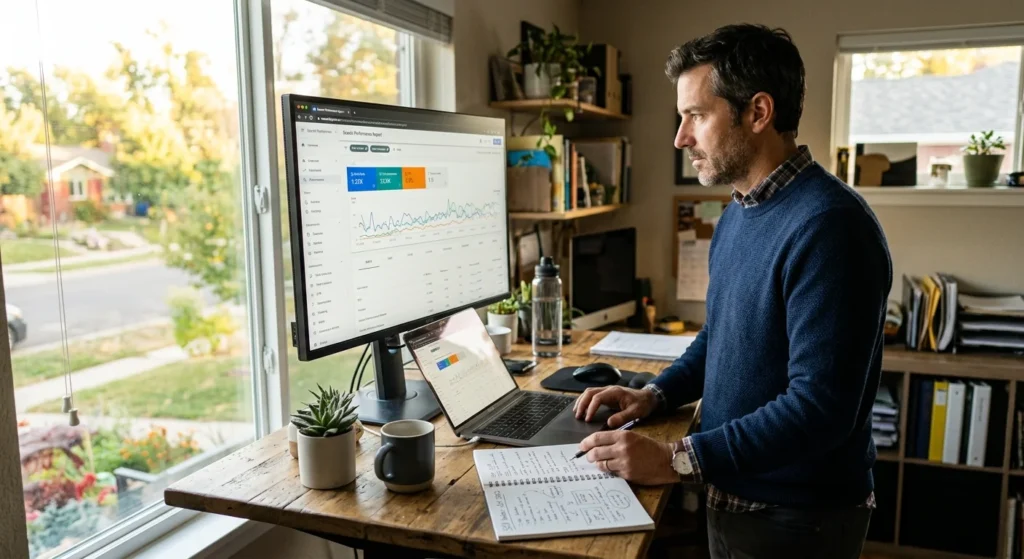
Finally, space out manual checks. A human pace, with pauses between queries, is much less likely to cause a challenge than a fast run through a long keyword list. If you got here asking why is Google asking if I’m a robot while doing research, the answer is almost always volume and speed, and slowing down is the simplest fix.