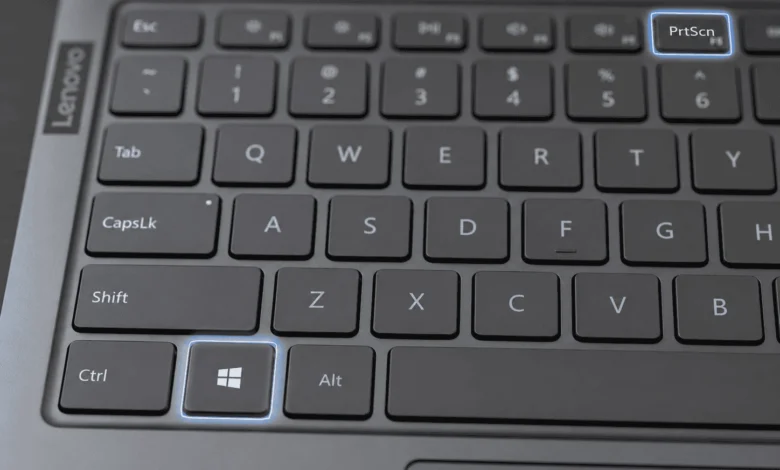
The fastest way to screenshot on a Lenovo laptop is to press the Windows key and PrtScn together, which saves a full-screen image straight to your Pictures folder. If you only need part of the screen, press Windows, Shift, and S instead to select a specific area or window.
Capture The Whole Screen With Print Screen
On most Lenovo laptops, pressing PrtScn alone copies an image of the entire screen to your clipboard without saving a file anywhere. You then need to paste it into Paint, Word, or another program with Ctrl+V before you can save it. If your PrtScn key shares space with a function key, hold Fn while pressing PrtScn instead. This method works on every version of Windows, so it’s the one to remember if you can’t recall any other shortcut.
Save A Full-Screen Shot Automatically
Press the Windows key and PrtScn together instead of PrtScn alone, and Windows saves the screenshot as a file on its own, no pasting required.
The screen briefly dims to confirm the capture worked. Windows drops the image straight into a folder named Screenshots inside your Pictures library, already numbered in order so you can find the most recent one at a glance without any extra sorting.
Capture Just The Active Window
If you only need the window you’re currently working in, not your whole desktop, press Alt and PrtScn together. This copies just that window to your clipboard, cutting out background clutter, taskbars, and any other open apps sitting behind it. It still needs to be pasted into an editor before you can save it as its own file, the same as a basic PrtScn capture.
Select A Specific Area With Windows Shift S
For screenshots limited to one part of the screen, a chart, a single paragraph, or a pop-up notification, press Windows, Shift, and S at the same time. Your screen dims and a small toolbar appears at the top, letting you choose a rectangular selection, a freeform shape, a single window, or the full screen. Once you release the mouse, the image copies to your clipboard, and a small notification appears in the corner that you can click to annotate or save it right away. This is the fastest built-in method on both Windows 10 and Windows 11.
Use Snipping Tool For More Control
Search for Snipping Tool in the Windows search bar and open it for extra options the keyboard shortcuts don’t offer, including a short delay timer that gives you a few seconds to open a menu before the capture fires. Select New, then choose a shape for your selection.
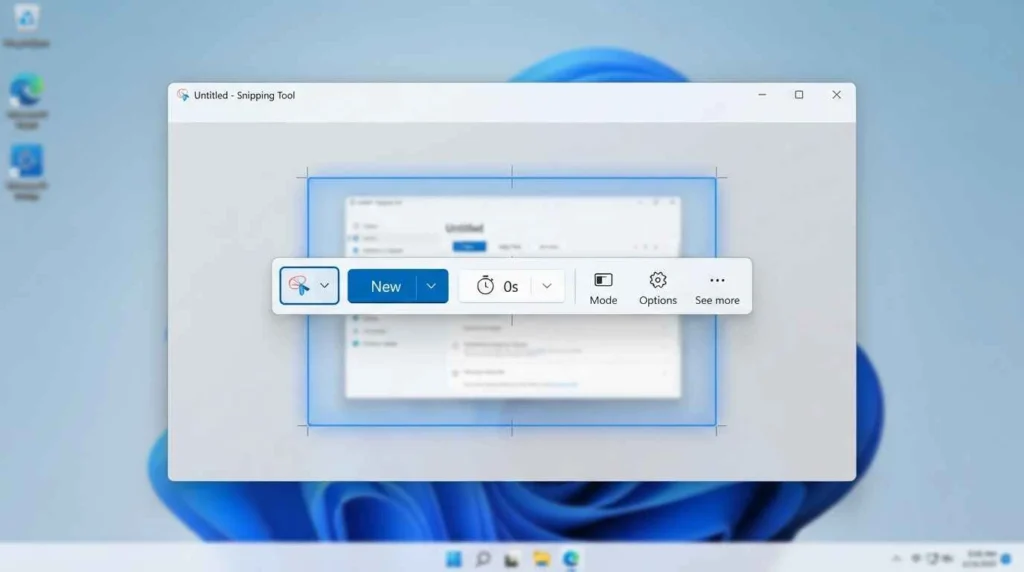
Snipping Tool also includes a basic pen and highlighter, so you can mark up the image before saving it as a PNG, JPEG, or GIF file. On older Lenovo laptops still running Windows 7, this same tool exists under the same name, though it looks slightly different and lacks the delay timer option.
Annotate And Share A Screenshot Quickly
After capturing with Windows Shift S, click the notification that pops up in the corner to open the built-in markup editor. From there you can crop the image further, draw on it with a pen or highlighter, or add a text box before copying it straight into an email or chat. Skipping this notification doesn’t lose the screenshot; it stays on your clipboard, and you can still paste it anywhere, but you’ll lose the option to annotate it first.
Take A Screenshot On A Lenovo ThinkPad
Where Is The Print Screen Key On A ThinkPad
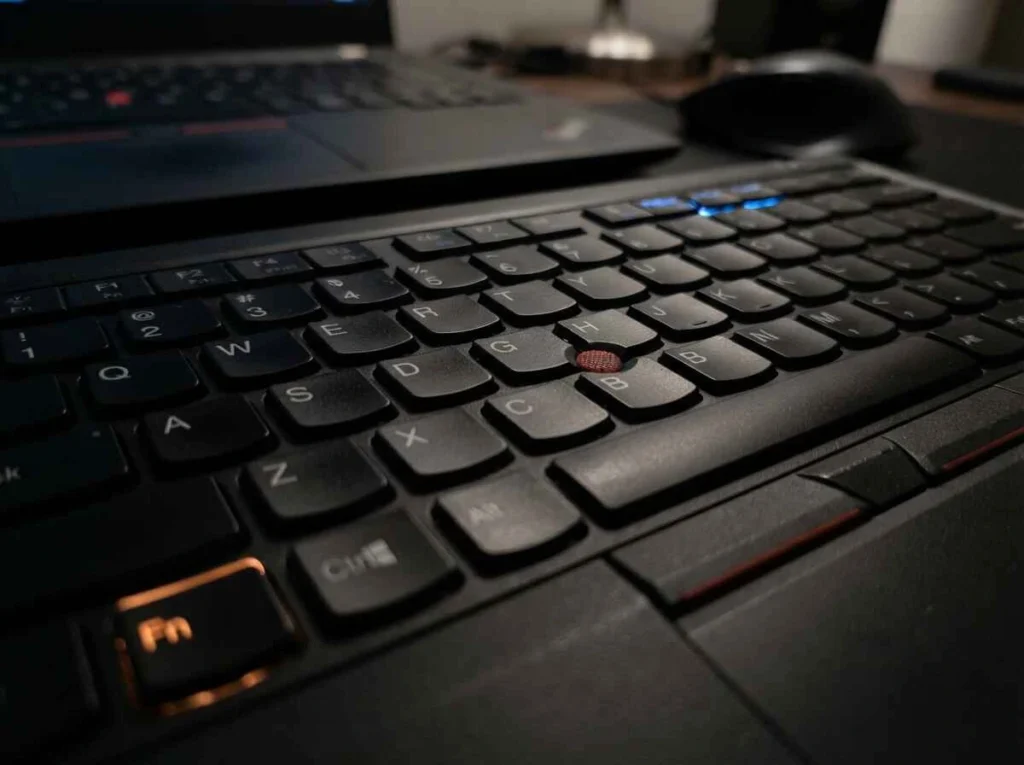
ThinkPad keyboards often place PrtScn on the function row, shared with another key, so you’ll need to hold Fn while pressing it. Some ThinkPad models label the key PrtSc instead of the full spelling. If Fn Lock is turned on, function keys behave as media or brightness controls by default, so you may need to press the Fn key first to unlock standard PrtScn behavior before your shortcut works as expected.
All the same Windows shortcuts, Windows PrtScn, Alt PrtScn, and Windows Shift S, work exactly the same way on a ThinkPad as on any other Lenovo laptop. The only real difference is locating the key itself, since ThinkPad keyboards run more compact and several function keys do double duty.
Take A Screenshot On A Lenovo Chromebook
Lenovo Chromebooks don’t use the same shortcuts as Windows laptops. To capture the full screen, press Ctrl and the Show Windows key together, sometimes labeled with an overview icon or a window switcher symbol instead of a standard function key. To capture just part of the screen, press Ctrl, Shift, and Show Windows together, then drag to select the area you want. Screenshots save automatically to the Downloads folder as PNG files, and a small thumbnail appears briefly in the corner so you can open or edit it right away.
Screenshot A Game Or Full-Screen App With Game Bar
Some full-screen games and apps block the standard keyboard shortcuts from working. Press Windows and G together to open the Xbox Game Bar, then click the camera icon, or press Windows, Alt, and PrtScn together to capture directly without opening the overlay at all. Game Bar screenshots save to a Captures folder inside your Videos library, separate from your regular Pictures screenshots, which is worth remembering if you go looking for one later and can’t find it.
Find Your Saved Screenshots
Screenshots taken with Windows PrtScn save to Pictures, then Screenshots. Files from Snipping Tool save wherever you choose when you hit save, unless you skip that step, in which case they only exist on your clipboard until you paste them somewhere. Game Bar captures land in Videos, then Captures. If a screenshot seems to have vanished entirely, check your clipboard first; a quick Ctrl+V into any program will confirm whether it copied successfully but was never saved as its own file.
Fix Print Screen Not Working
If PrtScn does nothing when you press it, check whether Fn Lock is active, since some Lenovo laptops need the Fn key held down for PrtScn to register at all. Restart the laptop if a recent Windows update may have interrupted the background service that handles the Windows Shift S shortcut. Confirm the keyboard shortcut hasn’t been reassigned by going to Settings, then Accessibility, then Keyboard on Windows 11. If nothing works, open Snipping Tool directly from the search bar and use the New button instead of relying on the keyboard shortcut.
Quick Recap
For a fast full-screen capture, press Windows and PrtScn. For a specific area, press Windows, Shift, and S. ThinkPad and Chromebook users follow slightly different key layouts, but the underlying tools, Snipping Tool, Snip and Sketch, and Game Bar, work the same way across every current Lenovo laptop.
FAQ’S
1:How Do I Screenshot On A Lenovo Laptop Without A PrtScn Key?
Use the Snipping Tool from the Windows search bar, or press Windows, Shift, and S, since that shortcut works even without a labeled Print Screen key on the keyboard. Both methods work whether or not your laptop has a dedicated PrtScn key at all.
2:Why Does My Screenshot Only Copy To The Clipboard Instead Of Saving As A File?
Pressing PrtScn or Alt PrtScn alone only copies the image; you need to paste it into an editor like Paint and save it manually from there. Only the Windows PrtScn combination saves a file automatically without any extra steps required.
3:Where Do Lenovo Laptop Screenshots Get Saved By Default?
Standard Windows PrtScn shortcuts save to the Pictures folder, inside a Screenshots subfolder. Game Bar captures save to Videos, then Captures, instead of Pictures.
4:Does The Screenshot Method Differ Between Lenovo ThinkPad And IdeaPad Models?
No, both use the same Windows shortcuts. The only difference is where the PrtScn key sits on the keyboard, since ThinkPad function rows are laid out slightly differently than IdeaPad and Yoga models.
5:Can I Take A Scrolling Screenshot On A Lenovo Laptop?
Windows doesn’t include a built-in scrolling screenshot tool, so capturing a long webpage or document usually needs a browser extension or a separate app. Most modern browsers, including Edge and Chrome, offer a full-page capture option tucked into their own menus as well.