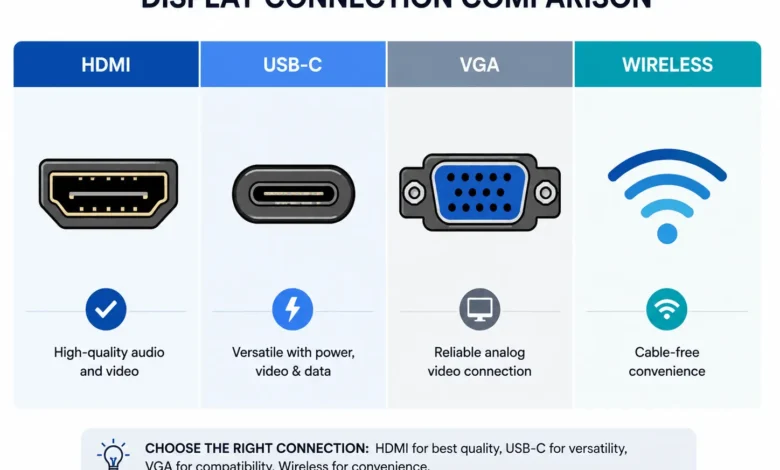
The fastest way to connect a laptop to a projector is an HDMI cable: plug one end into your laptop, the other into the projector, then switch the projector’s input to HDMI. No cable nearby, or a Mac with no HDMI port? Wireless casting through Miracast or AirPlay works just as well once both devices share a network. For a permanent desk setup with several peripherals, a laptop dock can reduce the number of cables you have to reconnect.
How to Connect Laptop to Projector With an HDMI Cable
HDMI is the connection most people reach for first, and for good reason. It carries video and audio over one cable, supports resolutions up to 4K, and doesn’t introduce the lag that some wireless methods do.
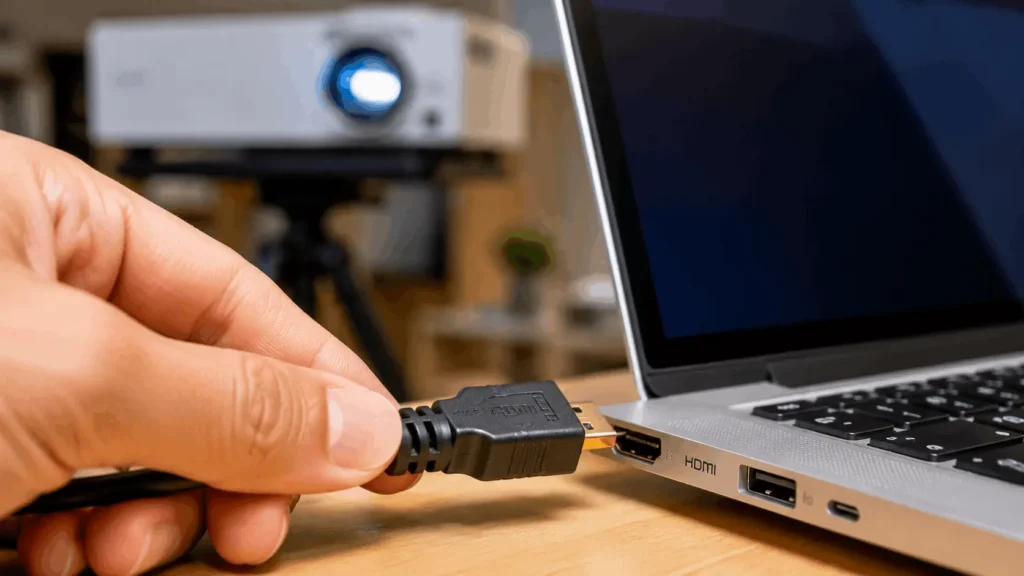
Find the HDMI port on your laptop, usually along the side, and the HDMI input on the back of the projector. Connect the cable, turn the projector on, and use its remote or on-screen menu to select HDMI as the input source. If your laptop screen shows up on your desktop but not on the projector, press Windows key + P and choose Duplicate or Extend to send the signal through.
How to Connect Laptop to Projector With USB-C
Most laptops made after 2020 dropped HDMI in favor of USB-C, but not every USB-C port outputs video. The port needs to support DisplayPort Alt Mode or Thunderbolt 3 or 4, so check your laptop’s specs before assuming a cable will work.
1. How to Connect Laptop to Projector With USB-C on Windows
If your laptop has a video-capable USB-C port, a USB-C to HDMI cable or adapter connects directly to most projectors. Plug it in, select HDMI on the projector, then press Windows key + P to pick a display mode.
2. How to Connect Laptop to Projector With USB-C on a MacBook
Modern MacBooks use USB-C exclusively, so a USB-C to HDMI adapter is the standard route. Once connected, open System Settings, then Displays, then Arrangement, to choose between mirroring your screen or extending it as a second display.
How to Connect Laptop to Projector With a VGA Cable
Older laptops and older projectors still rely on VGA, an analog connector that only carries video, not sound. If your laptop no longer has a VGA port, which is common on anything from the last several years, an HDMI to VGA adapter bridges the gap.
Plug the adapter into your laptop’s HDMI or USB-C port, then run a VGA cable from the adapter to the projector. Because VGA carries no audio, you’ll need a separate audio cable or the projector’s own speakers if you’re playing a video with sound.
How to Connect Laptop to Projector wWirelessly
Skipping cables entirely is possible if both your laptop and projector support wireless display standards. Windows machines generally use Miracast, while Macs use AirPlay, and both routes typically finish in under a minute once you know the steps.
1. How to Connect Laptop to Projector Wirelessly on Windows
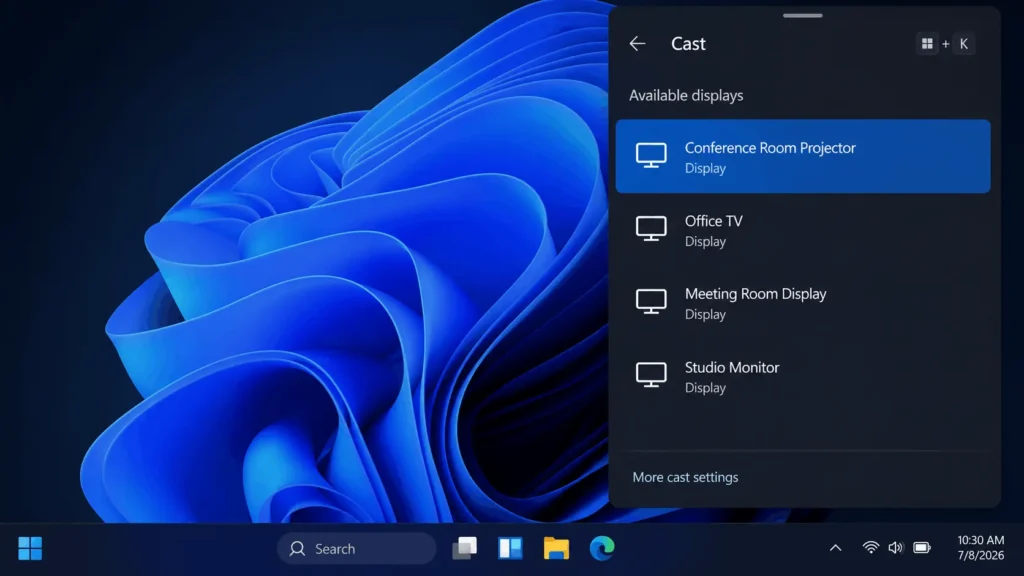
Press Windows key + K to open the Cast panel, then select your projector from the list of available displays. If it doesn’t appear, confirm the projector’s wireless display mode is switched on and that both devices sit on the same Wi-Fi network. Once connected, press Windows key + P to choose Duplicate, to mirror your screen, or Extend, to use the projector as an additional monitor.
2. How to Connect Laptop to Projector Wirelessly on a Mac
If your projector supports AirPlay, directly or through a connected Apple TV, put your Mac and the projector on the same Wi-Fi network first. Click the Screen Mirroring icon in the menu bar, select the projector, and your Mac’s display appears on the big screen within seconds.
How to Connect Laptop to Projector Without Wi-Fi
Not every room has reliable Wi-Fi, and some office or campus networks block the device discovery that Miracast and AirPlay depend on. A mobile hotspot from your phone can stand in as a shared network for both devices when the venue’s own Wi-Fi won’t cooperate.
For a connection that never depends on a network at all, a wired HDMI or USB-C cable stays the more dependable fallback in classrooms, dorms, or any high-restriction environment.
How to Connect Laptop to Projector For a Business Presentation
Conference rooms raise the stakes: a slow handshake between devices eats into meeting time that costs money. Wireless presentation systems built for this, separate from consumer casting tools like Chromecast, skip network setup entirely by plugging a small transmitter into the laptop’s HDMI or USB-C port and pairing it to a receiver at the projector with a single button press .This kind of dedicated hardware also adds encryption that consumer casting tools generally lack, which matters when a presentation includes confidential slides. For a home movie night or a quick photo slideshow, a simpler option like Chromecast is usually enough.
How to Fix laptop to Projector Connection Problems
A blank projector screen after everything looks plugged in usually traces back to one of a few causes. Confirm the projector’s input source matches your cable, HDMI, VGA, or USB-C, since projectors don’t auto-detect this the way monitors sometimes do.
Swap the cable if you suspect a bad connection, and keep it under 6 feet when possible, since longer cables can degrade the signal. On Windows, press Windows key + P again and cycle through the display modes; on a Mac, reopen Displays in System Settings and check that Arrangement reflects the screen you expect. If wireless mirroring won’t find the projector, restart both devices and confirm they’re on the same Wi-Fi network before trying again.
FAQ’S laptop to projector questions people ask
1. Why won’t my laptop connect to the projector?
Check that the projector’s input source matches the cable you’re using, since it won’t switch automatically. If you’re going wireless, confirm both devices share the same Wi-Fi network and restart each one before trying again.
2. Can I connect a laptop to a projector without HDMI?
Yes. A USB-C to HDMI adapter works if your laptop’s USB-C port supports video output, and a VGA cable with an adapter works for older laptops or projectors.
3. Does connecting a laptop to a projector need Wi-Fi?
Only for wireless methods like Miracast or AirPlay. A wired HDMI, USB-C, or VGA connection works with no network at all, which makes it the more reliable option in places with restricted Wi-Fi.
4. How do I mirror my laptop screen to a projector instead of extending it?
On Windows, press Windows key + P and choose Duplicate. On a Mac, open System Settings, then Displays, then Arrangement, and check the box for mirrored displays.