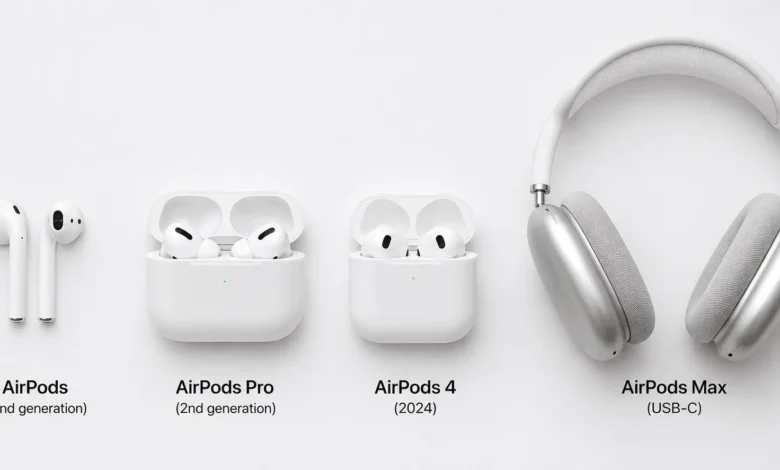
To connect AirPods to a laptop, turn on Bluetooth in your laptop’s settings, open the AirPods case near the laptop, press and hold the setup button until the light flashes white, then select AirPods from the Bluetooth device list. The process works the same on Windows and Mac.
What You Need Before You Start
Before pairing, make sure both AirPods sit in the case with a full charge and the lid stays open during setup. Your laptop needs Bluetooth, either built in or added through a USB adapter, since AirPods only connect over Bluetooth and have no wired option.
Most laptops made in the last several years, including models from Dell, HP, and Apple, ship with Bluetooth already built in. If your laptop lacks it, a small USB Bluetooth adapter costs under $15 and adds the feature in minutes.
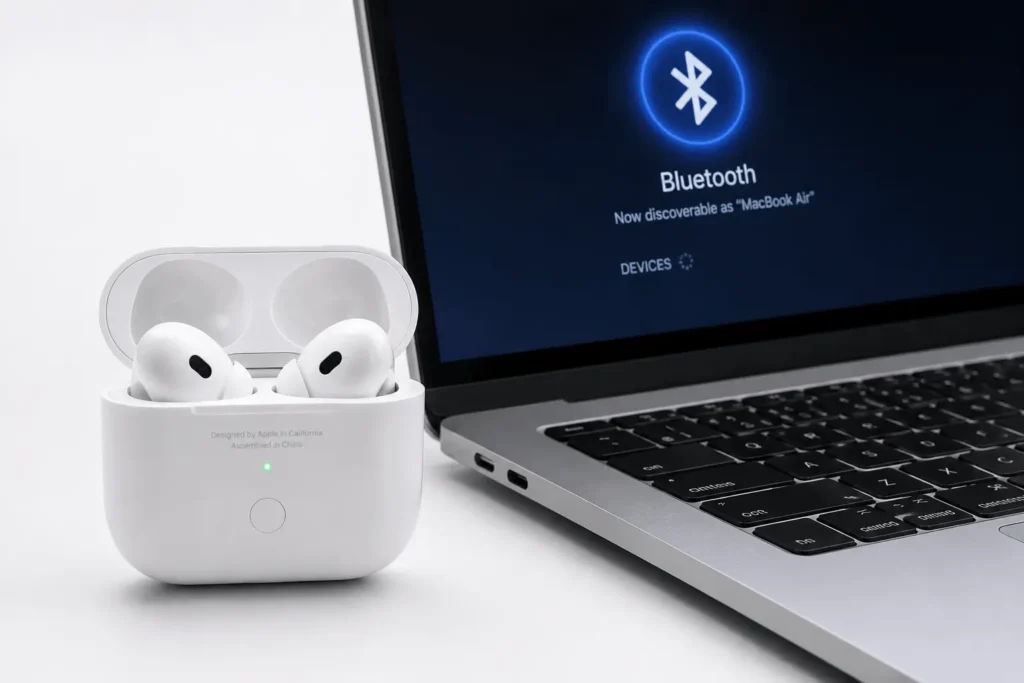
How to connect AirPods to a Windows laptop
Windows treats AirPods like any other Bluetooth headset. You lose Apple-only features such as automatic device switching and spatial audio, but core playback and calls work fine once paired.
1. Connect AirPods on Windows 11
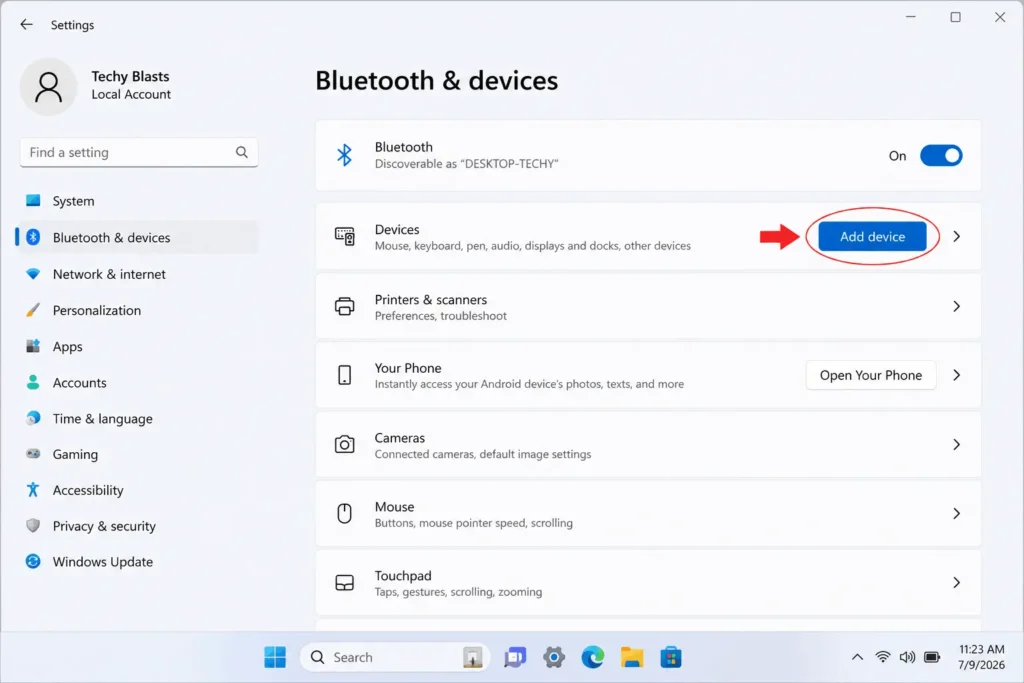
Open Settings by pressing Windows key + I, then click Bluetooth & devices in the left sidebar. Turn on the Bluetooth toggle if it isn’t already active, then click Add device at the top of the page. Choose Bluetooth from the menu that appears, put your AirPods in the case, open the lid, and press and hold the setup button on the back until the light flashes white. Your AirPods should appear in the list within a few seconds. Click them, wait for the connection to finish, then click Done.
2. Connect AirPods on Windows 10
Go to Settings, then Devices, then Bluetooth & other devices. Switch the Bluetooth toggle on, then click Add Bluetooth or other device. Select Bluetooth from the options, open your AirPods case, and hold the setup button until the light turns white. Click your AirPods when they show up, and Windows finishes the pairing automatically.
3. Fix AirPods that Won’t Connect to Windows
If your AirPods don’t show up, turn Bluetooth off and back on, then try again. Disconnect the AirPods from any other device they’re currently paired to, since Bluetooth headsets can only actively connect to one device at a time in most cases. You can also try connecting one AirPod at a time by leaving the other in the case, which sometimes resolves detection issues tied to a specific earbud. If none of that works, remove the AirPods from Windows’ Bluetooth list entirely, restart the laptop, and pair them again from scratch.
How to connect AirPods to a MacBook
Apple builds deep AirPods integration into macOS, so pairing is often automatic if your AirPods are already signed into the same Apple ID as your iPhone or iPad.
1. Automatic Pairing on Mac
If your AirPods are already set up with an iPhone signed into your Apple ID, click the audio icon in the Mac’s menu bar, and your AirPods usually appear in the list ready to connect with one click. No case, no setup button, no waiting.
2. Manual Pairing on Mac
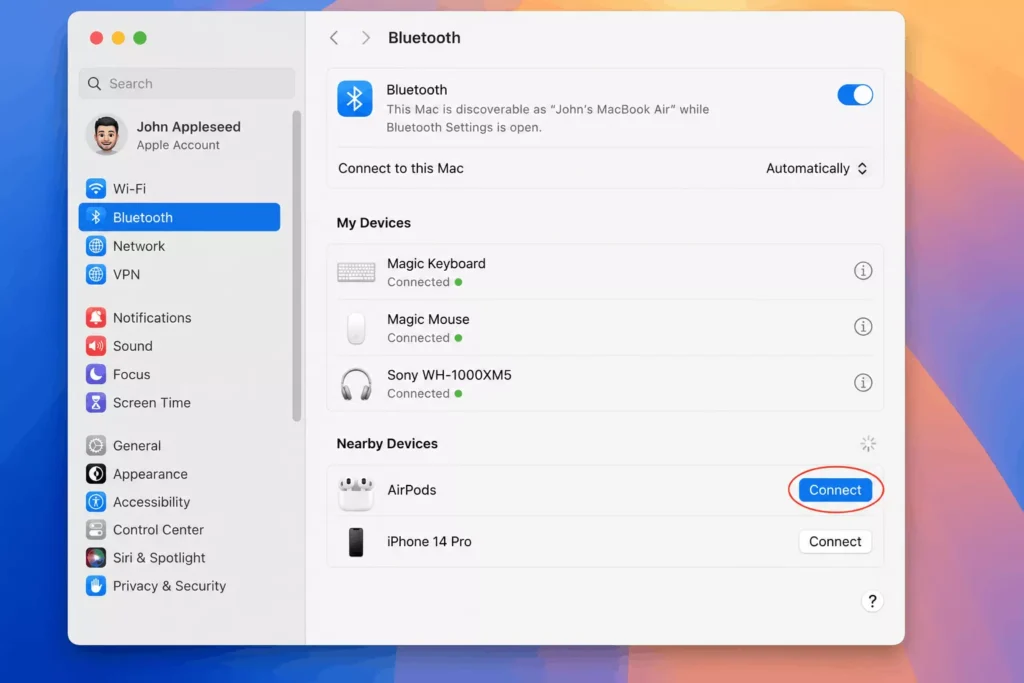
For a first-time connection, click the Apple menu, then System Settings, then Bluetooth. Turn Bluetooth on if the toggle isn’t already active. Open your AirPods case near the Mac and press the setup button on the back until the status light flashes white. Your AirPods appear under “Nearby” in Bluetooth settings within a few seconds. Click Connect next to their name to finish pairing.
Once connected, Mac users get access to features Windows can’t offer, including Siri through the AirPods, automatic switching between the Mac and other Apple devices, and spatial audio for supported content.
Reconnecting AirPods After the First Pairing
Once your laptop and AirPods have paired once, reconnecting is usually automatic. Just take the AirPods out of the case and put them in your ears, and both Windows and Mac laptops typically reconnect within a couple of seconds as long as Bluetooth stays on.
If they don’t reconnect on their own, open the case, close the lid, wait ten seconds, and open it again. This resets the connection attempt and often fixes a stalled reconnect without needing to go through the full pairing steps again.
Common Problems and How to Fix Them
Audio and microphone quality on a laptop won’t match what you get on an iPhone or Mac paired to the same Apple ID, since Windows and non-Apple software can’t access Apple’s proprietary audio codecs. For music and general listening, the difference is minor. For voice calls, AirPods on Windows sound noticeably thinner than on an Apple device, so treat them as a backup headset for calls rather than your main one.
Battery drains faster when AirPods stay connected to a laptop all day without returning to the case, since the earbuds keep a constant Bluetooth link active. Put them back in the case during long breaks to top up the charge.
Outdated Bluetooth drivers cause a large share of pairing failures on Windows laptops. Open Device Manager, find Bluetooth in the list, right-click your adapter, and select Update driver. A restart after the update often resolves connections that failed repeatedly before. When updating Bluetooth doesn’t solve repeated pairing failures, knowing how to reset AirPods gives you another clean starting point.
AirPods Models and Laptop Compatibility
Every AirPods model, including the original AirPods, AirPods Pro, AirPods Pro 2, AirPods 4, and AirPods Max, pairs with laptops the same basic way, through Bluetooth and the case’s setup button. The button’s exact position differs slightly between models. On standard AirPods and AirPods Pro, it sits on the back of the case. On AirPods Max, you press and hold the noise control button on the right ear cup instead of using a case button.
None of these differences change the pairing steps in Windows or macOS Bluetooth settings, since your laptop only sees a generic Bluetooth audio device once the AirPods enter pairing mode.
Quick Takeaway
Connecting AirPods to a laptop takes under a minute once Bluetooth is on and the case is open with the setup button held down. Windows users get solid audio playback with a few Apple-only features missing, while Mac users often connect with a single click if their AirPods already live inside their Apple ID. Keep the case charged, keep Bluetooth drivers current, and reconnecting after the first pairing becomes automatic.
FAQ‘S
1.Why won’t my AirPods show up in my laptop’s Bluetooth list?
Bluetooth may be off on the laptop, or the AirPods may still be in pairing mode with another device. Turn off Bluetooth on any nearby devices already paired to the AirPods, then hold the setup button again until the light flashes white before searching from your laptop.
2. Can I use AirPods with a Chromebook?
Yes. Chromebooks support standard Bluetooth pairing, so you follow the same basic steps: open Bluetooth settings, turn it on, open the AirPods case, hold the setup button, and select AirPods from the device list.
3. Do AirPods work as a microphone on Windows?
Yes, AirPods work for calls and voice chat on Windows, though microphone quality is noticeably lower than on an Apple device. They’re fine for casual calls but not ideal as a primary work headset.
4. Can I connect AirPods to a laptop and a phone at the same time?
Only with an Apple device signed into the same Apple ID does automatic switching work. On Windows, AirPods actively connect to one device at a time, so you need to disconnect from the phone before pairing with the laptop.
5. Do I need an app to use AirPods on Windows?
No. Windows treats AirPods as a standard Bluetooth headset and needs no extra software. Some third-party apps exist to unlock features like battery percentage, but they’re optional.