A factory reset restores an HP laptop to its original Windows settings and clears out the apps and files added since setup. You do this from Settings on a working laptop, or from the recovery partition or Windows Recovery Environment if it won’t start.
Before You Start: Back Up Your Files And Check A Few Things
Keep the laptop plugged into power for the whole process, since an interrupted reset can corrupt the Windows installation and leave the laptop unable to boot. If you’re selling, donating, or returning the laptop, also sign out of your Microsoft account and apps tied to your identity, such as Dropbox or Adobe Creative Cloud.
How To Factory Reset An HP Laptop In Windows 11
Open Settings And Go To Recovery
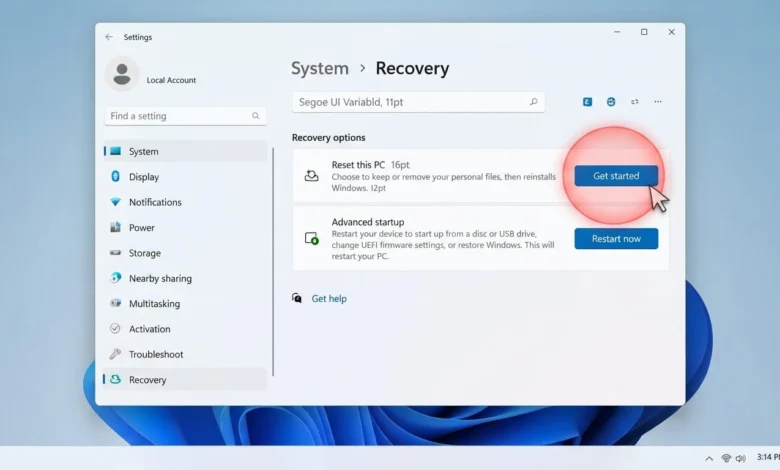
Click Start, then Settings (the gear icon), then System. Select Recovery from the list, then click Get started next to “Reset this PC.”
Choose Keep My Files Or Remove Everything
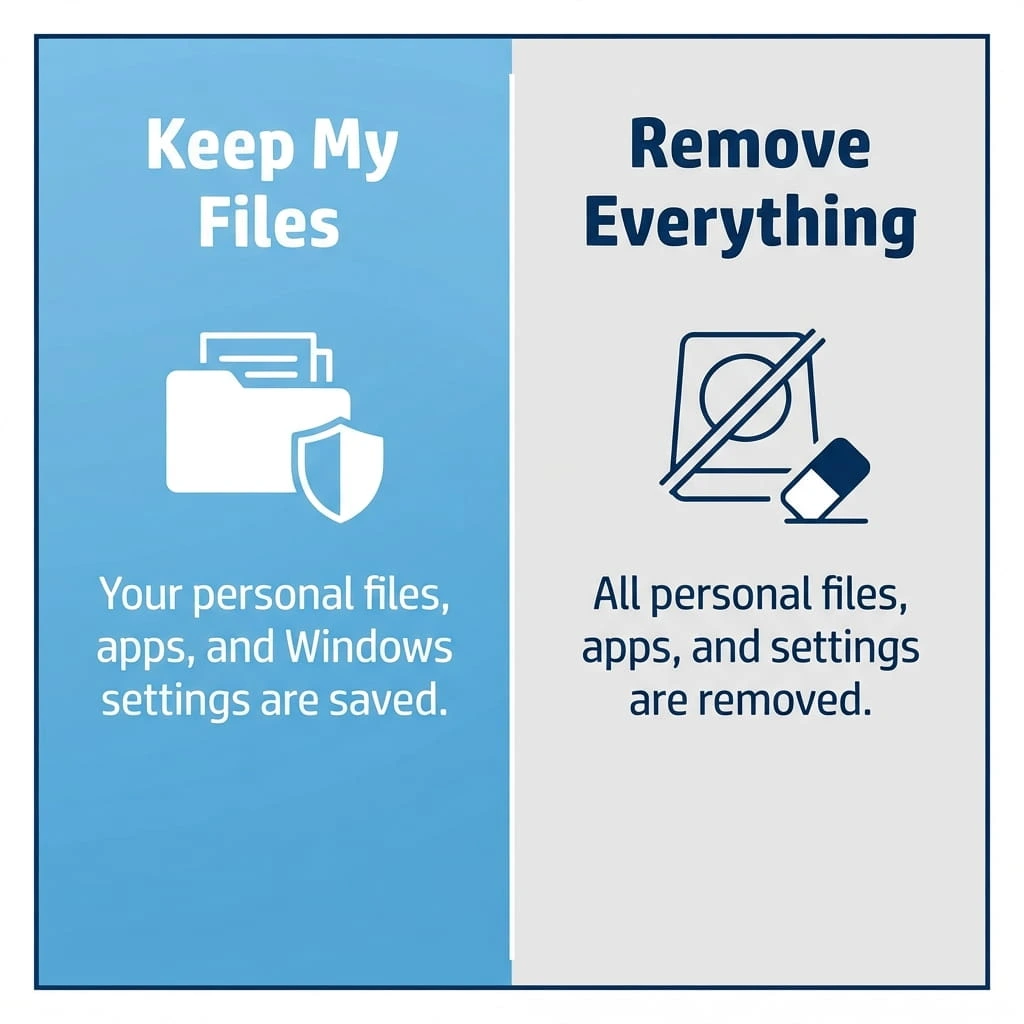
Windows asks how much to erase. Keep My Files removes apps and settings but leaves your personal files alone, which suits a performance fix. Remove Everything wipes files, apps, and settings, which is the right choice before selling or donating the laptop.
Pick Cloud Download Or Local Reinstall
Next, choose how Windows gets reinstalled. Cloud Download pulls a fresh copy from Microsoft’s servers, which helps if your local recovery files are damaged, but it needs a stable internet connection. Local Reinstall uses files already on the laptop and finishes faster.
Confirm And Start The Reset
Review the list of changes Windows shows you, then click Reset. The laptop will restart several times on its own. Don’t touch the keyboard or close the lid until you reach the Windows setup screen.
How To Factory Reset An HP Laptop In Windows 10
The steps are almost the same, just in a different menu. Go to Settings, then Update & Security, then Recovery. Under “Reset this PC,” click Get started, and you’ll see the same Keep My Files and Remove Everything choices described above.
How To Reset An HP Laptop From The Recovery Partition
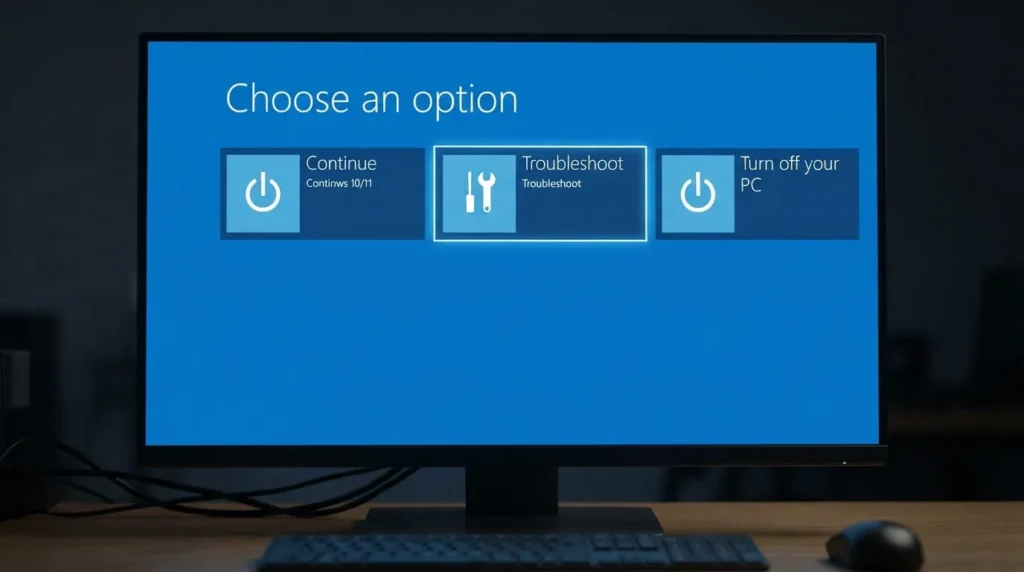
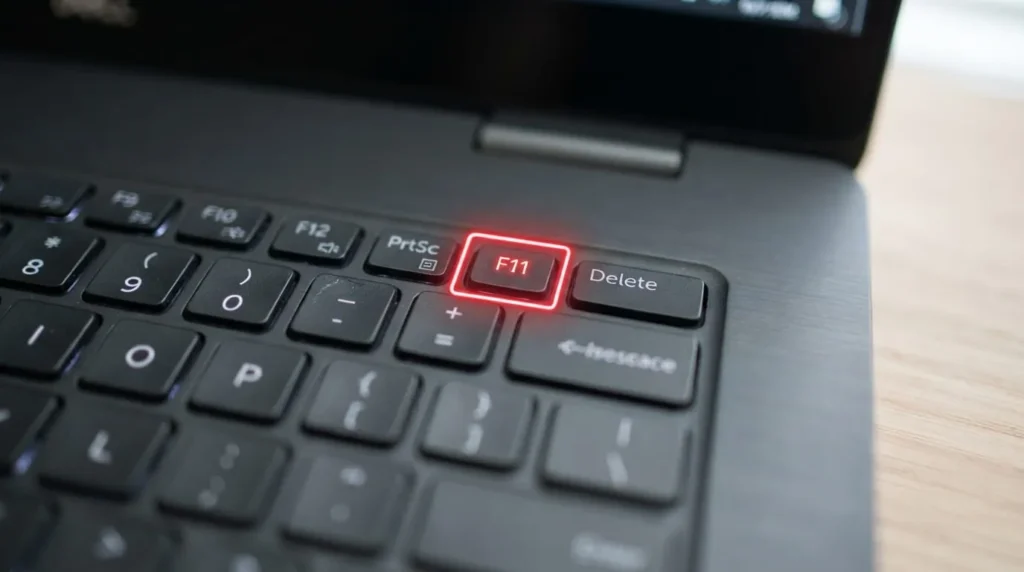
If Windows won’t open Settings, or you’d rather reset without logging in, HP laptops store a recovery image on a hidden partition of the drive. Restart the laptop, and as soon as the screen goes black, press F11 repeatedly until you see “Choose an option” or “HP Recovery Manager.” Select Troubleshoot, then Reset this PC, and follow the same file and drive choices as the Settings method.
Recovery menus vary by HP model and age. If F11 doesn’t work, try Esc at startup to open the Startup Menu and look for a Recovery option there instead.
How To Factory Reset An HP Laptop That Won’t Boot
A laptop that won’t get past a black or blue screen can still be reset, because Windows Recovery Environment lives outside the normal operating system. If you can reach the sign-in screen, hold Shift and click Restart. If it’s stuck before sign-in, force a shutdown by holding the power button for ten seconds, power it back on, and repeat this two more times; after the third interrupted boot, Windows should load the recovery environment on its own.
Once you’re in Windows Recovery Environment, select Troubleshoot, then Reset this PC, and choose Remove Everything if you can’t sign in to select Keep My Files.
What Happens To Your Files, Apps, And Windows Activation
Windows itself gets reinstalled either way. Third-party apps are always removed, no matter which file option you pick, so plan to redownload things like your browser or antivirus afterward. Activation is tied to your laptop’s hardware or Microsoft account, so it typically stays active after a reset on the same device.
If you choose Keep My Files, files can still be pulled back with data recovery software, since the reset doesn’t fully overwrite the drive. For a laptop you’re giving away, pick Remove Everything and, when prompted, the option to fully clean the drive rather than just remove files, so old data is harder to recover.
How Long Does A Factory Reset Take
Most resets finish in 20 minutes to a couple of hours, depending on the laptop’s hardware and whether you chose Cloud Download or Local Reinstall. Older hard drives and weak internet connections both stretch that time. Leave the laptop alone once the reset starts rather than checking on it repeatedly, since some steps look stalled for several minutes before progressing.
Common Problems During An HP Factory Reset
If “Reset this PC” fails partway through, the recovery files on the drive may be damaged. Download the Media Creation Tool from Microsoft, build a bootable USB drive on another computer, and run a clean install instead. If the laptop reports low disk space before the reset can start, free up space first, since Windows needs room to stage the reinstall.
A laptop locked by a forgotten PIN can’t reach Settings, so use the recovery partition method (F11 at startup) or the Shift-plus-Restart trick from the sign-in screen instead.
Getting Your HP Laptop Ready After The Reset
Once setup finishes, connect to Wi-Fi and install Windows updates before anything else, since a reset can leave the laptop several security patches behind. Then visit HP’s support site, enter your model number, and download the current drivers, since a plain Windows reinstall doesn’t always include HP-specific drivers for things like the touchpad or webcam.
Most HP laptops reset straight from Settings, so try that first. If the laptop won’t start, the recovery partition or Windows Recovery Environment gets you to the same result without a disc. Back up first either way, since a factory reset doesn’t ask twice.
FAQ’S
1:Does a factory reset remove Windows itself?
No. Windows is reinstalled automatically as part of the process. Only your files, apps, and settings are affected, depending on which reset option you choose.
2:Will I lose my Windows activation after resetting an HP laptop?
Usually not. Activation is linked to your laptop’s hardware or Microsoft account, so it typically reactivates once the reset finishes and you sign back in.
3:What’s the difference between Keep My Files and Remove Everything?
Keep My Files removes apps and settings but leaves personal files in place, which works well for fixing slowdowns. Remove Everything erases files, apps, and settings, the safer choice before selling, donating, or returning the laptop.
4:How do I factory reset an HP laptop if I forgot the password or PIN?
Restart the laptop and press F11 repeatedly during startup to reach HP Recovery Manager, or hold Shift while clicking Restart from the sign-in screen if it’s visible. Both paths lead to a reset without needing to log in first.
5:Can I recover files after a factory reset?
Sometimes, if you chose Keep My Files or skipped the “clean the drive” option, since the files aren’t fully overwritten right away. Recovery isn’t guaranteed and gets less likely the longer you use the laptop afterward, so back up important files before you reset rather than counting on recovery software later.
6:Do I need a recovery disc to reset an HP laptop?
No, not on most laptops made in the last several years. The recovery tools are stored on a hidden partition of the hard drive and load through Settings or the F11 startup menu, without a disc or USB drive, unless that partition has been damaged or deleted.
Secondary keywords/entities used: reset this PC, keep my files, remove everything, HP Recovery Manager, recovery partition, F11 key, Windows Recovery Environment, cloud download, local reinstall, back up data, Windows 10 vs Windows 11, clean the drive.