
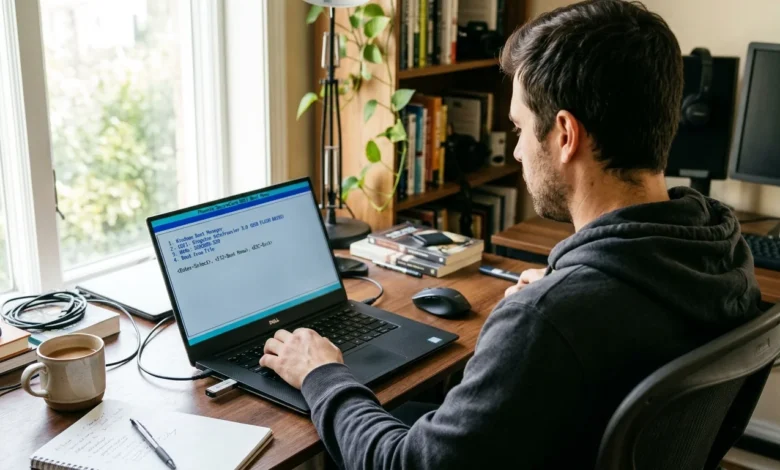
BIOS boot order is the ranked list of drives and devices your computer checks, one after another, to find an operating system to start. The first device with a working boot loader wins, and the system skips everything below it.
Most people run into this setting when they need to install Windows from a USB drive or when a PC suddenly says “No bootable device.” This guide explains what the list controls, how to change it on Dell, HP, Lenovo, ASUS, and other brands, and what to check when the order looks right but the computer still will not start.
What the Boot Order Setting Controls
Every PC has motherboard firmware that runs before Windows. Older machines call it BIOS (Basic Input/Output System), newer ones use UEFI (Unified Extensible Firmware Interface), and many people still say “BIOS” for both.
The boot order is a priority list inside that firmware. It decides whether the machine looks at the internal SSD first, a USB drive first, a DVD drive, or the network.
Changing the list never deletes files. You are rearranging the search sequence, not touching the data stored on any drive.
What Happens Between Pressing Power and Seeing Windows
The startup sequence is short, and knowing it makes troubleshooting much easier.
- The firmware runs a power-on self-test (POST) to confirm that memory, the CPU, and basic hardware respond.
- It reads the boot order and picks the first device on the list.
- It looks for a boot loader on that device. On UEFI systems, this is a file in the EFI System Partition, and on legacy BIOS systems it is the boot sector at the start of the disk.
- If a loader is found, control passes to it, and Windows Boot Manager (or GRUB on many Linux installs) starts the operating system.
- If no loader is found, the firmware moves to the next device on the list.
When every device fails, you see a message such as “No bootable device found” or “Operating System not found.” That message tells you the firmware itself works, and the problem lies with the drives, the loader, or the order.
Devices You Will See in the Boot List
Names vary by manufacturer, but the entries usually fall into a few groups.
- Internal SSD or hard drive, listed by model name or as “Windows Boot Manager” on UEFI systems.
- USB drive, shown as “USB HDD,” “USB Storage,” or the stick’s brand name, and only present when plugged in at startup.
- Optical drive, mostly seen on older desktops.
- Network boot, labeled PXE or “IPv4 Network,” which offices use to load an OS image from a server.
- Other entries, such as a recovery partition, an SD card reader, or a second drive.
One quirk surprises people. On UEFI machines, the main entry is often named “Windows Boot Manager” instead of the drive model, because the firmware stores an entry that points to a file, not to the whole drive. If you do not see your SSD by its model name, look for that label before assuming the drive is missing.
BIOS Boot Order vs. UEFI Boot Order
Both do the same job, but they handle it differently. Legacy BIOS reads the first sector of a disk, which uses the MBR (Master Boot Record) partition style. UEFI reads boot files from a dedicated partition and normally pairs with GPT (GUID Partition Table) disks.
This matters with bootable USB drives. A stick prepared for one mode may not appear in the other, so a stick that “doesn’t show up” is often just formatted for the wrong mode. Rufus, a free tool, lets you pick GPT for UEFI or MBR for BIOS when you create the stick.
Many UEFI boards also include a Compatibility Support Module (CSM) that lets them act like legacy BIOS. Switching CSM on or off changes which entries appear in the list. Microsoft’s system requirements for Windows 11 call for UEFI with Secure Boot capability, so most PCs sold in recent years run in UEFI mode.
When You Actually Need to Change the Boot Order
Most users never have to touch it. Common reasons to change it are:
- Installing or reinstalling Windows from a USB drive
- Running a Linux live USB or a memory-test tool
- Booting a rescue disk after malware or a failed update
- Choosing which drive starts first in a dual-boot setup or a PC with several SSDs
- Fixing a PC that keeps starting from the wrong drive after you added a new one
If you only need a USB drive once, skip the permanent change and use the one-time boot menu covered below. It is faster, and your saved order stays untouched.
How to Enter BIOS or UEFI Setup
You open setup by pressing a specific key right after power-on, before Windows loads. The key depends on the manufacturer, and the screen usually shows it for only a second or two.
| Brand | Setup Key | One-Time Boot Menu Key |
| Dell | F2 | F12 |
| HP | F10 | Esc, then F9 |
| Lenovo | F1 or F2 | F12 |
| ASUS | F2 or Del | F8 (Esc on many laptops) |
| Acer | F2 | F12 |
| MSI | Del | F11 |
| Gigabyte | Del | F12 |
| Samsung | F2 | Esc |
| Microsoft Surface | Hold Volume Up while powering on | Hold Volume Down while powering on |
Keys vary by model, so check the manual or the manufacturer’s support page if these do not work.
Opening UEFI Settings From Inside Windows
On modern PCs with fast SSDs, the key window can be too short to catch. Windows gives you a way around it.
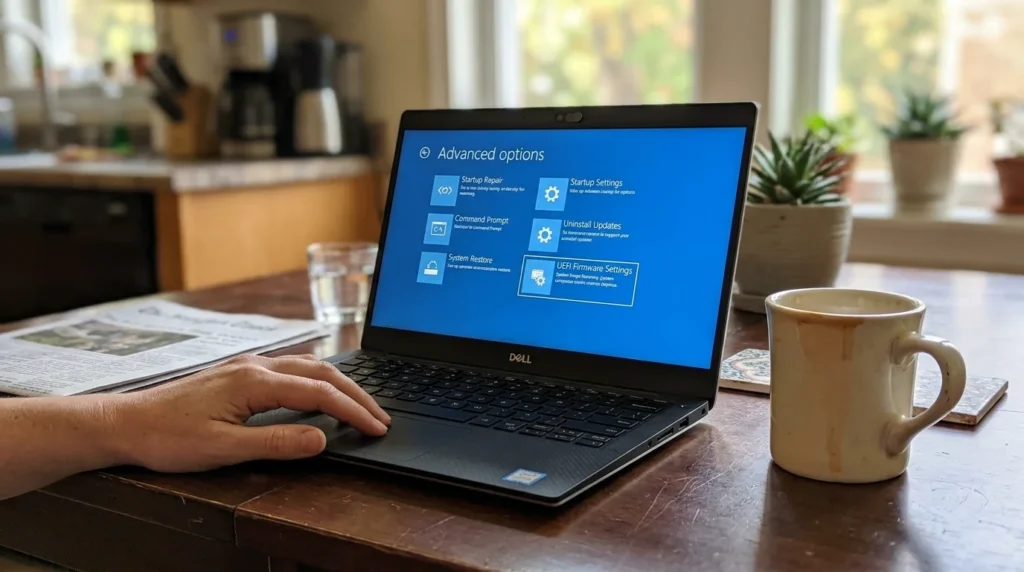
Open Settings, go to System, then Recovery, and select Restart now next to Advanced startup. After the restart, choose Troubleshoot, Advanced options, UEFI Firmware Settings, and then Restart. The PC reboots straight into setup. On Windows 10, the Recovery page sits under Update & Security.
Macs do not use BIOS. On Intel Macs, hold Option at startup to pick a boot drive. On Apple Silicon Macs, hold the power button until startup options appear.
How to Change the Boot Order Step by Step
The menu layout differs by brand, but the process is nearly the same everywhere.
- Enter setup using your brand’s key or the Windows method above.
- Find the Boot tab. On some boards, it sits under Advanced or BIOS Features.
- Select Boot Priority, Boot Option #1, or Boot Order.
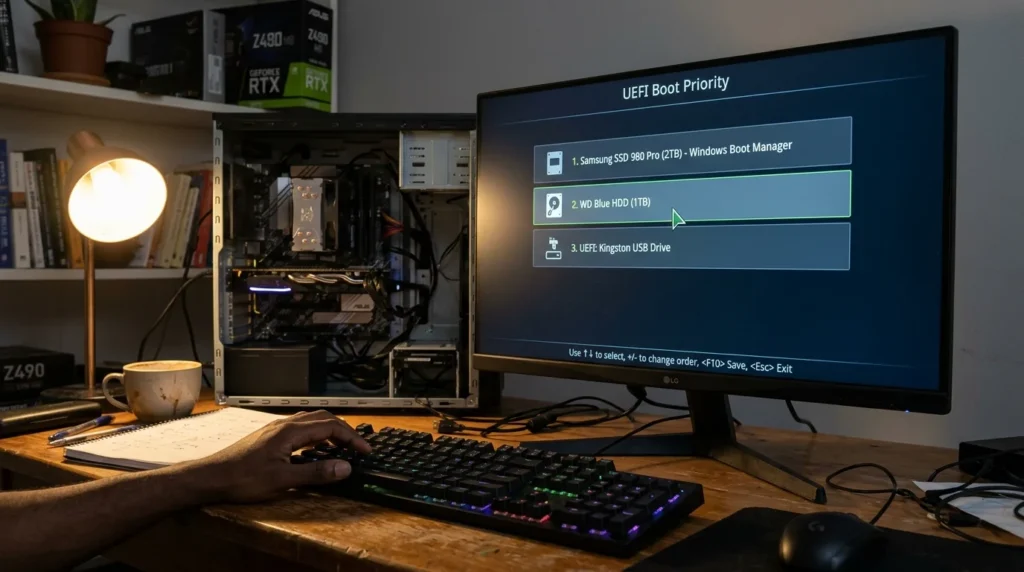
- Move the device you want first to the top. Many screens use the arrow keys with + and -, or F5 and F6, and newer graphical UEFI screens let you drag entries with a mouse.
- Save and exit, usually with F10, then confirm.
The PC restarts and tries the new first device. Once a Windows install finishes, put the internal SSD back at the top. If the USB installer stays first and is still plugged in, the PC may boot the installer again instead of your new Windows.
Using the One-Time Boot Menu
Press the boot menu key from the table at power-on, pick the USB drive or DVD from the pop-up list, and press Enter. The PC boots from that device once, then returns to the saved order on the next restart. For a single Windows install, this is the safer route, because nothing needs to be undone afterward.
Boot Order Problems and What Fixes Them
1. The USB Drive Does Not Appear in the List
Check that the stick was created for the right mode (UEFI or legacy), and try a different port, such as a rear port on a desktop. Look for a setting called USB Boot or Legacy USB Support that may be disabled. Some boards hide USB entries unless the stick is plugged in before startup.
2. The PC Ignores the New Order
Firmware settings such as Fast Boot can skip USB detection, and Windows Fast Startup can shorten the window for catching the setup key. Turn Fast Boot off in setup, or hold Shift while clicking Shut down in Windows to force a full shutdown. Also confirm that you saved the change before exiting.
3. The SSD Is Missing From the List
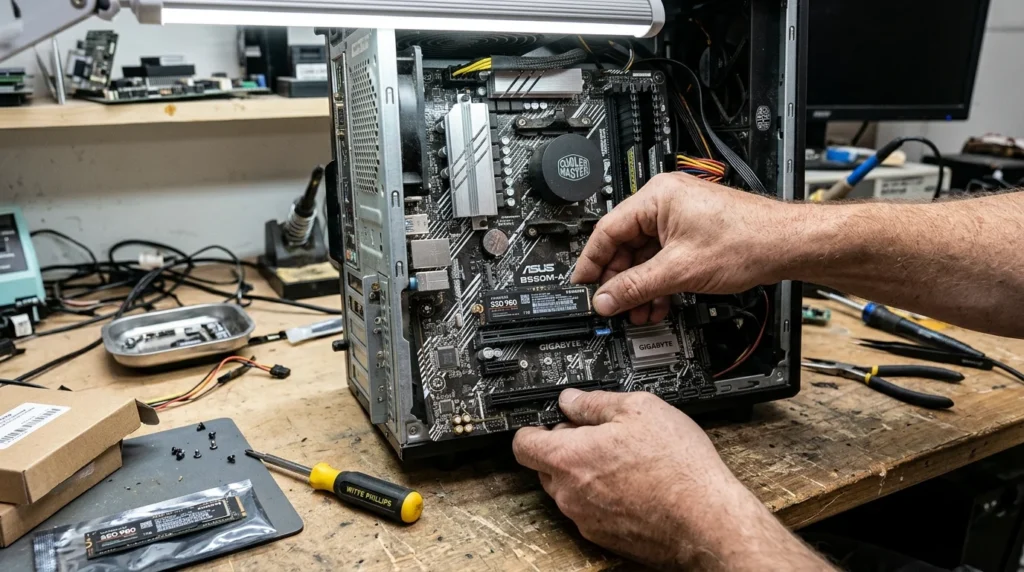
Reseat the M.2 drive or the SATA cable, then check whether the drive shows up under storage information in setup. If the firmware cannot see it at all, no boot order setting will help. If your settings reset every time the PC loses power, a dead CMOS battery (a CR2032 coin cell on most boards) is a likely cause.
4. Windows Boot Manager Is Gone
If the list no longer contains Windows Boot Manager, the boot files may be damaged. Booting from Windows installation media and running Startup Repair can rebuild them.
Why the Boot Order Sometimes Changes on Its Own
Users often report that the order they set last month has shifted. A few ordinary causes explain most cases.
Firmware updates from the manufacturer often reset settings to defaults, including the boot list. A newly installed drive or a freshly installed operating system adds its own entry, and some installers place it first. A failing CMOS battery can also wipe custom settings.
Check the list after any of these events, and set it back deliberately instead of guessing.
Boot Order on Dual-Boot and Multi-Drive PCs
With two operating systems on one drive, you normally leave the boot order alone and pick the system from a boot menu. Windows Boot Manager or GRUB displays that menu after the firmware hands over control.
With two operating systems on separate drives, you have two choices. Set the preferred drive first in the firmware list, or keep one loader first and let it chain to the other. If you want the systems to stay independent, install each one with the other drive unplugged, since installers can write boot files to the wrong disk.
Settings That Change How the Boot List Behaves
1. Secure Boot
Secure Boot allows only signed boot loaders to run, which protects against malware that loads before Windows. Some Linux installers and older tools get blocked by it. Turning it off temporarily is possible in the Security or Boot tab, but switching it back on afterward is the safer choice, especially on Windows 11.
2. BitLocker Recovery Prompts
If your drive is encrypted with BitLocker, changing firmware settings such as Secure Boot or the UEFI and legacy mode can trigger a recovery key prompt at the next startup. Microsoft’s BitLocker documentation lists changes to boot configuration among the triggers. Changing only the order rarely does. Save your recovery key to your Microsoft account or print it before you change anything.
3. Supervisor Passwords on Work Laptops
Some business laptops lock setup behind a supervisor password. Without it, you cannot change the order, and asking the IT department is better than trying to bypass it.