
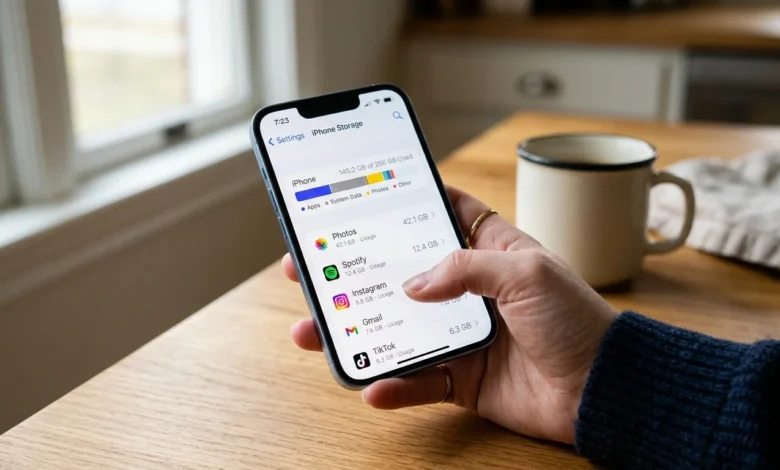
To check iPhone storage, open Settings, tap General, then tap iPhone Storage. A colored bar at the top shows how much space you have used and how much is free, and a list below ranks every app by size. The whole check takes about ten seconds.
This guide covers that method, plus checks from a computer and in iCloud. It also explains what the storage categories mean and what to delete first.
Check iPhone Storage in Settings
This is the fastest and most detailed method, and it works on every iPhone running a current version of iOS. Follow these steps:
- Open the Settings app.
- Tap General.
- Tap iPhone Storage.
The screen may take a few seconds to load the first time because iOS calculates the size of each app and file type before displaying the numbers. At the top, you will see the used amount out of your total capacity, such as 74 GB of 128 GB.
If you only want the total capacity and the free space as two plain numbers, go to Settings, General, About. The Capacity and Available lines sit near the bottom of that page.
What the Colored Bar Means
The bar splits your storage into categories. The names and colors change slightly between iOS versions, but the main groups are consistent:
- Apps, which covers the apps themselves
- Photos, which covers your library, including videos
- Media, which covers music, podcasts, and downloaded shows
- Messages, which covers attachments such as photos and videos in conversations
- iOS, which is the operating system itself
- System Data, which is a catch-all for caches, logs, and temporary files
Tap the bar or scroll down for the app list. Apple sorts it by size, so the biggest space users appear first.
Why Your Available Space Looks Smaller Than the Advertised Capacity
A 128 GB iPhone never shows 128 GB of usable room. The operating system and its built-in apps take a share before you save a single photo.
Apple also reserves space so the phone runs smoothly and can install updates. That is normal, and it does not mean your phone is faulty.
See Which Apps Take the Most Space
Scroll down on the iPhone Storage page and look at the first five or six apps. On most phones, Photos, Messages, a social app, and a game or two account for the largest share.
Tap any app to see two numbers. App Size is the app itself, and Documents & Data is everything it has stored on your phone, such as downloads, cached videos, and offline files. Documents & Data is often far larger than the app, especially for streaming and social apps.
You get two choices on that screen. Offload App removes the app but keeps its documents and data, so reinstalling restores your progress. Delete App removes everything.

For an app you use rarely, offloading is safer. If you have forgotten about it, delete it.
Read the Recommendations, Apple Shows
At the top of the iPhone Storage page, iOS often lists personalized suggestions. These depend on what is actually on your phone, so two people may see different options.
Common ones include:
- Offload Unused Apps, which removes apps you have not opened in a while and keeps their data
- Review Large Attachments, which lists big files inside Messages
- Review Downloaded Videos, which lists shows and movies saved for offline viewing
- Auto Delete Old Conversations, which clears older message threads on a schedule
- Optimize Photos, which keeps smaller versions on the phone and stores originals in iCloud
Review each one before you tap Enable. Offload Unused Apps can run automatically, which is convenient but sometimes removes an app you wanted ready for travel.
Check iPhone Storage From a Computer
You can also see a storage breakdown without touching the phone. This helps when your screen is cracked, or you are about to back up the device.
On a Mac
Connect your iPhone with a cable and open Finder. Select your iPhone in the sidebar, and a storage bar appears at the bottom of the General tab. Hover over each colored section to see its size.
The first time, you may need to tap Trust on the phone and enter your passcode.
On a Windows PC
Windows users can install the Apple Devices app from the Microsoft Store, or use iTunes. Connect the iPhone, select it in the app, and the capacity bar appears in the summary view.
The computer view is less detailed than the Settings view. It shows categories but not a per-app ranking, so use it as a quick snapshot.
Check iCloud Storage Separately
iCloud storage is a different pool from your phone’s built-in storage, and the two are easy to confuse. Your iPhone may have 40 GB free while iCloud is full, which is why backups and photo sync stop working.
To check iCloud, open Settings, tap your name at the top, then tap iCloud. The bar at the top shows what you have used out of your iCloud plan. Tap Manage Account Storage or the storage bar to see which apps and backups take up space.
Apple includes 5 GB of free iCloud storage with every Apple Account. Photos and device backups are the usual reasons it fills up. Paid iCloud+ plans start at 50 GB, and in the United States that tier costs $0.99 per month. Check Apple’s current pricing page before you decide, since plans change.
Understanding System Data
System Data confuses a lot of people because it is vague and sometimes large. It holds caches, logs, Siri voices, fonts, and other temporary items iOS creates as you use the phone.
You cannot delete it directly. It usually shrinks on its own when the phone needs room, and a restart often reclaims some of it.
If System Data stays unusually large, such as dozens of gigabytes, try these steps in order:
- Restart the iPhone.
- Clear Safari history and website data in Settings> Safari.
- Offload or reinstall heavy streaming and social apps, which store large caches.
- Install any pending iOS update, since updates often clean up leftover files.
Apple Support suggests that persistent storage problems can be worked through with Apple directly, so contact them if nothing changes.
Quick Ways to Free Up Space After You Check
Once you know what is taking up space, start with the biggest category. Photos and videos are the usual winner, followed by Messages and apps.
1. Clear Photos and Videos
Open the Photos app and review large videos first. A few minutes of 4K video can take more space than hundreds of photos.
Deleted photos are not gone right away. They move to Recently Deleted, which holds items for 30 days, so open that album and delete from there to get the space back immediately.
If you use iCloud Photos, turn on Optimize iPhone Storage in Settings> Photos. The phone keeps lighter copies and downloads full versions when you open them.
2. Trim Messages
Go to Settings> Messages, Keep Messages, and change it from Forever to 1 Year or 30 Days. This clears old attachments, so save any photos or documents you want first.
For a one-time cleanup, use Review Large Attachments in iPhone Storage. It shows the heaviest files across all conversations in one list.
3. Remove What You No Longer Use
Delete games and apps you have not opened in months. In iPhone Storage, each app shows when it was last used, which makes the decision easier.
Also check Music and Podcasts for old downloads. Downloaded playlists and episodes can quietly add up to several gigabytes.
How Much Free Space Should You Keep
There is no official percentage, but leaving about 10 to 15 percent free is a sensible target based on general practice. An almost-full phone is slower to open the camera, and it can block iOS updates.
Updates need room to download and unpack. Many updates need several gigabytes of free space, and the exact amount varies by release. If an update fails with a storage message, free up space first and try again.
A monthly check keeps problems from building up. Open iPhone Storage on the first of the month, look at the top three items, and clear what you do not need.
When Buying More Storage Makes Sense
If you have cleaned up and still run out of room, you have two paths. You can pay for iCloud+ to move photos and backups off the phone, or you can buy a phone with more built-in storage next time.
For people who shoot a lot of video, built-in capacity is the more reliable fix. For people who mostly take photos and keep few offline files, iCloud+ is usually cheaper than stepping up a storage tier on a new iPhone.
Think about how you use the phone before spending. If most of your space goes to a few apps and old messages, cleanup is free and works fast.