
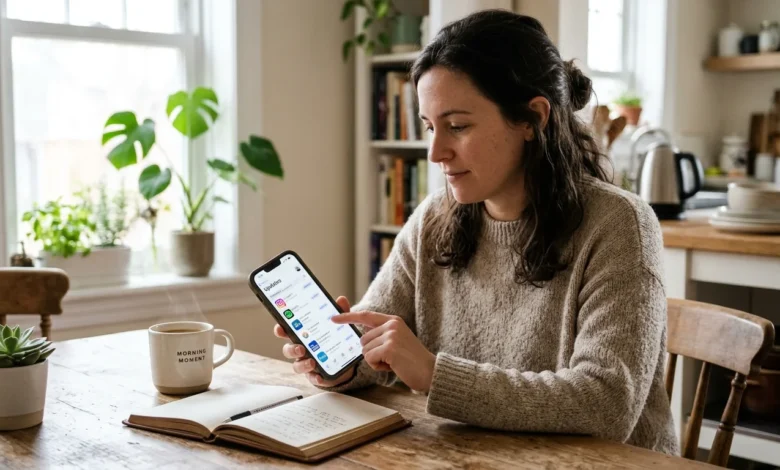
The fastest way to update iPhone apps is through the App Store. Open it, tap your profile picture in the top right corner, scroll to the list of pending updates, and tap Update next to an app or Update All at the top. On a steady Wi-Fi connection, most updates finish in under a minute.
This guide covers how to update iPhone apps by hand, how to switch on automatic updates, and what to do when an update stalls. The steps follow Apple’s own support documentation and apply to current iOS releases. Menu names shift slightly between versions, so I note where that matters.
Update Apps Manually From the App Store
Manual updating takes about ten seconds once you know where the button lives. It also lets you read what changed before you install anything.
- Open the App Store from your Home Screen.
- Tap your profile picture or initials in the top right corner.
- Scroll to the Updates section, which lists every app with a new version waiting.
- Pull down on the screen to refresh the list if it looks empty or out of date.
- Tap Update next to a single app, or tap Update All to install everything at once.
Apps that are installing show a circular progress icon on the Home Screen and in the App Store list. You can keep using your phone while they download. A waiting icon usually means the phone is working through other downloads first.
What the Update List Shows
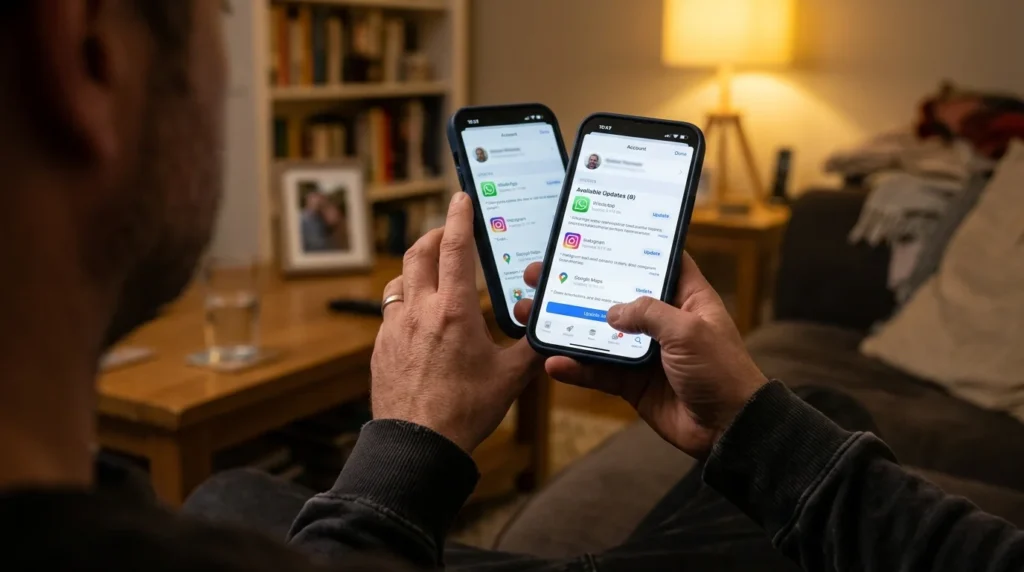
Each entry shows the app name, the release date, and a short note on what changed. Tap More to read the full release notes. I scan these for banking, messaging, and password apps, since fixes there sometimes address security problems.
Turn On Automatic App Updates
Automatic updates are the simplest long-term answer. Your iPhone installs new versions in the background, usually overnight while it is charging and connected to Wi-Fi.
On current versions of iOS, follow these steps:
- Open Settings.
- Tap Apps, then App Store. On iOS 17 and earlier, tap App Store directly in Settings.
- Under Automatic Downloads, switch on App Updates.
Developers and Apple often roll out updates in stages, so an automatic update may reach you a day or two after a developer announces it. If you need a fix right away, use the manual method above.
Control Cellular Data Use for App Downloads
The same App Store settings let you decide whether downloads can use cellular data. Look for the Cellular Data or App Downloads option, where you can allow it always, ask when a file is over 200 MB, or ask every time. Wording varies by iOS version.
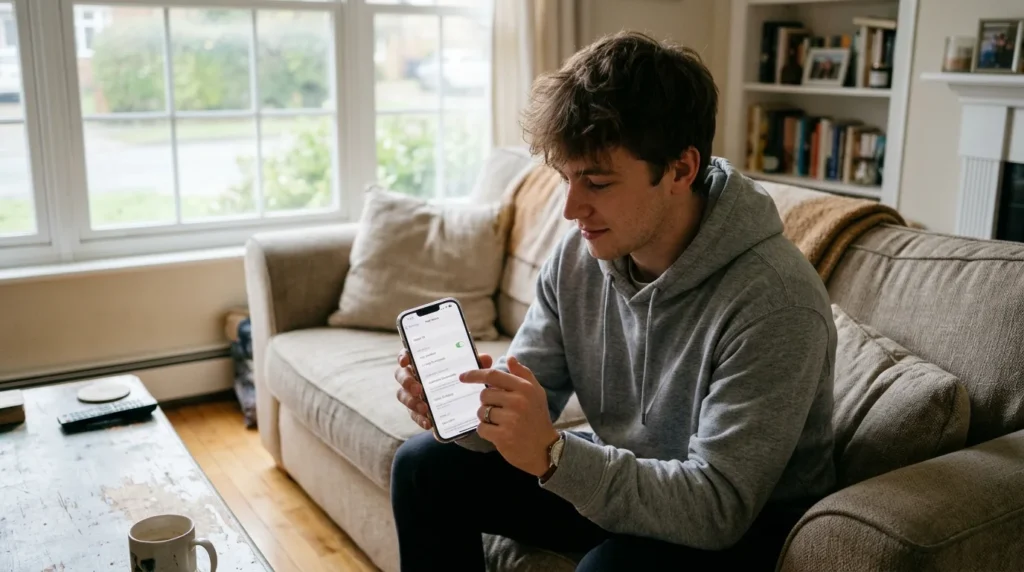
On a limited data plan, I keep this on the ask option so large updates wait for Wi-Fi.
Manual or Automatic: Which Should You Pick?
Automatic updates suit most people. Security patches arrive without effort, and you never have to remember to check. The trade-off is that a new version can land without warning, including redesigns you did not ask for.
Manual updating suits people who rely on an app for work, such as a banking, payroll, or point-of-sale tool. You get to read the release notes first and choose a quiet moment to install. A mixed approach works well: leave automatic updates on, then check the list yourself before a trip or a busy week.
Should You Install Every Update Right Away?
For most apps, yes. Updates often carry fixes for crashes and security holes, and an old version can leave you exposed to problems the developer already solved. Release notes usually say when a security fix is included.
The exception is software you cannot afford to have break mid-task. If you depend on an airline or boarding pass app, install updates a few days before you travel. That leaves time to spot a problem and contact support before it matters.
Update One App Without Opening the Full List
If you only care about one app, search for it in the App Store. The button beside its name reads Update when a new version is waiting and Open when you are current. This is also a quick way to check whether a bug you are seeing has a fix from the developer.
Scroll down on the app’s page and tap Version History to see recent changes. It helps when an app starts acting strangely after an update.
Why iPhone Apps Won’t Update and How to Fix Them
Most failed updates trace back to a handful of causes. Work through them in this order, since the early ones take the least time to check.
1. Check Your Connection
Open Safari and load any page. If it hangs, switch Airplane Mode on for ten seconds, then off, or reconnect to your Wi-Fi network. On cellular, confirm the download size is allowed under your App Store cellular settings.
2. Turn Off Low Power Mode and Low Data Mode
Low Power Mode pauses automatic downloads and updates. Switch it off in Settings under Battery if updates are not arriving. Low Data Mode, found in your Wi-Fi or cellular settings, can also hold back background downloads.
3. Free Up Storage Space
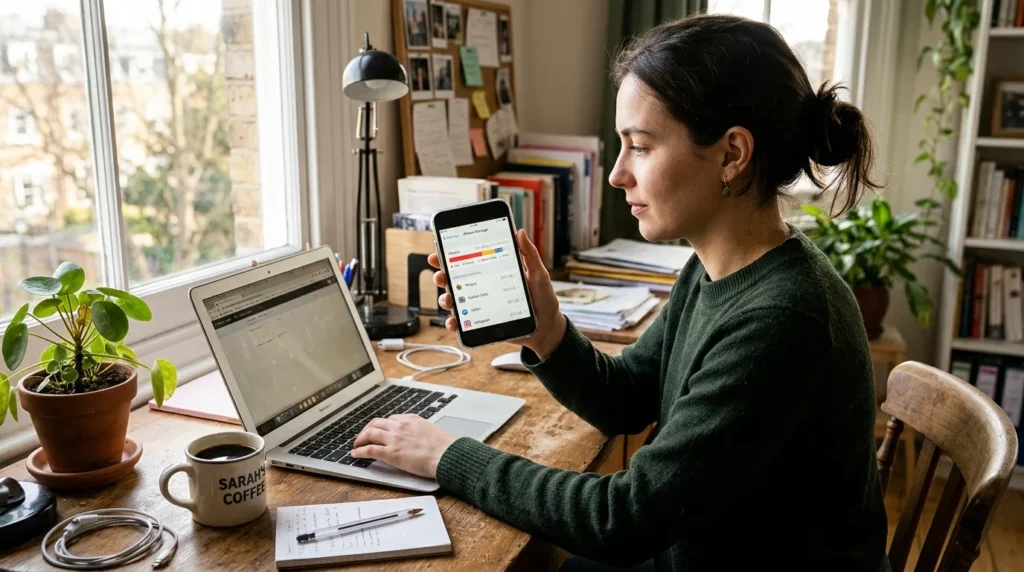
An update needs room to download and unpack, which can take more space than the app itself. Go to Settings, General, iPhone Storage to see what is filling the phone. Apple lists suggestions there, including offloading unused apps, which removes the app but keeps its data.
4. Confirm You Are Signed In to Your Apple Account
If the App Store keeps asking for a password or the Update button is grayed out, sign out and back in. Tap your profile picture in the App Store, scroll to the bottom, choose Sign Out, then sign in again. Also check that Date & Time is set automatically under Settings, General, Date & Time, since a wrong clock can break the connection to Apple’s servers.
5. Pause the Download and Restart
Tap the stalled app icon on the Home Screen to pause it, then tap again to resume. If nothing changes, restart the iPhone and reopen the App Store. A restart clears many stuck download queues.
6. Check Apple’s System Status Page
Apple publishes service status at apple.com/support/systemstatus. If the App Store shows an outage, no setting on your phone will fix it. Wait and try again later.
7. Review Screen Time Restrictions
A phone set up by a parent or employer may limit app installs. Go to Settings, Screen Time, Content & Privacy Restrictions, then iTunes & App Store Purchases, and check that Installing Apps is set to Allow. On a work phone, device management can also block updates, and only your IT team can change that.
When an App Requires a Newer iOS Version
Developers drop support for older iOS releases over time. If your iPhone cannot run the latest version of an app, the App Store may offer to download the last compatible version instead. If it does not, the app page lists the required iOS version under Compatibility.
To update iOS itself, go to Settings, General, Software Update. Back up with iCloud or a computer first, and keep the phone plugged in and on Wi-Fi. Some older iPhone models cannot install the newest iOS, so check what Apple lists for your model.
Delete and Reinstall as a Last Resort
If one app still refuses to update, delete it and download it again from the App Store. For most apps, your account data lives on the developer’s servers, so signing back in restores it. Some note-taking and game apps keep data only on the phone, so check the app’s settings for iCloud sync or an export option before you delete it.
Habits That Keep Apps Current
Leave automatic updates on for most apps, and check manually once a week for the ones you depend on. Keep a few gigabytes of free space as a rule of thumb, so updates never stall for lack of room. Restart the phone now and then to clear small glitches before they pile up.
Once you know how to update iPhone apps, the whole job takes about thirty seconds.