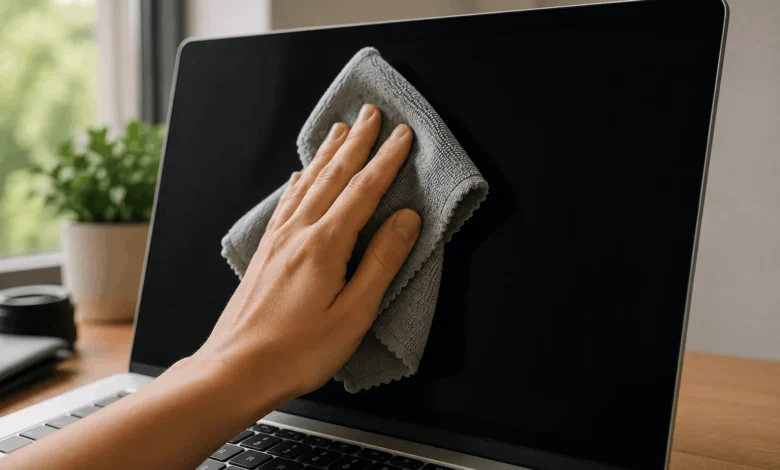
Knowing how to clean a laptop screen the right way can save you from streaks, scratches, or a damaged coating. Power off your laptop, wipe the screen dry with a clean microfiber cloth, then lightly dampen the cloth with distilled water for any smudges that remain. Never spray liquid directly on the display, and skip window cleaner entirely; it can strip the anti-glare coating over time.
What You Need before You Start
You only need two things: a clean microfiber cloth and distilled water. Skip tap water, since minerals in it can leave marks as it dries. If you’re dealing with grease or fingerprints that won’t budge with water alone, a 50/50 mix of distilled water and white vinegar handles most of it.
Keep a second dry cloth on hand too. One does the damp wiping, the other buffs the screen dry right after, which is what actually prevents streaking.
Step-by-Step: How to Clean a Laptop Screen
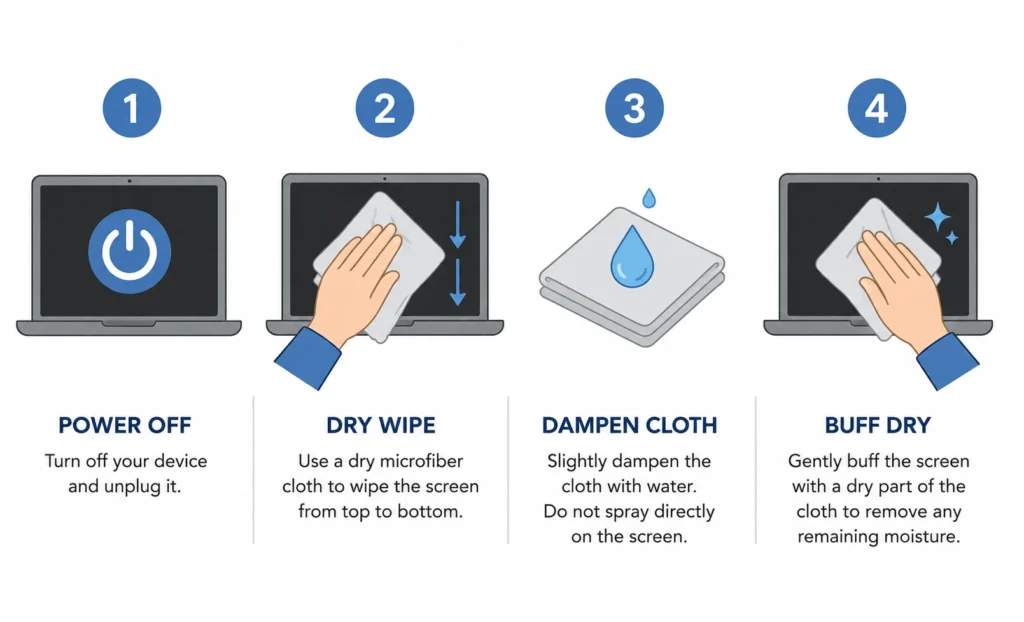
Step 1: Power Off and Unplug
Shut the laptop down completely and disconnect the charger. This isn’t just a precaution against electrical damage; a black screen also makes dust and smudges far easier to see than a screen that’s still lit up.
Step 2: Dry Wipe First
Before any liquid touches the screen, wipe it with a dry microfiber cloth. Use straight, gentle strokes rather than pressing in circles right away. This step alone removes most surface dust and often solves the problem on its own.
Step 3: Dampen for Stubborn Smudges
If dry wiping doesn’t clear fingerprints or oily marks, dampen a corner of the cloth with distilled water. Wring it out until it’s barely moist, not wet. The cloth should feel cool to the touch, not visibly damp.
Step 4: Wipe and Buff Dry
Wipe the screen top to bottom in light strokes, then immediately go over it with the dry side of the cloth or a second cloth. Let the screen air dry fully before closing the lid or powering the laptop back on.
What to Avoid When Cleaning a Laptop Screen
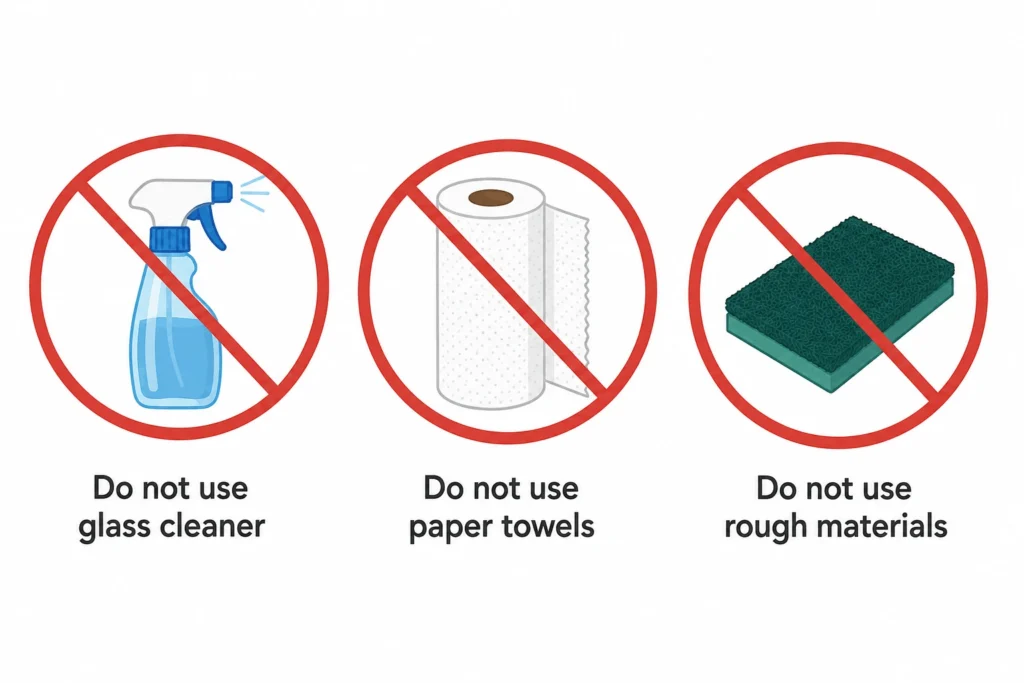
Skip paper towels and tissues; their fibers are abrasive enough to leave fine scratches over repeated use. Skip glass cleaners like Windex too, since the ammonia in most household formulas breaks down anti-reflective and oleophobic coatings. Never spray any liquid directly onto the screen, since it can seep past the bezel and reach internal components.
Pressing hard while wiping is another common mistake. Laptop screens sit close to sensitive layers underneath, so firm pressure can cause pixel damage that shows up as a permanent dark spot later.
Is It Safe to Use Alcohol on a Laptop Screen?
This is where guides genuinely disagree, and the honest answer is: it depends on your screen’s coating. A 70 percent isopropyl alcohol solution is generally considered safe on hard, non-coated glass, and Apple has used similar alcohol wipes on MacBook exteriors. But most modern laptop displays, especially OLED panels and matte anti-glare screens, have coatings that break down under repeated alcohol exposure. The damage doesn’t show up immediately; it appears weeks or months later as cloudy patches or increased glare.
If you’re not certain what coating your screen has, distilled water is the safer default. Check your laptop’s manual or the manufacturer’s support page before reaching for alcohol.
Matte or Glossy Screens: Does It Matter?
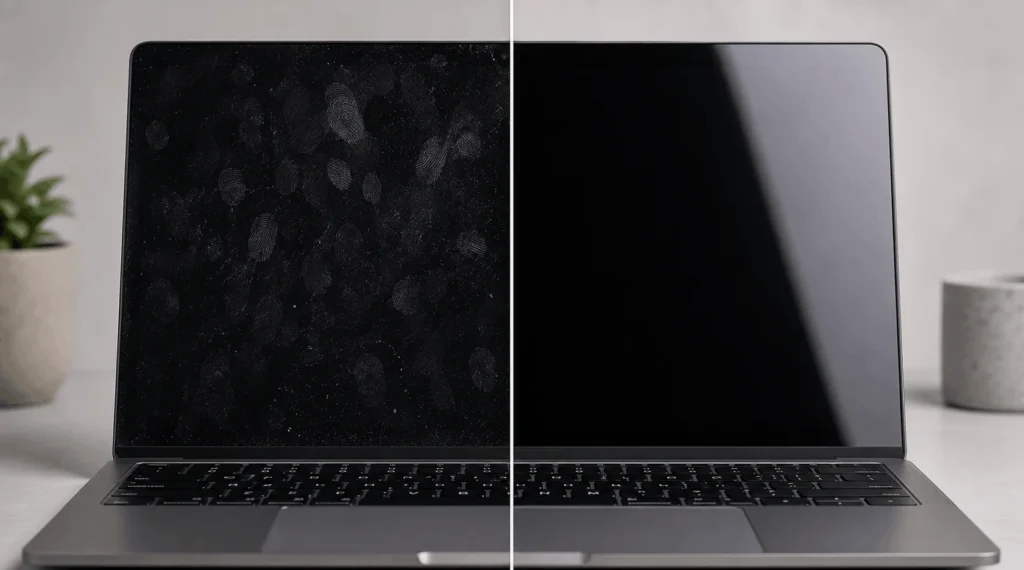
Matte screens have an anti-glare coating that scatters light, which also makes them more sensitive to harsh chemicals and abrasive cloths. Glossy screens are more chemical-resistant but show every fingerprint and dust particle, so they need more frequent light dusting to stay clear. Either way, the microfiber-and-distilled-water method works safely on both; the difference is mainly how often you’ll need to clean them.
How Often Should You Clean a Laptop Screen
A quick dry wipe once or twice a week keeps dust from building into a film that’s harder to remove later. A damp clean with distilled water once every two weeks handles fingerprints and smudges. Save the vinegar solution for stubborn spots or roughly once a month, since over-cleaning wears down coatings faster than normal use does.
Cleaning a Touchscreen Laptop
Touchscreens pick up oil from fingers constantly, so they need more frequent dry wiping than a standard display. The cleaning method stays the same, microfiber cloth and distilled water, but avoid cleaning while the screen is on and actively registering touch input, since some touchscreens can misread a wet cloth as a tap or swipe.
What Manufacturers Actually Recommend
HP and Lenovo both recommend a dry microfiber cloth first, followed by distilled water for stubborn marks; Lenovo’s own guide also mentions a small amount of rubbing alcohol as an option specifically for glass-coated screens, not standard matte displays. Apple recommends only a dampened, lint-free cloth with water, with no vinegar or alcohol at all. When your laptop’s manufacturer publishes specific cleaning instructions, follow those over general advice, since they know your exact screen coating.
That’s really all there is to how to clean a laptop screen properly. Clean it regularly and gently, and most laptop displays will stay scratch-free.. The method matters more than the frequency: a soft cloth and a little patience will do more for your screen than any specialty cleaning kit.
Frequently Asked Questions
1. Can I use a wet wipe or baby wipe on my laptop screen?
No. Most wet wipes contain alcohol, fragrance, or lotion additives that can leave residue or damage screen coatings. Stick to a microfiber cloth dampened with distilled water instead.
2. Why does my screen look streaky after cleaning?
Streaks usually mean the screen air-dried instead of being buffed. Dampen the cloth lightly, wipe, then immediately dry the area with a second clean cloth before it has a chance to air-dry on its own.
3. Is compressed air safe to use on a laptop screen?
Compressed air is fine for the keyboard and vents but isn’t necessary for the screen itself, since it won’t remove smudges or oils. A dry microfiber cloth handles screen dust more effectively.
4. Can I use rubbing alcohol on my laptop screen?
Only if you’re certain your screen doesn’t have an anti-glare or oleophobic coating, since alcohol can degrade those over repeated use. When in doubt, use distilled water instead.