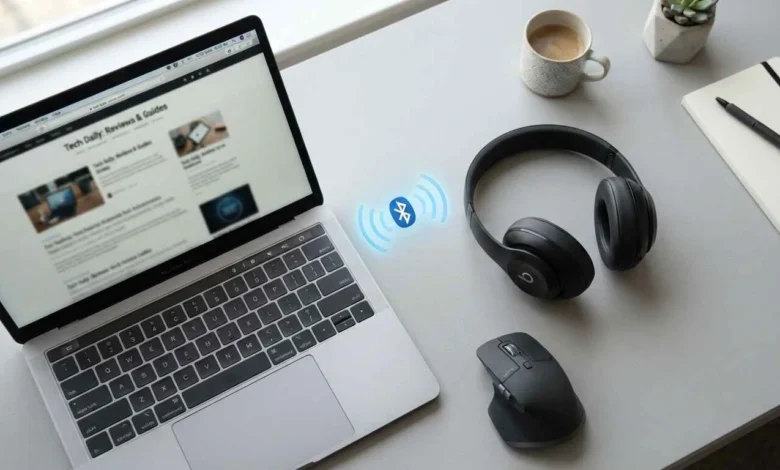
Turning on pairing mode on your Beats and selecting them from your laptop’s Bluetooth menu connects the two devices. The exact steps differ slightly between Windows and Mac, but the whole process usually takes under a minute once your headphones are in pairing mode.
Before You Start: What You Need
You need three things: Beats headphones or earbuds with enough charge to power on, a laptop running Windows 10, Windows 11, or macOS, and Bluetooth turned on on that laptop. Most laptops built in the last several years have Bluetooth built in. A handful of older desktop-style machines and some budget Windows laptops don’t, and those need a small USB Bluetooth adapter plugged in before pairing will work at all.
Charge your Beats for at least 15 minutes if the battery is very low. A device with almost no charge sometimes refuses to enter pairing mode, even briefly, and it can look like a connection problem when it’s really just a power problem. Apple’s earbuds follow a very similar Bluetooth setup, and this guide explains how to connect AirPods to a laptop
How To Connect Beats To A Windows Laptop
Windows handles Bluetooth pairing the same way for nearly every Beats model, from the Beats Studio Buds to the Beats Solo3.
Step 1: Turn On Pairing Mode
Press and hold the power button on your Beats until the LED light flashes white. On earbuds such as the Beats Fit Pro or Beats Studio Buds, open the charging case and hold the button on the back of the case instead. The flashing light is your signal that the headphones are ready to pair, not just powered on.
Step 2: Open Bluetooth Settings On Windows
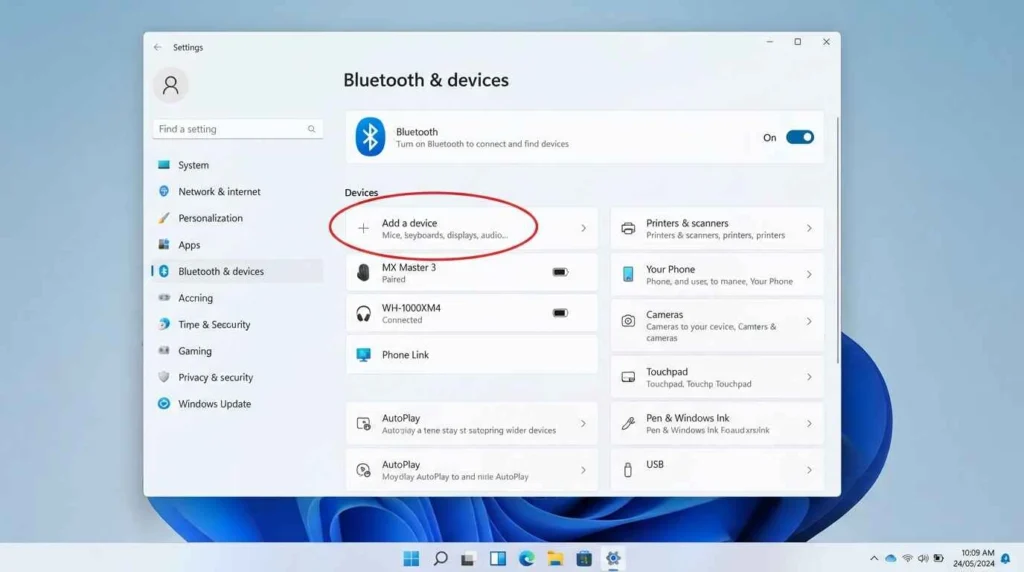
Click the Start menu, then go to Settings, then Bluetooth & devices. Turn Bluetooth on if it isn’t already, then click Add device.
Step 3: Select Your Beats And Connect
Choose Bluetooth from the device type menu that appears. Windows scans and lists nearby devices, and your Beats should show up by name, such as “Beats Studio3” or “Beats Fit Pro.” Click on it, wait a few seconds while Windows finishes the handshake, and you’ll see a confirmation that the device is connected.
Step 4: Test Your Connection
Play any audio and check that sound comes through the Beats instead of the laptop speakers. If it doesn’t, right-click the speaker icon in the taskbar, choose Sound settings, and manually select your Beats under Output. Windows sometimes pairs the device without switching the active audio output on its own.
How To Connect Beats To A Mac Laptop
The pairing steps on a Mac are close to Windows, with one shortcut for certain models.
Step 1: Turn On Pairing Mode
Hold the power button until the LED flashes white, or open the earbud case and hold the button on the back, exactly as you would for Windows.
Step 2: Open Bluetooth Settings On Mac
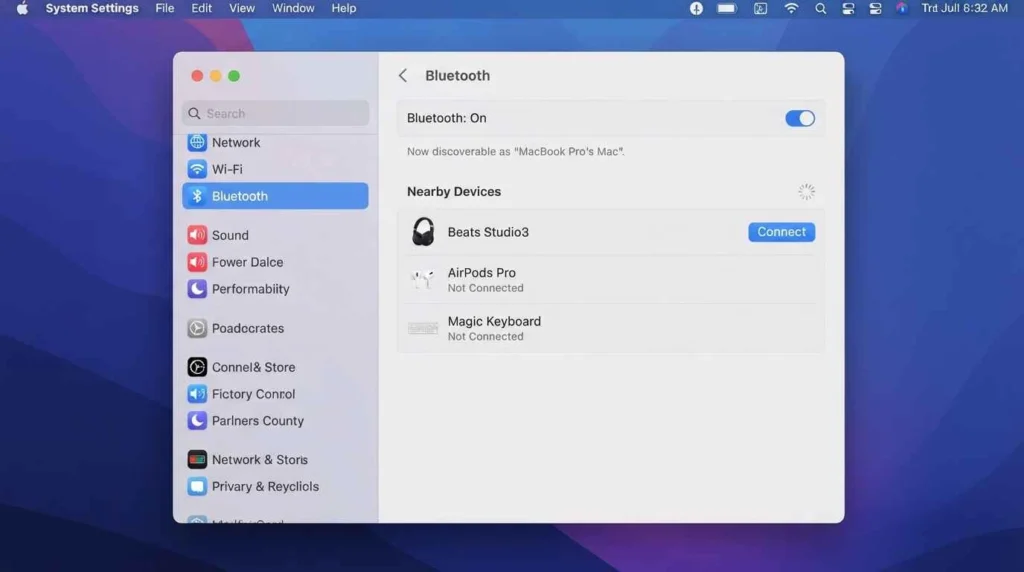
Click the Apple menu, then System Settings, then Bluetooth. On older versions of macOS, this lives under System Preferences instead of System Settings, but the Bluetooth panel itself looks and works the same way.
Step 3: Pair And Connect
Your Beats appear under Nearby Devices. Click Connect next to the device name. If you own a model with Apple’s H1 or W1 chip, such as the Beats Solo3, Powerbeats Pro, or BeatsX, a pairing card may pop up on screen automatically the moment you open the case near the Mac, similar to how AirPods pair, and you can skip the manual Bluetooth menu entirely.
Step 4: Set Beats As Your Audio Output
Open System Settings, then Sound, and check that your Beats are selected under Output. A Mac will usually switch automatically after pairing, but it’s worth a quick check the first time.
How To Reconnect Beats After The First Pairing
Once your laptop and Beats have paired successfully one time, reconnecting gets a lot simpler. Turn on your Beats, and most laptops reconnect automatically within a few seconds as long as Bluetooth is on and the headphones are within range. If they don’t reconnect on their own, open Bluetooth settings, find your Beats in the device list, and click Connect.
Common Beats Connection Problems And Fixes
Beats Won’t Show Up In The Bluetooth List
Move the Beats within three feet of the laptop and confirm they’re actually in pairing mode, not just powered on; a flashing white LED means pairing mode, a solid light usually means they’re already connected somewhere else. If your Beats have already paired with a phone or another laptop, forget them from that device’s Bluetooth list first. Beats can often only broadcast to one new device search at a time.
Beats Keep Disconnecting
Interference from other Bluetooth devices, a low battery, or an outdated Bluetooth driver on the laptop are the most common causes. On Windows, open Device Manager, find Bluetooth in the list, right-click your adapter, and choose Update driver. On Mac, restart the laptop; this resets the Bluetooth stack and clears up random drops more often than any settings change.
Windows Shows Connected But There’s No Sound
This happens when Windows pairs the Bluetooth link but keeps the laptop speakers set as the default audio device. Go to Sound settings and manually select your Beats under Output, and set them as the default device if you want them to stay selected next time.
Sound Only Plays From One Side
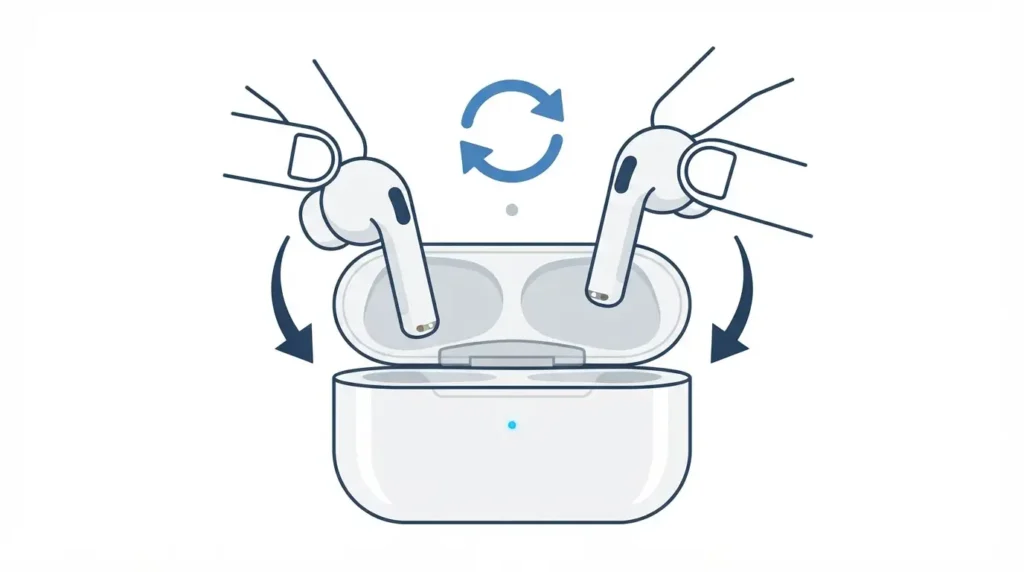
This usually means the earbuds lost sync with each other, not a laptop problem. Put both earbuds back in the charging case for about 10 seconds, take them out, and they resync automatically.
Beats Models And Pairing Differences
Most of the steps above apply across the Beats lineup, but a few details change by model. Beats built with Apple’s W1 or H1 chip, including the Beats Solo3, Powerbeats3, Powerbeats Pro, and BeatsX, support one-touch pairing on a Mac once you open the case near the laptop, with no manual Bluetooth menu required. Older or non-chip Beats models, along with any Beats used on a Windows laptop regardless of chip, need the manual pairing steps in this guide every time you connect to a new device for the first time.
Wired models such as the Beats EP skip Bluetooth altogether and connect through a headphone jack or a USB-C to 3.5mm adapter, which is worth remembering if your laptop doesn’t have a headphone jack.
Once you know where the pairing button is and where your laptop hides its Bluetooth menu, connecting Beats takes less time than plugging in a cable. Keep the headphones charged, keep them close to the laptop during setup, and reconnecting after that first pairing becomes close to automatic.
FAQ’s
1:Why Won’t My Beats Connect To My Laptop?
Usually because they aren’t in pairing mode, they’re already connected to another device, or they’re out of Bluetooth range. Put them back in pairing mode, forget the connection from any other paired device, and move within a few feet of the laptop.
2:Do Beats Work With Windows Laptops?
Yes. Beats connect to any Windows laptop with Bluetooth through the standard Bluetooth & devices settings menu, the same way they connect to a phone.
3:How Do I Put My Beats In Pairing Mode?
Hold the power button until the LED flashes white, or open the charging case and hold the button on the back for earbud models.
4:Can I Connect Beats To A Laptop Without Bluetooth?
Wired models like the Beats EP connect through a headphone jack or a USB-C to 3.5mm adapter. Fully wireless models like the Beats Studio Buds need Bluetooth, or a laptop fitted with a USB Bluetooth adapter if it doesn’t have Bluetooth built in.
5:Why Do My Beats Keep Disconnecting From My Laptop?
Low battery, Bluetooth interference from other devices, or an outdated Bluetooth driver are the most common reasons. Updating the driver on Windows or restarting a Mac usually clears it up.