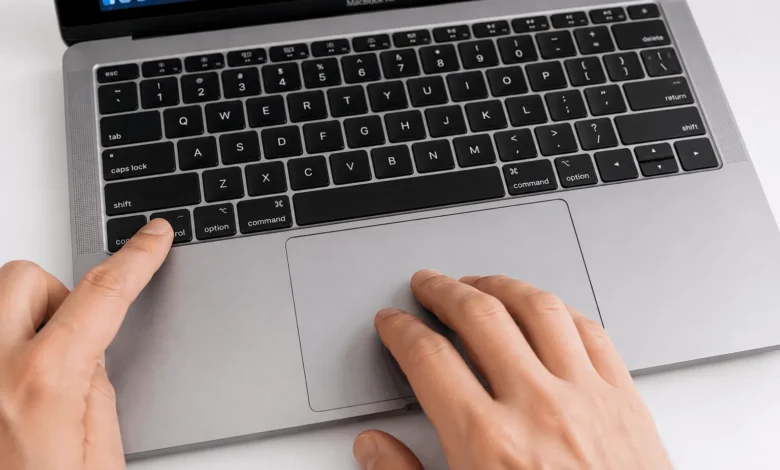
To right click on a laptop, tap the touchpad with two fingers at once, press the bottom-right corner of the touchpad, or use the keyboard shortcut Shift + F10 on Windows. On a Mac, hold Control and click the trackpad. The exact method depends on your laptop and operating system.
Right Click Using the Touchpad
Most laptops built in the last decade use a gesture-based touchpad instead of a separate right-click button, and two methods cover almost every device on the market.
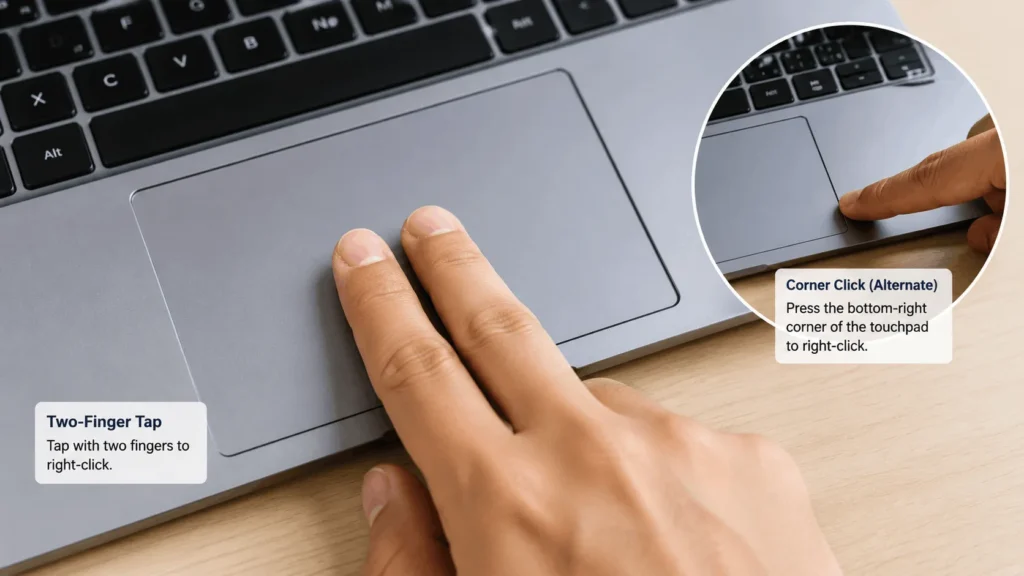
1. Two-Finger Tap
Place two fingers on the touchpad with a small gap between them, then tap both down at the same time. This works on Windows laptops with a Precision Touchpad and on most Mac trackpads, and it opens the context menu wherever your cursor sits. Windows enables this by default on newer machines, though you can confirm it under Settings, then Bluetooth & devices, then Touchpad.
2. Bottom-Right Corner Click
Many touchpads also let you press the lower-right corner to trigger a right click, closer to how an old-style laptop with a separate right-click button worked. On Windows 11, open Settings, go to Bluetooth & devices, select Touchpad, and turn on “Press the lower right corner of the touchpad to right-click” under the Secondary click option. This method feels more familiar to anyone who learned on an older laptop with physical buttons below the pad.
Right Click Using a Keyboard Shortcut
When the touchpad is unreliable, disabled, or missing entirely, the keyboard gives you a fast backup.
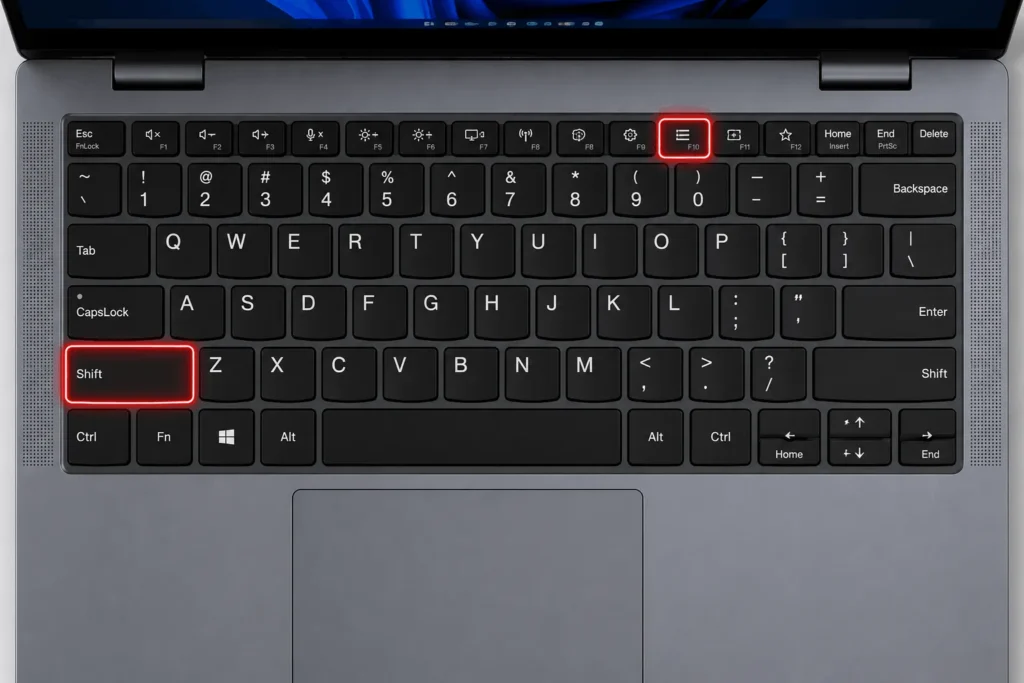
1. Shift + F10 on Windows
Select the file, text, or icon you want to right-click, then press Shift and F10 together. This opens the same context menu a physical right click would, and it works in File Explorer, most desktop apps, and many websites in a browser. It won’t work for right-clicking a random point on the desktop unless that spot already has focus, so it’s best used on a specific selected item.
2. The Dedicated Context Menu Key
Some laptop and external keyboards include a small key near the right Ctrl button, often shaped like a rectangle with lines and a cursor icon. Pressing it opens the same right-click menu as Shift + F10, without needing to hold two keys down.
3. Control + Click on a Mac
Mac trackpads have never had a separate right-click button. Hold the Control key and click the trackpad to bring up the same menu a right click gives you on Windows. You can also assign right-click to a two-finger click permanently through System Settings, then Trackpad, then Point & Click, so you don’t need to hold Control every time.
Right Click on a Chromebook
Chromebook touchpads work close to how Windows touchpads behave, though the settings live in a different menu. Tap or click the touchpad with two fingers at the same time to open the context menu, the same gesture used on Windows and Mac. You can also press Alt and click with one finger as an alternative if the two-finger tap feels inconsistent on your specific model.
Right Click on a Touchscreen Laptop
If your laptop has a touchscreen and you’d rather not use the touchpad or keyboard, tap and hold your finger on an icon, file, or link for about a second. The context menu appears in the same spot, just like a long-press does on a phone. This works independently of whether the touchpad or an external mouse is connected, so it’s a useful fallback if both fail at once.
Right Click Using an External Mouse
Plugging in a wired or Bluetooth mouse gives you a dedicated right-click button, which some people simply prefer over touchpad gestures for precision work like photo editing or spreadsheets. Any standard mouse works without extra software, since Windows and macOS both recognize the second button automatically. If you’d rather swap which button acts as primary, Windows lets you do this under Settings, then Bluetooth & devices, then Mouse, by switching the “Select your primary button” option from left to right.
Fixing Right Click When it Stops Working
A right click that suddenly stops responding is usually a settings or driver issue rather than a hardware failure, and a few steps fix most cases.
1. Check Touchpad Settings First
Confirm the touchpad itself is turned on under Settings, then Bluetooth & devices, then Touchpad, and that the two-finger tap or corner-click option hasn’t been switched off by accident. A stray key combination on some laptops toggles the touchpad off entirely, so check for a small touchpad icon on your function keys, usually shared with F5 through F9 depending on the brand.
2. Update the Touchpad Driver
Open Device Manager, expand “Mice and other pointing devices,” right-click your touchpad entry, and choose Update driver, then Search automatically. If Windows can’t find a newer version, check the laptop manufacturer’s support page for a driver package built specifically for your model, since generic Windows drivers sometimes miss gesture features that OEM drivers include.
3. Test with an External Mouse
Plug in a USB or Bluetooth mouse and try its right-click button. If that works fine, the problem sits with the touchpad specifically rather than Windows or macOS as a whole, which narrows the fix to touchpad settings, drivers, or a hardware issue rather than a system-wide one.
4. Restart Windows Explorer
If right-clicking opens a blank or frozen menu rather than nothing at all, open Task Manager, find Windows Explorer in the list, and select Restart. This clears a common glitch where the context menu process stalls without affecting anything else on the laptop.
Quick takeaway
The two-finger tap and the bottom-right corner press cover right-clicking on almost any modern laptop touchpad, while Shift + F10 and Control + click work as reliable keyboard-only backups on Windows and Mac. If none of these respond, a driver update or a quick external mouse test usually points to the exact fix within a couple of minutes.
FAQ‘S
1. How do I right click on a laptop without a mouse?
Use the touchpad’s two-finger tap, or press the bottom-right corner if your laptop supports it. On Windows, Shift + F10 also opens the right-click menu using only the keyboard.
2. Why did my laptop’s right click stop working?
This is usually a touchpad setting that got switched off, an outdated driver, or a specific function key combination that disabled the touchpad by accident. Check Settings, then Bluetooth & devices, then Touchpad, before assuming it’s a hardware problem.
3. How do I right click on a Mac laptop?
Hold the Control key and click the trackpad, or enable two-finger click as the default right-click gesture under System Settings, then Trackpad, then Point & Click.
4. Does every laptop touchpad support two-finger right click?
Most touchpads made in the last several years support it, especially devices with a Windows Precision Touchpad. Older or budget models sometimes lack the gesture and rely on a dedicated corner or physical button instead.
5. Can I right click on a touchscreen laptop without touching the touchpad?
Yes. Tap and hold your finger on the screen for about a second, and the same context menu that a right click opens will appear at that spot.