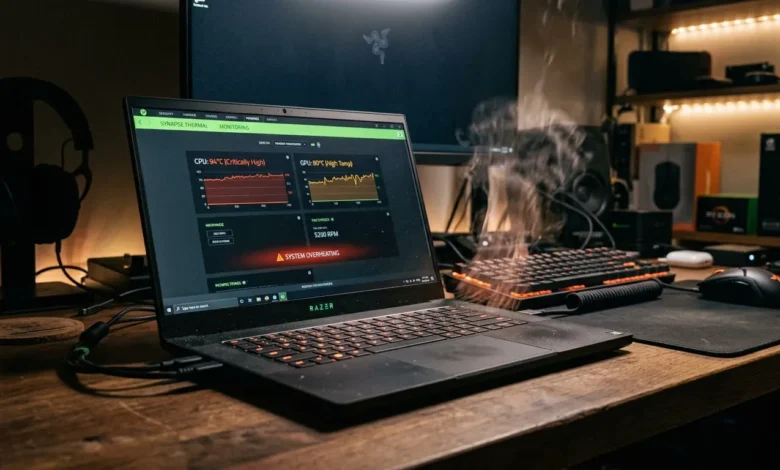
A laptop that overheats doesn’t just feel uncomfortable on your knees. It throttles its own processor to survive, which is why games start stuttering, video calls freeze, and everything feels slower the longer you use it. Left unaddressed, repeated overheating shortens the life of the battery, the fan motor, and eventually the motherboard itself.
Most overheating problems trace back to one of a handful of causes: dust blocking the vents, a background process pinning the CPU, dried-out thermal paste, or simply using the laptop somewhere that blocks airflow. This guide walks through each cause in order, starting with the fastest fixes, so you can find the one that applies to your laptop.
Signs Your Laptop Is Actually Overheating
Warm is normal. A laptop that’s hot to the touch on the bottom, with fans running at full speed even during light tasks like browsing, is not. Other reliable signs include sudden performance drops during games or video editing, random shutdowns under load, and a chassis so hot near the keyboard that typing becomes uncomfortable.
If your laptop only warms up during demanding tasks and cools back down within a minute or two of finishing, that’s normal thermal behavior, not a problem to fix.
Step 1: Check What’s Actually Running
Before touching any hardware, rule out software. Open Task Manager on Windows or Activity Monitor on a Mac and sort processes by CPU usage. A single process pinned at 80 to 100 percent, especially one you don’t recognize, can push a laptop’s temperature up even while it sits on a desk doing nothing visible.
Run a malware scan if you spot unfamiliar processes consuming CPU cycles, since cryptomining malware and adware are common culprits that specifically overwork the processor. Also check for a stuck browser tab or an app that failed to close properly, since either can quietly max out a CPU core for hours.
Step 2: Clean the Vents and Fans
Dust is the single most common cause of laptop overheating. It settles inside the intake grills and across the fan blades, acting as insulation that traps heat instead of letting it escape.
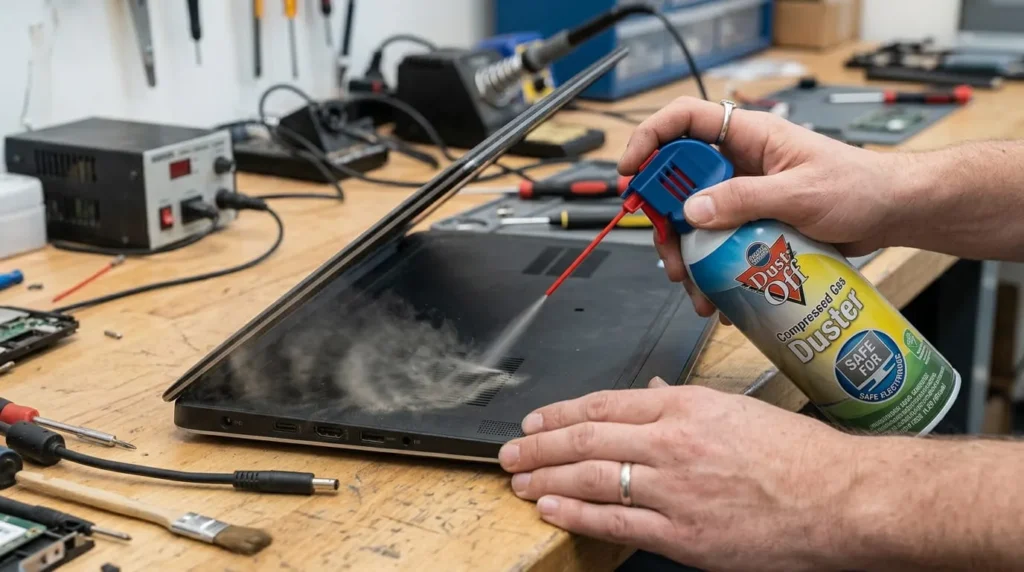
Power off the laptop completely and unplug it. Use a can of compressed air on the vents, holding the can upright and using short bursts rather than one long spray. One detail most guides skip: hold the fan blades still with a toothpick or your finger while you spray them. Compressed air can spin the fan much faster than its motor is designed for, and that overspin can damage the bearings over time.
If your laptop has an easily removable bottom panel, take it off and clean the heatsink fins directly, since dust often packs tightest right where the fan exhausts.
Step 3: Fix How and Where You’re Using It
Laptops pull cool air in through vents on the bottom or sides. A soft surface like a bed, couch, or your actual lap blocks that airflow completely, which is often enough on its own to cause overheating even in a clean, well-maintained laptop.
Always use a laptop on a hard, flat surface. Propping the back edge up slightly, even with something as simple as a book, improves airflow underneath. Room temperature matters too: a laptop working hard in a warm room with no air conditioning will run several degrees hotter than the same laptop in a cool, ventilated space
Step 4: Update Drivers, BIOS, and Windows
Outdated graphics drivers and chipset drivers can cause a GPU or CPU to run less efficiently than it should, generating more heat for the same amount of work. Check your laptop manufacturer’s support site for the latest chipset, graphics, and BIOS updates rather than relying only on Windows Update, since manufacturer-specific thermal management drivers often live outside that channel.
A pending BIOS update can matter more than people expect, since some BIOS releases specifically correct fan curve behavior, meaning how aggressively the fan ramps up in response to rising temperature.
Step 5: Adjust Your Power Plan
Windows power plans directly affect how hard your CPU is allowed to work. Switching from “Best Performance” to “Balanced” reduces heat output at the cost of some processing speed, which is a reasonable trade for a laptop that overheats during normal use.
For a more advanced fix, undervolting reduces the voltage sent to the CPU without lowering its clock speed, which can cut heat output noticeably with little to no performance loss. Tools like Intel XTU or manufacturer-specific utilities handle this safely on supported chips, though it isn’t available on every laptop and should be adjusted in small increments while monitoring temperature.
When the Problem Is Old Thermal Paste
Thermal paste is the compound between the CPU and the heatsink that transfers heat away from the processor. It dries out and loses effectiveness after two to four years, more if the laptop runs hot regularly.
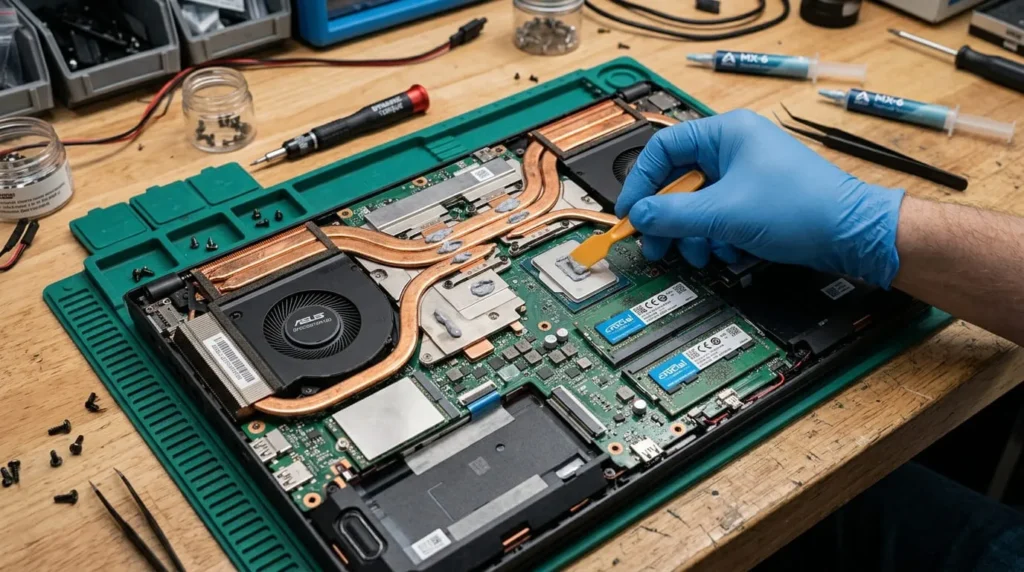
If cleaning the vents and adjusting software settings doesn’t help, and your laptop is more than a couple of years old, degraded thermal paste is the likely cause. Reapplying it means removing the bottom panel, unscrewing the heatsink from the CPU and GPU, cleaning off the old paste with isopropyl alcohol, and applying a small pea-sized amount of new paste before reseating the heatsink. This is doable for anyone comfortable with small screws and static precautions, but it does void warranty coverage on many laptops, so check that first.
When a Fan Needs to Be Replaced
If a fan runs constantly at full speed no matter the workload, spins irregularly, or makes a grinding or clicking noise, the bearings are likely failing rather than the fan just being dirty. A failing fan can’t move enough air even in a perfectly clean laptop.
Replacement fans are available for most models and are a moderately involved repair, usually requiring a full teardown to the motherboard layer. If your laptop is still under warranty, this repair is worth having done by the manufacturer instead of attempting it yourself.
Cooling Pads: Do They Actually Help
A laptop cooling pad with built-in fans provides real, measurable benefit, but mainly by improving airflow underneath the chassis rather than actively pulling heat out of the internals. It helps most on laptops with bottom-mounted intake vents and matters less on models that vent primarily from the rear or sides. Think of a cooling pad as a supplement to proper airflow and clean vents, not a substitute for either.
How Hot Is Too Hot
Brief spikes into the 80s Celsius under heavy gaming or rendering are normal for most modern CPUs and not a sign of damage. Sustained temperatures above 90 degrees Celsius, especially paired with thermal throttling, unexpected shutdowns, or fan noise during light tasks, cross into the range worth addressing. Free tools like HWMonitor or HWiNFO show real-time CPU and GPU temperatures so you can compare idle and load readings against your specific processor’s documented limits.
Gaming Laptops and Overheating
Gaming laptops run hotter by design, since they pack desktop-class components into a compact chassis. Overheating during a demanding game isn’t automatically a malfunction, but it becomes one if temperatures stay pinned at their maximum for extended sessions or if performance visibly degrades mid-session. Elevating the laptop, using a cooling pad, and keeping the room ventilated all matter more for gaming laptops than for everyday work laptops, simply because the heat output is higher to begin with.
When to Get Professional Help
If you’ve cleaned the vents, adjusted software settings, checked for a runaway process, and confirmed the laptop is on a hard surface, and it still overheats, the issue is likely a failing fan, degraded thermal paste, or in rare cases a swollen or failing battery generating its own heat. A swollen battery is a safety issue, not just a cooling one, and warrants stopping use of the laptop until it’s inspected.
Why Does my Laptop Overheat only When it’s Plugged in
Charging while under load asks the laptop to manage both battery charging heat and processing heat at once, which some models handle less efficiently than others. If overheating only happens while charging under heavy use, try charging during lighter tasks or switching to a balanced power plan when plugged in.
Can Overheating Cause Permanent Damage
Occasional overheating rarely causes lasting harm, since modern CPUs throttle themselves specifically to avoid it. Repeated, sustained overheating over months can shorten battery life, degrade thermal paste faster, and in severe cases warp components or damage the motherboard, which is why addressing it early matters more than it might seem.