Open an email from a company you’ve never bought anything from, and there’s a good chance a tiny transparent image just reported that open back to a server. That’s the basic mechanic behind most email tracking, and it happens with no visible sign in your inbox. If you’re wondering how to stop email tracking, the honest answer is that no single setting kills it completely. You need to combine a few changes: blocking remote images in your email client, treating unfamiliar links with more caution, and knowing which tracking method each fix actually covers. This guide walks through exactly how to do that in Gmail, Outlook, and Apple Mail. It also covers what to do if you send email yourself and don’t want to track your own contacts by accident.
How Email Tracking Actually Works
Three separate mechanisms get lumped together under the phrase email tracking, and each one needs a different fix.
Tracking Pixels
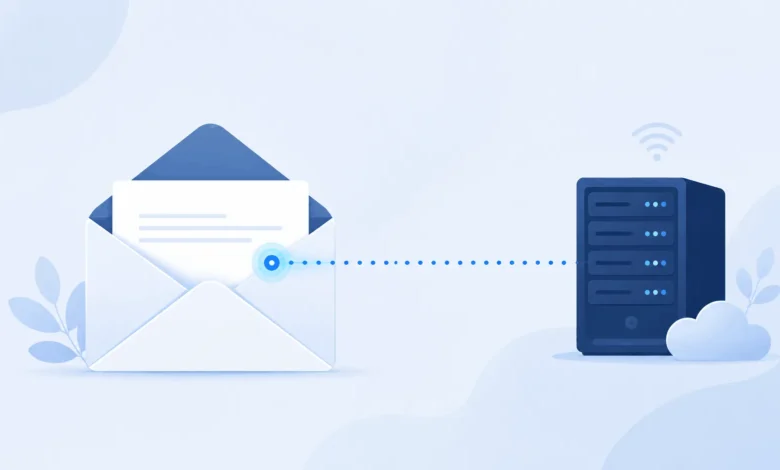
Most commercial email includes a tracking pixel: a single transparent image, usually just one pixel wide and one pixel tall. It sits at the bottom of the message where you’d never notice it. When your email app loads that image, it sends a request to a server. That request tells the sender your email was opened, roughly when, and often your rough location based on your IP address. Blocking automatic image loading is the single most effective fix for this method. If the image never loads, the pixel never fires.
Tracked Links
A tracked link looks like a normal link inside the email body. In reality it routes through a redirect server before sending you to the real page. That redirect records the exact moment you clicked and which link you chose. Blocking images does nothing to stop this. If you click a tracked link, the click gets logged no matter what your image settings are.
Read Receipts
A read receipt works differently, because it asks for your permission first. Your email client shows a pop-up asking if you want to confirm you opened the message. Unless you actively agree, no read receipt goes out. This is the one tracking method you can stop just by clicking decline.
Stop Email Tracking in Gmail
Gmail already loads images through Google’s own proxy servers. This hides your device’s IP address from the sender, which is a genuine privacy improvement. It does not, however, stop the sender from knowing you opened the email. The proxy still fetches the pixel, so the open still gets logged, even though your true location stays hidden.
To go further, open Gmail on desktop and click the gear icon, then select See all settings. Under the General tab, find the Images section. Switch the setting from Always display external images to Ask before displaying external images. Now every image, including hidden trackers, waits for your approval before it loads.
On the Gmail mobile app, open Settings, tap your account, then tap General, and turn on the same option. This also blocks images in personal emails you want to see, so you’ll need to tap to load them manually.
Stop Email Tracking in Outlook
Outlook’s tracking protection depends on which version you use. Classic desktop Outlook, the new Outlook, and Outlook.com each store this setting in a different place.
In classic desktop Outlook, go to File, then Options, then Trust Center, then Trust Center Settings. Select Automatic Download and check the box for Don’t download pictures automatically in standard HTML email messages. This blocks pixels until you manually choose to download images for a specific message.
In the new Outlook and Outlook.com, open Settings, then Mail, then Layout, and look for the option to block external images by default. Some accounts show this under Mail, then General, then Reading pane instead, since Microsoft has moved the setting more than once.
The Outlook mobile app simply inherits whatever setting you’ve applied to your account online, so there’s no separate toggle to hunt for.
Stop Email Tracking in Apple Mail
Apple Mail on iOS and iPadOS uses a feature called Mail Privacy Protection, turned on by default in recent versions. It works differently from Gmail or Outlook. Instead of waiting for you to open the email, it preloads every image in the background as soon as the message arrives, using Apple’s own proxy. This masks your real IP address and hides exactly when you opened the email. It does not stop the sender from eventually seeing that the email was opened at all.
To confirm it’s on, open Settings, then Apps, then Mail, then Privacy. Make sure Protect Mail Activity is enabled. For stricter control, also turn on Block All Remote Content in the same menu. This stops every remote image entirely, including trackers, instead of just masking your identity while still loading them.
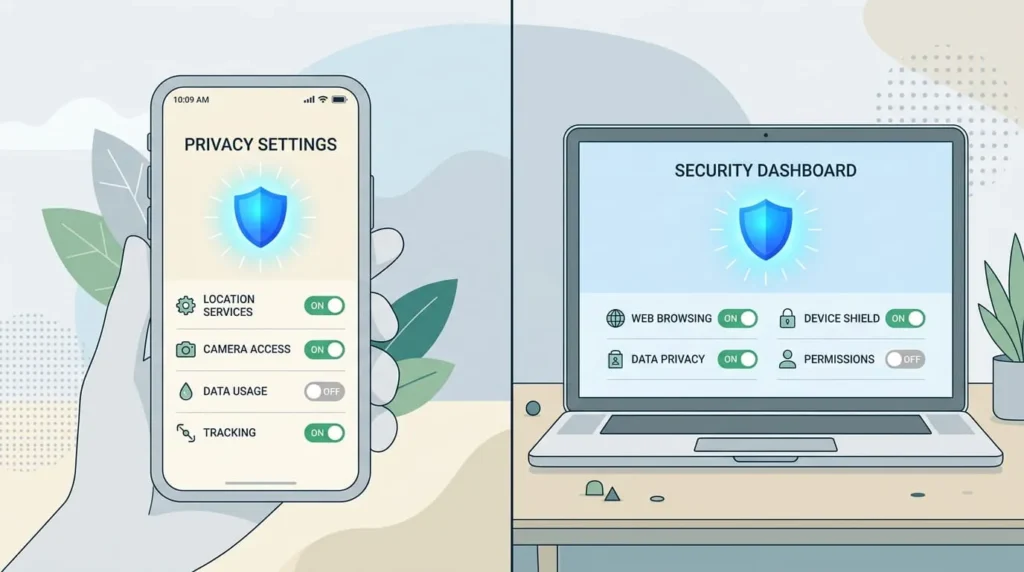
On macOS, open Mail, then Settings, then Privacy, and enable the same Block All Remote Content option. This is the closest Apple Mail gets to true pixel blocking, since Mail Privacy Protection alone still lets the tracker fire, just with your IP hidden.
Blocking Images Won’t Stop Tracked Links
Every fix above targets tracking pixels, not tracked links. If you click a link in a marketing email, the click gets logged whether or not your images are blocked. A few habits reduce this risk.
Hover over a link before clicking it to preview the real destination in your email client’s status bar. If the URL is unusually long, filled with random characters, or points to a domain that doesn’t match the sender, treat it as tracked.
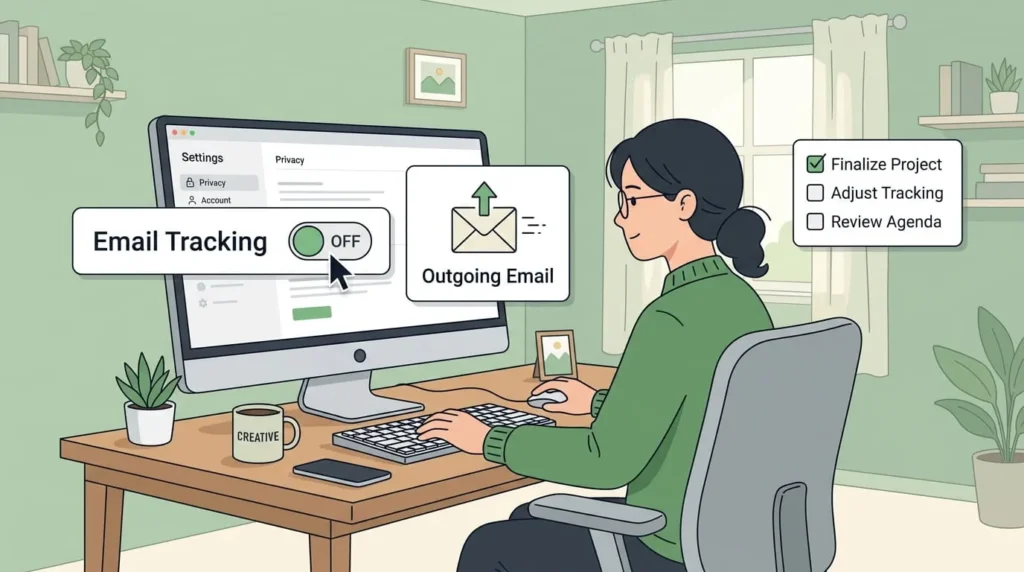
When you can, skip the link entirely. Go directly to the company’s website by typing the address yourself or using a bookmark. For newsletters you read regularly, this small habit removes the click-tracking risk completely, without any extra software.
Browser Extensions for Extra Protection
If you read a lot of email in a browser, a dedicated extension adds a layer that built-in settings can’t. Extensions such as Ugly Email, PixelBlock, and Trocker scan incoming Gmail messages for known tracking pixels. They flag or block them, usually with a small icon next to the sender’s name.
The catch is that these tools rely on lists of known tracker domains. When a tracking company switches domains, an extension with an outdated list simply misses it until the list gets updated. This isn’t a reason to skip them, since they still catch a large share of common trackers, but no single extension gives complete coverage on its own. Pairing one with the image-blocking settings above closes far more gaps than either alone.
Consider a Privacy-Focused Email Provider
If email tracking is a constant concern rather than an occasional annoyance, switching your primary inbox is worth weighing. Providers such as Proton Mail block tracking pixels and hide your IP address by default, with no extra settings needed after signup.
The tradeoff is real, since moving your primary email means updating your login on every account tied to it. A lighter first step is a secondary address with one of these providers for new sign-ups and newsletters, while keeping your main address for contacts you trust.
Turning Off Tracking on Emails You Send
So far this covers protecting yourself as a recipient. But if you run a small business or use sales tools like HubSpot, Mailtrack, or a similar Gmail extension, you may be generating the same kind of tracking on emails you send. This often happens without you realizing it, even on internal messages to coworkers.
Domain exclusion lists, sometimes called a Never Log list, are supposed to stop tracking for internal addresses. In practice, many users still get open notifications for internal colleagues even after adding the company domain to this list. That’s usually because the exclusion only prevents new tracking going forward. Any email sent before you added the domain still carries its original tracking code. Existing contact records in your CRM also keep generating notifications until they’re removed.
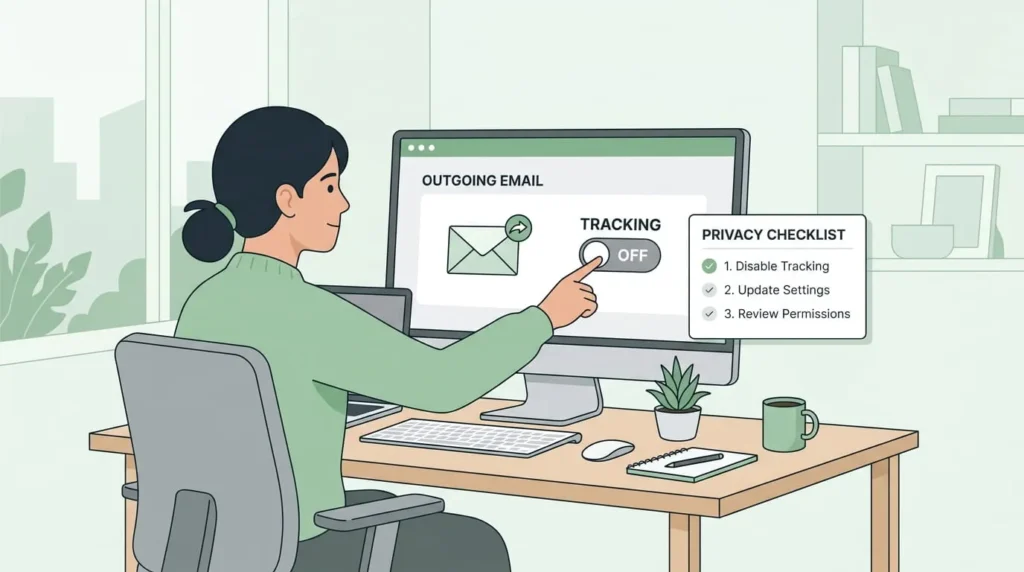
Two extra steps close this gap. First, delete existing internal contacts from your CRM instead of relying only on the domain list. Second, turn off the tracking toggle directly in the email extension itself before you send, rather than depending on a list to filter it out afterward. This stops the pixel from being inserted in the first place, which is more reliable than excluding it after the fact.
What This Won’t Fix
It’s worth being direct about the limits here. None of these steps stop a company from tracking you once you’ve clicked through to their website, since that relies on cookies and browser fingerprinting, not email tracking pixels. They also won’t undo tracking on emails you already opened before making these changes, since the tracker already fired. No setting can identify exactly who opened a forwarded email either, if several people share one inbox or mailing list.
What these changes do is stop the ongoing, silent collection of your open and click data going forward. For most people, that’s the actual goal.
Quick Checklist to Lock Down Your Inbox
Turn on Ask before displaying external images in Gmail.
Enable Don’t download pictures automatically in Outlook’s Trust Center.
Confirm Protect Mail Activity and Block All Remote Content are both on in Apple Mail.
Hover over links before clicking, and type known addresses directly when you can.
Add a tracker-blocking extension if you read a lot of email in a browser.
Delete internal contacts from your CRM instead of relying only on a Never Log list.