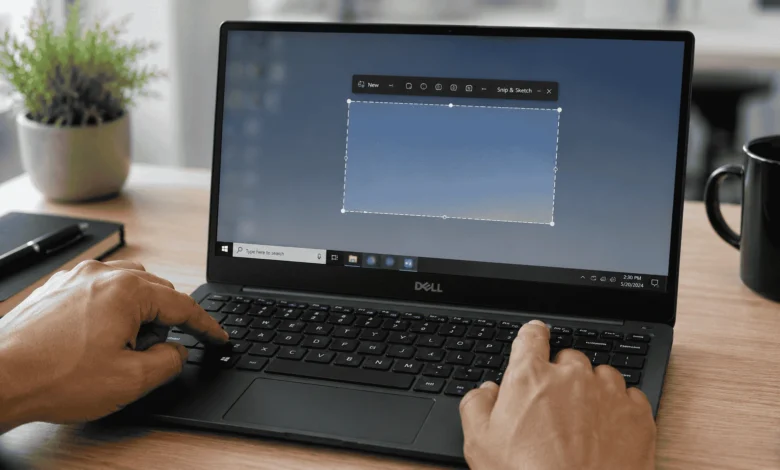
Press Windows key + Shift + S to open the snipping tool and capture any part of your screen, or press Windows + PrtScn to save a full screenshot automatically. Both work on every Dell laptop running Windows 10 or Windows 11, no extra software needed.
Quick Answer: The Fastest Way To Screenshot On A Dell Laptop
For most people, Windows + Shift + S is the method to remember. It darkens the screen, lets you drag a box around whatever you want to capture, and copies the image straight to your clipboard so you can paste it into an email, a Word document, or Slack. If you want the file saved automatically instead of just copied, Windows + PrtScn is the shortcut to use.
Dell doesn’t build its own screenshot tool into its laptops. Every method below comes from Windows itself, so it works the same way on an XPS, Inspiron, Latitude, or Vostro. The only real difference between models is where the PrtScn key sits and whether it needs an Fn key to activate.
Method 1: Use Windows + Shift + S (Snip & Sketch)
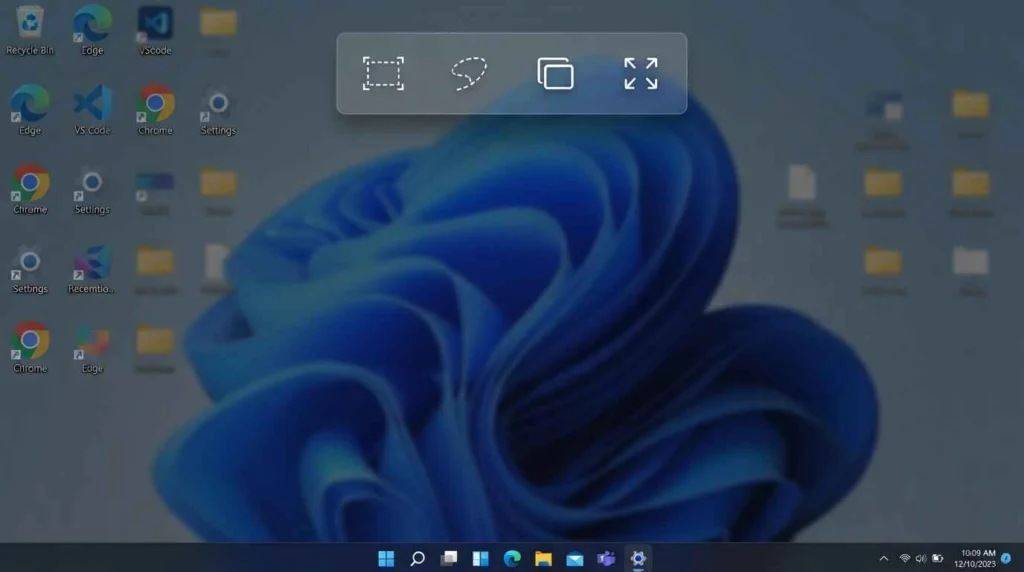
This is the shortcut built for selective screenshots. Press the Windows key, hold it, then press Shift and S together. Your screen will dim slightly and your cursor turns into a crosshair.
Click and drag over the area you want. As soon as you release the mouse, the image is copied to your clipboard. A small notification pops up in the bottom-right corner. Click it if you want to add arrows, text, or a highlight before saving.
Method 2: Use Windows + PrtScn To Auto-Save A Full Screenshot
If you want the whole screen saved as a file without pasting it anywhere first, press Windows + PrtScn. The screen will flash briefly, which is your confirmation that it worked. Windows saves the file automatically as a PNG.
You’ll find it in This PC > Pictures > Screenshots. The files are numbered in order, so the first one you take is Screenshot 1, the next is Screenshot 2, and so on.
Method 3: Use Just The Print Screen (PrtScn) Key
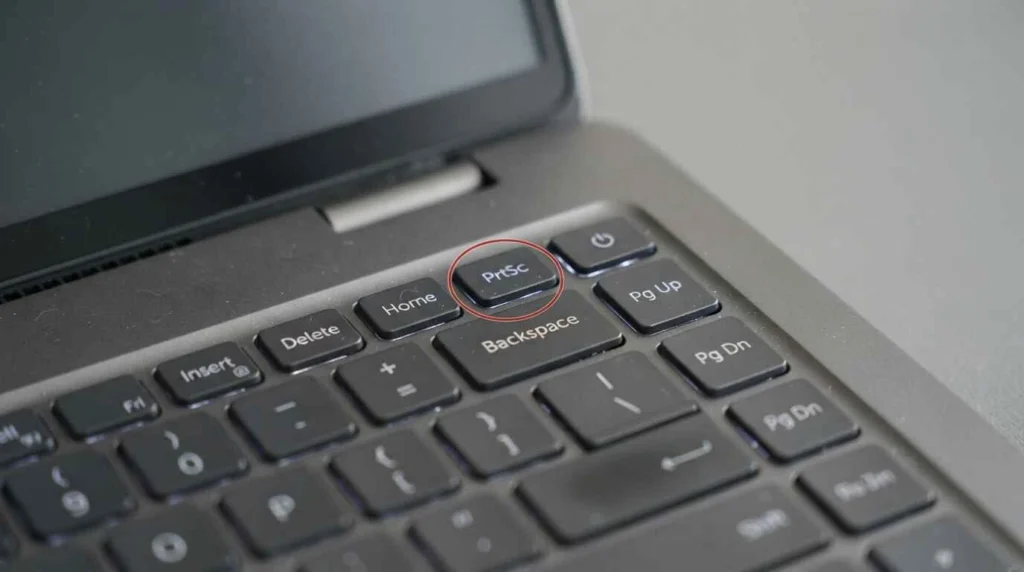
Pressing PrtScn by itself captures the entire screen, but it only copies the image to your clipboard. Nothing gets saved as a file until you paste it somewhere, like Paint, Word, or an email draft.
Open Paint (search for it in the Start menu), press Ctrl + V to paste, then save the file wherever you want. This method is useful if you only need the screenshot once and don’t want a saved copy cluttering your Pictures folder.
Method 4: Use Alt + PrtScn For A Single Window
If you only want to capture the active window, like a browser tab or an open document, click on that window first to make sure it’s selected. Then press Alt + PrtScn. This copies just that window, not your entire desktop, to the clipboard. Paste it into Paint or another program the same way as Method 3.
Method 5: Use The Snipping Tool App
Windows still includes a standalone Snipping Tool app, separate from the Windows + Shift + S shortcut, though on newer builds of Windows 11 the two have merged into one app. Search “Snipping Tool” in the Start menu and open it.
Click New to start a capture. You can choose a rectangular snip, a freeform snip, a window snip, or a full-screen snip from the dropdown menu. After capturing, the tool opens an editor where you can crop, mark up, or save the image directly, which makes it a better option than the clipboard-only shortcuts if you’re taking several screenshots in a row. The same built-in tool is available on Lenovo machines as well, and this guide covers how to screenshot on a Lenovo laptop.
What To Do If The PrtScn Key Doesn’t Work On Your Dell Laptop
1. Check The Fn Lock Setting
Some Dell laptops, especially newer Inspiron and Latitude models, use the top row of keys for media controls and brightness by default. If PrtScn is sharing a key with something like “mute” or “sleep,” you may need to press Fn + PrtScn instead of PrtScn alone.
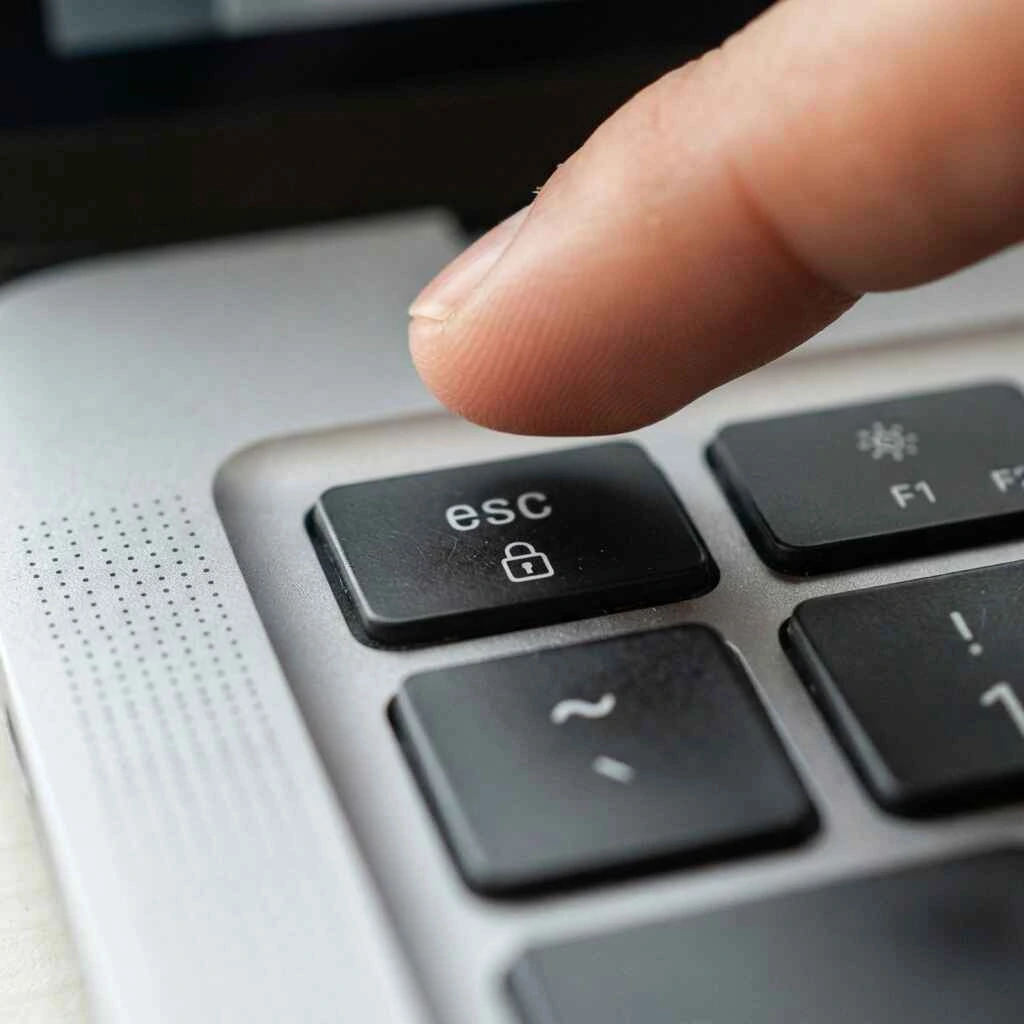
Look for an Fn Lock key, often marked with a small padlock icon on the Esc key or Fn key itself. Pressing Fn + Esc on many Dell models toggles Fn Lock on or off, which switches whether the top row defaults to function keys (F1 through F12) or media shortcuts.
2. Use The On-Screen Keyboard As A Backup
If a key is physically damaged or you’re using a Dell tablet or 2-in-1 without a full keyboard attached, open the on-screen keyboard by searching for it in the Start menu. It includes a PrtScn button you can click with your mouse or touchscreen instead of using a physical key.
How To Screenshot On A Dell Laptop Without A Keyboard Shortcut
Use The Xbox Game Bar
Windows 10 and 11 both include the Xbox Game Bar, which isn’t just for gaming. Press Windows + G to open it, then click the camera icon in the Capture toolbar to take a screenshot. Files save to Videos > Captures as PNG images.
Use A Stylus On 2-in-1 Dell Models
If you have a Dell Inspiron 2-in-1, XPS convertible, or Latitude with a touchscreen and stylus, you can often press the stylus button (if it has one) combined with the top barrel button to trigger a screenshot, depending on the stylus model. Check your stylus’s specific manual, since this shortcut varies between Dell Active Pen models.
How To Take A Scrolling Screenshot On A Dell Laptop
Windows doesn’t have a native scrolling screenshot tool built in, unlike some phone software. If you need to capture an entire webpage or long document that doesn’t fit on one screen, your two realistic options are a browser extension like GoFullPage for Chrome, or the built-in screenshot feature in Microsoft Edge. In Edge, right-click anywhere on a webpage and select “Web capture,” then choose “Capture full page” to grab the entire scrollable area in one image.
Where Screenshots Are Saved On A Dell Laptop
The save location depends on which method you used. Windows + PrtScn and the Xbox Game Bar save automatically. Windows + Shift + S and the standalone PrtScn key only copy to your clipboard unless you manually save from an editor.
How To Edit Or Annotate A Screenshot Before Sharing
If you clicked the notification bubble after using Windows + Shift + S, or opened a capture in the Snipping Tool, you already have access to a basic editor. It lets you draw with a pen or highlighter, crop the image, and add a ruler line for straight edges. For more detailed edits, like blurring sensitive text or adding numbered callouts, Paint 3D or a free tool like Photopea works well without needing to install anything heavy.
Windows 10 Vs Windows 11: Does The Process Change?
The core shortcuts are identical on both versions. Windows + Shift + S, Windows + PrtScn, and Alt + PrtScn all work the same way whether your Dell laptop shipped with Windows 10 or Windows 11. The main difference is in Windows 11, Microsoft merged the old Snipping Tool and Snip & Sketch into a single updated app, so you’ll see one combined interface instead of two separate ones.
Which Screenshot Method Should You Use?
For a quick capture of part of your screen, use Windows + Shift + S. For a full-screen capture you want saved as a file right away, use Windows + PrtScn. If your PrtScn key isn’t responding, check Fn Lock before assuming something’s broken. Once you’ve used each method a couple of times, picking the right one becomes second nature.
FAQ’S
1:Why Isn’t PrtScn Working On My Dell Laptop?
This usually happens because the key is set to a media function by default. Try pressing Fn + PrtScn instead of PrtScn alone, or toggle Fn Lock using Fn + Esc to switch the top row back to standard function behavior.
2:How Do I Screenshot Just One Window On A Dell Laptop?
Click on the window you want to capture so it’s active, then press Alt + PrtScn. This copies only that window to your clipboard, and you can paste it into Paint or any image editor to save it.
3:Where Do Screenshots Save By Default On A Dell Laptop?
Screenshots taken with Windows + PrtScn or the Xbox Game Bar save automatically to Pictures > Screenshots or Videos > Captures. Screenshots taken with Windows + Shift + S only copy to your clipboard unless you save them manually from the editor.
4:Can I Screenshot On A Dell Laptop Without A Keyboard?
Yes. Open the on-screen keyboard from the Start menu, which includes a clickable PrtScn button. Touchscreen Dell models can also use stylus shortcuts, depending on the specific pen model.
5:How Do I Take A Full-Page Scrolling Screenshot On A Dell Laptop?
Windows doesn’t include a native scrolling screenshot tool. Use Microsoft Edge’s built-in “Web capture” with the “Capture full page” option, or install a browser extension like GoFullPage for Chrome.