
What is a MAC address? It is a 48-bit hardware identifier, written as 12 hexadecimal characters, that is assigned to a network adapter so other devices on the same local network can tell it apart. Your laptop, phone, smart TV, and printer each have one for every adapter they carry, such as Wi-Fi, Ethernet, or Bluetooth. A typical example looks like 00:1A:2B:3C:4D:5E.
MAC stands for Media Access Control. The address works at the data link layer (layer 2) of the network stack, which is why your router can send a video stream to your TV and not to your phone.
You may also see it called a physical address, hardware address, or Wi-Fi address, depending on the menu. The “physical” label is slightly misleading because the address is set at the factory but can be changed in software.
How a MAC Address Is Built
Every MAC address is 48 bits long, written as six pairs of hexadecimal digits. That allows roughly 281 trillion unique values. The format comes from the IEEE 802 standards family, and the IEEE Registration Authority manages the blocks of addresses.
The first three pairs are the Organizationally Unique Identifier, or OUI. The IEEE assigns these blocks to manufacturers, so an OUI points to the company that made the network chip. The last three pairs are assigned by that manufacturer to each individual unit.
You can look up any OUI in the IEEE’s public registry. If an unknown gadget shows up on your router’s device list, the OUI often tells you whether it came from Apple, Samsung, Intel, or Amazon. It names the chip maker, which is not always the brand printed on the box.
Common Formats You Will See
The same address is written differently depending on the system. Windows shows hyphens, as in 00-1A-2B-3C-4D-5E. Linux and macOS use colons, and Cisco equipment often groups the digits in fours as 001a.2b3c.4d5e. All three are the same address, and letters can be uppercase or lowercase.
The Two Special Bits in the First Byte
Two bits in the first byte carry extra meaning. The lowest bit says whether the address targets one device (unicast) or a group (multicast). The next bit says whether the manufacturer assigned the address (universal) or software or an administrator set it (local).
That second bit matters more than it used to. Phones that use a randomized address set it to the local value, so if the second character of the address is 2, 6, A, or E, the address is probably randomized. The address FF:FF:FF:FF:FF:FF is reserved for broadcast, meaning a message to every device on the local network at once.
MAC Address vs. IP Address
A MAC address identifies a network adapter on your local link. An IP address identifies where a device sits on a network and is used to route traffic across the internet. The MAC address stays with the adapter, while the IP address changes when you move to a different network.
| Feature | MAC Address | IP Address |
| Layer | Data link (layer 2) | Network (layer 3) |
| Length | 48 bits | 32 bits (IPv4) or 128 bits (IPv6) |
| Assigned by | Manufacturer, or software if changed | Router, DHCP server, or ISP |
| Crosses the internet | No | Yes |
| Changes between networks | Usually not, unless randomized | Yes |
The two work together. When your laptop wants to reach your router, it knows the router’s IPv4 address but needs the router’s MAC address to build the Wi-Fi or Ethernet frame. The Address Resolution Protocol (ARP), defined in RFC 826, asks the network who owns that IP address and stores the answer. You can view that stored list by typing arp -a in a terminal.
What a MAC Address Is Used For
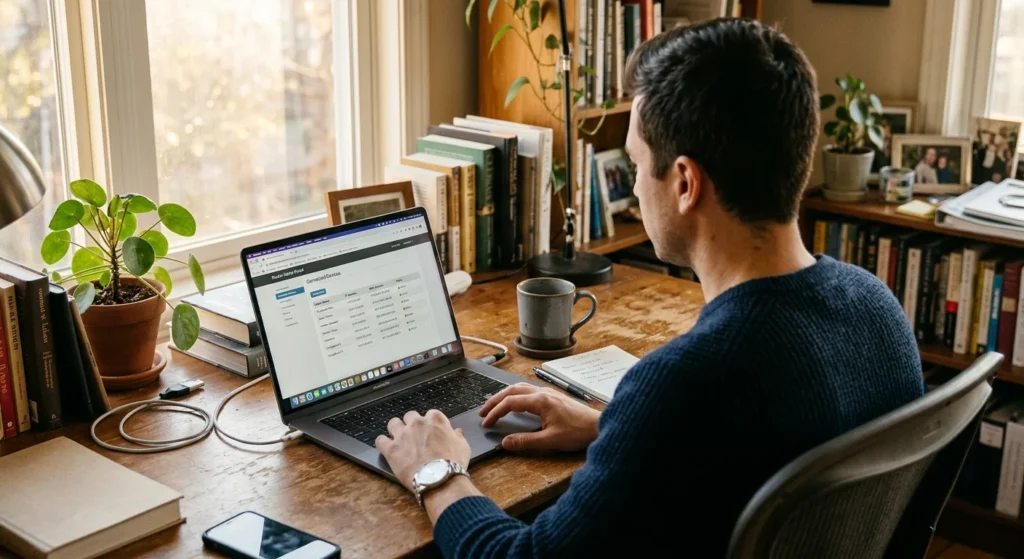
Most people never type a MAC address, but you will run into one in a few everyday situations. The most common is your home router, which lists connected devices by MAC address. That lets you reserve a fixed IP address for a printer or network drive, pause a child’s tablet, or block a device you don’t recognize.
Some networks ask you to register devices by MAC address. Many US university dorm networks and some hotels do this, which is why a game console or smart speaker that can’t open a login page needs its address entered by hand.
Businesses use MAC addresses to track hardware inventory, and network switches learn which port each address sits behind. Wake-on-LAN also depends on it, since the “magic packet” that wakes a sleeping computer contains the target’s MAC address repeated 16 times. Troubleshooting is another use, because two devices with the same address on one network cause dropped connections that are hard to diagnose.
How to Find Your MAC Address
Menu names change between operating system versions, so the paths below may look slightly different on your device. Make sure you read the address for the adapter you are actually using, such as Wi-Fi and not Ethernet.
1. Windows
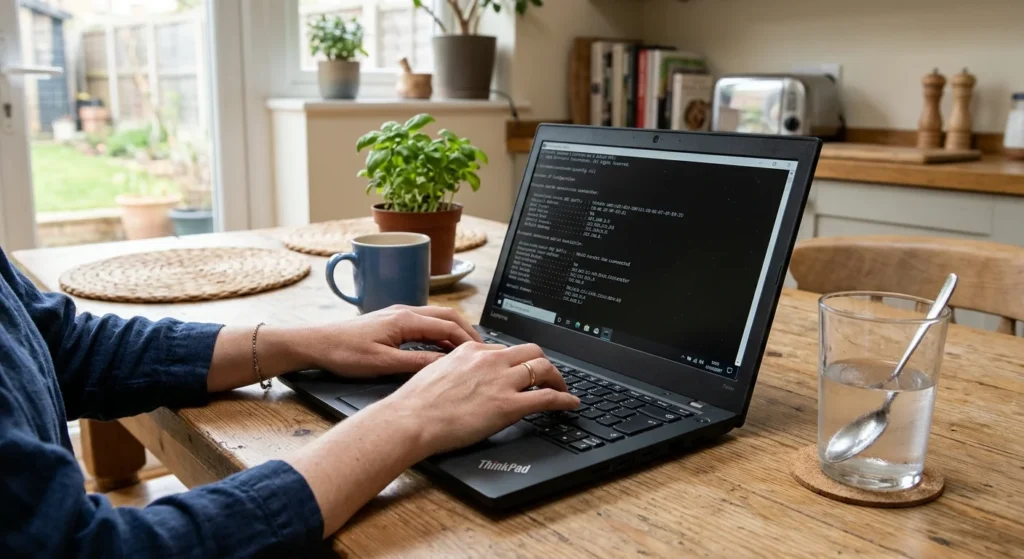
Open the Start menu, type cmd, and open Command Prompt. Run ipconfig /all, then find your active adapter in the output. The value next to Physical Address is your MAC address. You can also go to Settings, Network & Internet, Wi-Fi, and open Hardware properties.
2. macOS
Open System Settings and click Wi-Fi. Select Details next to your connected network, then open the Hardware section to see the MAC address. In Terminal, running ifconfig en0 and reading the line that starts with ether gives the same result.
3. Linux
Run ip link show in a terminal. The address appears after link/ether for each interface.
4. iPhone and iPad
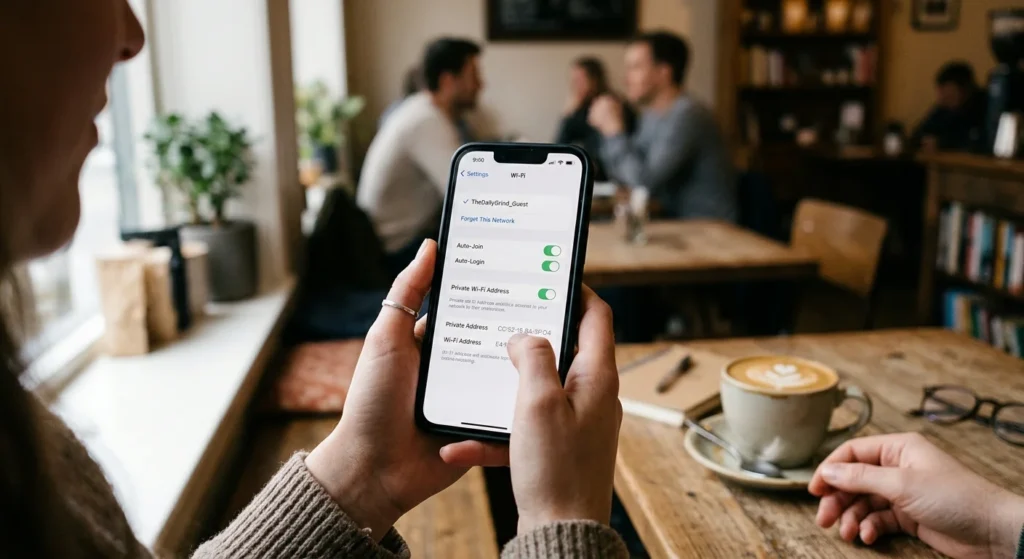
Go to Settings, General, About, and read the Wi-Fi Address. If Private Wi-Fi Address is on, the phone uses a different address for each network, and you can see the one for your current network in that network’s settings page.
5. Android
Go to Settings, About phone, then Status information (some brands label it Hardware information). The Wi-Fi MAC address is listed there. Android also lets you view the address used for a specific network under that network’s details.
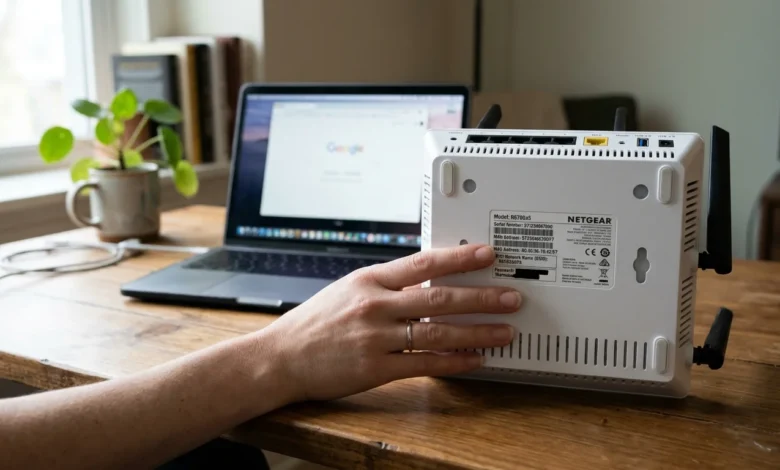
Game consoles and smart TVs list the address in their network or about menus. For the router itself, check the label on the bottom or back.
MAC Address Randomization and Privacy
A fixed MAC address is broadcast every time a phone scans for Wi-Fi, which makes tracking possible. Retail analytics companies have used this to count and follow shoppers inside stores. The Federal Trade Commission took action against Nomi Technologies in 2015 over misleading statements about its in-store tracking, which relied on device MAC addresses.
Device makers responded with randomization. Apple added Private Wi-Fi Address in iOS 14, Android 10 randomizes addresses by default for new networks, and Windows 10 and 11 offer a random hardware address setting. The device presents a different address to each network, so a store cannot easily recognize the same phone on a later visit.
Randomization has a trade-off at home. If you set up MAC filtering or a DHCP reservation using a phone’s real address, the phone may stop matching because it now presents a random one. The fix is to turn off the private address option for your home network, or to use the random address in your router settings instead.
IPv6 had a related issue. Early automatic IPv6 addressing built part of the address from the MAC address, which let a device be recognized across networks. Temporary addresses, now described in RFC 8981, fixed that, and current operating systems use them by default.
Can a MAC Address Be Changed or Faked?
Yes. Operating systems and drivers allow a MAC address to be changed, which is called spoofing. People do it for privacy, for testing, or to move a registered device’s identity to a new adapter on their own network.
Using someone else’s address to get around access controls on a network you don’t own can break that network’s rules and, in some cases, computer misuse laws. The same flexibility is why MAC filtering is weak security. Addresses are sent unencrypted in Wi-Fi frames, so someone nearby with a free capture tool can read an allowed address and copy it.
Treat MAC filtering as a convenience for managing your own devices, not as protection. A strong WPA3 setup, or WPA2 with a long passphrase, does far more to keep strangers off your network.
Does a MAC Address Reveal Your Location?
No. A MAC address only travels as far as the local network segment. When your traffic passes through your router, the router builds new frames for the next hop, so websites see your public IP address and never your device’s MAC address.
Anyone who can read your address has to be on the same network or within Wi-Fi or Bluetooth range. That is why the privacy risk comes from nearby sensors, not from the internet at large.