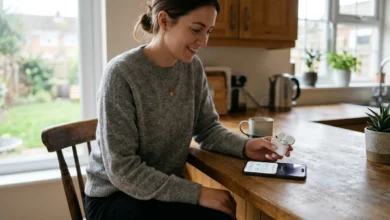

Two-factor authentication needs two different types of proof, such as a password and a fingerprint. Two-step verification needs two checks in a row, even if both checks come from the same type, such as a password followed by a security question.
If you are weighing two factor vs two step for your own accounts, the label matters less than the method behind it. Plenty of apps and banks in the US use the two terms as if they mean the same thing, and that is where most of the confusion starts. This guide sorts out the real differences, shows which approach protects you better, and tells you what to turn on first.
The Short Answer: Categories vs Sequence
The difference comes down to categories versus sequence. Two-factor authentication (2FA) demands proof from two separate categories. Two-step verification (2SV) only demands two steps, and those steps can sit in the same category.
Security professionals sort proof into three categories. Something you know is a password or PIN. Something you have is a phone, a hardware key, or an authenticator app. Something you are is a fingerprint or a face scan.
A password plus an authenticator app code is two factors, because it mixes knowledge and possession. A password plus a security question is only two steps, because both are things you know. Both add friction for an attacker, but only the first adds a different kind of barrier.
Everyday Examples You Already Use
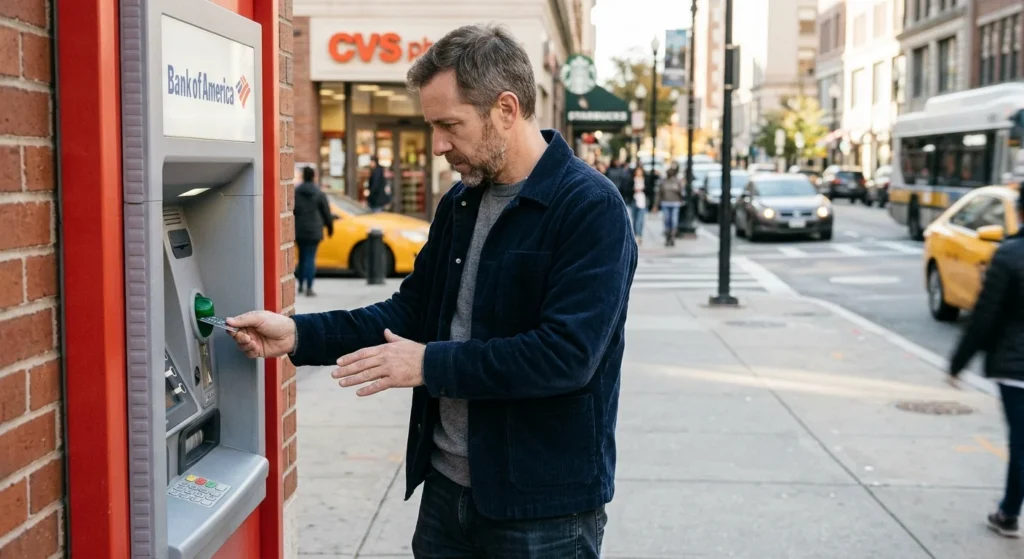
Your bank card is a classic two-factor setup. The card is something you have, and the PIN is something you know. An ATM will not hand over cash without both.
Now picture an online account that asks for your password and then your mother’s maiden name. Both answers live in your memory, so the account has two steps and one factor. A relative’s social media post or a public record could hand an attacker that second answer.
How Two-Factor Authentication Works
With 2FA, you log in with your usual password first. The service then asks for proof from another category, most often a code or a tap on a device you own. An attacker who steals your password still lacks your phone, your key, or your fingerprint.
Common second factors include:
- Authenticator app codes from apps like Google Authenticator or Microsoft Authenticator
- Push approvals sent to a trusted phone
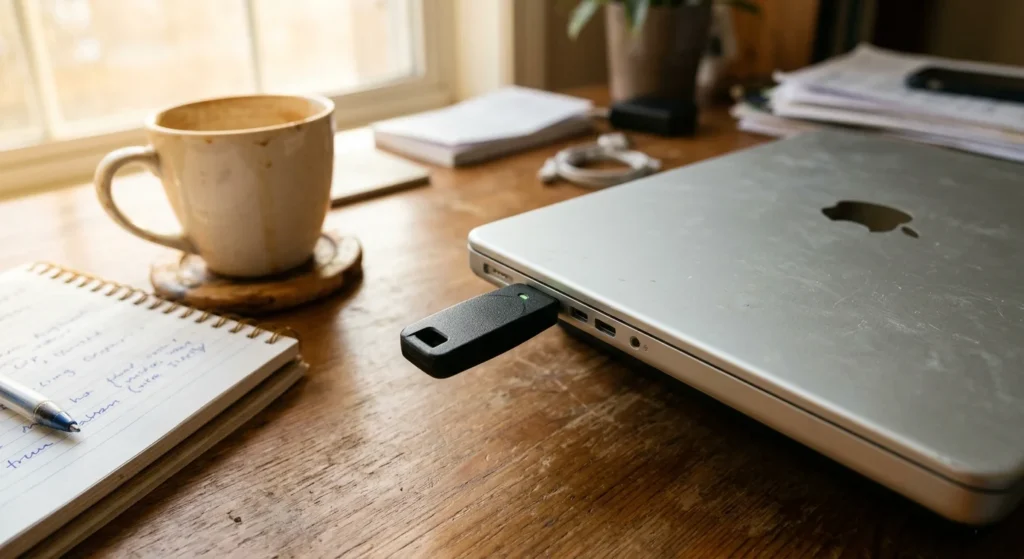
- Hardware security keys that follow the FIDO2 standard
- Biometrics such as Face ID or Touch ID
- Text message codes
The Cybersecurity and Infrastructure Security Agency (CISA) urges people to turn on multifactor authentication wherever it is offered. Its guidance also ranks phishing-resistant options, such as FIDO security keys, above codes sent by text.
How Two-Step Verification Works
Two-step verification adds a second checkpoint without promising a second category. The extra step is often a code sent by email or SMS, a security question, or a one-time link. When the code goes to your phone, it starts to look like a possession factor, so the line between 2SV and 2FA blurs quickly.
Email codes are where the weakness shows. If the second step is a code sent to an inbox that a hacker already controls, you have two steps but only one real barrier. Security questions fail for the same reason, since the answers often sit in public records or on social media.
Companies also pick labels for branding reasons. Google calls its feature 2-Step Verification, yet it supports security keys and device prompts that meet the full two-factor definition. Apple used the name two-step verification for an older system, then moved Apple Account to two-factor authentication starting with iOS 9 and OS X El Capitan.
Two-Factor vs Two-Step: Side-by-Side Comparison
| Feature | Two-Factor | Two-Step |
| Proof needed | Two different categories | Two checks in sequence |
| Same category allowed | No | Yes |
| Typical example | Password plus authenticator app | Password plus security question |
| Typical strength | Higher | Varies widely |
| Common labels | 2FA, MFA | 2SV, login verification |
Which One Is Safer?
Two-factor authentication is generally safer because two different categories force an attacker to beat two different kinds of defense. A stolen password cannot be turned into a stolen fingerprint. Still, not every 2FA method is equal, and a well-built two-step system can beat a sloppy two-factor one.
Google, New York University, and UC San Diego measured this in a 2019 study of account hijacking. A code sent by SMS blocked 100 percent of automated bots and 96 percent of bulk phishing attacks, but only 76 percent of targeted attacks. On-device prompts blocked 100 percent, 99 percent, and 90 percent of the same three attack types, while security keys stopped all three.
Microsoft researchers reported a similar pattern in a 2023 paper. Across a large sample of Microsoft Entra accounts, multifactor authentication cut the risk of compromise by 99.22 percent.
The practical lesson is simple. Any second check beats a password alone, and a possession-based check beats a knowledge-based one.
Weak Spots in Both Approaches
1. SIM Swapping and Text Message Codes
SMS codes depend on your phone number, and scammers can talk a carrier into moving that number to a SIM they control. The FBI’s Internet Crime Complaint Center logged 1,075 SIM swapping complaints in 2023, with adjusted losses of roughly $48 million. This is why NIST’s Digital Identity Guidelines treat text messages as a restricted option and why many services now push app-based methods instead.
2. Phishing and MFA Fatigue
Attackers build fake login pages that ask for your password and your six-digit code at once, then replay both on the real site within seconds. Others spam push approvals until a tired user taps accept, a trick called MFA fatigue. Number-matching prompts and security keys shut down both tricks.
3. Account Recovery Loopholes
Recovery paths can undercut everything. If a hacker can reset your password through a backup email or a call to a help desk, your second check never comes into play. Review your recovery options with the same care you give your login options.
Why People Mix Up the Two Terms
Part of the blame sits with the industry. NIST and CISA use the umbrella terms multifactor authentication and MFA, which includes 2FA as a subset. Consumer apps then pick their own words, and the labels drift away from the technical meaning.
Branding plays a part too. Most people copy whatever phrase they saw on a login screen, so Microsoft’s account pages say two-step verification while Apple’s say two-factor authentication. Both describe a second check, just under different names.
Business Accounts Versus Personal Account
Work accounts often face stricter rules than personal ones. Many US companies require MFA for email and VPN access, and cyber insurance carriers increasingly ask for it before they will write a policy. Small business owners running several sites should treat it as a baseline, not an upgrade.
Admin consoles, payment processors, hosting dashboards, and domain registrars deserve the strongest option available. A single breach there can take down every project tied to the account.
Where Passkeys Fit In
Passkeys are a newer sign-in method supported by Apple, Google, and Microsoft. They replace the password with a cryptographic key stored on your device, unlocked by your face, fingerprint, or screen lock. Because a passkey combines possession and biometrics in one tap, it meets the two-factor definition without a separate code.
Passkeys also resist phishing, since the key only works on the real website it was created for. For anyone choosing between two factor vs two step setups today, a passkey is the strongest everyday choice where a site offers one.
Which Method Should You Turn On?
Pick the strongest option each account supports. Ranked from strongest to weakest:
- Passkeys or hardware security keys that follow FIDO standards
- Authenticator app codes or push approvals with number matching
- Text message codes
- Email codes or security questions, only when nothing else exists
Add a backup method in case you lose your phone. Store recovery codes in a password manager, or print them and keep them somewhere safe at home.
Start with email, banking, and cloud storage, since a hacked inbox can reset almost every other password you own. Then move on to social media, shopping, and work tools.
How to Set Up an Authenticator App in Five Minutes
An authenticator app is the easiest upgrade for most people, and the steps look almost the same on every site.
- Install an authenticator app from the App Store or Google Play.
- Open the security settings of the account you want to protect.
- Choose the authenticator app option and scan the QR code on screen.
- Type the six-digit code from the app to confirm the link.
- Save the recovery codes before you close the page.
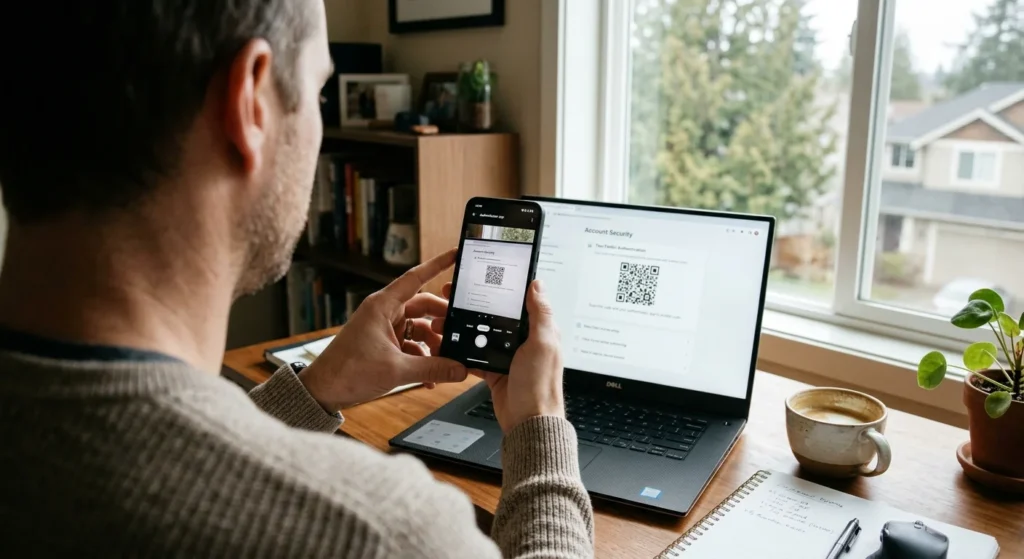
The QR code scan takes seconds. Saving the recovery codes is the step people skip, and it is the one that rescues you after a lost or broken phone.
What to Do If You Get Locked Out
Start with your backup method, such as a second device, a printed recovery code, or a hardware key kept in a drawer. If none of those work, use the provider’s official recovery form, which can take several days. Avoid third-party sites that promise to bypass verification, since many are scams that target people who are already locked out.