If you want to change wallpaper on Mac, you have more options than the single System Settings menu most guides mention. You can drag an image straight from Finder, pull one off a webpage in Safari, or set a different picture for every desktop space you use. This guide covers each method, plus the fixes for the two most common wallpaper problems: blurry images and wallpapers that revert on their own.
Change Wallpaper on Mac Through System Settings
System Settings is the default route, and it works the same way whether you’re on a MacBook Air, MacBook Pro, iMac, or Mac mini. It also gives you the most control over how the image is cropped and displayed.
Choose a built-in Apple wallpaper
Click the Apple menu in the top left corner, then choose System Settings. Select Wallpaper from the sidebar, scrolling down if it isn’t immediately visible. Apple groups its built-in options into categories: Dynamic Wallpapers, Landscape, Cityscape, Underwater, Earth aerials, Pictures, and Colors. Click any thumbnail to apply it instantly. If a category shows only a few previews, click Show All to see the full set before deciding.
Set a photo from your Photos library
In the same Wallpaper pane, scroll to Your Photos. Click Add Photo, then choose a single image, or click Add Folder or Album to pull in an entire collection. Selecting an album turns it into a row you can browse and shuffle later, which is useful if you keep a folder of favorites you like to rotate through.
Add your own image file
If the photo lives outside your Photos library, click Choose File in the Wallpaper pane, navigate to the image, and click Open. This works for downloads, screenshots, or files saved from a USB drive. Once applied, you can adjust how it fills the screen using the Fill, Fit, Stretch, or Center options that appear next to the thumbnail.
Change Wallpaper on Mac From Finder or Safari
If you already have an image open, going through System Settings is an extra step you can skip. These two shortcuts apply a new wallpaper in a single click.
Set wallpaper directly from Finder
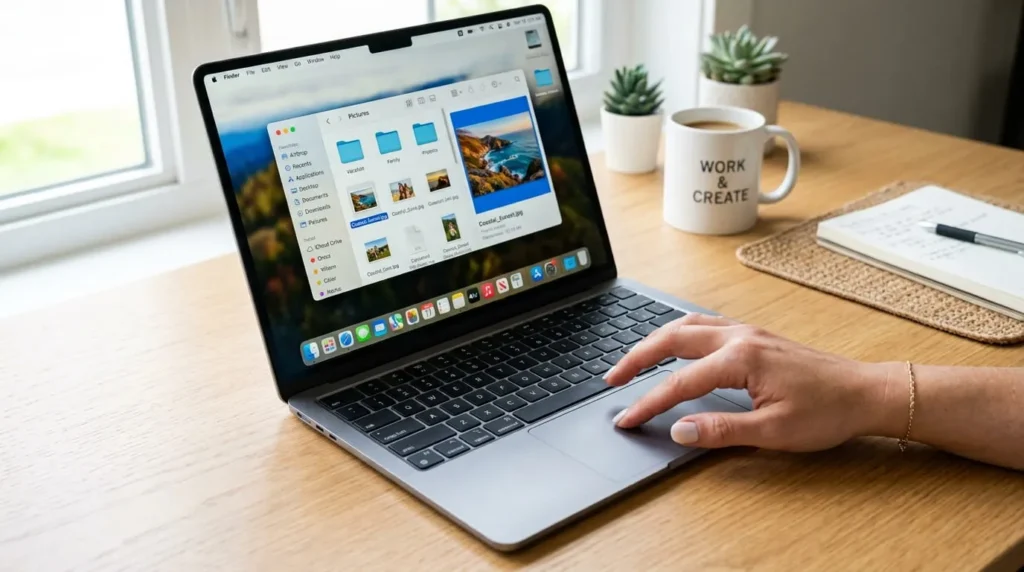
Open Finder from the Dock or press Command plus Shift plus F to search. Locate the image you want, then Control-click it. Choose Set Desktop Picture from the menu that appears. The change applies immediately, and System Settings updates to reflect the new selection the next time you open it.
Set wallpaper from an image in Safari
Browsing and found an image you like? Control-click it inside the Safari window and select Use Image as Desktop Wallpaper. Safari downloads a copy automatically, so the original webpage doesn’t need to stay open. This is the fastest way to change wallpaper on Mac when the image source is a website rather than a file already on your drive. If you spend most of your time working on a Mac, you can also use built-in tools such as Dictation on Mac to enter text without typing.
Set Different Wallpapers for Each Desktop Space
Most Mac users don’t realize each space created in Mission Control can carry its own wallpaper. Open Mission Control, then hover over the top of any space to reveal a plus icon for adding a new one. Switch to that space, open System Settings, go to Wallpaper, and pick an image while that specific space is active. Repeat for each space you use. This is a genuine productivity aid: a distinct wallpaper per space makes it faster to recognize which desktop you’re on at a glance, especially if you keep separate spaces for work, writing, and personal browsing.
Use Dynamic and Aerial Wallpapers Instead of a Static Image
Dynamic Wallpapers shift in brightness through the day, matching your Mac’s Light or Dark mode automatically as the sun rises and sets based on your location. Aerial wallpapers, grouped under Landscape, Cityscape, Underwater, and Earth, play as slow-motion video when you lock or wake your Mac, then settle into a still frame while you work. If you enable an aerial wallpaper, macOS offers to use the same clip as your screen saver, which keeps the desktop and lock screen visually consistent. Shuffle Aerials cycles through a set of these still images at an interval you choose, from every 5 minutes up to once a day.
Automatically Rotate Wallpapers on a Schedule
To rotate through your own photos rather than Apple’s presets, add a folder or Photos album under Your Photos in the Wallpaper pane. Click the row for that folder, and macOS reveals a shuffle option with timing choices ranging from every 5 minutes to once a day, or a random order each time you log in. This is different from Dynamic Wallpapers, which only shift Apple-made images based on daylight rather than a timer. If you want variety without picking a new image manually every morning, a shuffled folder is the more flexible choice.
Change the Lock Screen Wallpaper Separately From the Desktop
On current versions of macOS, the desktop and lock screen usually share the same wallpaper by default, but they don’t have to. Open System Settings, go to Lock Screen Wallpaper, and choose a different image than the one set for your desktop. This matters if you want a simpler, less distracting image visible while the Mac is locked, while keeping a busier or more personal photo on the desktop where only you see it while working.
Fix Common Wallpaper Problems on Mac
Wallpaper looks blurry or stretched
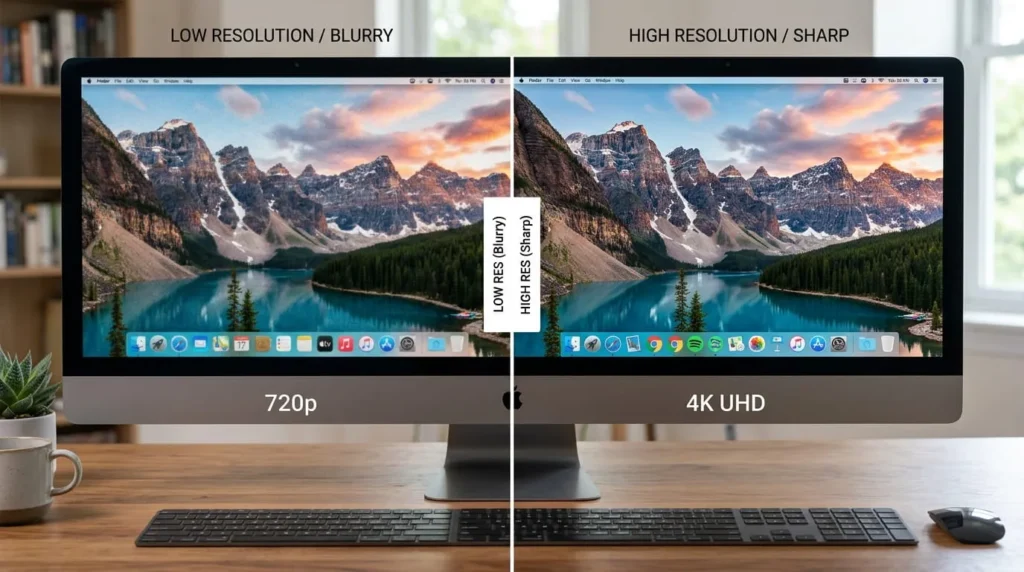
Blur usually means the image resolution is lower than your display’s native resolution. A MacBook with a Retina display needs an image close to its actual pixel dimensions to look sharp; stretching a small file to fill the screen introduces visible softness. Switch the fill option from Stretch to Fill, which crops instead of distorting, or replace the image with a higher-resolution version if one is available.
Wallpaper won’t change or keeps reverting
If a new wallpaper doesn’t stick, check whether Dynamic Wallpaper or an aerial clip is still assigned to Auto, which overrides a static image at certain times of day. Also confirm you’re not selecting an image inside a shuffled folder, since shuffle mode replaces your choice on its own schedule. Restarting the Dock process, done by force-quitting Dock in Activity Monitor, resolves most cases where a selection visually reverts without an obvious cause.
Photo missing from the Wallpaper picker
Photos deleted from your Photos library or moved on disk disappear from the Wallpaper pane automatically, since macOS references the file location rather than storing a separate copy for most options. Re-add the image using Add Photo or Add Folder after confirming the original file still exists in its saved location.