If your AirPods won’t connect, keep dropping audio, or show up as “not connected” even when they’re in your ears, a reset usually fixes it. A reset clears the pairing data stored on the AirPods and lets you start fresh with your iPhone, iPad, or Mac. It takes less than two minutes and doesn’t erase anything important since your music, contacts, and settings all live on your device, not on the AirPods themselves.
Below is the exact process for AirPods (1st through 4th generation), AirPods Pro, and AirPods Max, plus what to do if a reset doesn’t solve the problem.
Before You Reset: Try These Quick Fixes First
A reset is a last resort, not a first step. Before you touch the setup button, run through these checks. They solve most connection problems without wiping any pairing data.
Make sure Bluetooth is turned on and your AirPods have enough charge. Put the AirPods back in the case, close the lid, and open it again after ten seconds. Restart your iPhone or Mac. Forget the AirPods under Settings > Bluetooth, and reconnect them normally. After those checks, you’ll still need to connect AirPods to a laptop again once the pairing data has been cleared.
If none of that works, move on to a full reset.
How to Reset AirPods and AirPods Pro (1st Through 4th Generation)
This process works the same way whether you own the original AirPods, AirPods 3, AirPods 4, or AirPods Pro (1st or 2nd generation).
Step 1: Place Both AirPods in the Case
Put both AirPods into their charging case, but don’t close the lid yet.
Step 2: Close the Lid and Wait
Close the case and leave it closed for about 30 seconds. This forces the AirPods to fully disconnect from any device they were previously paired with.
Step 3: Open the Lid Near Your Device
Open the case lid. Keep the case near your iPhone or iPad, but don’t tap “Connect” yet.
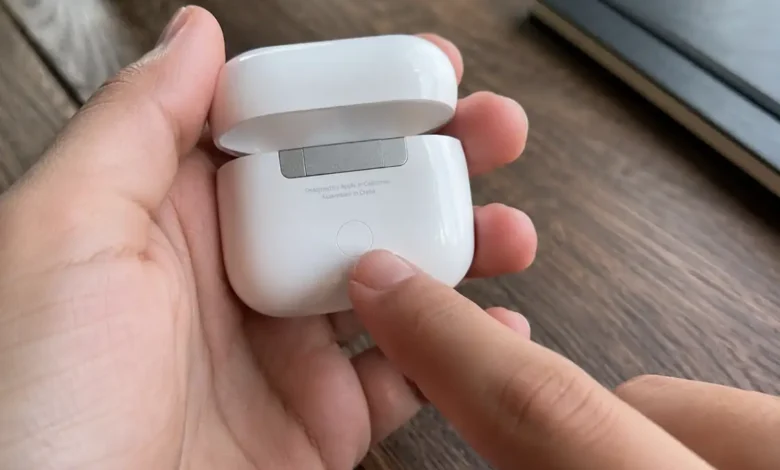
Step 4: Press and Hold the Setup Button
On the back of the case, press and hold the small round setup button. Hold it for about 15 seconds until the status light flashes amber a few times, then flashes white. That white flash confirms the reset went through.

Step 5: Re-Pair the AirPods
With the lid still open, bring the case close to your iPhone or iPad. A pairing card should pop up on screen. Tap “Connect” and follow the prompts. If the card doesn’t appear, go to Settings, Bluetooth, and tap the AirPods once they show up in the list of nearby devices.
How to Reset AirPods Max
AirPods Max don’t have a case with a setup button, so the reset process is different.
Step 1: Put AirPods Max in Standby or Wear Them
Make sure the headphones are powered on. You can wear them or just have them within reach.
Step 2: Hold the Noise Control Button and Digital Crown Together
Press and hold both the noise control button (the smaller button next to the Digital Crown) and the Digital Crown at the same time. Hold for about 15 seconds.
Step 3: Watch for the Light Flash
The status light near the Digital Crown will flash amber, then white, confirming the reset is complete.
Step 4: Reconnect to Your Device
Open Bluetooth settings on your iPhone, iPad, or Mac, forget the old AirPods Max entry if it’s still listed, then bring the headphones close to the device to trigger the pairing card.
What a Reset Actually Fixes
A reset clears the Bluetooth pairing profile stored between your AirPods and every device they’ve connected to. This solves problems like AirPods stuck showing as connected in Control Center but not playing sound, one AirPod working while the other stays silent, AirPods that won’t show up in the Bluetooth list at all, and audio that cuts out constantly even at close range.
It does not fix battery degradation, physical damage, or firmware bugs tied to a specific iOS or macOS version. If a reset doesn’t help, the issue is usually hardware or software-related rather than a pairing problem.
Resetting AirPods on a Windows PC or Android Phone
The reset steps above are the same no matter what device you’re reconnecting to, since the reset happens on the AirPods hardware itself, not inside iOS. On Windows, open Settings, Bluetooth and other devices, remove the old AirPods entry, then add a new device once the reset light flashes white. On Android, the process is nearly identical: remove the AirPods from your paired devices list first, then re-add them after the reset.
Keep in mind that AirPods lose some features outside Apple devices. Automatic ear detection, seamless device switching, and spatial audio only work fully with an iPhone, iPad, or Mac.
Still Not Working? What to Check Next
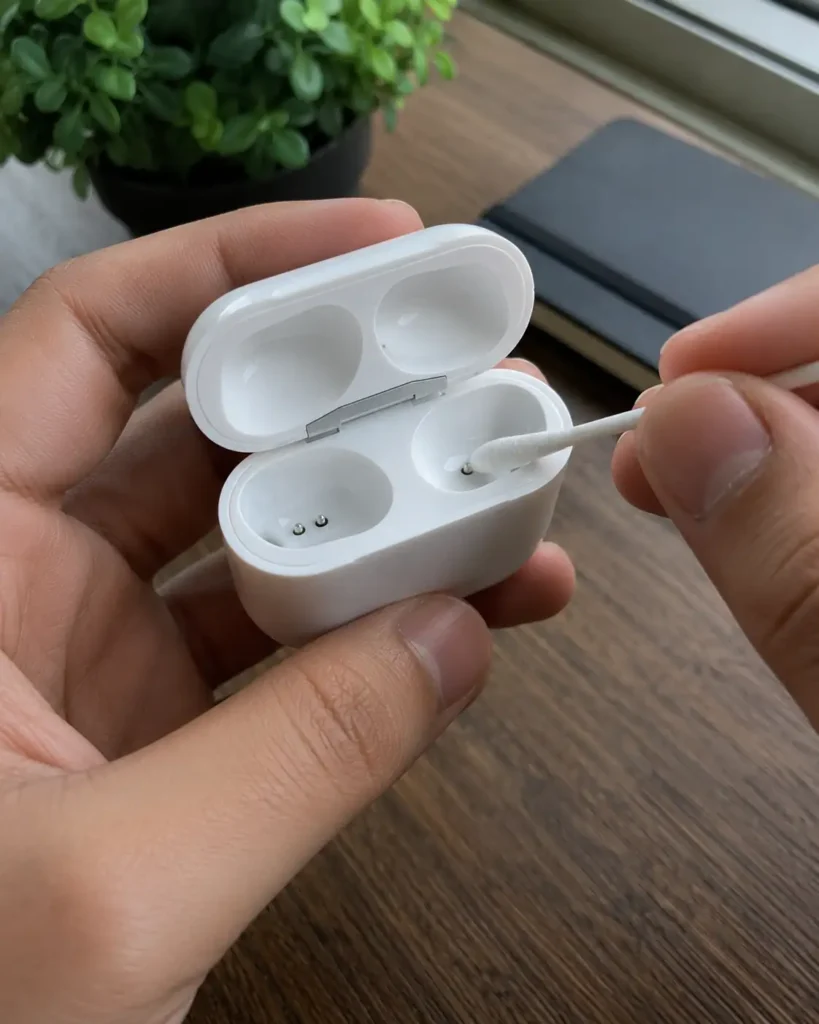
If your AirPods still won’t connect after a full reset, check a few more things before assuming the hardware has failed. Clean the charging contacts inside the case with a dry cotton swab, since dirt buildup is a common cause of charging and pairing issues. Confirm the case itself has charge, since a dead case can prevent the setup button from registering a press. Update your iPhone or Mac to the latest software version, since outdated Bluetooth stacks occasionally cause pairing failures.
If the AirPods are still under warranty or covered by AppleCare+, Apple’s support team can run diagnostics or arrange a repair. Devices older than a year with no coverage may be more cost-effective to replace than repair, depending on the specific issue.
A Quick Recap
Resetting AirPods takes under two minutes for every model Apple sells. Place both AirPods in the case, close the lid for 30 seconds, then hold the setup button until the light flashes white. AirPods Max use the Digital Crown and noise control button instead of a case button. Once the reset light confirms, reconnect through Bluetooth settings on whatever device you’re using, Apple or otherwise.